Adobe Alternatives in 2026: 9 Apps Compared
By ToolNimba Editorial Team October 31, 2026 10 min read

- Top pick
 Affinity by Canva
Full Photoshop replacement
Starting priceFreeCheck out Affinity by CanvaRead our review - Runner-up
 GIMP
Open source photo editing
Starting priceFreeCheck out GIMPRead our review - Also great
 Photopea
Browser PSD editing
Starting priceFreeCheck out PhotopeaRead our review
How we researched this
We compared official pricing and feature pages, app store listings, privacy policies and public user reviews. Prices change, so check the provider's site before you pay.
Key takeaways
- Affinity by Canva is the strongest free full replacement for many Photoshop users, with layered editing, RAW development and non destructive tools at no cost.
- Photopea is the best browser option when you need to open a PSD file quickly with no install, while GIMP suits users who want a fully open source editor.
- Canva remains the easiest choice for social graphics and templates, but it is not a direct replacement for detailed photo retouching.
- Pixelmator Pro and Capture One suit Mac users and studio photographers who want a focused, paid workflow rather than a subscription bundle.
- Check file compatibility before switching, especially for PSD, AI and InDesign files, because no single alternative matches every Adobe format perfectly.
Quick comparison
| Name | Best for | Starting price | Free plan | |
|---|---|---|---|---|
| Affinity by Canva | Full Photoshop replacement | Free | Yes | Visit |
| GIMP | Open source photo editing | Free | Yes | Visit |
| Photopea | Browser PSD editing | Free | Yes | Visit |
 Pixelmator Pro | Mac native editing | $49.99 one-time | No | Visit |
 Krita | Digital painting and illustration | Free | Yes | Visit |
 Canva | Social graphics and templates | Free | Yes | Visit |
 Inkscape | Free vector design | Free | Yes | Visit |
 darktable | Free RAW photo workflow | Free | Yes | Visit |
 Capture One | Studio RAW and tethered work | See website | Free trial | Visit |
The best Adobe alternatives
Adobe tools cover photo editing, vector design, layout, video and more, so no single alternative replaces the whole Creative Cloud bundle. The tools below each replace a clear part of that workflow, from Photoshop style editing to Illustrator style vector work and Lightroom style RAW processing. We compared official feature pages, pricing, file compatibility, platform support and public reviews.
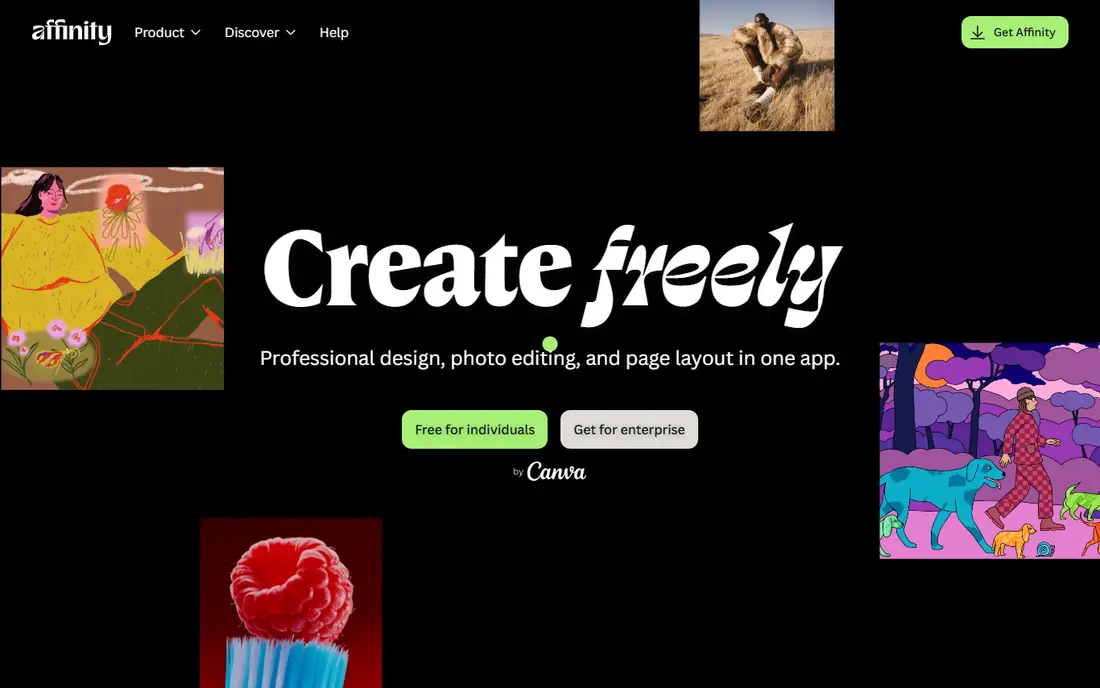
Affinity, now unified under Canva, is the closest free replacement for Photoshop for most users. It offers layered editing, masks, non destructive adjustments, RAW development, HDR merge and focus stacking in one app. The layout feels familiar to Photoshop users, which shortens the learning curve compared with open source editors.
The main conditions are a free Canva account and paid Canva Pro for some newer AI tools, but the core professional toolset is free. If you are leaving Adobe mainly over subscription cost, Affinity should be your first test. Export a few of your real PSD files first, because complex Photoshop specific effects may not transfer perfectly.
- Professional layered editing and RAW tools
- Free for individual use
- Photoshop style layout
- Some AI features need a paid Canva plan
- A free Canva account is required
GIMP has been the long standing free alternative to Photoshop, and it remains a strong choice for users who want full control with no account or subscription. It handles layers, masks, retouching and compositing, and its plugin community adds tools for many specialist jobs. Linux users in particular will find it well supported.
The learning curve is steeper, because menus, tools and terms do not always match Photoshop. PSD files open, but complex layer effects and smart objects may not survive the transfer. If you value open source software and are willing to relearn some habits, GIMP is a capable, permanent free editor.
- Free and open source with no account
- Deep plugin and script support
- Runs on Windows, Mac and Linux
- Interface and terms differ from Photoshop
- PSD compatibility is more limited
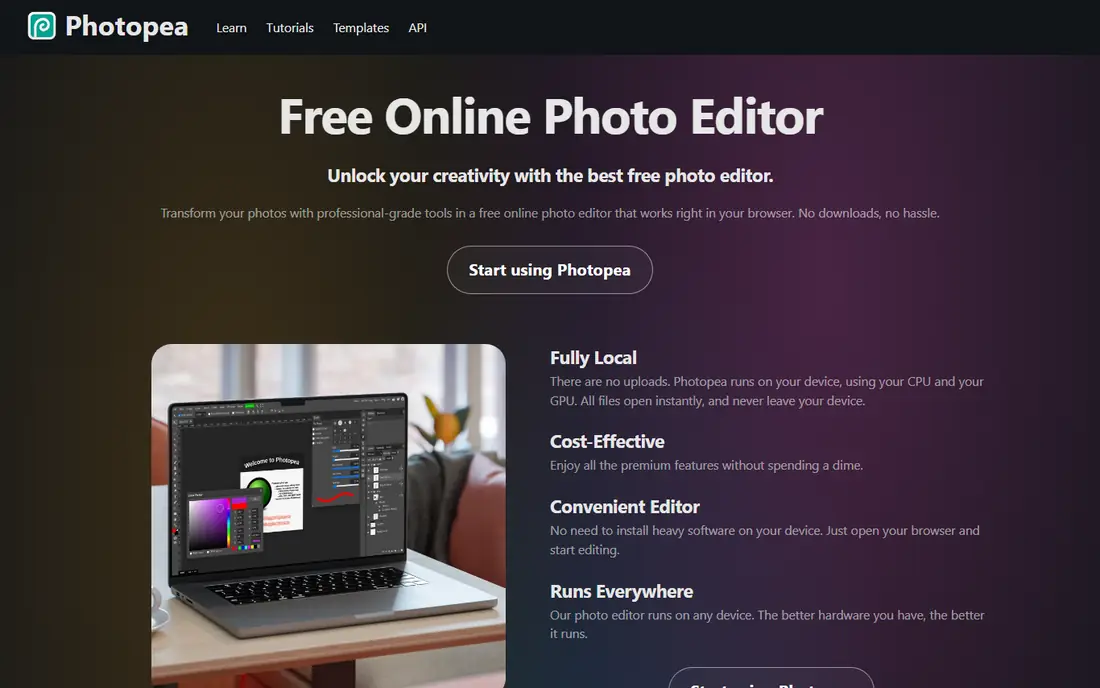
Photopea is the fastest way to edit a PSD file when you cannot or do not want to install software. Open the site, load the file, and you get a Photoshop like workspace with layers, masks and familiar shortcuts. That makes it ideal for school computers, borrowed machines, Chromebooks and quick client edits.
The free version is ad supported, and a paid premium tier removes ads and adds extra storage. Very large files may run slower than in a desktop editor, so Photopea is best for everyday edits rather than heavy studio work. For compatibility and convenience, it is hard to beat.
- Opens PSD files in a browser with no install
- Photoshop like menus and shortcuts
- Works on any desktop system
- Free version includes ads
- Large files can feel slower than desktop apps
Pixelmator Pro suits Mac users who want a polished, fast editor without a monthly subscription. It handles layered editing, RAW files, retouching and vector shapes in a clean interface that feels at home on macOS. The one time price of $49.99 makes long term costs easy to predict.
Windows and Linux users cannot use it, and its plugin range is smaller than older editors. If you work only on a Mac and want a native app that stays out of your way, Pixelmator Pro is an excellent Adobe alternative. Try it on your own photos before switching, since its workflow differs in small ways from Photoshop.
- Fast native Mac performance
- One time purchase with no subscription
- Strong photo and design tools
- Mac only
- Smaller plugin community than Photoshop or GIMP
Krita is not trying to be Photoshop, and that focus makes it better for artists. Its brush engine, stabilisers, layer tools and animation features suit digital painting, illustration and comic work. Many artists use it as their main drawing app, with a separate editor for photo work when needed.
Photo retouching is possible, but Krita lacks some of the automation and filter depth found in Photoshop or Affinity. If your main Adobe use is illustration rather than photography, Krita deserves a place at the top of your list. It is free, actively developed and well documented.
- Excellent brushes and painting tools
- Free and open source
- Good for illustration and comics
- Less focused on photo retouching
- PSD support is basic
Canva is the best Adobe alternative for people who design social posts, presentations, posters and simple marketing graphics rather than detailed photo edits. Templates, drag and drop editing and a large asset library let non designers produce clean work quickly. Teams can share brand colours, fonts and templates in one place.
It is not a Photoshop replacement for retouching, compositing or precise colour work. The free plan covers many basics, while Pro adds premium assets, background removal and vector export. Use Canva for fast design, and pair it with Affinity or Photopea when a photo needs serious editing.
- Huge template library
- Very easy for non designers
- Team sharing and brand tools
- Limited detailed photo retouching
- Some assets and exports need Pro
Inkscape is the natural free alternative to Adobe Illustrator for logos, icons, diagrams and print graphics. It works natively with SVG, offers strong path editing, node tools and text on path features, and it runs on Windows, Mac and Linux. For many vector jobs, it covers the core Illustrator workflow without cost.
Illustrator files open with limits, and very complex AI files may not transfer cleanly. The interface also takes some learning if you come from Adobe. If vector work is your main need and you want a free, open tool, Inkscape is the clear starting point, and it pairs well with Affinity for photo work.
- Free vector editing with SVG as its native format
- Good path and shape tools
- Runs on major desktop systems
- Interface feels less polished than Illustrator
- AI file support is partial
darktable replaces the Lightroom side of Adobe for photographers who shoot RAW files. It offers non destructive editing, lens corrections, colour grading and photo organisation in one free, open source app. Photographers who process many images in batches will appreciate its workflow tools.
It is not designed for heavy compositing or pixel level retouching, so most users pair it with GIMP, Affinity or Photopea for that work. The interface can feel dense at first, but the documentation and community help. If RAW processing is your main Adobe cost, darktable removes that cost entirely.
- Free RAW development and photo management
- Non destructive editing
- Strong colour tools
- Learning curve for new users
- Not a full Photoshop style compositor
Capture One is a professional choice for studio photographers who need reliable tethered shooting and precise colour control. It handles RAW files with care, offers session based organisation and gives photographers fine control over colour, detail and output. Many studios use it as their daily capture and editing tool.
The price reflects that professional focus, and it is not a general design app. If you shoot products, portraits or fashion in a studio, Capture One may justify its cost. If you only edit a few photos a month, Affinity or darktable will cover your needs for far less.
- Excellent RAW quality and colour tools
- Tethered shooting for studio work
- Strong session workflow
- Higher cost than free alternatives
- Less suited to general graphic design
How we picked these
We compared official feature pages, pricing pages, file format support, platform availability and public reviews. We looked for tools that are actively maintained in October 2026, genuinely free or fairly priced, and useful for a clear Adobe workflow such as photo editing, vector design or RAW processing. We did not claim hands on testing that we did not carry out, and we noted format limits where a switch could cause problems.
Switching from Adobe without losing your work
Before you cancel, export your key files in open formats and test them in the new tool. Save layered work as PSD where possible, keep original RAW files untouched, and export final designs as PNG, PDF or SVG depending on use. A short trial with real client or personal projects will reveal compatibility issues faster than any feature list.
Which alternative fits which Adobe app
Photoshop users should start with Affinity, Photopea or GIMP. Illustrator users should start with Inkscape or Affinity. Lightroom users should start with darktable or Capture One. Canva users who want more design speed can stay with Canva and add Affinity for photo detail. Mixing two free tools often covers more ground than one paid bundle.
Cost and subscription traps to avoid
Check whether a free plan limits exports, resolution or commercial use, and whether AI features sit behind a separate subscription. A tool that is free for viewing but paid for high resolution export may cost more than it first appears. Read the pricing page and terms before you rely on a tool for paid work.