Best 3D Modeling Software for 3D Printing in 2026: 10 Tools Compared
By ToolNimba Editorial Team October 30, 2026 10 min read

- Top pick
 Autodesk Fusion
Parametric product design
Starting priceFreeCheck out Autodesk FusionRead our review - Runner-up
 Blender
Organic and miniature models
Starting priceFreeCheck out BlenderRead our review - Also great
 Tinkercad
First models for beginners
Starting priceFreeCheck out TinkercadRead our review
How we researched this
We compared official pricing and feature pages, app store listings, privacy policies and public user reviews. Prices change, so check the provider's site before you pay.
Key takeaways
- Tinkercad is the fastest path to a first print, while FreeCAD and Fusion give you precise, printable parts that fit real hardware.
- Blender is the best free choice for organic shapes, miniatures, and cosplay parts, where sculpting matters more than exact dimensions.
- Browser tools such as Onshape suit low-spec computers and shared projects, but check document limits and privacy terms before you start.
- STL export is common, yet 3MF often keeps color and unit details in better shape, so check what your slicer accepts.
Quick comparison
| Name | Best for | Starting price | Free plan | |
|---|---|---|---|---|
| Autodesk Fusion | Parametric product design | Free | Yes | Visit |
| Blender | Organic and miniature models | Free | Yes | Visit |
| Tinkercad | First models for beginners | Free | Yes | Visit |
 FreeCAD | Free parametric CAD | Free | Yes | Visit |
 Onshape | Browser-based collaboration | Free | Yes | Visit |
 Shapr3D | Tablet and desktop CAD | Free | Yes | Visit |
 SketchUp | Quick concept models | Free | Yes | Visit |
 SOLIDWORKS for Makers | Maker-grade mechanical CAD | See website | No | Visit |
 Nomad Sculpt | Sculpting on tablet | See website | No | Visit |
 OpenSCAD | Code-defined parts | Free | Yes | Visit |
The best 3d modeling software for 3d printing
The right tool depends on the shape you want, the fit you need, and the device you have, so this list covers beginners, engineers, and sculptors.
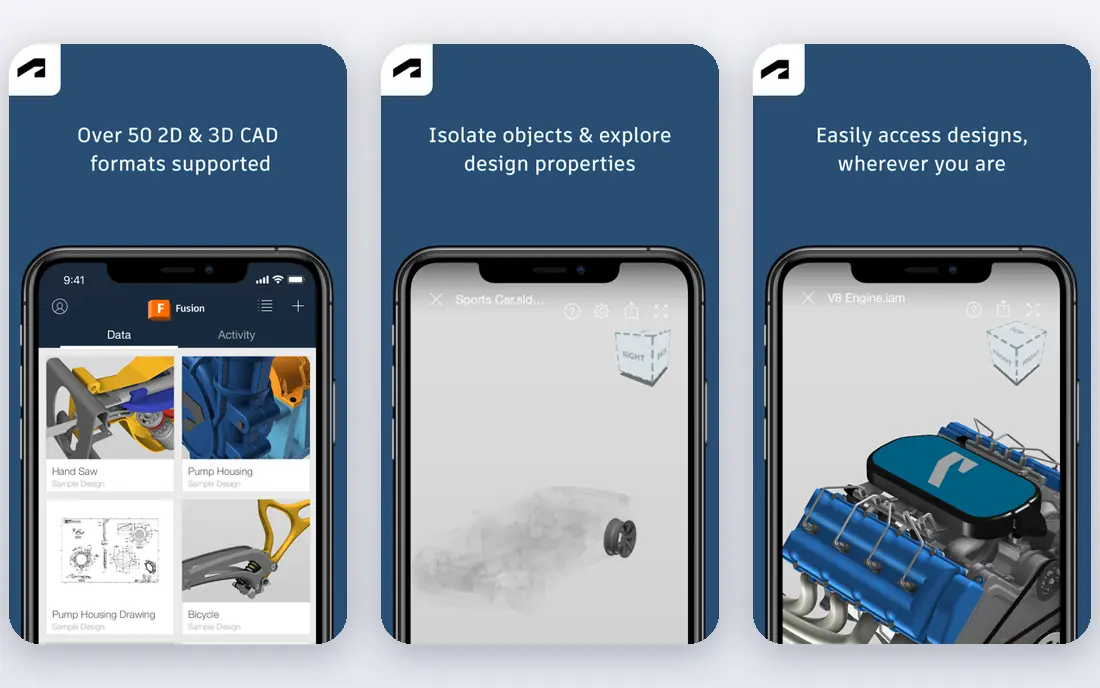
Fusion is our pick for people who want to design functional parts with real dimensions. You sketch a profile, set constraints, extrude it, and change one measurement later without rebuilding the whole model. That parametric habit pays off for brackets, enclosures, mounts, and parts that must fit screws, bearings, or existing hardware.
The free personal tier is useful but limited, with a cap on active editable documents and reduced access to some advanced tools. Hobbyists who stay within those limits get a professional-grade tool for no cost, while commercial users need a paid plan.
- Parametric sketches, assemblies, and drawings
- Clean STL and 3MF export
- Strong CAM and manufacturing tools on paid plans
- Free personal tier limits active documents
- Learning curve is steeper than Tinkercad
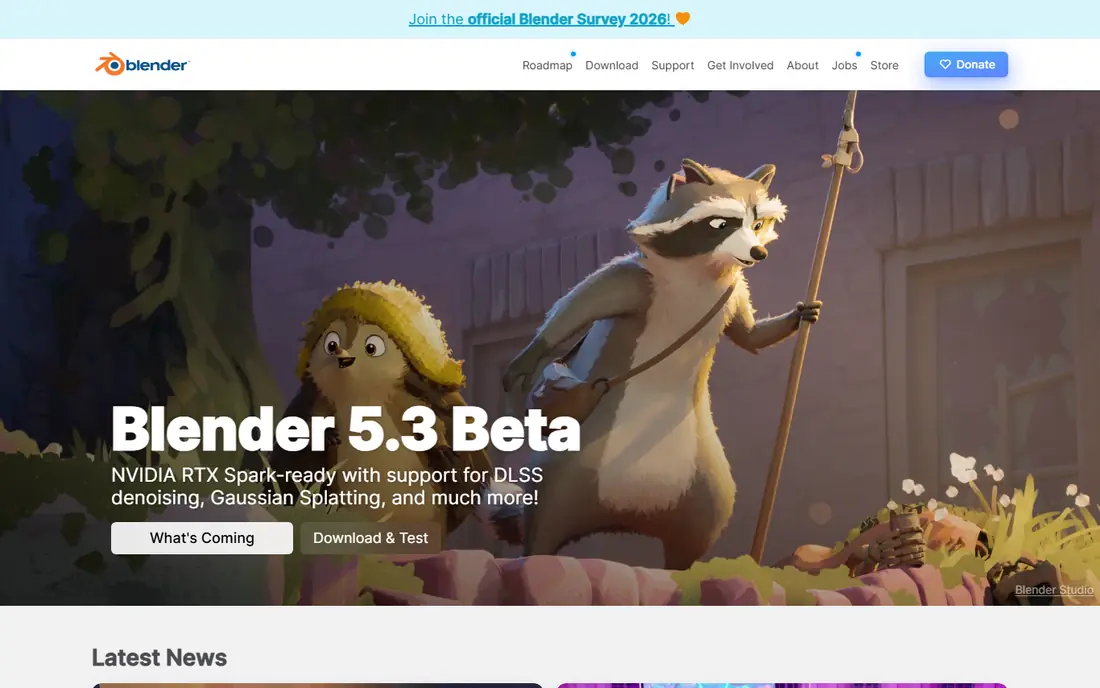
Blender is the tool most makers reach for when a model needs curves, faces, creatures, or surface detail. Sculpting brushes, mesh editing, and modifiers let you shape organic forms that CAD tools handle poorly. The free 3D Print Toolbox add-on helps check for non-manifold edges, thin walls, and other issues before you slice.
It is less natural for a bracket that must be exactly 42 millimeters wide with holes in exact spots. Many makers use Blender for art and a CAD tool for functional parts, and that pairing works well.
- Free and open source
- Strong sculpting and mesh editing
- 3D Print Toolbox add-on for checking models
- Not built for precise parametric CAD
- Interface can overwhelm new users
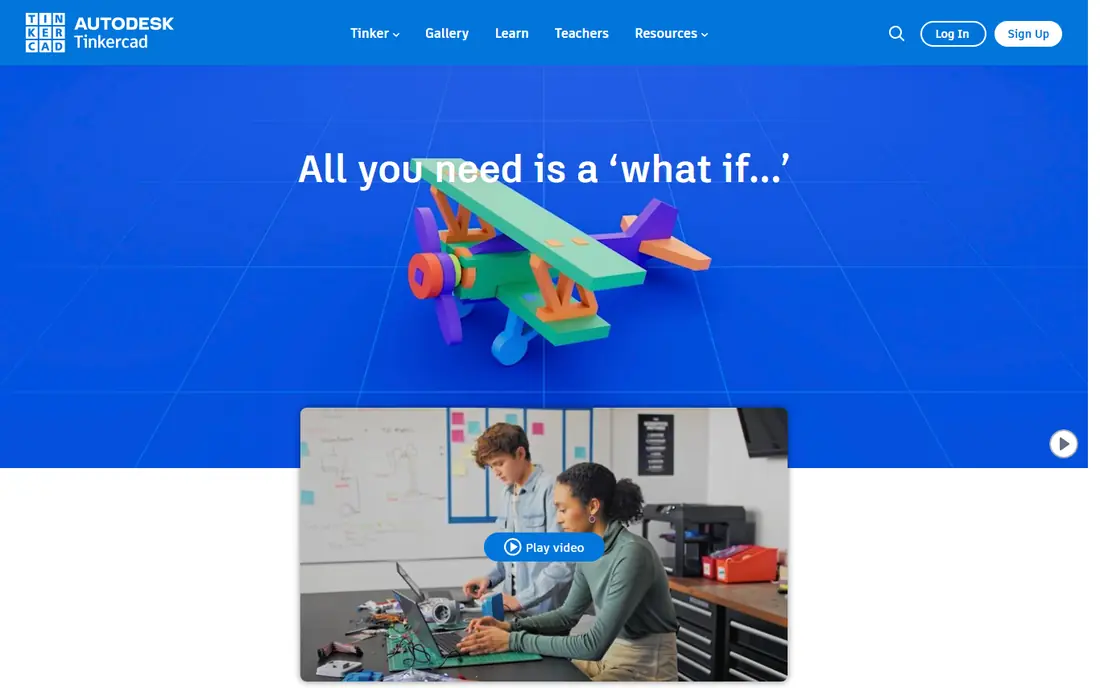
Tinkercad is the easiest way to go from an idea to a printed object in one sitting. You combine boxes, cylinders, and other shapes, group them, and export an STL file for your slicer. Kids, teachers, and new makers can build a phone stand, a keychain, or a simple enclosure without learning CAD terms first.
Its simplicity is also its ceiling. Once you need precise tolerances, threaded parts, or a model you can revise by changing one dimension, you will want to move to FreeCAD or Fusion. Treat Tinkercad as a strong starting point, not a final home for every project.
- Runs in a browser with no install
- Drag-and-drop shapes
- Direct STL export
- Limited precision and editing control
- Not suited to complex assemblies
FreeCAD is the best fully free option for mechanical work. It offers parametric sketches, part design, assemblies, and a spreadsheet workbench for driving dimensions from named values. That makes it a good fit for functional prints where fit matters and you want to revise a design without starting over.
New users should expect a little friction in the interface and in finding the right workbench for a task. The payoff is a tool with no document cap, no subscription, and files you control, which many makers prefer for long-term projects.
- Fully free and open source
- Parametric modeling with spreadsheets
- STEP and STL export
- Interface feels less polished than paid CAD
- Some workbenches have a learning curve
Onshape stands out for teams and classrooms that share models. It runs in a browser, keeps a clear version history, and lets several people work on the same design without passing files back and forth. That makes it useful on Chromebooks and older computers that would struggle with desktop CAD.
The free plan trade is important. Free documents are public, so it is not the right place for a commercial prototype you need to keep private. For learning, open projects, and collaboration, it is hard to beat.
- Full CAD in a browser
- Real-time collaboration and version history
- No install or heavy hardware needed
- Free plan documents are public
- Paid plans are needed for private commercial work
Shapr3D brings CAD to people who prefer drawing with a pencil on a tablet. You sketch, extrude, fillet, and shell parts with direct manipulation, and the app keeps the workflow fast for product and enclosure design. Desktop versions extend the same approach to a larger screen and keyboard.
The free tier lets you try the core workflow, but serious use usually needs the paid Pro plan. If you already design on an iPad, Shapr3D is one of the most natural CAD options available.
- Direct modeling with Apple Pencil and touch support
- Clean STEP and STL export
- Syncs across devices
- Pro features require a paid subscription
- Best experience is on supported tablets and desktops
SketchUp is a good fit for quick concepts, room layouts, and simple printable objects. The push-and-pull modeling style feels direct, and the free web version runs without an install. Many makers use it to test an idea before rebuilding it in a parametric tool.
For parts with tight tolerances, SketchUp needs more care, since it does not manage dimensions the way Fusion or FreeCAD do. STL export is available, and the tool works best when the model stays simple and the fit is not critical.
- Fast to learn for simple shapes
- Large library of models and extensions
- Free web version
- Lacks true parametric modeling
- Precision work needs care and paid features
SOLIDWORKS for Makers gives hobbyists access to a professional engineering workflow at maker pricing. Assemblies, mates, drawings, and parametric features support serious mechanical projects, from multi-part enclosures to moving mechanisms. The tutorial base is large, which helps when you move past basic parts.
Check the current maker license terms on the official site, since they set limits on commercial use and access. If you plan to learn CAD skills that transfer to engineering work, this is a strong investment.
- Professional mechanical CAD tools
- Assemblies and drawings
- Large maker community and tutorials
- Paid maker license with terms to check
- Heavier system needs than browser tools
Nomad Sculpt is the closest thing to clay modeling on a tablet. You push, pull, smooth, and paint a mesh with touch and stylus controls, which suits miniatures, busts, and organic props for resin and filament printers. Export to STL is straightforward, and the app price is modest next to desktop sculpting software.
It will not replace CAD for a mounting bracket, and detailed work benefits from a larger tablet. For artists who want to sculpt away from a desk, it is an excellent companion to Blender.
- Sculpting on iPad and Android tablets
- OBJ and STL export
- Low cost compared with desktop sculpting tools
- Not a parametric CAD tool
- Small screens can limit large assemblies
OpenSCAD suits makers who think in code. You write a script that defines shapes, holes, and dimensions, then render it to STL. Changing a parameter regenerates the part, which makes it ideal for parametric brackets, boxes, and customizable models shared on print repositories.
The trade is that you cannot grab and drag a shape the way you can in Fusion or Blender. Programmers tend to love the control and repeatability, while visual modelers may find it slow for one-off artistic work.
- Free and open source
- Designs defined by code and parameters
- Easy to share configurable models
- No direct mouse modeling
- Preview and rendering workflow takes practice
How we picked these
We compared official feature pages, pricing pages, and app store listings, along with public reviews and export documentation for STL, 3MF, and STEP support. We favored tools that are still maintained, export printable files, and fit a clear use case for beginners, engineers, or sculptors. We did not claim hands-on testing, and prices marked as See website reflect vendor pages with region or plan variations.
How to choose the right software for your print
Start with the shape, not the brand. If the part must fit a screw, a board, or a case, choose a parametric CAD tool such as Fusion, FreeCAD, or Onshape. If the model is a character, a mask, or a decorative piece, choose a sculpting tool such as Blender or Nomad Sculpt. That single choice prevents most frustration later.
Check export, wall thickness, and fit before slicing
Export in STL or 3MF, then run your slicer preview and look for thin walls, unsupported overhangs, and flipped faces. Print a small test piece for any part that must fit, since filament shrinkage and printer calibration change real dimensions. A test print costs little time compared with a full part that does not fit.
Match the tool to your computer and your time
Browser tools help on low-spec machines, while Blender and Fusion benefit from a stronger CPU and GPU on large models. Also be honest about learning time. A week with Tinkercad or FreeCAD teaches core ideas that transfer to other tools, while jumping straight to a pro tool can stall a first project.