Best AI Photo Restoration Tools in 2026: 9 Tools Compared
By ToolNimba Editorial Team October 30, 2026 11 min read

- Top pick
 Remini
Fast face and photo enhancement
Starting priceSee websiteCheck out ReminiRead our review - Runner-up
 MyHeritage
Family archives and genealogy
Starting priceSee websiteCheck out MyHeritageRead our review - Also great
 Topaz Photo AI
High-quality desktop enhancement
Starting priceSee websiteCheck out Topaz Photo AIRead our review
How we researched this
We compared official pricing and feature pages, app store listings, privacy policies and public user reviews. Prices change, so check the provider's site before you pay.
Key takeaways
- Remini is our pick for most people, because it fixes faces and blur fast on a phone, while Topaz Photo AI suits large albums and print-quality work.
- MyHeritage is the best choice for family archives, since restoration sits next to family trees, colorization, and sharing tools.
- One-click tools can invent facial details, so always compare the result with your original scan before you print or share it.
- Scan at high resolution first, because no AI tool can recover detail that was never in the scan.
- Free tiers help you test a tool, but check watermarks, export limits, and privacy terms before you upload precious family photos.
Quick comparison
| Name | Best for | Starting price | Free plan | |
|---|---|---|---|---|
| Remini | Fast face and photo enhancement | See website | Yes | Visit |
| MyHeritage | Family archives and genealogy | See website | Yes | Visit |
| Topaz Photo AI | High-quality desktop enhancement | See website | No | Visit |
 VanceAI | Online scratch and damage repair | See website | Yes | Visit |
 Fotor | Quick browser restoration | Free | Yes | Visit |
 PicWish | Simple restoration by damage type | Free | Yes | Visit |
 Photomyne | Scanning and organizing photo collections | See website | Yes | Visit |
 Adobe Photoshop | Full manual plus AI repair control | See website | Free trial | Visit |
 Luminar Neo | Desktop restoration and finishing | See website | Free trial | Visit |
The best AI photo restoration tools
Old photos fail in different ways. Some are faded, some are scratched, some are blurry, and some have torn corners or missing pieces. The tools below handle those problems differently, so match the tool to the damage, and start with a good scan before you spend money.
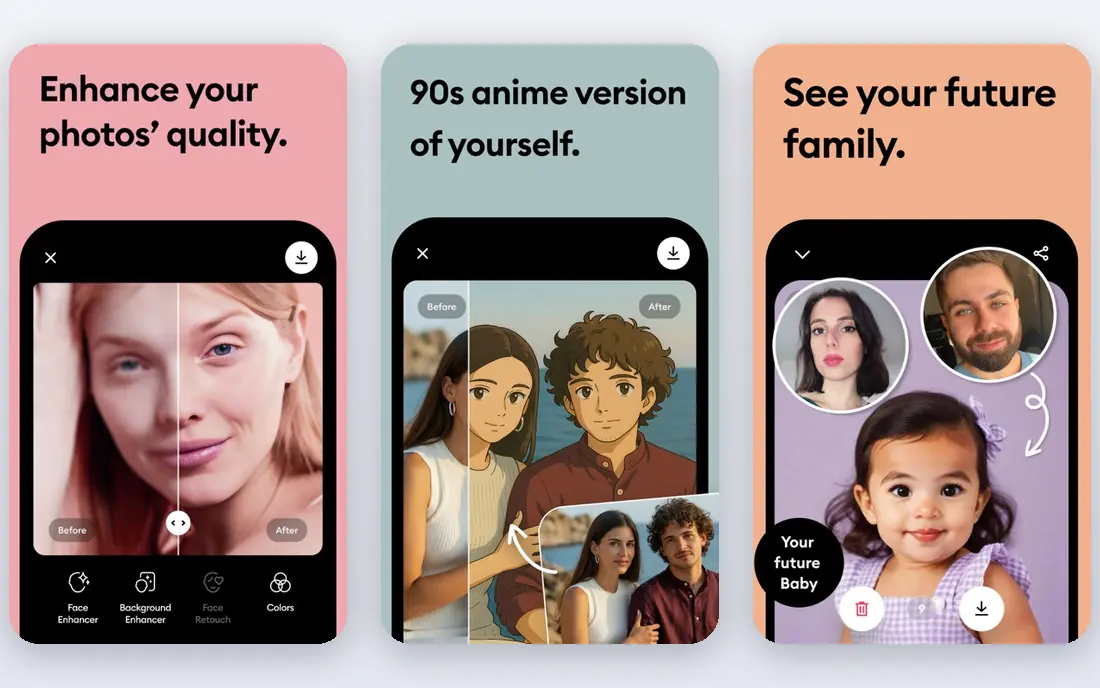
Remini is the fastest way to see whether an old photo can be saved, and it is our pick for most people. Upload a faded portrait, and its old-photo tools sharpen faces, clean noise, fix color, and enlarge the image in a few taps. That speed makes it ideal for testing a batch of family photos before you commit to a paid plan or a desktop tool.
The catch is restraint. At full strength, face enhancement can change features, smooth skin, and make a person look different from the original. Run the result at a lower strength when the face looks too perfect, and keep the original scan untouched. Remini works best as a first pass, with a careful comparison before you print the result for family.
- Strong face enhancement for old portraits
- Fast mobile and web workflow
- Old-photo restorer, denoise, and color tools in one place
- Heavy enhancement can smooth skin too much
- Free use comes with ads and limits

MyHeritage suits a different job from Remini, because restoration is only part of the point. You can enhance a photo, colorize a black-and-white portrait, and place it in a family tree where relatives can see the names, dates, and stories behind it. That context matters when you are working through a whole archive rather than fixing one image.
The trade-off is cost and scope. Full photo features require a subscription, and the free tier is limited, so check the current plan page before you upload a large album. If your goal is a shared family archive, the tree, records, and sharing tools justify the cost. If you only need one photo fixed, a free tool or a single-month plan will do the job for less.
- Photo enhancement and colorization next to family trees
- Easy sharing with relatives
- Animation features for portraits
- Best photo features sit inside a subscription
- Free results may carry a watermark
Topaz Photo AI is the choice for quality over speed, especially when you plan to print restored photos. It runs on your computer rather than in a browser, and it combines denoise, sharpening, face recovery, and upscaling in one desktop app. Batch processing makes it practical for working through dozens or hundreds of scans without uploading each one.
The cost is higher than a mobile app, and the interface takes time to learn. You also need a computer that can handle large images, or batches will run slowly. For a single phone photo, Remini is faster. For an album you want to print, archive, or restore to a high standard, Topaz gives you more control and more consistent results.
- Local desktop processing
- Denoise, sharpening, face recovery, and upscaling
- Batch workflows for large albums
- Paid desktop software with a learning curve
- Needs a capable computer for large batches
VanceAI is built for the classic restoration job: a scanned print with scratches, fading, and color loss. Its old-photo tool targets that damage directly, rather than treating every photo as a general enhancement task. You can also denoise, sharpen, upscale, and colorize, which covers most of what a family archive needs.
Free use is limited by credits, so test it on your worst photo first, not your easiest one. If the result looks good, a paid plan makes sense for a batch. If the damage includes tears or missing areas, expect to finish the job in a manual editor, since no one-click tool can rebuild a missing face or a torn corner with certainty.
- Dedicated old-photo restorer
- Scratch removal, colorization, denoise, and upscaling online
- Windows app option
- Free credits are limited
- Heavy damage may still need manual repair
Fotor is a good middle ground for people who want a quick browser fix without installing software. Upload a photo, run the old-photo repair, and then use the same editor to crop, adjust color, and prepare the image for sharing or printing. That simple flow suits casual users who only restore photos now and then.
The limits show up on hard cases. Fotor handles light fading, scratches, and blur well, but it will not match Topaz or Photoshop for severe damage or print work. Check the free export terms before you start, since watermark rules can affect whether a free result is usable. For a fast, low-cost pass over a family album, Fotor is hard to beat.
- Fast online repair for faded and scratched photos
- Simple editor for crops and color fixes
- No software to install
- Free exports may carry a watermark
- Less control than desktop software
PicWish stands out for clarity about the job. Instead of one vague enhance button, it offers restoration paths for different kinds of damage, which helps you pick the right tool for a scratched print, a blurry portrait, or a faded color photo. The web and mobile apps make it easy to work from a phone or a computer.
As with most free tools, limits apply, so test your hardest photos before you rely on it for a whole album. PicWish is best for straightforward restoration and quick sharing, not for museum-grade repair. Pair it with a manual editor when a photo has tears, stains, or missing sections that AI alone cannot resolve.
- Clear options for repair, clarity, and colorization
- Web and app access
- Batch options for albums
- Free use has limits
- Results vary by photo type, so test before a large batch
Photomyne solves the step before restoration, which is getting physical photos into digital form. Its mobile scanning can capture several photos at once, crop them automatically, and organize them into albums. Once scanned, you can enhance, colorize, add captions, and share albums with family.
That workflow is ideal if you have boxes of prints and no scans yet. It is less useful if your photos are already scanned, since you may only need a restoration tool. Check the subscription terms, since full album features require a paid plan. Start with a small album to test scan quality, then work through the rest in batches.
- Multi-photo scanning with automatic cropping
- Album organization, captions, and sharing
- Enhancement and colorization built in
- Best value comes from scanning whole albums
- Subscription needed for full features
Photoshop is the tool to use when an AI-only result is not good enough. Neural Filters can clean noise and sharpen faces, while generative fill can rebuild missing areas, remove objects, and repair tears with more control than a one-click app. You can also mask edits, so you enhance a face without smoothing the whole photo.
That power comes with cost and effort. Photoshop requires a subscription, and the interface takes time to learn. It is the right choice for a precious photo, a print project, or a damaged image with missing pieces. For everyday scans, run a free tool first, then bring only the photos that need manual work into Photoshop.
- Neural Filters and generative fill for tears and missing areas
- Full manual control over every edit
- Industry-standard output
- Steep learning curve
- Subscription cost
- Overkill for a single quick fix
Luminar Neo fits photographers who want restoration plus finishing in one desktop app. Its AI tools handle enhancement, denoise, sharpening, and portrait fixes, while masking and layers let you target edits to faces, backgrounds, or damaged areas. That control makes it a strong step up from a browser tool without the full complexity of Photoshop.
The trade-off is focus. Luminar Neo is a general photo editor, so its restoration workflow is less specialized than VanceAI or Topaz. It suits users who already edit photos and want one app for restoration and final polish. Try the trial on your own scans, and check current pricing, since plans and included features change.
- AI enhancement, denoise, and portrait tools on desktop
- Object removal and masking
- Layers and plugin workflows
- Restoration is part of a broader editor, not its only job
- Paid plans vary by version
How we picked these
We compared official feature pages, pricing pages, app store listings, and public reviews for tools that restore old photos. We favored tools that handle real damage types, such as scratches, fading, blur, and color loss, and that offer a clear free trial or free tier where stated. We left out tools with no official homepage, tools that only upscale new photos, and tools that claim to repair file corruption rather than visual damage.
How to restore old photos without ruining them
Start with the scan, because restoration cannot add detail that is missing. Scan prints at 600 dpi or higher when you can, save the original scan in a separate folder, and never overwrite it. Work on a copy, so you can always return to the untouched original if an AI result looks wrong.
Next, match the tool to the damage. Use a face tool for portraits, a scratch tool for damaged prints, and a manual editor for tears or missing areas. Run enhancements at moderate strength, compare the face with the original, and label colorized versions as colorized, since AI guesses colors rather than recovering them. Save a mid-stage version as well as the final file, so you have a fallback at each step.
Finally, think about privacy before you upload family photos. Read the privacy terms, avoid uploading photos of living people to tools you do not trust, and delete uploads where the service allows it. For sensitive archives, a desktop tool such as Topaz or Photoshop keeps more of the work on your own computer.