Best Coding Software in 2026: 9 Tools Compared
By ToolNimba Editorial Team October 30, 2026 11 min read

- Top pick
 Visual Studio Code
Most beginners and pros
Starting priceFreeCheck out Visual Studio CodeRead our review - Runner-up
 Cursor
AI-assisted coding
Starting priceFreeCheck out CursorRead our review - Also great
 PyCharm Community
Python developers
Starting priceFreeCheck out PyCharm CommunityRead our review
How we researched this
We compared official pricing and feature pages, app store listings, privacy policies and public user reviews. Prices change, so check the provider's site before you pay.
Key takeaways
- Visual Studio Code is the best starting point for most learners, because it is free, runs on Windows, Mac, and Linux, and supports almost every language.
- AI tools such as Cursor and GitHub Copilot speed up coding, but beginners should still practice writing code without AI help each week.
- Python beginners gain from Thonny or PyCharm Community, Java and Kotlin developers gain from IntelliJ IDEA, and Android developers need Android Studio.
- Speed-focused developers should test Zed, while Sublime Text suits people who want a fast, simple editor with a one-time license.
- Replit suits learners who want zero setup, because it runs in a browser and lets you share a project with a link.
Quick comparison
| Name | Best for | Starting price | Free plan | |
|---|---|---|---|---|
| Visual Studio Code | Most beginners and pros | Free | Yes | Visit |
| Cursor | AI-assisted coding | Free | Yes | Visit |
| PyCharm Community | Python developers | Free | Yes | Visit |
 IntelliJ IDEA Community | Java and Kotlin developers | Free | Yes | Visit |
 Sublime Text | Fast, simple editing | See website | Free trial | Visit |
 Zed | Speed and collaboration | Free | Yes | Visit |
 Replit | Browser-based learning | Free | Yes | Visit |
 Android Studio | Android app development | Free | Yes | Visit |
 Thonny | Absolute Python beginners | Free | Yes | Visit |
The best coding software
Coding software ranges from a simple editor to a full development environment with debugging, testing, and AI help. Start here. The best choice depends on your language, your computer, and whether you are learning or shipping work. We compared official feature pages, pricing pages, documentation, and public reviews, and we kept tools that are available now and fit beginners as well as working developers.
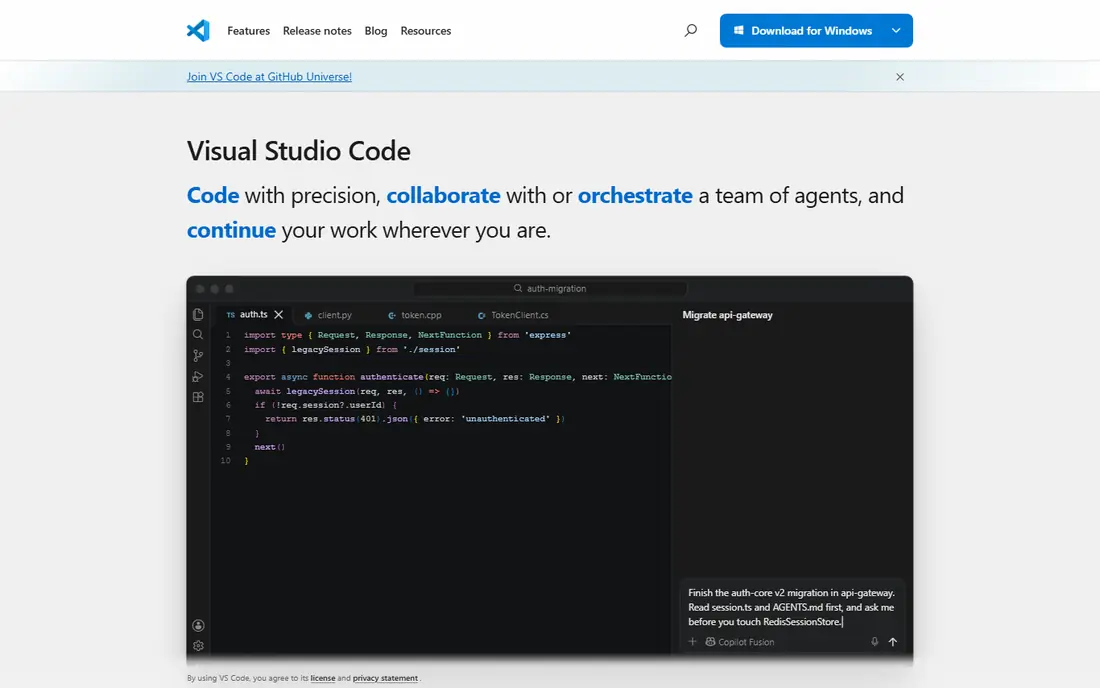
Visual Studio Code, often called VS Code, is the safe default for most people learning to code. It is free, it runs on every major desktop system, and its extension marketplace adds support for Python, JavaScript, Java, C++, Go, Rust, and many other languages. Built-in Git support, a debugger, and a terminal in the same window help learners move from writing code to running and fixing it without switching tools.
The catch is choice. Out of the box, VS Code is an editor, not a full setup for every language, so you need to install the right extension and, for some languages, a compiler or runtime. That setup is well documented, and most tutorials assume VS Code, which makes help easy to find. If you are unsure where to start, start here and add tools only when a project needs them.
- Free on Windows, Mac, and Linux
- Huge extension marketplace
- Strong Git, debugging, and remote development support
- Needs extensions for full language support
- Setup can confuse absolute beginners
- AI features need a separate plan or extension
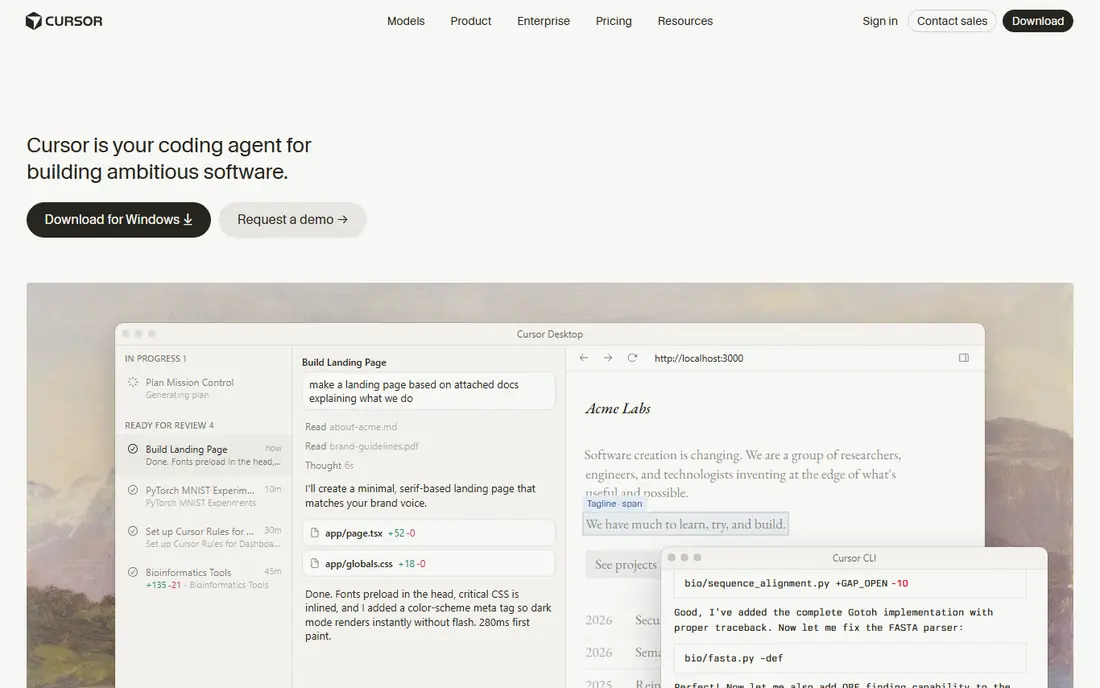
Cursor is an AI-native editor built on a VS Code-style base, and it suits developers who already use AI help daily. Its agent mode can read a codebase, plan a change, edit several files, run tests, and explain what it did, which speeds up routine work and refactoring. Tab completion, chat, and agent windows sit inside the editor, so you do not need to copy code to a separate chat tool.
Pricing needs care. Cursor offers a free Hobby plan with limited agent requests, while Individual paid plans start at 20 dollars per month, with higher tiers for heavier use. Usage is metered by model and task, so a heavy month can cost more than the base fee. Beginners can learn from Cursor explanations, but they should also write code without AI help, or they may struggle when AI is not available.
- AI agent can plan and edit across files
- Familiar VS Code-style interface
- Model choice for different tasks
- Paid plans meter AI usage
- Heavy AI use can cost more than the headline price
- Beginners may lean on AI too early
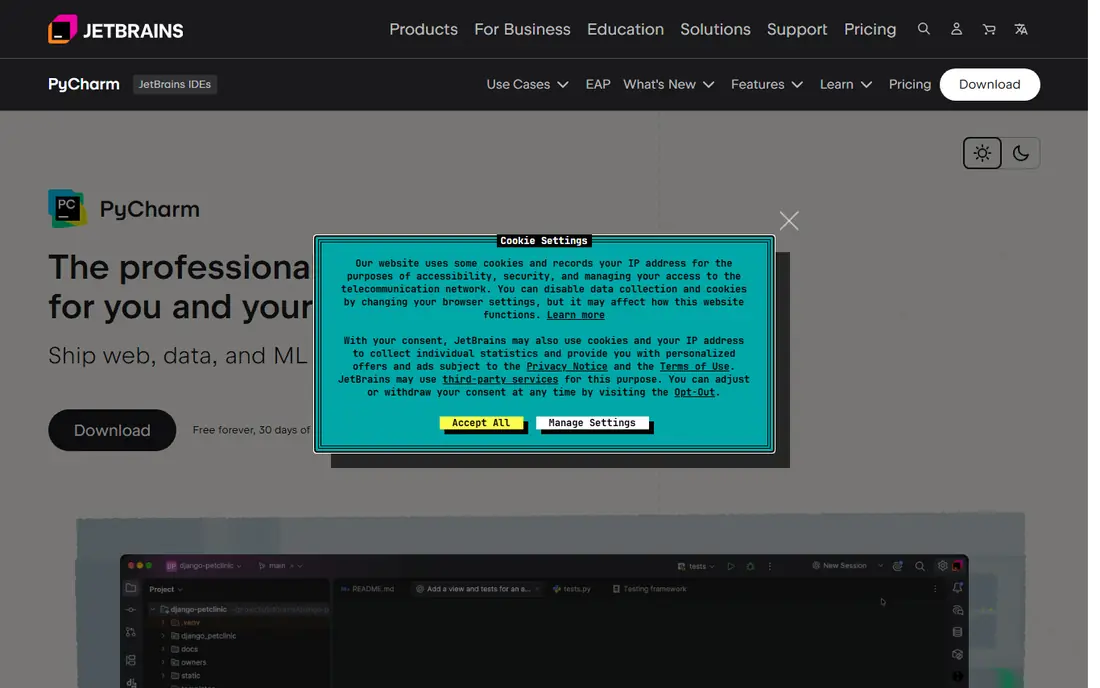
PyCharm Community is the best free IDE for serious Python work. It understands Python code deeply, flags errors early, helps with refactoring, and includes a debugger and test tools that work without extra setup. For learners moving from small scripts to larger Python projects, that depth saves time and teaches good habits.
The trade-off is weight and scope. PyCharm uses more memory than VS Code, and it focuses on Python, so it is less useful for a mixed-language project. The Community edition is free and covers core Python, while the Professional edition adds web frameworks, database tools, and scientific tools for a subscription fee. Start with Community, and only pay when a project needs those extras.
- Deep Python support with smart code help
- Built-in debugger and test runner
- Strong support for Django and Flask in paid edition
- Heavier than VS Code on older computers
- Full web framework tools need the paid Professional edition
IntelliJ IDEA Community is the standard free choice for Java and Kotlin developers. It offers smart code completion, safe refactoring, deep debugging, and build tool support that helps learners and professionals handle larger Java projects with confidence. Kotlin support is strong too, which matters for Android and server-side Kotlin work.
Like PyCharm, it is heavier than a light editor, and the free Community edition omits some enterprise tools. Spring Framework support, advanced web tools, and database tools sit in the paid Ultimate edition. For a Java course, a Kotlin project, or a first professional Java job, Community is enough, and VS Code with Java extensions is a lighter alternative if your computer struggles.
- Best-in-class Java and Kotlin support
- Smart refactoring and debugging
- Strong Gradle and Maven integration
- Heavy on low-spec computers
- Spring and enterprise tools need the paid Ultimate edition
Sublime Text suits developers who value speed and simplicity over an all-in-one environment. It opens large files quickly, handles many tabs without slowing down, and offers a clean interface with powerful search, multi-cursor editing, and a package system for extra languages. Writers and developers who edit code, config files, and notes in one tool often keep it open all day.
It is an editor, not a full IDE. There is no built-in debugger, terminal, or project runner, so you add those through packages or use a separate terminal. Sublime Text can be evaluated for free, with occasional purchase reminders, and a license is a one-time purchase rather than a subscription. Check the current license price on the vendor site before you buy.
- Very fast startup and file handling
- Clean, distraction-free interface
- Works on Windows, Mac, and Linux
- No built-in debugger or terminal
- Paid license needed for continued use
- Fewer AI features than newer editors
Zed is a newer editor built for speed. It starts fast, scrolls smoothly, and handles large projects without the lag that heavier editors can show on modest hardware. Built-in collaboration lets teammates edit the same project in real time, and the interface stays simple, which helps learners who feel lost in a crowded IDE.
The ecosystem is the limit. Zed has fewer extensions than VS Code, and support for some languages and frameworks is still maturing. Personal use is free, with your own API keys or external agents, while Zed Pro costs 10 dollars per month and adds hosted AI features. If speed matters most and your stack is well supported, Zed is worth a week of real work before you judge it.
- Very fast native performance
- Built-in collaboration and shared editing
- Clean modern interface
- Smaller extension ecosystem than VS Code
- Some language support is still maturing
Replit is the best coding app for learners who do not want to install anything. You open a browser, pick a language, and start coding at once, with the editor, terminal, and runner in one page. Teachers can share a project with a link, students can fork it, and beginners can see results without fighting installers, paths, or compiler setup.
The free tier has resource limits, and Replit needs an internet connection, so it is not a full replacement for a desktop IDE for large work. Paid plans add more resources, AI features, and deployment options. For a first course, a coding club, or a quick prototype, Replit removes the setup barrier that stops many beginners. Move to VS Code when projects grow or offline work matters.
- Zero setup in a browser
- Runs many languages
- Easy sharing and classroom use
- Free tier limits on resources
- Needs internet
- Less suited to large professional projects
Android Studio is the required tool for most Android developers, and it is free. It is built on IntelliJ IDEA and adds an Android emulator, a visual layout editor, Gradle build tools, and device testing that general editors do not match. Kotlin is the main language, with Java support for older projects, and Google documentation assumes this IDE.
The cost is system load. Android Studio needs a modern computer, plenty of memory, and disk space for SDKs and emulator images, so it can feel slow on an older laptop. It is also a poor general editor for web or Python work. Choose it when you build Android apps, and use VS Code or IntelliJ for other languages alongside it.
- Official Android IDE from Google
- Emulator, layout editor, and build tools included
- Strong Kotlin support
- Heavy download and system needs
- Focused on Android, not general coding
Thonny is built for people writing Python for the first time. It bundles Python, so you do not need to install a separate interpreter, and its visual debugger steps through code line by line, showing variables and calls as they change. That clarity helps beginners understand loops, functions, and errors in a way that a busy IDE can hide.
Thonny is not a long-term tool for large work. It lacks the refactoring, testing, and extension depth of PyCharm or VS Code, and it focuses on Python alone. Use it for a first Python course, then move to VS Code with the Python extension or PyCharm Community when projects grow beyond single files. That path keeps early learning simple without trapping you in a beginner tool.
- Bundles Python with no complex setup
- Visual debugger shows each step
- Simple interface for first-time coders
- Too simple for large projects
- Limited extension and language support
How we picked these
We reviewed official feature and pricing pages, documentation, and public reviews for editors, IDEs, and learning apps that are available now. We favored free tools for beginners, plus AI tools that readers ask about, and we kept a mix of general editors and language-specific IDEs so the list covers web, Python, Java, Kotlin, and Android work. We did not claim hands-on testing, and we did not invent user counts, ratings, or prices. Where a vendor price could not be verified from its own page, we wrote See website.
How to choose your first coding tool
Match the tool to the language
Python learners do well with Thonny, PyCharm Community, or VS Code. Java and Kotlin learners do well with IntelliJ IDEA Community. Android developers need Android Studio. Web learners do well with VS Code. A general editor can cover many languages, but a language-specific IDE gives deeper help for that language.
Start free, then pay for a clear need
Free tools in this list cover most learning and much professional work. Pay only when a paid feature solves a real problem, such as AI agent help, advanced web tools, or more Replit resources. A subscription that you do not use daily is a cost, not a skill.
Practice without AI, even if you use AI daily
AI completion and agents help you ship faster, but they can hide gaps in understanding. Do at least one practice session each week without AI help, write code from memory, and read error messages yourself. That habit keeps your skills strong when AI suggestions are wrong or unavailable.