Best Data Recovery Software in 2026: 9 Tools Compared
By ToolNimba Editorial Team October 30, 2026 9 min read

- Top pick
 Disk Drill
Most home users
Starting price$89Check out Disk DrillRead our review - Runner-up
 EaseUS Data Recovery Wizard
Beginners who want guided recovery
Starting price$69.95 per monthCheck out EaseUS Data Recovery WizardRead our review - Also great
 Stellar Data Recovery
Photo and video recovery with repair
Starting price$59.99 per yearCheck out Stellar Data RecoveryRead our review
How we researched this
We compared official pricing and feature pages, app store listings, privacy policies and public user reviews. Prices change, so check the provider's site before you pay.
Key takeaways
- Disk Drill is our pick for most home users because it is guided, lets you preview files, and can image a drive before scanning.
- Stop using the affected drive at once, since new writes can overwrite the files you are trying to recover.
- Free tools such as Recuva and PhotoRec cover simple cases, while paid tools add preview, repair, and RAID support.
- Physically failing drives need a professional lab, not software, especially if the drive makes unusual noises.
Quick comparison
| Name | Best for | Starting price | Free plan | |
|---|---|---|---|---|
| Disk Drill | Most home users | $89 | Yes | Visit |
| EaseUS Data Recovery Wizard | Beginners who want guided recovery | $69.95 per month | Yes | Visit |
| Stellar Data Recovery | Photo and video recovery with repair | $59.99 per year | Yes | Visit |
 Recuva | Quick free recovery on Windows | Free | Yes | Visit |
 R-Studio | IT professionals and RAID recovery | $79.99 | Free trial | Visit |
 PhotoRec | Free recovery for tech-savvy users | Free | Yes | Visit |
 Wondershare Recoverit | Corrupted video and media recovery | $59.99 per year | Yes | Visit |
 DMDE | Low-cost advanced recovery | $20 | Yes | Visit |
 Tenorshare 4DDiG | Media recovery on Windows and Mac | $45.95 per month | Free trial | Visit |
The best data recovery software
Data loss is stressful, and the first hour matters more than the software brand. Deleted files often remain on a disk until new data overwrites them, so the right move is to stop writing to that drive and scan a copy or image when possible. We compared free and paid tools for PC, Mac, external drives, and memory cards, with a focus on free limits, preview, and the cases each tool handles best.

Disk Drill is the tool we would hand to someone who has never recovered files before. You pick a drive, run a scan, preview what it found, and recover only the files you need. The interface stays in plain language, which helps when you are stressed about lost photos or work files.
The free tier covers only a limited amount of recovery, so a full photo library will need the paid version. Deep scans on large drives can also take hours, so start the scan early and avoid writing new files to the same drive while it runs.
- Clean guided interface
- Preview before recovery
- Byte-to-byte disk backup option
- Free recovery is capped at a small amount
- Deep scans can take a long time
EaseUS Data Recovery Wizard
Best for: Beginners who want guided recovery
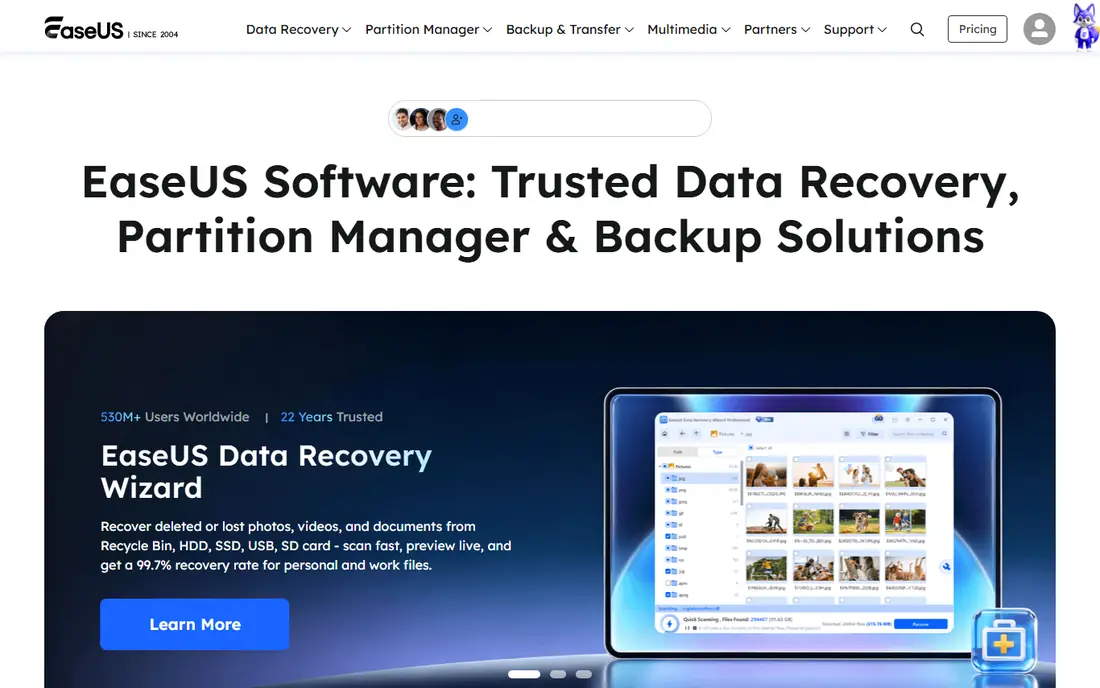
EaseUS Data Recovery Wizard guides you through each step, from choosing a drive to filtering results by file type. That structure helps when you are not sure whether files were deleted, formatted, or lost after a partition problem. The free allowance is larger than many rivals.
The monthly price is steep if you only need one recovery, so check the yearly option if you expect to use it more than once. Recovery success still depends on whether new data has overwritten the old files, so stop using the affected drive as soon as you notice a loss.
- Step-by-step recovery flow
- Up to 2GB free recovery in listings
- Supports many file types
- Monthly price is high for one-time use
- Yearly plan may be better value for repeat needs
Stellar Data Recovery
Best for: Photo and video recovery with repair
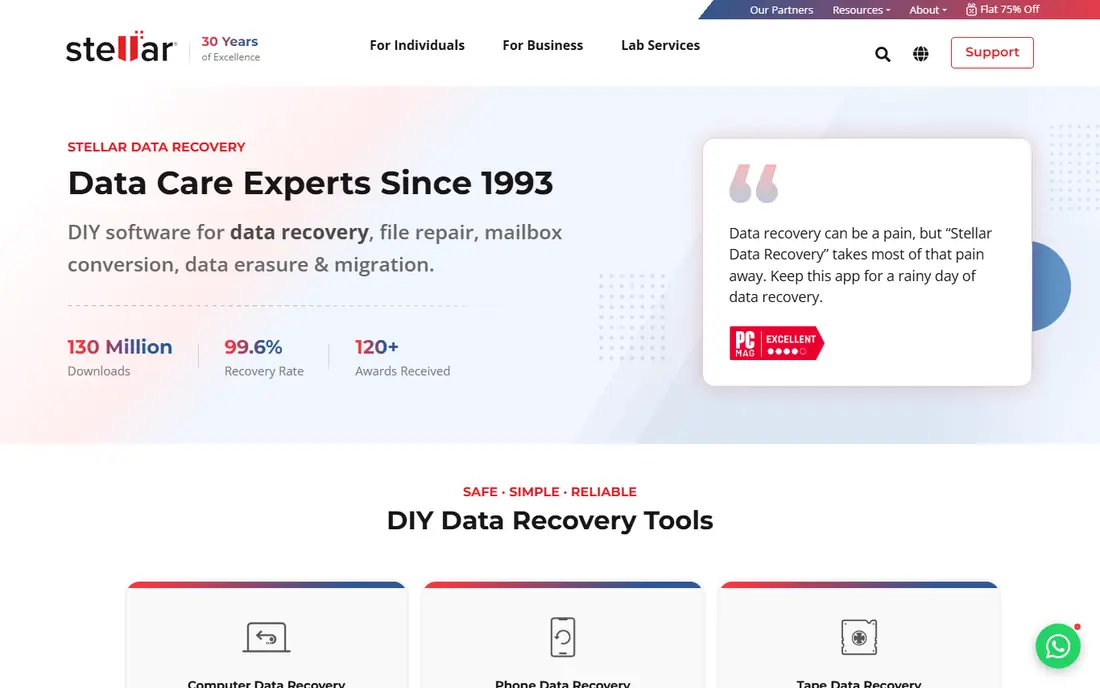
Stellar Data Recovery is a strong pick when lost media also needs repair, since higher plans include photo and video repair tools. It handles common cases such as deleted files, formatted drives, and lost partitions, and it lets you preview files before paying for recovery.
The range of Standard, Professional, and Premium plans can be confusing, so compare the feature table before buying. The free tier covers up to 1GB in listings, which suits a small set of files but not a full media library. For large video projects, the higher tier is the realistic choice.
- Photo and video repair on higher plans
- 1GB free recovery in listings
- Supports Windows and Mac
- Many plan tiers can confuse buyers
- Full repair features need a higher plan
Recuva is the first tool to try for a simple deleted file on Windows, because the free version handles many everyday cases without a purchase. It is lightweight, easy to understand, and useful when you just need a document or photo back quickly. A paid version adds automatic updates and support.
It is Windows only, so Mac users need another tool on this list. It also lacks some of the deep RAID, video repair, or partition tools found in paid software. For a quick, low-cost recovery, though, it remains a practical starting point.
- Free version covers many common cases
- Simple interface
- Portable option for quick use
- Windows only
- Fewer advanced features than paid rivals
- No Mac version
R-Studio is built for technicians and advanced users who need more than a simple undelete tool. It supports RAID recovery, network recovery, and a wide range of file systems across Windows, Mac, and Linux. That depth makes it a common choice in professional repair work.
The interface assumes you know terms such as partitions, file systems, and disk images, so beginners may feel lost. The price also reflects professional use rather than a single home recovery. Choose it when the case is complex, and choose a simpler tool for a deleted folder.
- Strong RAID and network recovery
- Supports many file systems
- Works on Windows, Mac, and Linux
- Interface assumes technical knowledge
- Price is high for one home recovery
PhotoRec is a free, open-source tool that recovers files by scanning for known file signatures rather than relying on the file system. That approach helps with formatted cards and damaged drives where other tools struggle. It runs on Windows, Mac, and Linux without a license fee.
The trade-off is usability. The interface is text-based, there is no simple preview in the classic version, and recovered files may lose their original names. It is best for users comfortable with technical tools who want a free option and can sort results afterwards.
- Completely free and open source
- Works on Windows, Mac, and Linux
- Recovers many file types
- Command-line style interface
- No file preview in the classic version
- File names may be lost
Wondershare Recoverit is aimed at media losses, including photos and videos from cameras, cards, and external drives. Its video repair features help when a recovered video plays badly or will not open, which is a common problem after card corruption. Preview before recovery helps you avoid paying for the wrong files.
The free version is mainly for scanning and previewing, so full recovery needs a paid plan. The yearly price also adds up if you only need it once. It fits best for creators and photographers who deal with media cards often and want repair tools in the same package.
- Video repair features
- Wide device support
- Preview before recovery
- Free scan and preview only for full recovery in most cases
- Yearly cost adds up
DMDE is a low-cost option for users who want advanced disk tools without a high subscription price. It can handle partition recovery, disk imaging, and file recovery across common file systems. For the price, it offers depth that usually costs far more.
The interface is plain and technical, so it is not a good first tool for a nervous beginner. You will need to read the documentation and understand disk structure before using its stronger features. For a careful, budget-minded advanced user, it is excellent value.
- Low one-time style price in listings
- Partition and disk editing tools
- Supports many file systems
- Interface is technical
- Documentation assumes prior knowledge
Tenorshare 4DDiG focuses on straightforward media and document recovery from computers, external drives, and memory cards. The guided flow, file preview, and support for common loss cases make it approachable for home users. It is a useful alternative when a first tool finds files but cannot recover them cleanly.
The monthly price is high for one recovery, so compare the longer license options if you expect repeat use. It also cannot recover files that have been fully overwritten, and it cannot fix a physically failing drive. Stop using the drive and seek a lab service if it clicks, grinds, or disappears repeatedly.
- Guided recovery for photos, videos, and documents
- Supports external drives and cards
- Preview option
- Monthly price is high for a single use
- Some advanced cases still need a specialist
How we picked these
We compared official pricing pages, vendor feature descriptions, and public comparison listings for each tool, with attention to free recovery limits and starting prices. We did not claim hands-on testing. Where prices differed across sources, we used the most recent listings and marked unclear pricing as See website. Prices for recovery software change often, so confirm the license term before buying.
How to choose data recovery software
Start with what happened. A recently deleted file on Windows is a simple case for Recuva or Disk Drill. A formatted card, a lost partition, or a RAID array is a harder case that may need R-Studio, Stellar, or DMDE. Match the tool to the problem instead of buying the most expensive option first.
Protect the drive first
Do not install recovery software onto the same drive you are trying to recover, and do not save recovered files back to that drive. If the tool offers a byte-to-byte image, use it and scan the image instead. If the drive is physically damaged, turn it off and contact a recovery lab, since repeated scans can make damage worse.
Use the free scan before you pay
Most paid tools let you scan and preview for free, even when recovery needs a license. Use that preview to confirm your files are found and readable before buying. If no tool finds the files, or the preview shows corruption, a lab assessment may be a better next step than buying another license.
Sources
- https://www.cleverfiles.com/
- https://www.easeus.com/data-recovery-software/
- https://www.stellarinfo.com/data-recovery-software.php
- https://www.ccleaner.com/recuva
- https://www.r-studio.com/
- https://www.cgsecurity.org/wiki/PhotoRec
- https://recoverit.wondershare.com/
- https://dmde.com/
- https://4ddig.tenorshare.com/