Best Free Drawing Apps for Beginners in 2026: 9 Apps Compared
By ToolNimba Editorial Team October 30, 2026 10 min read

- Top pick
 Krita
Free desktop painting
Starting priceFreeCheck out KritaRead our review - Runner-up
 ibisPaint
Mobile anime and manga
Starting priceFreeCheck out ibisPaintRead our review - Also great
 MediBang Paint
Free comics and manga
Starting priceFreeCheck out MediBang PaintRead our review
How we researched this
We compared official pricing and feature pages, app store listings, privacy policies and public user reviews. Prices change, so check the provider's site before you pay.
Key takeaways
- Krita is our pick for beginners who want desktop power for free, with strong brushes, layers, and animation tools.
- ibisPaint is the best free phone and tablet pick for anime, manga, and character art, with a huge brush and material library.
- MediBang Paint is the easiest free start for comics, with panels, screentones, and cloud saving across devices.
- Sketchbook suits beginners who want a clean, calm canvas without ads or a steep learning curve.
- For vector logos and scalable art, Inkscape is the only fully free desktop option on this list.
Quick comparison
| Name | Best for | Starting price | Free plan | |
|---|---|---|---|---|
| Krita | Free desktop painting | Free | Yes | Visit |
| ibisPaint | Mobile anime and manga | Free | Yes | Visit |
| MediBang Paint | Free comics and manga | Free | Yes | Visit |
 Sketchbook | Simple sketching | Free | Yes | Visit |
 FireAlpaca | Lightweight desktop drawing | Free | Yes | Visit |
 GIMP | Drawing plus photo editing | Free | Yes | Visit |
 Inkscape | Free vector drawing | Free | Yes | Visit |
 Kleki | Browser sketching with no install | Free | Yes | Visit |
 Adobe Fresco | Realistic watercolor and oil brushes | Free | Yes | Visit |
The best free drawing apps for beginners
We compared free plans, brush libraries, layer support, and device fit for apps a beginner can open and use without paying first. All nine apps below offer a usable free version in 2026.
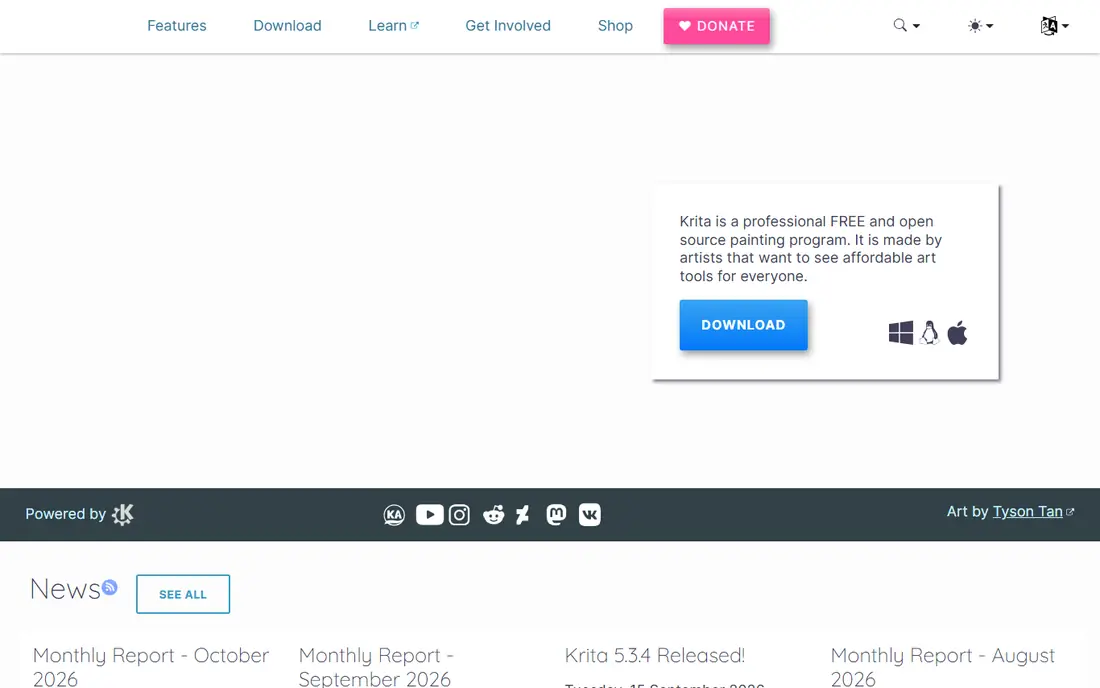
Krita is the closest free equivalent to a paid painting program, and it runs on Windows, Mac, and Linux. Beginners get a wide brush set, stabilizers for smooth lines, and layers for separating a sketch, line art, and color. The brush engine is deep enough to grow with you, from simple doodles to full illustrations.
The first week takes patience. Hide panels you do not use, start with a few favorite brushes, and follow one beginner tutorial for layers and blending. Once those basics click, Krita covers painting, comics, and animation without forcing an upgrade.
- Large brush library with painting, inking, and texture brushes
- Full layers, masks, and animation tools
- Open source with no ads or subscription
- Interface can feel busy at first
- Needs a reasonably capable computer for large canvases
- Tablet version varies by platform
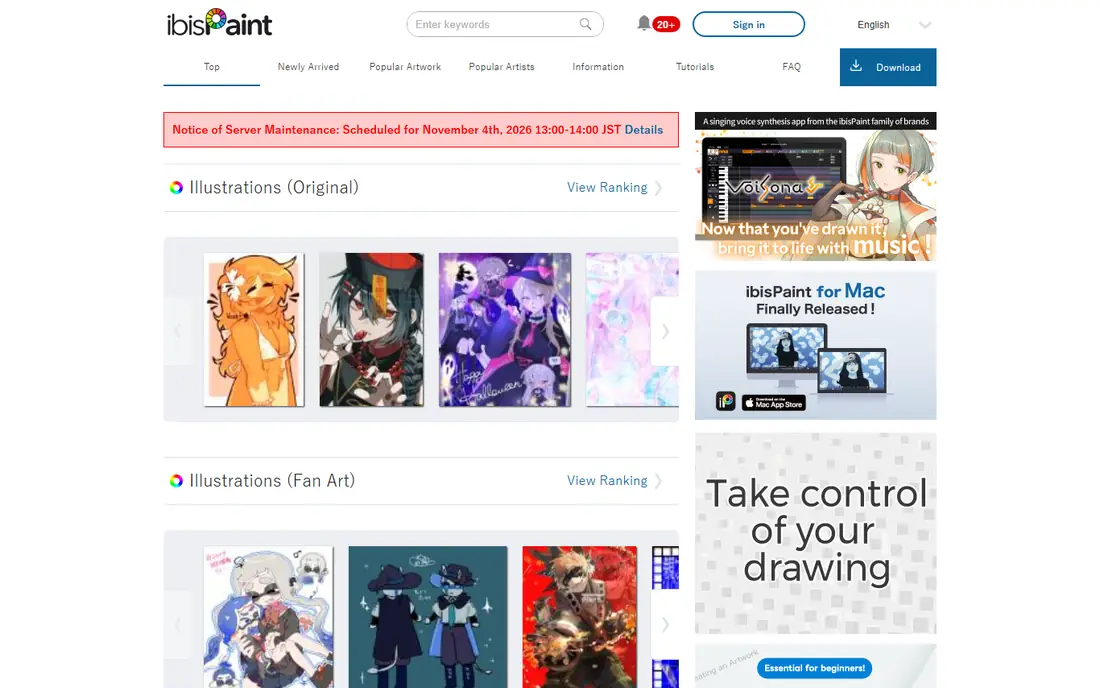
ibisPaint is the best free choice for drawing on a phone, and it also works well on tablets. The app includes thousands of brushes, plus tones, backgrounds, and speech bubbles for manga. Beginners benefit from the community tutorials and the ability to watch how another artist built a drawing stroke by stroke.
Ads are the main cost of the free version, and a paid Prime membership removes them and adds more materials. If you draw mainly on a phone, start here. If you have a tablet with a stylus, the larger screen makes line work far easier.
- Huge brush and material library for manga and character art
- Drawing process recording and tutorials
- Works on phones, tablets, and Windows
- Free version shows ads
- Many materials and features sit behind a paid Prime plan
- Small phone screen limits detailed work
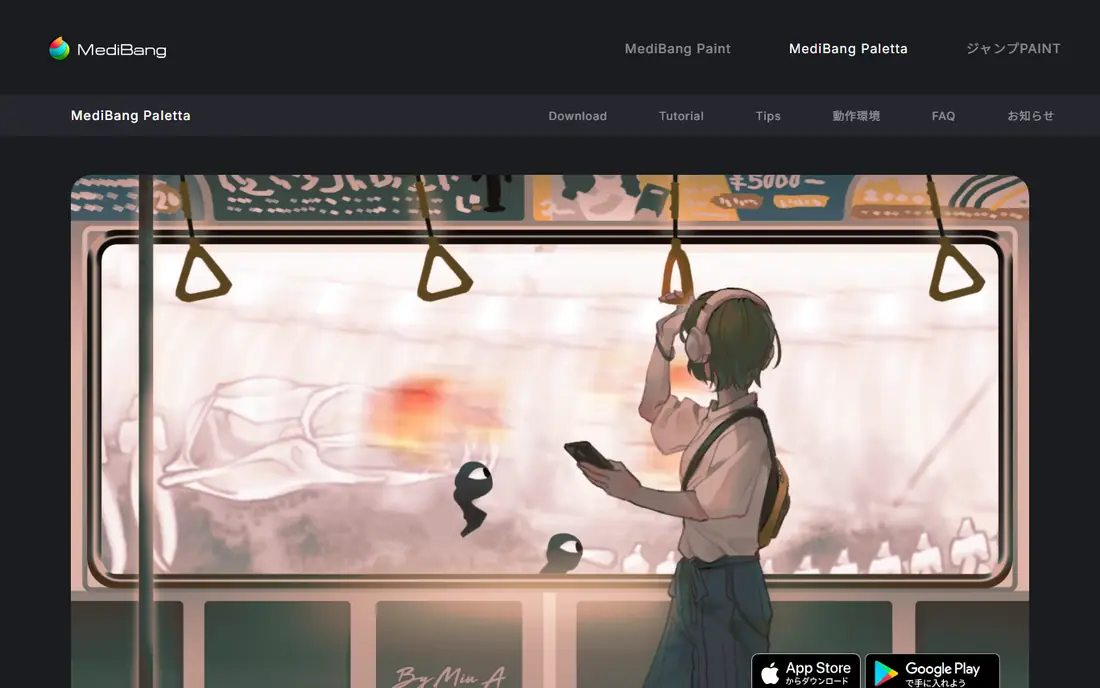
MediBang Paint is built for comics first, which makes it a friendly start for storytellers. You can divide a page into panels, add screentones for shading, place speech bubbles, and save the project to the cloud to continue on another device. That cross-device flow suits students who sketch on a phone and finish on a computer.
For pure painting, Krita offers deeper brushes. For a comic page from sketch to finished panels, MediBang keeps the steps in one place and avoids the clutter of a general painting suite.
- Comic panels, screentones, and fonts built in
- Cloud saving across phone, tablet, and desktop
- Gentle learning curve for new artists
- Cloud features need an account
- Brush engine is simpler than Krita
- Some assets require payment
Sketchbook is the calm option on this list. Open it, pick a pencil or marker, and draw, without menus fighting for attention. Layers, symmetry for faces and designs, and a solid brush set cover most beginner practice, from gesture sketches to finished line art.
It is less useful for multi-page comics or animation, where MediBang or Krita fit better. Choose Sketchbook when you want to practice daily without learning a large program first.
- Clean, distraction-free canvas
- Professional brush feel with no ads in the free version
- Easy layer and symmetry tools
- Fewer comic and animation tools than rivals
- Smaller asset library
- Advanced features vary by platform
FireAlpaca is a good pick for an older laptop or a school computer that struggles with heavier software. It opens quickly, handles layers and basic comic tools well, and keeps the interface simple enough for a first-time digital artist. Many beginners use it as a stepping stone before moving to Krita or Clip Studio Paint.
The limits show when you want textured painting, complex blending, or animation. For line art, coloring, and simple illustrations, FireAlpaca is more than enough, and its low system needs are a real advantage.
- Very light and fast on older computers
- Simple layers, brushes, and comic tools
- Easy to learn in an afternoon
- Smaller brush engine than Krita
- Fewer advanced painting features
- No mobile version
GIMP, the GNU Image Manipulation Program, is best for beginners who also need photo editing. You can draw with layers and brushes, then retouch a photo, remove a background, or prepare an image for print in the same app. That breadth suits small business owners who need both art and product photos.
Pure painters will prefer Krita, which feels more natural for brushwork. Choose GIMP when photo tasks sit beside drawing in your week, and use its painting tools for sketches, posters, and edits rather than long illustration sessions.
- Free and open source for drawing and photo editing
- Layers, masks, and filters in one program
- Large plugin community
- Interface is built for photo editing first
- Brush feel is less refined than Krita
- Learning curve is steeper for pure drawing
Inkscape is the only fully free desktop vector app on this list, and that makes it essential for logos and icons. Vector shapes stay sharp at any size, so a logo drawn here works on a business card and a banner without redrawing. Tools for paths, shapes, text on a path, and alignment cover most beginner logo work.
Painting with textured brushes is not its strength. If you want soft watercolor or anime shading, pair Inkscape with Krita: draw the logo shape in Inkscape, and paint illustrations in Krita.
- True vector editing with scalable SVG output
- Ideal for logos, icons, and posters
- Free and open source with no ads
- Vector workflow feels different from painting
- Not suited to textured brush painting
- Interface takes time to learn
Kleki is the fastest way to start drawing. Open the site on a school Chromebook, a library computer, or a borrowed laptop, and draw without installing software or creating an account. Layers, a small brush set, and simple editing cover practice sketches and quick ideas.
For finished illustrations, move to Krita or MediBang. Kleki shines as a low-friction practice tool and as a shared sketch space, where two friends can draw and comment without setup.
- Runs in any browser with no install
- Layers and basic brushes included
- Easy to share a sketch link with a friend
- Fewer brushes and tools than desktop apps
- Needs an internet connection
- Not suited to large, detailed projects
Adobe Fresco is the most realistic painting experience for beginners who love traditional media. Live Brushes spread watercolor across the paper and blend oil paint in a way that feels closer to real paint than a standard digital brush. That realism helps beginners learn color mixing and layering.
The free tier covers core drawing, while premium brushes, larger cloud storage, and some advanced features require payment. If you draw on an iPad with a stylus, Fresco is a strong free start. Android users should try ibisPaint or MediBang instead.
- Live Brushes mimic real watercolor bleeding and oil blending
- Clean touch interface for tablets
- Works with Adobe cloud files
- Free tier limits some brushes, storage, and premium features
- Best on iPad and Windows touch devices, not Android phones
- Some features need a paid plan
How we picked these
We checked official product pages, app store listings, and free-tier terms for drawing apps that beginners can use without paying in 2026. We favored apps with a lasting free version, layer support or a clear beginner workflow, and a distinct fit, from mobile manga to desktop painting to vector logos. We left out paid-only apps and discontinued tools, even when older lists still mention them.
How to start drawing for free
Pick one app, one device, and one habit. Switching apps every day teaches menus, not drawing. A short daily sketch in a single app builds line control faster than a large tool collection you never open.
Match the app to your device
Desktop painters should start with Krita or FireAlpaca, phone artists with ibisPaint, and comic makers with MediBang. Chromebook and library users can start in Kleki, then move a promising sketch to a desktop app for finishing. A stylus helps, but a finger or mouse is enough for early practice.
Learn layers early
Put a sketch on one layer, line art on another, and color on a third. That separation lets you fix color without erasing lines, and it makes every app on this list easier to use. Practice with three layers before adding masks, blending modes, or filters.
Keep your first projects small
Finish a single character, a small logo, or a one-page comic before starting a large illustration. Small finished work teaches composition, color, and export settings, while large unfinished work teaches frustration. Save in the app native format first, then export a PNG for sharing.