Best Free PDF Extract Tool in 2026: 9 Tools Compared
By ToolNimba Editorial Team October 30, 2026 10 min read

- Top pick
 Adobe Acrobat online
Trusted PDF text extraction
Starting priceFreeCheck out Adobe Acrobat onlineRead our review - Runner-up
 Smallpdf
Simple OCR and conversion
Starting priceFreeCheck out SmallpdfRead our review - Also great
 iLovePDF
Fast everyday PDF tools
Starting priceFreeCheck out iLovePDFRead our review
How we researched this
We compared official pricing and feature pages, app store listings, privacy policies and public user reviews. Prices change, so check the provider's site before you pay.
Key takeaways
- PDF24 and Tabula are the strongest fully free picks, with PDF24 for general extraction and Tabula for tables.
- Most online tools offer free extraction with daily, hourly, or file-size limits, so check the limit before a large job.
- For scanned PDFs, you need OCR, not simple text copying, and that feature is often limited on free plans.
- For private documents, an offline or desktop tool is safer than uploading files to a web service.
Quick comparison
| Name | Best for | Starting price | Free plan | |
|---|---|---|---|---|
| Adobe Acrobat online | Trusted PDF text extraction | Free | Yes | Visit |
| Smallpdf | Simple OCR and conversion | Free | Yes | Visit |
| iLovePDF | Fast everyday PDF tools | Free | Yes | Visit |
 PDF24 | Unlimited-style free extraction | Free | Yes | Visit |
 Sejda | Privacy-minded PDF work | Free | Yes | Visit |
 PDF2Go | Text and image extraction | Free | Yes | Visit |
 PDF Candy | One-file extraction jobs | Free | Yes | Visit |
 Xodo | Viewing plus extraction | Free | Yes | Visit |
 Tabula | Extracting tables to spreadsheets | Free | Yes | Visit |
The best free pdf extract tool
Extracting from a PDF can mean three different jobs: copying text, pulling out images, or turning a table into spreadsheet rows. The tools below cover all three, but they differ on limits, privacy, and scanned-document support.
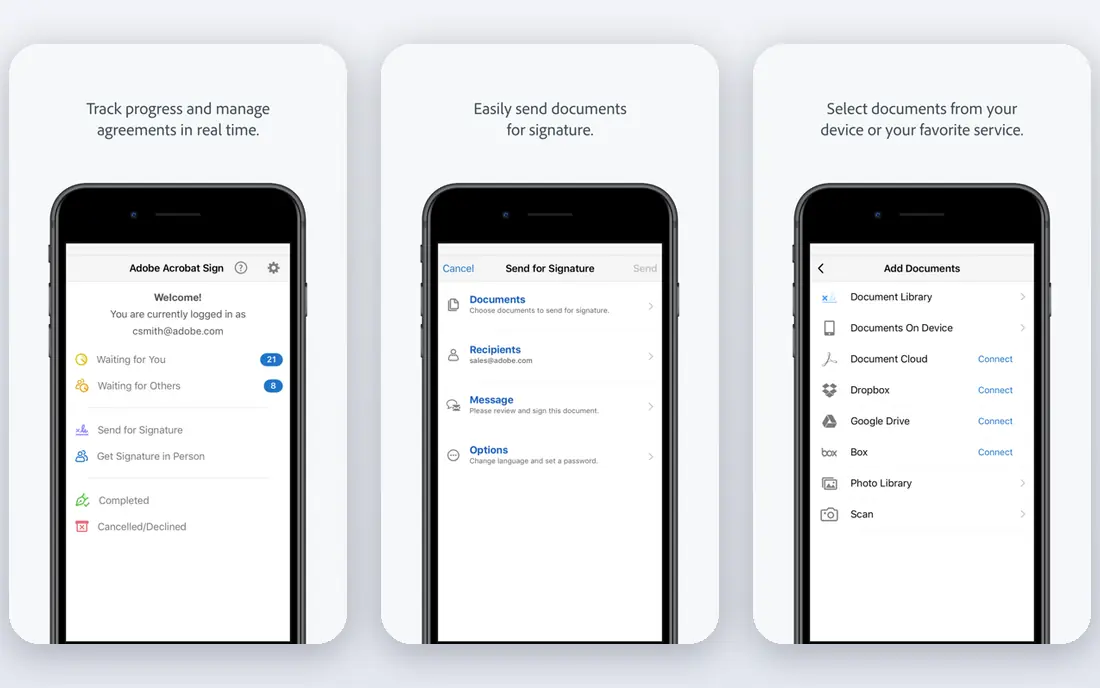
Adobe Acrobat online is a safe starting point when you want a well-known name behind your PDF work. You can upload a PDF, extract or convert text, and download a usable result without installing software. For a standard, text-based PDF, the process is quick and the output is usually clean.
The limit is the free tier. Advanced editing, larger jobs, and some conversion options sit behind a paid plan. If you only extract text now and then, the free tools are enough. If you process PDFs daily, compare the paid plan against a fully free tool such as PDF24 before you commit.
- Familiar Adobe interface
- Text extraction and conversion
- Works in a browser
- Some features need a paid plan
- Free use has limits
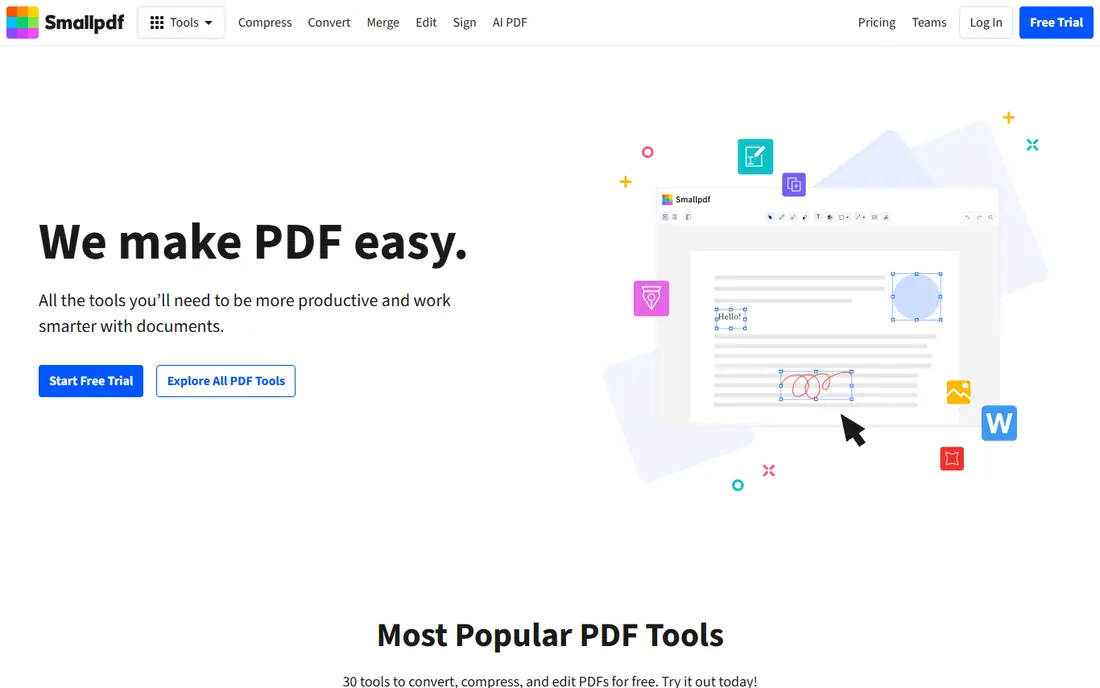
Smallpdf suits users who deal with scanned PDFs. Its OCR tool reads text from an image-based PDF and makes it selectable and searchable, which simple copy and paste cannot do. You can then export the result to Word or text for editing, which is useful for forms, receipts, and scanned reports.
Free use is limited, often to a small number of tasks per day, so it is not ideal for bulk work. Scan quality also affects results, since low contrast or skewed pages produce errors. For occasional scanned documents, Smallpdf is a strong pick, but check the daily limit before you start a multi-file job.
- Clear OCR tool for scanned PDFs
- Export to Word or text
- Browser-based
- Free tasks per day are limited
- Larger files may need a paid plan
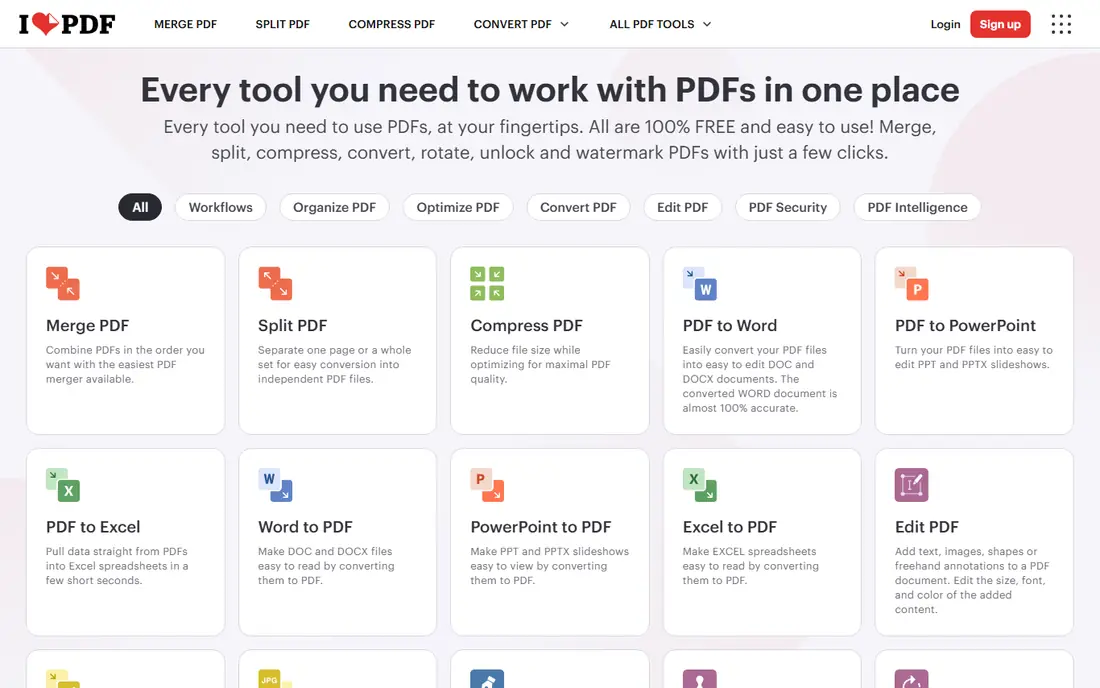
iLovePDF is a good all-round choice for everyday PDF jobs. You can extract text by converting a PDF to Word or text, compress files, merge pages, and handle common tasks without learning new software. The interface is fast, and links to cloud storage make it easy to pull files from Drive or Dropbox.
The free plan is useful but not unlimited. File size, batch size, and daily tasks may be capped, and some advanced features need a subscription. For a single file or a small job, iLovePDF works well. For repeated bulk extraction, a tool with fewer caps may save time.
- Fast interface
- Many PDF tools in one place
- Cloud storage links
- Free plan has file and task limits
- OCR may need a paid plan
PDF24 stands out because its free tools feel genuinely free, not like a short trial. You can extract images, convert PDFs, and run several files without hitting the tight hourly caps found on some rivals. That makes it a good default for students, office staff, and anyone with regular PDF jobs.
The interface is functional rather than polished, and it does not match dedicated OCR tools for poor scans. For text-based PDFs and image extraction, though, PDF24 is hard to beat on value. If you want an offline option, its desktop app also lets you work without uploading files.
- No strict free caps on many tools
- Batch support
- Desktop app also available
- Interface is plain
- Scanned OCR support is more limited than paid tools
Sejda is a good pick when privacy matters. Files are processed online and then deleted after a short period, and the site explains its handling in plain terms. That approach suits contracts, application forms, and other documents you would rather not leave on a server.
The free plan has clear limits, including a page cap and a small number of tasks per hour. A 200-page file may need to be split or processed on a paid plan. For mid-size, sensitive PDFs, Sejda is a strong balance of privacy and ease of use, as long as you stay within the hourly limit.
- Files auto-delete after processing
- Clean toolset
- Desktop option
- Free plan limits pages and tasks per hour
- Larger PDFs need a paid plan
PDF2Go covers the main extraction jobs in one place. You can pull text from a PDF, extract images, or convert a file for editing, all in a browser. The tool layout is clear, which helps if you only need one specific job and do not want a full PDF editor.
Free use runs on credits that refill daily, so a long job may need to wait for the next refill. That model is fair for occasional use, but it can frustrate a user with a deadline and a large file. For a small or medium file, PDF2Go is a flexible and easy option.
- Separate tools for text, images, and tables
- Optional OCR
- No install needed
- Free tier uses credits and daily refills
- Large jobs can stall
PDF Candy suits a user with a single PDF and a clear job. Upload the file, pick extraction or conversion, and download the result. OCR support helps with scanned pages, and the wider toolset covers splitting, merging, and compressing PDFs when needed.
Batch work is the limit. The free tier focuses on one file at a time, with hourly and page limits, so a folder of PDFs will take longer here than on PDF24. For a one-off extraction, PDF Candy is simple and reliable. For bulk work, pick a tool built for batches.
- Simple one-file workflow
- OCR for scanned pages
- Many conversion tools
- Free tier is mainly one file at a time
- Batch work needs a paid plan
Xodo is best seen as a viewer first and an extraction tool second. You can open a PDF, select and copy text, annotate pages, and convert files when needed. That flow suits readers who want to pull a quote, a section, or a set of pages while reviewing a document.
It is less direct than a dedicated extractor if you want every image from a large catalog in one zip file. For reading, marking up, and copying text, Xodo is a strong free option, especially on mobile. Check the current free feature list, since some advanced tools sit behind a paid tier.
- Good PDF viewer
- Text selection and annotation
- Works on mobile and desktop
- Extraction is tied to viewing and conversion
- Advanced features may need a paid plan
Tabula is the best free pick for one specific job: turning a table inside a PDF into spreadsheet data. You draw a box around the table, preview the rows, and export to CSV or Excel. For reports, price lists, and public data tables, that control beats a blind converter that guesses the layout.
The trade-off is setup. Tabula is a desktop app that needs Java, and it works best on text-based PDFs with clear table lines. Scanned tables need OCR first, and messy layouts still need manual cleanup. If your job is tables, though, Tabula is worth the setup time.
- Free and open source
- Precise table selection
- Exports to CSV and Excel
- Desktop app only
- Needs Java
- Struggles with scanned or messy tables
How we picked these
We compared official feature pages, pricing pages, app store listings, privacy policies, and public reviews for each tool. We checked whether each tool could extract text, images, or tables, what its free limits were, and how it handled uploaded files. We did not claim hands-on testing, and we favored tools that are still available and clearly free for at least basic extraction.
How to pick the right extractor
Start by naming the job. Text extraction from a normal PDF is easy and almost any tool on this list will work. Image extraction needs a tool that lists embedded images, not just page-to-image conversion. Table extraction needs a tool that preserves rows and columns, such as Tabula or a converter with table support.
Text, images, and scanned pages are different jobs
A text-based PDF already contains selectable text, so copying or converting is fast and accurate. An image-based or scanned PDF contains pictures of pages, so you need OCR to recognize the letters. A vector graphic, such as a drawn chart, is not an embedded photo and may not extract as an image file at all.
Free limits to check first
Before a large job, check file size, page count, tasks per hour, and tasks per day. A tool that handles a 10-page file may stop at 50 or 200 pages. Splitting a large PDF into parts can help, but it adds steps. For bulk work, PDF24 or Tabula usually cause fewer stops than credit-based tools.
Privacy for sensitive PDFs
If a PDF contains personal, financial, or legal details, avoid uploading it unless you must. Use a desktop tool such as PDF24 Desktop or Tabula, or check the online tool auto-delete policy and terms. Delete downloaded results from shared computers, and do not use a public tool for documents you would not email to a stranger.