Best Free Tools to Convert Image to Video in 2026: 9 Tools Compared
By ToolNimba Editorial Team November 19, 2026 10 min read
We did not test these tools hands-on. Picks are based on vendor documentation and public information. Read our editorial policy and disclosure.

- Top pick
 Pika
AI image animation
Starting priceFreeCheck out PikaRead our review - Runner-up
 Runway
High-quality AI clips
Starting priceFreeCheck out RunwayRead our review - Also great
 Kling
Realistic AI motion
Starting priceFreeCheck out KlingRead our review
How we researched this
We compared official pricing and feature pages, app store listings, privacy policies and public user reviews. Prices change, so check the provider's site before you pay.
Key takeaways
- The best free tools to convert image to video split into AI animation tools, which add motion to a photo, and editors, which turn photos into slideshows.
- Pika, Runway, and Kling lead for AI image-to-video, but free credits are limited and watermarks or usage rights vary.
- Canva, Kapwing, CapCut, and VEED suit slideshow-style videos with text, music, and transitions, and they are easier for beginners.
- Adobe Firefly suits brand-safe work, while Hailuo suits low-cost AI animation with a watermark on free output.
- Check free credit limits, watermark rules, clip length, and commercial use rights before you build a project you plan to publish.
Quick comparison
| Name | Best for | Starting price | Free plan | |
|---|---|---|---|---|
| Pika | AI image animation | Free | Yes | Visit |
| Runway | High-quality AI clips | Free | Yes | Visit |
| Kling | Realistic AI motion | Free | Yes | Visit |
 Canva | Branded social slideshows | Free | Yes | Visit |
 Kapwing | Browser slideshow editing | Free | Yes | Visit |
 CapCut | Short-form social video | Free | Yes | Visit |
 Adobe Firefly | Brand-safe AI video | Free | Yes | Visit |
 Hailuo | Low-cost AI animation | Free | Yes | Visit |
 VEED | Subtitles and browser editing | Free | Yes | Visit |
The best free tools to convert image to video
Image-to-video can mean two different jobs. AI tools animate a still photo into a short moving clip, while editors turn a set of photos into a slideshow with transitions, text, and music. The tools below cover both jobs, so pick based on whether you want AI motion or a polished slideshow.
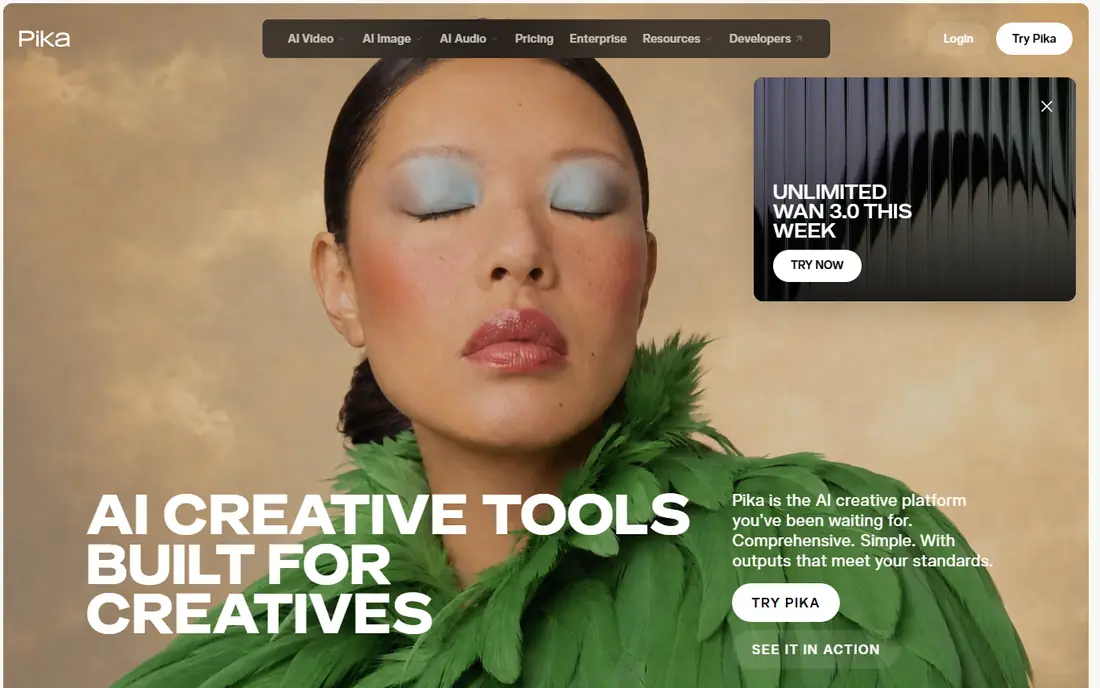
Pika is a strong free starting point for animating a single photo. You upload an image, add a prompt for motion, and get a short clip that can be used for social posts, memes, or creative tests. Its free output often carries no watermark, which is rare in this category, and its effects suit stylized, social-first video.
Free credits are the limit. Pika free access is based on credit packs rather than a large monthly allowance, so you cannot animate dozens of photos for free. Commercial use also needs a paid Creator plan or higher, so check rights before using clips in ads or client work. For personal tests and social clips, Pika is an easy first try.
- Image-to-video with no watermark on free output in many cases
- Playful effects and styles
- Easy prompt controls
- Free access is credit-based and limited
- Commercial use needs a paid plan
- Clip length is short
Runway suits creators who want higher-end AI video quality from a still image. Its Gen models accept an image as a starting frame, and you can guide camera movement and motion with detailed prompts. For product shots, outdoor scenes, and creative scenes, the output quality is often a step above simpler slideshow tools.
Free use is limited. Runway free plans offer a one-time credit allowance, not a monthly refill, so you should test with a small number of images before committing. Paid plans start at $12 per month billed yearly, and longer or higher-quality clips use credits faster. Runway is best for a few polished clips, not for bulk free animation.
- High-quality image-to-video models
- Camera and motion controls
- Useful editing tools in the same platform
- Free credits are one-time, not monthly
- Paid plans start at $12 per month billed yearly
- Credits drain fast on longer clips
Kling is known for realistic motion, especially for people and everyday scenes, and it supports longer clips than many rivals. Image-to-video lets you start from a photo and guide movement, which suits creators who want natural motion rather than cartoon effects. Its paid plans start at a lower price than several high-end rivals, which helps if you animate often.
The free tier is still limited, and the interface has more settings than a simple slideshow editor. Beginners should start with one photo and a short, simple prompt, then learn motion controls step by step. Check commercial rights for your plan before publishing clips for a business, because free and paid rights differ.
- Realistic human motion and longer clips
- Image-to-video with reference controls
- Competitive paid pricing
- Free allowance is limited
- Interface can feel complex for beginners
- Commercial rights need a paid plan check
Canva is the easiest tool in this list for turning photos into a branded social video. You can drop photos into templates, add text, transitions, and music, and export for social platforms without learning a video editor. Its free tier covers basic animation and slideshow work, which suits small businesses and creators who already use Canva for design.
AI video generation is more limited. Canva AI clips draw from a shared Magic Studio allowance, and advanced video generation sits on paid plans, so Canva is not the best free choice for pure AI animation. Use Canva when you want a polished slideshow with your brand colors and text, and use Pika or Runway when you want AI motion from a single photo.
- Easy slideshow and animation tools
- Brand kits and templates
- Free tier for basic video design
- AI video generation draws from a shared allowance
- Advanced video features need Pro
- Clip options are simpler than AI rivals
Kapwing suits creators who want to build a photo video in a browser without installing software. You can upload photos, arrange them on a timeline, add text, transitions, and subtitles, and export a shareable video. Its collaborative features also help small teams review and edit the same project.
Free limits are clear: exports are watermarked, resolution is capped at 720p on the free plan, and storage is short. That makes Kapwing a good trial tool, but not a good free publishing tool if you need clean, high-resolution output. Paid plans remove the watermark and raise limits, so test your workflow free, then upgrade only if you publish often.
- Browser-based editing with no install
- Timeline, text, and subtitles
- Easy photo-to-video workflow
- Free exports are watermarked and limited to 720p
- Free storage is short
- Pro costs $16 per month billed yearly
CapCut is the most generous free editor in this list for short-form social video. You can turn photos into vertical videos with templates, transitions, text, and music, and many free exports carry no watermark. Its mobile app is especially strong for creators who shoot and edit on a phone, and its web app covers desktop work.
The trade-off is that some AI tools and premium effects sit behind Pro, and Pro pricing varies by region and device. CapCut is still a strong free choice for slideshows and social clips, but check which AI animation features are free in your region before planning a project around them. For pure AI image animation, Pika or Kling may offer more control.
- Generous free editor with templates
- Watermark-free exports on many free edits
- Strong mobile and web apps
- Paid price varies by region and device
- Some AI features need Pro
- Template trends change quickly
Adobe Firefly suits brands and professionals who care about commercial safety. Its video tools can animate an image into a short clip, and Firefly models are designed for commercial use, which matters for client work and advertising. Daily free generations let you test the tool without a subscription, and the Adobe ecosystem helps if you already use Photoshop or Express.
Free limits still apply. Daily generations are capped, and advanced models, longer clips, and higher limits need paid plans. Firefly is best for a small number of brand-safe clips, not for bulk free animation. Check the current free allowance and commercial terms for your plan before publishing.
- AI video trained for commercial use on Firefly models
- Daily free generations
- Adobe ecosystem fit
- Free generations are limited
- Advanced models and higher limits need paid plans
- Clip length is short
Hailuo, also known as MiniMax Hailuo, offers free AI image-to-video generation with a straightforward workflow. You upload a photo, add a prompt, and get a short animated clip for social or creative use. Its paid step-up is cheaper than several high-end rivals, which makes it a practical choice if you animate regularly but do not need top-tier studio quality.
The free watermark is the main limit. If you need clean output, you must pay, and you should still check commercial rights for your plan. Hailuo suits personal projects, social tests, and low-budget creators who can accept a watermark on free clips or pay a modest monthly fee for clean output.
- Free AI image-to-video generation
- Low-cost paid step-up
- Useful for creative and social clips
- Free output carries a watermark
- Paid plans start around $10.50 per month on offer
- Rights and limits vary
VEED suits creators who turn photos into videos with subtitles, voiceover, or translation. Its browser timeline is easy to learn, and its subtitle tools help social videos reach viewers who watch without sound. Team features also help small content teams review and publish together.
Free exports carry a watermark, and AI generation is limited on the free plan, so VEED is better as a slideshow and subtitle editor than as a free AI animation tool. Paid plans remove the watermark and add AI voices, avatars, and translation. Use VEED when captions and polished social edits matter more than AI motion.
- Browser editing with subtitles and translation
- Easy photo-to-video timeline
- Team editing features
- Free exports are watermarked
- Creator plan costs $12 per user per month billed yearly
- AI generation is limited on free
How we picked these
We compared official product pages, pricing pages, and public documentation for tools that can turn an image into a video and that still offer a free plan in 2026. We favored tools with real image upload, video export, and active development, and we set aside tools that had closed, that only offered text-to-video, or that lacked a working free tier. Prices reflect published starting prices where available, and we mark variable pricing as See website where vendors list it that way.
We did not claim hands-on testing. Our comparison weighs free credit limits, watermark rules, clip length, ease of use, and commercial rights, because those factors decide whether a free tool is useful for publishing or only for testing. That focus helps readers avoid building a project in a tool whose free output they cannot legally or cleanly publish.
How to choose the right tool
Start with the output you want. If you want a photo to move like a short film clip, shortlist Pika, Runway, Kling, Firefly, and Hailuo. If you want a slideshow with text, music, and transitions, shortlist Canva, Kapwing, CapCut, and VEED. Mixing both jobs in one project often works: animate one hero photo with AI, then place it in a slideshow editor for titles and captions.
Free limits, watermarks, and rights
Check three things before you start: how many free credits or generations you get, whether free exports carry a watermark, and whether free clips can be used commercially. Also check clip length and resolution, because a tool that only makes five-second clips may not suit a product video. Keep your original photos, so you can rebuild a project in another tool if free limits run out.
Sources
Frequently asked questions
What is the best free tool to convert an image to video?
Pika is a strong free choice for AI animation, while CapCut and Canva are strong free choices for slideshows. The best tool depends on whether you want AI motion from one photo or a slideshow from many photos with text and music.
Can I convert a photo to video without a watermark for free?
Yes, in some cases. Pika free output often has no watermark, and CapCut free edits are often watermark-free, but limits apply. Kapwing, VEED, and Hailuo free exports carry watermarks, so check the tool you plan to use before building a publish-ready project.
How long are AI image-to-video clips?
Most free AI clips are short, often around five to ten seconds, depending on the tool and plan. Longer clips use more credits and may need a paid plan, so plan social posts around short clips rather than long scenes.
Can I use free AI video clips for commercial work?
It depends on the tool and plan. Many free plans limit commercial use, while paid plans grant broader rights. Check the terms for Pika, Runway, Kling, Firefly, and Hailuo before using clips in ads, client work, or monetized content.
Do I need to install software to convert images to video?
No, most tools in this list work in a browser, and CapCut and Canva also offer mobile apps. Browser tools suit quick projects, while mobile apps suit creators who edit on a phone and publish directly to social platforms.