Best Online Service for PDF Page Removal in 2026: 9 Tools Compared
By ToolNimba Editorial Team October 30, 2026 10 min read

- Top pick
 iLovePDF
Beginners who want a clear, guided tool
Starting price$4 per monthCheck out iLovePDFRead our review - Runner-up
 Smallpdf
A polished tool for quick, occasional edits
Starting priceSee websiteCheck out SmallpdfRead our review - Also great
 Sejda
Occasional page removal without an account
Starting price$7.50 per monthCheck out SejdaRead our review
How we researched this
We compared official pricing and feature pages, app store listings, privacy policies and public user reviews. Prices change, so check the provider's site before you pay.
Key takeaways
- PDF24 Tools and PDFgear delete pages free with no account, making them the best first tries for a one-off job.
- iLovePDF and Smallpdf are the most polished options, but their free tiers cap how many tasks you can run each day.
- Sejda is the best choice for occasional use without an account, with three free tasks per hour.
- Never upload a sensitive document to an online tool unless the service states when it deletes your file.
Quick comparison
| Name | Best for | Starting price | Free plan | |
|---|---|---|---|---|
| iLovePDF | Beginners who want a clear, guided tool | $4 per month | Yes | Visit |
| Smallpdf | A polished tool for quick, occasional edits | See website | Yes | Visit |
| Sejda | Occasional page removal without an account | $7.50 per month | Yes | Visit |
 PDF24 Tools | Unlimited free page removal online | Free | Yes | Visit |
 PDF Candy | Deleting pages by typing page numbers | See website | Yes | Visit |
 PDF2Go | Quick page removal plus light editing | See website | Yes | Visit |
 Adobe Acrobat Online | People already using Acrobat or Adobe accounts | Free | Yes | Visit |
 PDFgear | Free page tools on desktop and online | Free | Yes | Visit |
 Soda PDF | Online editing with page management in one place | See website | Yes | Visit |
The best online services for PDF page removal
Deleting pages from a PDF sounds simple, and most of these tools do it in under a minute. The real differences are free limits, file size caps, and what happens to your file after you upload it.

iLovePDF is the easiest tool on this list for a first-time user. Its delete pages tool shows every page as a thumbnail, so you click the pages you want gone and download the result. The interface is plain and the steps are obvious, which matters when you are cleaning up a scan or a report in a hurry.
The free tier handles one-off jobs well, with file size limits around 100 MB, while Premium starts near $4 per month billed annually and raises limits, adds batch processing and removes ads. If you delete pages often or work with very large files, Premium is cheap enough to be worth it. For a single document, the free tool is all you need.
- Visual page thumbnails for selecting pages
- Desktop and mobile apps
- Batch processing on Premium
- Free tier has file size limits and shows ads
- Text editing needs Premium
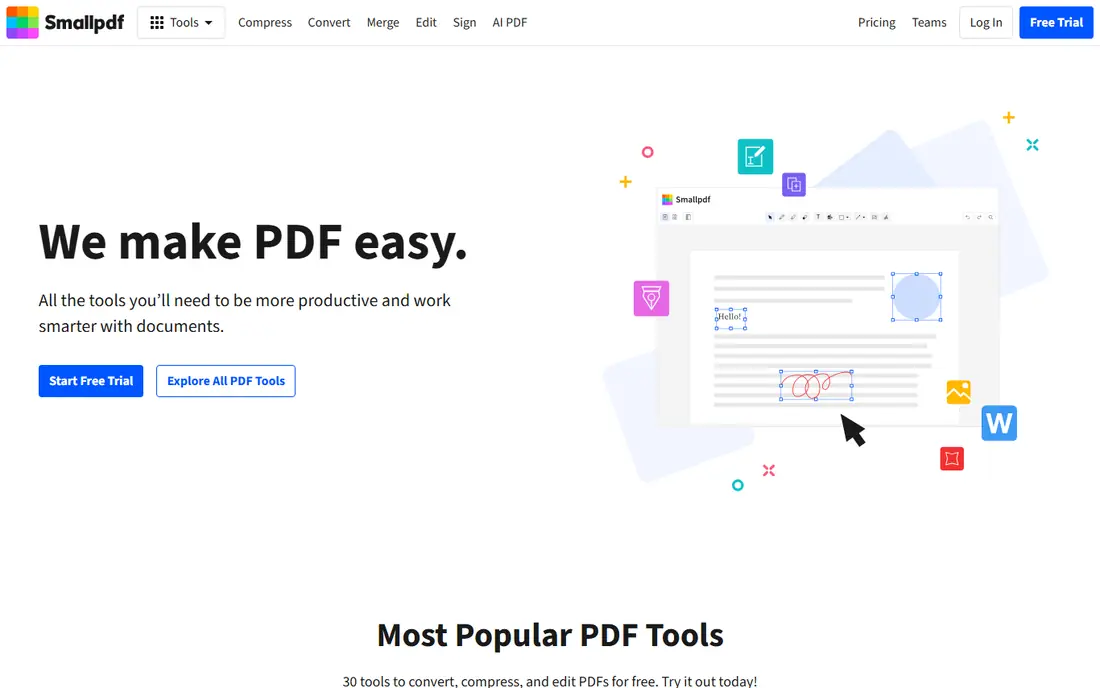
Smallpdf feels like the most refined tool here, with a tidy layout that sorts tools by job rather than dumping dozens of icons on one page. Deleting pages is a matter of uploading, clicking thumbnails and downloading, and the same account gives you compression, conversion and e-signing tools for other jobs.
The limit is the free tier, which allows two tasks per day, so a batch of documents will stall by mid-morning. Pro pricing has varied across listings, so we list it as See website and advise checking the current price before subscribing. If you only delete pages once in a while and you value a clean interface, Smallpdf is a fine pick.
- Very clean interface
- Works on web, Windows, iOS and Android
- Strong compression and signing tools
- Free tier limits you to two tasks per day
- Page editing depth needs Pro

Sejda is the tool we reach for when we do not want another account. Its free tier allows three tasks per hour, with files up to 50 MB and 200 pages, and it lets you delete pages by thumbnail or by typing page ranges. That is enough for most reports, applications and school documents.
Sejda also states its file handling plainly, which matters for documents with personal details. Files are processed on its servers and deleted after a short period, so avoid uploading anything highly sensitive unless you accept that trade. Premium starts at $7.50 per month and removes the hourly cap. For a few documents a week, the free tier is generous.
- No account needed for free tasks
- Clear privacy handling
- Page range and thumbnail options
- Free tier caps files at 50 MB and 200 pages
- Three tasks per hour
PDF24 Tools is the most generous free option on this list. There is no task counter, no account requirement and no subscription, and the delete pages tool works the same way as the paid rivals, with thumbnails and a download button at the end. It also covers merging, splitting, compressing and converting, so one bookmark handles most PDF jobs.
The trade is polish. The site looks older than Smallpdf or iLovePDF, and the online version uploads your file for processing, though PDF24 says uploads are encrypted and deleted after a short time. Windows users can install PDF24 Creator to keep files on their own computer. If you want free and unlimited, start here.
- Free with no account and no task counter
- Page deletion plus merge, split and compress
- Windows desktop app available
- Interface looks dated
- Online files are uploaded to its servers
PDF Candy suits people who know exactly which pages must go. Its delete pages tool accepts page numbers and ranges such as 9-15, so you can remove a whole section without clicking through dozens of thumbnails. The wider toolset covers editing, splitting, merging, rotating and converting, all free for basic use.
PDF Candy is made by the Icecream Apps team, and its tools are free and ad-free for typical use, with a paid tier for heavier use. Because paid pricing varies across listings, we list it as See website. For a quick range-based deletion, it is one of the fastest tools here.
- 47 free online tools
- Delete pages by number or range
- No account needed for basic tools
- Paid plan details vary by listing
- Interface is functional rather than pretty
PDF2Go covers the core job with little fuss. Upload a PDF, click the pages to remove, and download the cleaned file, with options to sort, rotate or edit pages along the way. It runs entirely in the browser, so it works on any computer or tablet without installing anything.
Free use carries file size and task limits, and heavier use needs a paid plan whose price varies by listing, so check the current page before paying. PDF2Go is a solid backup when your first-choice tool hits a daily cap, and its straightforward layout makes it easy to use on a shared or borrowed computer.
- Simple upload and thumbnail workflow
- Optional sorting, rotating and editing
- No install needed
- Free tier has file size and task limits
- Paid pricing varies by listing
Adobe Acrobat Online
Best for: People already using Acrobat or Adobe accounts
Adobe Acrobat Online is the safe choice if you already live in the Adobe world. Its free tools let you delete, reorder and organize pages, with files up to 100 MB, and the output quality is reliable. If you later need full editing, OCR or the desktop app, Acrobat Pro starts near $19.99 per month on an annual plan.
The free tier is the most restricted here in practice. Without an account you get one free use of each tool, and with a free Adobe ID you get periodic free uses of premium tools, so it is not the tool for a batch of documents. Use it for a single important file where you trust the Adobe name, and use PDF24 or Sejda for bulk work.
- Trusted Adobe processing
- Larger file limits up to 100 MB free
- Full Acrobat suite available if you upgrade
- Free use is limited to one use of each tool without an account, then periodic free uses
- Most editing needs Pro
PDFgear is unusual because its desktop editor is free, not just a trial. You can delete, merge, split and edit pages on Windows or Mac without paying, and the online tools cover quick jobs without an account. That makes it the best pick for anyone who deletes pages often and would rather keep files on their own computer.
The online version is simpler than the desktop app, so power users should install the desktop editor for the full set of tools. There are no watermarks on free output, which is a real advantage over trial-based editors. If privacy matters and you delete pages weekly, PDFgear deserves a place on your computer.
- Free desktop editor for Windows and Mac
- Online tools need no account
- No watermarks on free output
- Online toolset is smaller than iLovePDF
- Desktop app needed for the full feature set
Soda PDF is a full online PDF editor that happens to handle page removal well. You can delete, reorder and rotate pages, then edit text, add forms or collect signatures without switching tools. That breadth suits someone who cleans up a document and then needs to fill or sign it in the same session.
Free online use is limited, and paid pricing varies across listings, so check the current price before subscribing. Soda PDF is not the cheapest or the most generous free tool here, but as an all-round online editor with page tools it is a capable option for occasional business documents.
- Full online editor with page delete, reorder and rotate
- Desktop app available
- Form and signing tools
- Free online use is limited
- Paid pricing varies by listing
How we picked these
We compared official feature pages, pricing pages and privacy statements for each service, and we kept only tools that offer a working online page-deletion feature in October 2026. We favored tools with a real free tier, clear file handling and a visual way to pick pages, and we noted where free limits or paid prices could not be confirmed from the vendor page. We did not run hands-on trials, so our findings rest on vendor documentation and public reviews rather than lab testing.
How to delete pages safely
Start by making a copy of the original PDF before you delete anything. Page removal cannot be undone from the downloaded file, and keeping the original saves you if you remove the wrong page. Then check the file size against the free tier limit, since a 200 MB scan will fail on a tool capped at 50 MB.
For sensitive documents, prefer a desktop tool such as PDFgear or PDF24 Creator, which keeps the file on your computer. If you must use an online tool, read its privacy page first and confirm when it deletes uploads, and avoid uploading contracts, medical records or financial statements to any service that does not state a deletion time. After downloading, open the result and flip through it once to confirm the right pages are gone and the order is correct.