Best PDF Creation Tool in 2026: 9 Tools Compared
By ToolNimba Editorial Team October 30, 2026 9 min read

- Top pick
 Adobe Acrobat
Complete professional PDF work
Starting price$14.99 per monthCheck out Adobe AcrobatRead our review - Runner-up
 Foxit PDF Editor
Adobe alternative for offices
Starting price$10.99 per monthCheck out Foxit PDF EditorRead our review - Also great
 Nitro PDF
Windows teams and businesses
Starting price$15.00 per monthCheck out Nitro PDFRead our review
How we researched this
We compared official pricing and feature pages, app store listings, privacy policies and public user reviews. Prices change, so check the provider's site before you pay.
Key takeaways
- Adobe Acrobat remains the most complete PDF tool, but its monthly price is hard to justify for occasional use.
- Free tools such as PDF24 and PDFescape cover most everyday jobs, including creating, merging and signing PDFs.
- Foxit and Nitro offer a middle path with strong editing features at a lower cost than Adobe for many users.
- If you only create PDFs from Word or Google Docs, you may not need a paid tool at all.
Quick comparison
| Name | Best for | Starting price | Free plan | |
|---|---|---|---|---|
| Adobe Acrobat | Complete professional PDF work | $14.99 per month | Free trial | Visit |
| Foxit PDF Editor | Adobe alternative for offices | $10.99 per month | Free trial | Visit |
| Nitro PDF | Windows teams and businesses | $15.00 per month | Free trial | Visit |
 PDFelement | Affordable editing and forms | $79.99 per year | Free trial | Visit |
 Smallpdf | Quick online PDF jobs | See website | Yes | Visit |
 PDF24 | Free desktop and online tools | Free | Yes | Visit |
 PDFescape | Free online editing and forms | $2.99 per month | Yes | Visit |
 iLovePDF | Simple online conversions | See website | Yes | Visit |
 Sejda | Occasional online PDF tasks | See website | Yes | Visit |
The best pdf creation tools
A good PDF creation tool does more than print a file to PDF. It should let you combine pages, fill forms, sign documents, compress files and, when needed, edit text. The tools below range from free online services to full desktop editors.
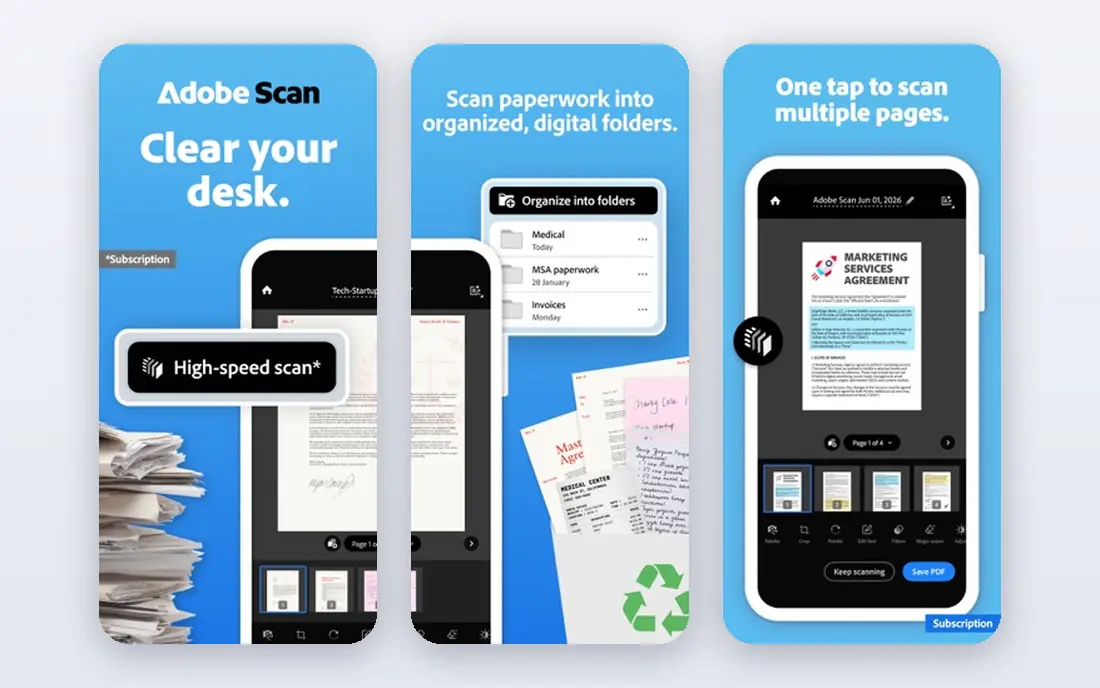
Adobe Acrobat is the standard other PDF tools are measured against. Standard covers creation, editing, conversion, signing and sharing, while Pro adds OCR for scanned pages, redaction, document comparison and more advanced form tools. If you work with contracts, legal files or client documents, compatibility with Acrobat is a practical advantage, since recipients will see your files as intended.
The price is the main drawback. Standard starts at about $14.99 per month on an annual plan, and Pro at $19.99 per month, with higher month to month rates. A free Reader app covers viewing and basic signing, but not creation and editing. For heavy daily use, the cost is easy to justify. For a few PDFs a month, a cheaper tool will do the same job.
- Widest feature set
- Strong OCR and redaction
- Trusted for business and legal work
- Highest price here
- Subscription only for most plans
- Some features feel heavy

Foxit PDF Editor is a strong pick for offices that want Acrobat style features without Acrobat pricing. It creates PDFs from many file types, edits text and images, fills forms, adds signatures and supports collaboration and commenting. The interface will feel familiar to Microsoft Office users, which shortens the learning curve for teams.
Foxit also offers a perpetual license option in some editions, which appeals to buyers who dislike subscriptions. The downside is that the full feature set is spread across editions, so check that the version you buy includes OCR or redaction if you need them. For most office work, the standard editor covers creation, editing and signing well.
- Familiar Office style interface
- Strong editing and collaboration
- Lower price than Acrobat
- Some advanced features sit on higher tiers
- Interface can feel busy
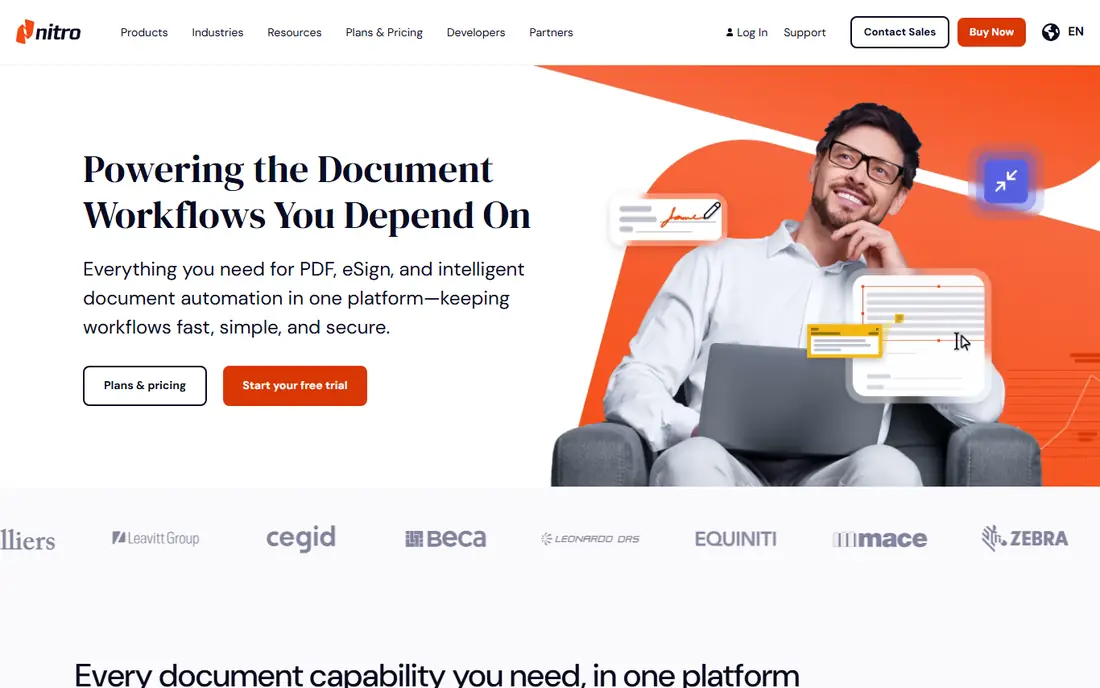
Nitro PDF focuses on businesses that create, edit and sign PDFs all day. Its editor handles text changes while keeping original formatting better than many cheaper tools, and it includes signing, form creation and batch tools. Team plans add license management and admin controls, which matter once you pass a handful of users.
The catch is platform coverage. Nitro is strongest on Windows, and Mac users should check current support before buying. A one time license has also been offered at around $250, which can beat subscription costs over several years. If your team runs Windows and wants a polished Acrobat rival, Nitro belongs on your shortlist.
- Good editing that keeps formatting
- E-signing included
- Admin tools for teams
- Mac support is more limited
- Price is close to Adobe on subscription
PDFelement from Wondershare offers a lot for its annual price. It creates PDFs, edits text and images, converts files, builds forms, applies OCR to scanned pages and supports signatures. Mobile apps extend the same account to phones and tablets, which helps when you need to sign a document away from your desk.
The interface packs in many tools, so new users may need time to find what they need. Some newer AI features are sold separately, which can push the total cost up. Even so, for freelancers and small businesses that need real editing at a moderate price, PDFelement is one of the better value picks in this list.
- Lower annual price
- OCR and form tools
- Works on Windows, Mac and mobile
- Interface can feel crowded
- Some AI features cost extra
Smallpdf is built for speed. Open the site, drop in a file, pick a tool and download the result. It handles the jobs most people actually need, such as merging pages, splitting a file, compressing a large PDF, converting to and from Word, and adding a signature. Because it runs in the browser, it works on any computer without installing software.
Free use is limited, so heavy users will need a paid plan, and it cannot match a desktop editor for deep text editing or form design. Privacy is also worth thinking about, since files are uploaded to Smallpdf servers. For occasional, simple jobs, though, it is one of the friendliest tools available.
- Very easy to use in a browser
- Covers merge, split, compress and convert
- No install needed
- Free use is limited per day
- Editing text is more limited than desktop editors
PDF24 stands out because so much of it is free. Its online tools cover PDF creation, merging, splitting, compression, conversion and signing, and its Windows Creator app adds a PDF printer and desktop toolbox. For a home user or small office that needs reliable basics without a subscription, it is hard to beat on price.
The trade off is polish. The site and app look plain next to Smallpdf or Adobe, and the desktop app is Windows focused. Support is community and help page based rather than live chat. If you can live with a simpler design, PDF24 covers the core jobs for free, which makes it our pick for budget users.
- Free online tools and Windows app
- Merge, split, compress and create
- No account for many tools
- Design is plain
- Some tools are Windows only
PDFescape is a browser based editor that lets you open a PDF, add text, annotations, form fields and signatures without installing anything. The free tier is genuinely useful for filling out forms and marking up documents, and the paid tier is among the cheapest here. That combination makes it a good pick for students and anyone who fills in forms often.
Limits are the catch. Free accounts face file size and page limits, and PDFescape cannot match desktop editors for OCR, redaction or heavy layout changes. It also works best on files you already have, rather than as a full document creation suite. For form filling and light edits, it is excellent value.
- Free online editor
- Form filling and annotations
- Very low paid price
- Free tier limits file size and page count
- No full desktop editor
iLovePDF groups its tools clearly, so you can merge, split, compress, convert, protect and sign PDFs without hunting through menus. It handles batches well, which helps when you have several files to process at once, and it works on Windows, Mac and mobile browsers. A desktop app is also available for offline work on some plans.
The free tier limits how many tasks you can run, and like other online tools, it is not a full text editor. Files are processed online unless you use the desktop app, so sensitive documents deserve extra care. For straightforward conversions and file tidy up, iLovePDF is fast and easy to learn.
- Clear, simple tool set
- Batch processing
- Works in any browser
- Free tier has task limits
- Deep editing is limited
Sejda is a good choice when you need to edit a PDF once in a while and do not want to install software. Its online editor lets you change text, add images and signatures, merge or split files, and fill forms. Sejda states that uploaded files are deleted after a set period, which is reassuring for personal documents.
The free tier allows only a few tasks per day, so regular users will need a paid plan. It also has file size limits that may block very large documents. For the occasional edit, form or signature, Sejda is simple, capable and easy to recommend.
- Clean online editor
- Edit text, merge, split and sign
- Files deleted after processing
- Free tier limits tasks per day
- Larger files need a paid plan
How we picked these
We compared vendor pricing pages, feature lists and current comparison guides, focusing on tools that can actually create PDFs, not just view them. We included free, low cost and professional options so readers with different budgets can find a fit. Prices change, so check the vendor page for the current plan before you buy.
What to check before you pay
First, list the jobs you do most. If you only merge, compress and sign, a free online tool is enough. If you edit text, run OCR on scans or redact sensitive data, you need a desktop editor such as Acrobat, Foxit or PDFelement. Second, check your platform. Some tools are Windows only or work best in a browser, while others cover Mac and mobile too.
Privacy matters as well. Online tools upload your files, so avoid them for highly sensitive documents unless the vendor states clear deletion and security practices. Finally, test the free tier or trial with a real file from your work, not a sample. Formatting problems, font changes and OCR errors only show up on your own documents.
Sources
- https://xodo.com/blog/adobe-acrobat-pricing-explained
- https://www.pcworld.com/article/397929/adobe-acrobat-standard-dc-vs-adobe-acrobat-pro-dc.html
- https://sourceforge.net/software/compare/Nitro-PDF-vs-PDFescape/
- https://sourceforge.net/software/compare/Foxit-PDF-Editor-vs-Nitro-Pro/
- https://www.eppdf.com/compare.html
- https://www.adobe.com/acrobat.html
- https://www.foxit.com
- https://www.gonitro.com
- https://pdf.wondershare.com
- https://smallpdf.com
- https://tools.pdf24.org
- https://www.pdfescape.com
- https://www.ilovepdf.com
- https://www.sejda.com