Best Photo Editor App in 2026: 10 Apps Compared
By ToolNimba Editorial Team October 30, 2026 11 min read

- Top pick
 Darkroom
RAW editing and batch edits on Apple devices
Starting priceSee websiteCheck out DarkroomRead our review - Runner-up
 Adobe Lightroom
RAW editing and photo sync
Starting price$9.99 per monthCheck out Adobe LightroomRead our review - Also great
 VSCO
Film-style presets and a clean look
Starting price$7.99 per monthCheck out VSCORead our review
How we researched this
We compared official pricing and feature pages, app store listings, privacy policies and public user reviews. Prices change, so check the provider's site before you pay.
Key takeaways
- Darkroom is a strong pick for Apple device users who want RAW editing, batch edits, and video in the same app, while Photopea is the best free browser editor for layered work.
- Lightroom suits photographers who want RAW editing and sync across phone and desktop, and VSCO suits people who want a consistent film-style look from presets.
- PicsArt, Canva, and Adobe Express suit social posts and design around photos, while Pixlr, Polarr, and Fotor suit quick browser or mobile edits.
- Free plans vary a lot, so check which tools, presets, and export sizes sit behind a paywall before you build a workflow around one app.
Quick comparison
| Name | Best for | Starting price | Free plan | |
|---|---|---|---|---|
| Darkroom | RAW editing and batch edits on Apple devices | See website | Yes | Visit |
| Adobe Lightroom | RAW editing and photo sync | $9.99 per month | Yes | Visit |
| VSCO | Film-style presets and a clean look | $7.99 per month | Yes | Visit |
 PicsArt | Creative edits, stickers, and AI effects | See website | Yes | Visit |
 Photopea | Layered editing in a browser | Free | Yes | Visit |
 Adobe Express | Quick designs around photos | $9.99 per month | Yes | Visit |
 Canva | Social graphics and photo layouts | Free | Yes | Visit |
 Pixlr | Fast browser edits and AI tools | Free | Yes | Visit |
 Polarr | Presets and fine color control | Free | Yes | Visit |
 Fotor | One-tap enhancement and quick fixes | Free | Yes | Visit |
The best photo editor apps
The best photo editor app depends on where you edit and what you edit for. Some apps focus on RAW photos and precise color, others on presets and social posts, and a few run fully in a browser with no install.
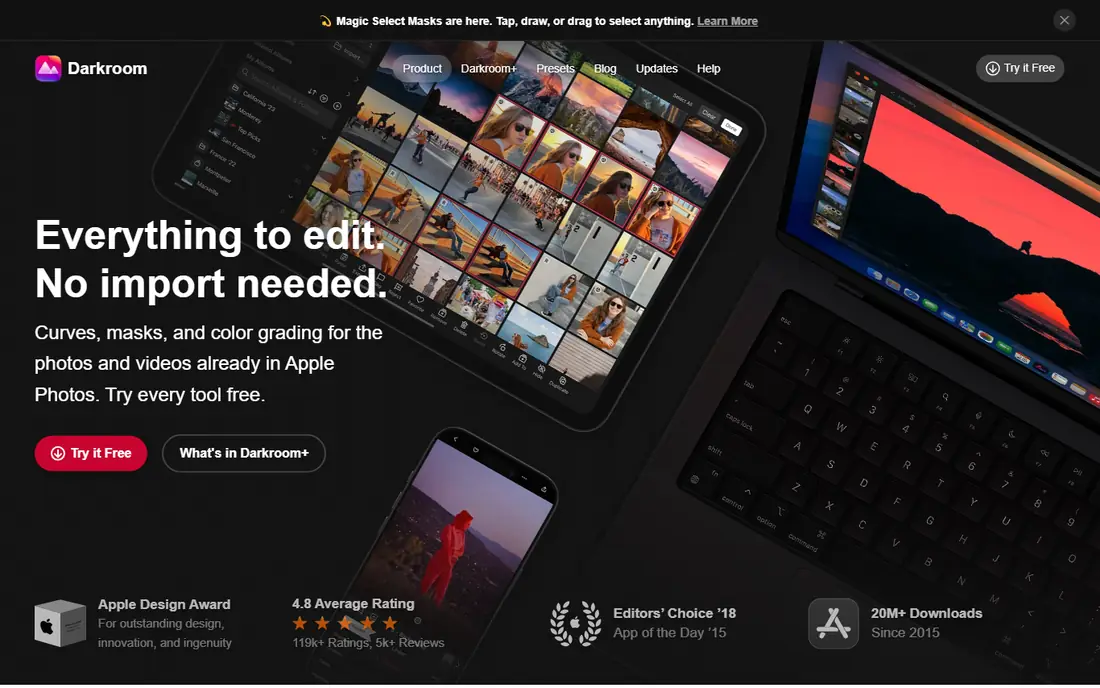
Darkroom edits directly in your Apple Photos library, so there is no import step and no duplicate files to manage. It covers curves, masks, color grading, presets, grain, and frames, and it handles RAW and ProRAW photos plus video in the same workflow. Edits are non-destructive, so every step stays reversible, and you can copy an edit across a whole shoot in a batch. The honest catch is the platform and the paywall at export. Darkroom runs only on iPhone, iPad, Mac, and Vision Pro, and while you can try every tool free, exporting needs a Darkroom+ subscription. If you live inside the Apple ecosystem and want serious editing without importing photos, Darkroom is our first pick.
- Non-destructive editing with full edit history
- RAW and ProRAW support plus batch editing
- Photo and video editing in one app
- Apple devices only, with no Android or Windows version
- Export requires a Darkroom+ subscription
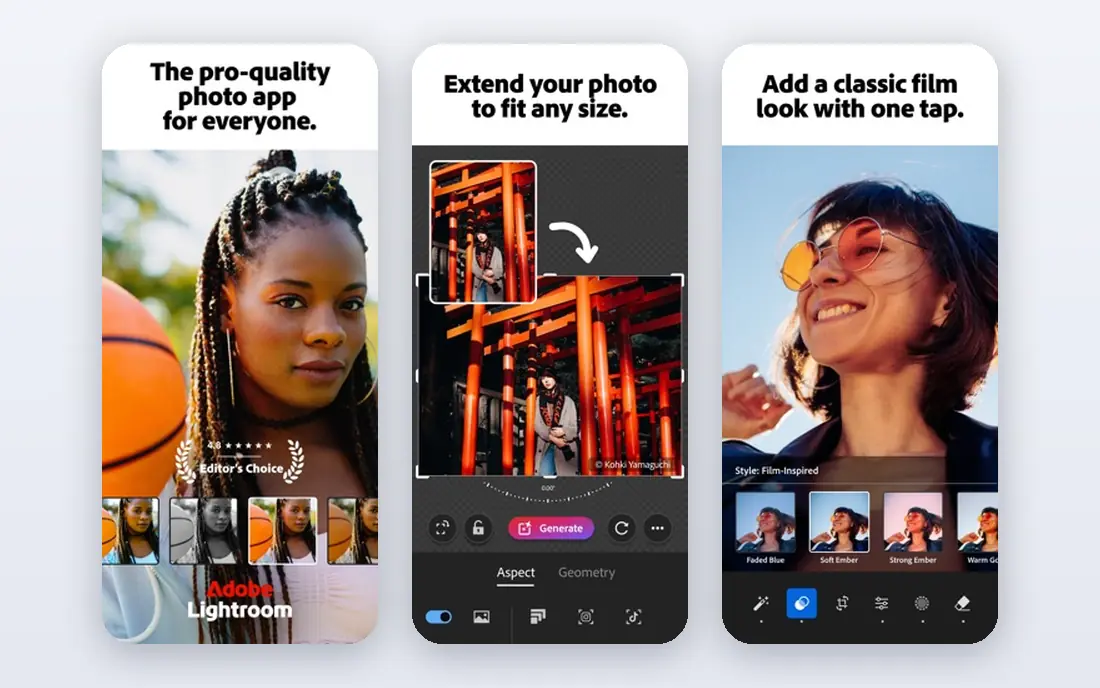
Lightroom is the standard pick for photographers who shoot RAW and edit on more than one device. The mobile app covers exposure, color, presets, and selective masks for free at a basic level, and the Premium plan at $9.99 per month adds batch editing, cloud sync, and advanced tools. Presets make a consistent look easy across a whole shoot. The free tier has real limits, and the subscription is the main cost to weigh. New users should also check which Lightroom app they opened, since Adobe sells a cloud-focused Lightroom and a desktop-focused Lightroom Classic. For phone-first photographers, start with the mobile app and its free tier.
- Strong RAW tools, presets, and masking
- Photos sync across phone, tablet, and desktop
- Good batch editing
- Full features need a subscription
- Two Lightroom apps under one name can confuse newcomers
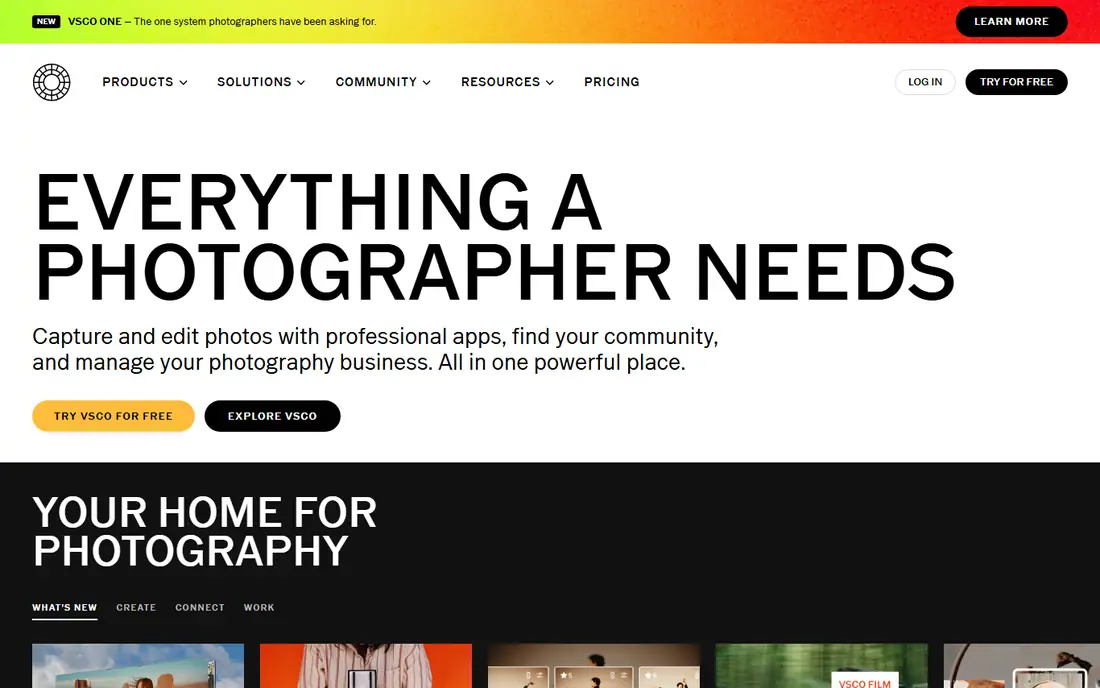
VSCO built its name on presets that mimic film looks, and that focus still shows. The free tier covers basic editing and a small preset set, while Plus at $7.99 per month when billed annually adds more than 200 presets, advanced tools, and video editing. Recipes let you save and reuse a full edit, which helps keep a feed consistent. People who want layers, text, or design tools should look at PicsArt or Canva instead. VSCO is an editing and look app first, and its strength is a consistent, restrained style rather than loud effects.
- Large library of film-style presets
- Fine grain, tone, and color controls
- Clean, distraction-free editing space
- Many presets and tools sit behind Plus
- Community features matter less if you only want editing
PicsArt suits creators who edit for social feeds, not only for print. You can cut out subjects, add stickers and text, apply AI effects, and build collages or short video edits in the same app. The free tier covers a lot of everyday editing, which makes it easy to test before paying. The paid plan opens up premium assets and AI tools, and prices differ between monthly and annual billing, so we list the starting price as See website to avoid quoting a figure that changes at checkout. If you want clean photo correction only, Darkroom or Lightroom will feel less cluttered.
- Huge sticker, template, and font library
- AI background removal and effects
- Works on mobile, web, and desktop
- Many AI tools and premium assets need a paid plan
- Pricing varies by billing period, so check the checkout total
Photopea is the most useful free editor for people who need Photoshop-style control without installing anything. It runs in a browser with layers, masks, adjustment layers, smart objects, and liquify-style tools, and it opens PSD files better than most free rivals. Because work happens locally, your files do not upload to a server. It is not a photo manager. There is no catalog, no batch RAW workflow, and very large files can strain a browser. Use Photopea for retouching, compositing, and PSD work, and pair it with Lightroom or a local folder system for organizing a shoot.
- Full layer, mask, and adjustment workflow in a browser
- Opens PSD, RAW, and many formats
- Files stay on your device
- Free version shows ads
- Performance depends on browser memory
- No photo catalog or batch workflow
Adobe Express sits between a photo editor and a design tool. You can fix a photo, remove its background, add text, and resize the result for each social platform in a few steps. Templates help people who need a finished post fast, without learning a full design app. Photographers who need deep RAW control should pick Lightroom instead. Express is the better pick when the photo is part of a design, such as a promo graphic, a story, or a flyer, and the free tier is enough to test templates before paying for Premium at $9.99 per month.
- Templates for social posts, flyers, and stories
- Quick remove-background and resize tools
- Adobe stock and fonts on paid plans
- Photo correction is lighter than Lightroom
- Best features need Premium
Canva is the easiest way to turn a photo into a finished design. Pick a template, drop in your photo, adjust brightness or crop, add text, and export for social, print, or a presentation. The free plan covers a wide template set and basic photo tools, which suits small businesses and creators. Serious photo work will hit limits fast. Canva lacks layered RAW editing, fine masking, and deep color tools, so keep Lightroom, Darkroom, or Photopea for the photo itself and use Canva for layout. Watch for premium elements in free templates, since they can add a watermark or a paywall at export.
- Huge template library for posts, presentations, and print
- Simple photo fixes and background removal
- Easy sharing and team use
- Photo editing is basic next to Lightroom or Photopea
- Premium elements and tools need a Pro plan
Pixlr gives you a browser editor in seconds, with a simpler Express-style editor and a more advanced editor for layers. AI tools cover background removal, object removal, and one-tap enhancement, which helps product photos and social images. The free tier is genuinely useful for quick jobs. The trade-off is the usual freemium pattern: ads, upgrade prompts, and limits on some AI uses and exports. For a single quick edit on a borrowed computer, Pixlr is excellent. For daily layered work, Photopea offers deeper control at no cost beyond ads on its free tier.
- Two browser editors for quick or advanced edits
- AI background removal and enhancement
- No install needed
- Free version shows ads and pushes upgrades
- Some exports and AI tools have limits
Polarr appeals to editors who like presets but also want to tune them. You can start from a filter, then adjust curves, color channels, and local masks until the look fits your photo. It works across mobile, web, and desktop, and the free tier covers a solid set of editing tools. It does not match VSCO for film-style preset culture or Canva for design templates, so pick Polarr when color control matters more than social features. Check which tools sit on the paid plan before you rely on a specific mask or export option for client work.
- Strong preset and filter tools
- Detailed color, curve, and mask controls
- Works on mobile, web, and desktop
- Smaller community and template library than VSCO or Canva
- Some advanced tools need a paid plan
Fotor is built for speed. Open a photo, tap enhance, fix skin or background with AI tools, and export, all without learning sliders and curves. Collage and design templates help social posts and simple marketing images, and the browser version means no install for a quick job. The free plan carries ads and limits on some AI features, and manual editors will miss the depth of Lightroom or Photopea. Use Fotor when you need a clean, fast result from an everyday photo, and use a deeper editor when color accuracy or print quality matters.
- One-tap AI enhancement and portrait retouching
- Collage and design templates
- Browser, desktop, and mobile apps
- Free tier has ads and limits
- Deep manual editing is weaker than Lightroom or Photopea
How we picked these
We compared official feature pages, pricing pages, app store listings, privacy policies, and public reviews for each app. We weighted true free-plan value, editing depth, preset quality, export limits, and fit for phones, browsers, and desktops. We did not claim hands-on testing, and prices can change, so check the vendor pricing page before you subscribe.
How to pick the right photo editor app
Start from the photo, not the app store chart. A RAW shoot, a social post, and a product photo need different tools, and one app rarely covers all three well.
Decide where you edit
Phone editors suit quick edits and social posts, browser editors suit borrowed computers and layered work, and desktop editors suit large RAW shoots. If you edit on two devices, pick an app with sync or with files you can move easily, and test export size before you commit to a workflow.
Check the free plan honestly
Open the app, edit five photos the way you normally would, and export them at the size you need. Note which tools, presets, and export options ask for payment, and whether free exports carry a watermark. A free app that watermarks your work is not free for client or portfolio use.
Keep your originals safe
Edit on a copy, keep the original file, and back up photos before you rely on any cloud editor. Check whether an editor uploads your photos to a server or processes them on your device, since that matters for client photos and private images. Read the privacy policy for any app that stores your work online.