Best Tool That Can Format Documents in 2026: 9 Tools Compared
By ToolNimba Editorial Team October 30, 2026 10 min read

- Top pick
 Microsoft Word
Professional documents that must open perfectly in Word
Starting price$99.99 per yearCheck out Microsoft WordRead our review - Runner-up
 Google Docs
Teams editing one document together in real time
Starting priceFreeCheck out Google DocsRead our review - Also great
 LibreOffice Writer
Free, full-featured offline document formatting
Starting priceFreeCheck out LibreOffice WriterRead our review
How we researched this
We compared official pricing and feature pages, app store listings, privacy policies and public user reviews. Prices change, so check the provider's site before you pay.
Key takeaways
- Microsoft Word remains the standard for documents that must look right in Word, while Google Docs wins for live collaboration.
- LibreOffice Writer and ONLYOFFICE Docs give you strong formatting free, with good Word file compatibility.
- Zoho Writer and Apple Pages are excellent free options if you work inside their ecosystems.
- Good formatting is mostly about styles, not fonts, so pick a tool with strong heading, table and template support.
Quick comparison
| Name | Best for | Starting price | Free plan | |
|---|---|---|---|---|
| Microsoft Word | Professional documents that must open perfectly in Word | $99.99 per year | Yes | Visit |
| Google Docs | Teams editing one document together in real time | Free | Yes | Visit |
| LibreOffice Writer | Free, full-featured offline document formatting | Free | Yes | Visit |
 WPS Office Writer | A familiar Office-style interface at no cost | Free | Yes | Visit |
 Zoho Writer | A free editor with real offline mode and clean formatting | Free | Yes | Visit |
 Apple Pages | Apple users who want beautiful templates free | Free | Yes | Visit |
 ONLYOFFICE Docs | Teams that need Word layouts kept exact | Free | Yes | Visit |
 Notion | Documents that live inside a wiki or project workspace | Free | Yes | Visit |
 Proton Docs | Private documents with end-to-end encryption | Free | Yes | Visit |
The best tools that can format documents
Formatting a document means more than picking a font. The tools below handle styles, headings, tables, headers and footers, page layout and templates, and they differ on collaboration, offline work and file compatibility.
Microsoft Word
Best for: Professional documents that must open perfectly in Word
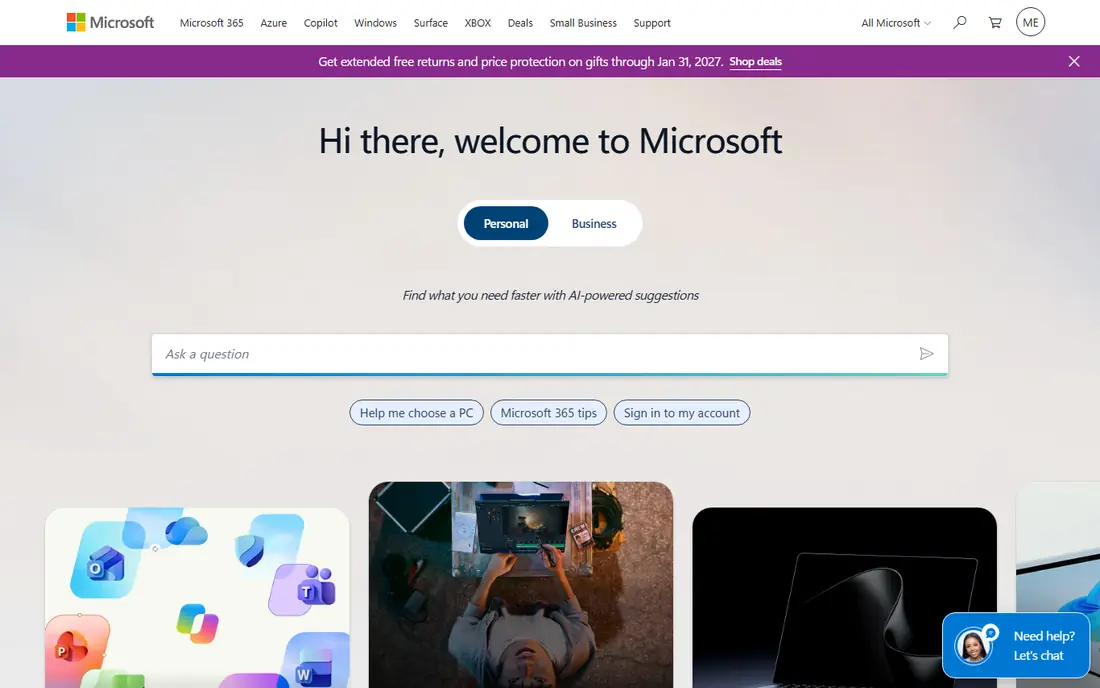
Word is still the reference point for document formatting. Its styles system lets you define headings, body text, captions and quotes once and apply them across a whole report, and its template library covers resumes, letters, reports and newsletters. Tables, headers, footers, footnotes, tables of contents and section breaks all work as expected, which is why employers and publishers still ask for .docx files.
Microsoft 365 Personal costs $99.99 per year and includes the desktop apps plus 1 TB of OneDrive storage, while Word for the web is free with a Microsoft account and covers everyday formatting. The free web version lacks some advanced layout features, but for most documents it is enough. If your document must survive being opened by someone else in Word, start here.
- Deepest styles, templates and layout controls
- Native .docx format
- Free web version available
- Full desktop app needs a paid Microsoft 365 plan
- Interface can feel crowded

Google Docs is the easiest formatting tool for a team. Several people can edit the same document at once, leave comments and suggestions, and roll back through version history if someone breaks the layout. Headings, styles, tables, images and headers all work well, and the outline view makes long documents easy to navigate.
The limits appear with complex layouts. Multi-column pages, intricate tables and heavily styled Word files can shift when imported, and offline work needs setup in Chrome. For essays, reports, letters and shared drafts, Docs is more than enough, and it costs nothing. For a print-ready publication layout, Word or a desktop tool fits better.
- Free with a Google account
- Live collaboration and comments
- Automatic saving and version history
- Weaker page layout than Word
- Complex Word files can shift formatting on import
LibreOffice Writer
Best for: Free, full-featured offline document formatting
LibreOffice Writer is the best free desktop word processor for serious formatting. It supports styles, templates, tables of contents, indexes, footnotes, frames and mail merge, and it opens and saves .docx files well enough for most everyday work. Because it runs offline, it suits writers who work on planes, in rural areas or on computers without a reliable connection.
Complex Word documents with heavy formatting can shift slightly on import, so check the output before sending a file to a Word-only client. There is no built-in live collaboration like Google Docs, though files can be shared through cloud storage. For a free tool that handles long, structured documents, Writer is hard to beat.
- Free and open source
- Strong styles, templates and page layout
- Works on Windows, Mac and Linux
- Word file compatibility is very good but not perfect
- Interface looks dated
WPS Office Writer
Best for: A familiar Office-style interface at no cost
WPS Office Writer feels instantly familiar to anyone who has used Word, with a similar ribbon, tabs and layout. The free version covers writing, styles, tables, images and templates, and it opens and saves Word files well. It also bundles spreadsheet and presentation apps plus basic PDF tools, so one install covers most office jobs.
The free version shows ads and reserves some AI features and advanced PDF tools for Pro Plus, listed near $69.99 per year. Cloud storage on the free plan is small, about 1 GB. If you want a free Word-like experience on Windows, Mac, Linux or mobile without learning a new interface, WPS Writer is a strong pick.
- Free core editing
- Interface close to Word
- PDF tools and templates included
- Free version shows ads
- Advanced AI and PDF features need Pro Plus near $69.99 per year
Zoho Writer
Best for: A free editor with real offline mode and clean formatting
Zoho Writer is an underrated free word processor. It offers styles, templates, headers and footers, tables, images and collaboration with comments and tracked changes, and it works offline as well as online. The interface is clean and modern, and documents export to Word, PDF and other common formats.
Its template library is smaller than Word's, and teams already using Zoho Workplace get the most value, since Writer ties into Zoho Mail, WorkDrive and other Zoho apps. For an individual or small team that wants a free, polished editor without ads, Zoho Writer is one of the best options that few people try first.
- Free with no ads in the editor
- Offline mode
- Styles, templates and collaboration tools
- Smaller template library than Word
- Best inside the Zoho ecosystem
Apple Pages comes free with every Mac, iPhone and iPad, and its templates for resumes, letters, reports and flyers look better than most rivals out of the box. Styles, tables, charts, images and page layout tools are all solid, and documents can be shared through iCloud for collaboration with other Apple users.
Windows and Android users can only reach Pages through iCloud on the web, which is workable but not as smooth as a native app. Word files exported from Pages usually open fine, but complex layouts can shift. For an Apple household or a student on a Mac, Pages is a free, attractive formatting tool that needs no subscription.
- Free on Apple devices
- Elegant templates
- Exports to Word and PDF
- ICloud collaboration
- Limited to Apple devices for the full app
- Word compatibility is decent but not exact
ONLYOFFICE Docs is built around Office compatibility, and it shows. Documents created in Word keep their layout, styles and tables far more faithfully here than in most free editors, which matters when you exchange files with Word users daily. The free desktop editors run on Windows, Mac and Linux, and teams can self-host ONLYOFFICE for browser-based collaboration.
The trade is setup effort. Cloud collaboration is straightforward in a paid workspace but needs configuration when self-hosted, and the template set is smaller than Word's. If your top priority is that a .docx file looks the same for everyone, ONLYOFFICE is the free tool we would trust most.
- Excellent .docx compatibility
- Free desktop editors
- Self-hosting option for teams
- Cloud collaboration needs setup or a paid workspace
- Template library is modest
Notion formats documents differently, using blocks for headings, text, tables, images, checklists and embedded content. That makes it excellent for internal docs, guides, meeting notes and wikis that a team updates over time, since pages link together and stay searchable. The free plan covers unlimited pages and blocks for personal use, and collaboration is smooth.
Notion is not a page-layout tool. Exporting to Word or PDF works but loses fine formatting, and controls for margins, headers and print layout are limited. Use Notion when the document lives online and evolves with a team, and use Word or Writer when you need a polished file to send or print.
- Free personal plan
- Blocks make structured documents easy
- Databases, wikis and collaboration built in
- Export to Word is basic
- Print and page layout controls are limited
Proton Docs is the privacy-first option. Documents are end-to-end encrypted, so only you and people you share with can read them, and the editor covers headings, styles, tables, images and comments without clutter. The free plan includes 5 GB of Proton Drive storage, and paid Drive plans add space and other Proton services.
The editor is simpler than Word or Writer, with fewer templates and layout controls, and sharing works best when collaborators also use Proton. If you write sensitive documents and want encryption built in rather than bolted on, Proton Docs is the most private free choice here.
- End-to-end encrypted editing
- Free plan with 5 GB of Drive storage
- Clean, simple editor
- Formatting features are simpler than Word
- Collaboration needs other people on Proton
How we picked these
We compared official feature pages, pricing pages and app store listings for each tool, and we kept only tools that are actively maintained and work in October 2026. We weighed styles and template support, Word file compatibility, collaboration, offline access and price, and we favored tools with a real free tier. We did not run hands-on trials, so our findings rest on vendor documentation and public reviews rather than lab testing.
How to format a document that looks professional
Start with styles, not fonts. Define a heading style, a body style and a caption style, then apply them consistently instead of bolding and resizing text by hand. That one habit makes a table of contents, navigation and later edits work automatically, and it keeps long documents consistent from first page to last.
Next, keep the layout calm. Use one or two fonts, generous margins, and consistent spacing between paragraphs and headings. Tables should have a header row and aligned columns, and images need captions so readers know what they show. Finally, export a test copy in the format your reader will use, whether Word, PDF or print, and check every page before you send it. Formatting breaks usually show up on page two, not page one.