Best 3D Modeling Software in 2026: 9 Tools Compared
By ToolNimba Editorial Team October 29, 2026 10 min read

- Top pick
 Blender
All-round free 3D creation
Starting priceFreeCheck out BlenderRead our review - Runner-up
 SketchUp
Architecture and interiors
Starting price$129 per yearCheck out SketchUpRead our review - Also great
 Autodesk Maya
Film and game animation
Starting price$235 per monthCheck out Autodesk MayaRead our review
How we researched this
We compared official pricing and feature pages, app store listings, privacy policies and public user reviews. Prices change, so check the provider's site before you pay.
Key takeaways
- Blender is our pick for most people because it is free and covers modeling, sculpting, animation and rendering in one program.
- SketchUp is the fastest route to clean architectural and interior models, while Rhino is the stronger choice for precise curved surfaces.
- Maya, Cinema 4D and 3ds Max suit studio pipelines, but their monthly subscriptions add up fast for a solo creator.
- For 3D printing, Tinkercad is best for first models and Fusion is the better step up when parts need exact dimensions.
- Check the free plan or trial before paying, since the cheapest way to learn a tool is often the version with no card required.
Quick comparison
| Name | Best for | Starting price | Free plan | |
|---|---|---|---|---|
| Blender | All-round free 3D creation | Free | Yes | Visit |
| SketchUp | Architecture and interiors | $129 per year | Yes | Visit |
| Autodesk Maya | Film and game animation | $235 per month | Free trial | Visit |
 Cinema 4D | Motion graphics | $109 per month | Free trial | Visit |
 ZBrush | Digital sculpting | See website | Free trial | Visit |
 Autodesk Fusion | Product design and making parts | $85 per month | Yes | Visit |
 Rhino | Precise NURBS modeling | $995 one-time | Free trial | Visit |
 Tinkercad | Beginners and first prints | Free | Yes | Visit |
 Autodesk 3ds Max | Games and visualization | $255 per month | Free trial | Visit |
The best 3d modeling software
The right tool depends less on brand and more on what you will make with it. This list covers free starters, design tools for buildings and products, and studio tools for animation and sculpting.
Blender is hard to beat on value because the full program costs nothing. It handles polygon modeling, sculpting, rigging, animation, simulation and rendering, so a single download can carry a project from a rough shape to a finished video. The Cycles renderer produces clean, realistic images, and the real-time Eevee renderer is useful for fast previews.
The catch is the learning curve. Blender packs a huge toolset into one interface, and new users can feel lost for the first few weeks. That said, the community fills the gap with free tutorials, add-ons and shared files. If you are learning on your own, or you run a small studio, start here and only pay for something else when a job clearly needs it.
- Free and open source
- Modeling, sculpting, animation and rendering in one app
- Large community and tutorial library
- Interface takes time to learn
- Studio pipeline support varies by employer
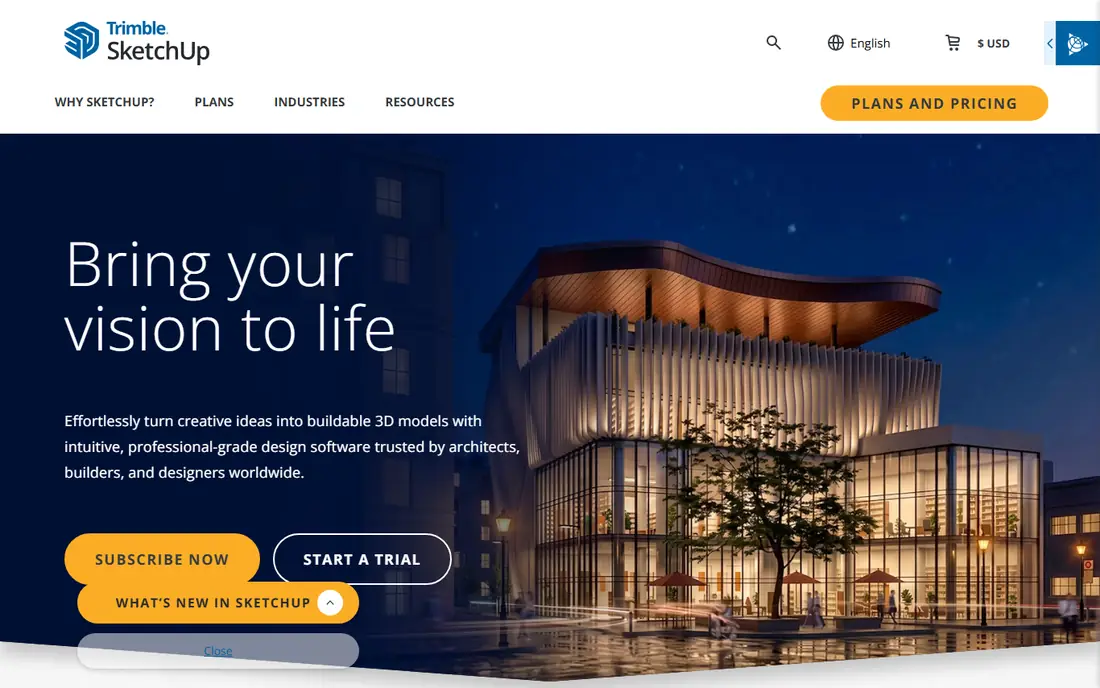
SketchUp wins on speed for anything with walls, rooms and straight edges. You draw, push and pull shapes into place, and a simple building massing model can be ready in an afternoon. The 3D Warehouse library adds furniture, fixtures and details without modeling each piece from scratch, and the Pro plan adds LayOut for 2D drawings.
Organic shapes are where SketchUp feels limited. Sculpting a character or a smooth car body takes workarounds that other tools handle directly. Paid plans are also subscriptions, so the cost repeats every year. For architects, interior designers and woodworkers, though, that trade is usually worth it for the time saved.
- Fast to learn
- Strong for buildings, rooms and furniture
- Large library of ready-made models
- Subscription only for paid plans
- Weaker for organic sculpting and complex curves
Maya remains the default choice in many film, television and game studios. Its animation, rigging and simulation tools go deep, covering cloth, fluids, hair and particles, and the Arnold renderer is built in for polished output. If you plan to apply for studio work, Maya experience still carries weight on a resume.
That strength comes with a serious price and a serious learning curve. At $235 per month, it is hard to justify for a hobby project, and the interface rewards patience rather than quick wins. Buy it when a pipeline, a client or a job requires it, not just because it is famous.
- Industry standard for animation
- Deep rigging and simulation tools
- Arnold renderer included
- High monthly cost
- Steep learning curve for beginners
For motion graphics, Cinema 4D has a clear edge. Its MoGraph toolset makes it easy to clone, arrange and animate large groups of objects, which is exactly what title sequences, product spots and broadcast graphics need. The interface is also more approachable than Maya, so designers coming from After Effects tend to settle in faster.
The subscription is the main drawback, and the annual price is lower than the monthly rate, so short projects cost more per month. Rendering quality depends on your setup and, for some jobs, an added renderer. If your work is mostly motion graphics, Cinema 4D earns its keep. If you only model still objects, cheaper tools cover the same ground.
- Friendly interface for a pro tool
- MoGraph tools for motion graphics
- Strong After Effects connection
- Monthly cost is high for casual use
- Rendering can need extra tools for top-end results
Sculptors reach for ZBrush for a reason. Its brushes feel close to working clay, and it handles dense, detailed meshes that would slow other programs down. Characters, creatures, jewelry details and collectibles all benefit from that level of control, and the iPad version lets you sculpt away from a desk.
Be ready for an unusual interface. ZBrush works differently from most 3D software, so even experienced modelers need time to adjust. It is also a specialist tool, not a replacement for parametric CAD or a full animation pipeline. Pair it with Blender, Maya or another program for retopology, rigging and final rendering.
- Best-in-class sculpting brushes
- Handles very high polygon counts
- IPad version for mobile work
- Unusual interface
- Not a general modeling or CAD tool
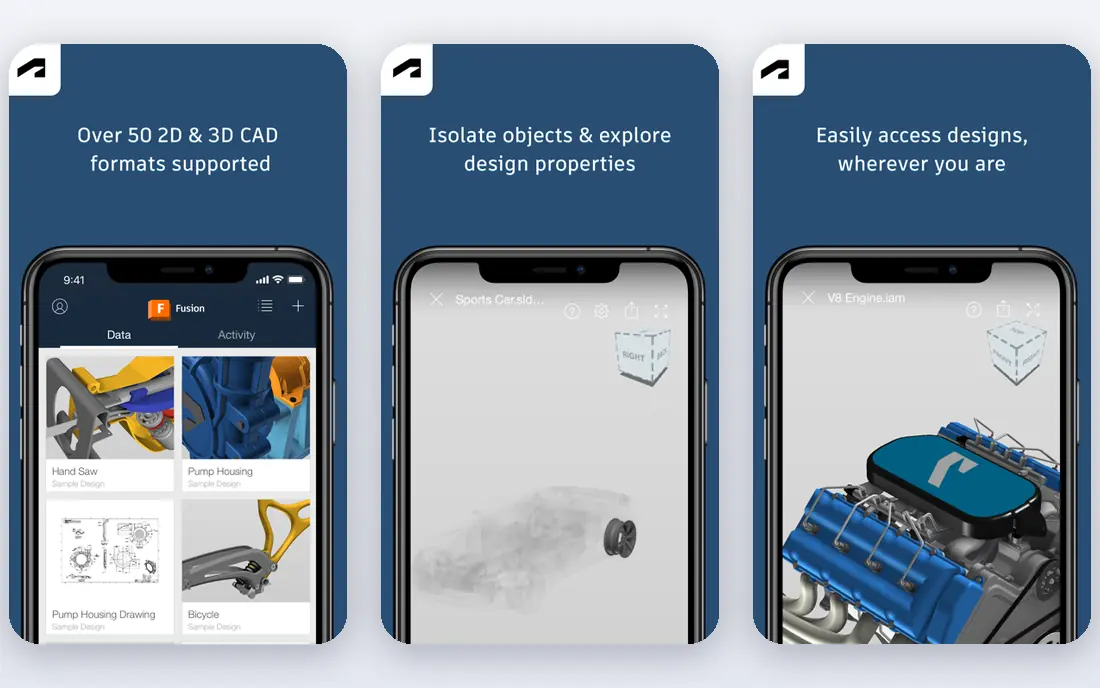
Fusion is the pick when a model has to become a real object with exact measurements. Its parametric approach means you can change a dimension later and the model updates, which matters for brackets, enclosures, mounts and machined parts. Built-in CAM toolpaths and basic simulation keep the path from design to workshop inside one program.
The free personal-use version is limited, especially for commercial work and some manufacturing features, so check the limits before you rely on it. Fusion also leans on cloud services, which can frustrate anyone who wants a fully offline workflow. For makers, engineers and small product teams, it is still one of the most practical choices on this list.
- Parametric CAD plus CAM and simulation in one app
- Good for parts that must fit together
- Free personal-use version
- Cloud-based workflow needs an internet connection
- Personal version has feature limits
Rhino stands out because you buy it once. The $995 commercial license is perpetual, with service releases included for that version, so long-term users often pay less than they would on a subscription. Its NURBS tools give exact control over curves and surfaces, which suits jewelry, product design, architecture and fabrication work.
Grasshopper, included with Rhino, adds visual parametric design without writing code, and that alone draws many designers to the program. Rhino is less suited to character animation or a full film pipeline, and its interface rewards a methodical approach. If precision and ownership matter more than animation, Rhino is a strong buy.
- Perpetual license with no subscription
- Precise curves and surfaces
- Grasshopper for parametric design
- No built-in animation pipeline like Maya
- Interface can feel technical at first
Tinkercad is where most beginners should start. It runs in a browser, costs nothing, and teaches the core idea of 3D design by combining simple solids and holes into a finished shape. Teachers use it in classrooms, and makers use it for quick brackets, holders and replacement parts that print well.
Its simplicity is also its ceiling. You will outgrow Tinkercad once you need curved surfaces, precise engineering drawings or complex assemblies. That is fine. Treat it as a low-pressure first step, then move to Fusion or Blender when a project asks for more.
- Free and runs in a browser
- Very easy first steps
- Direct export for 3D printing
- Too simple for detailed or professional work
- Needs an internet connection
Game artists and visualization studios have used 3ds Max for years, and that history shows in its modeling tools, material workflow and plugin support. It fits architectural visualization and game asset work well, especially in studios already built around Autodesk tools and Windows machines.
The limits are plain. There is no Mac or Linux version, so Apple-based teams need another machine or another tool. The monthly price is also among the highest here, which makes it a studio purchase rather than a casual one. If your team already works in 3ds Max, staying put makes sense. If you are starting fresh, compare Blender and Maya first.
- Long history in game development
- Strong modeling and rendering workflow
- Large plugin ecosystem
- Windows only
- High subscription cost
How we picked these
We compared official feature pages, pricing pages, app store listings and public reviews for tools that cover the main kinds of 3D work: free general modeling, architecture, product design, sculpting, animation and printing. We kept only tools that are still sold and supported, and we left out tools that only do one narrow job, such as a single file converter. Prices shown are the starting prices we found during research, and we marked prices as See website where a vendor quotes by plan or region rather than publishing one clear starting figure.
What to check before you pay
A tool can look perfect on a feature page and still be wrong for your project. Use this short checklist to avoid an expensive mismatch.
Match the tool to the output
Ask what the finished file must do. A print needs a watertight mesh and correct scale. A game asset needs clean topology and a sensible polygon count. A building model needs drawings and dimensions. Pick the tool that handles your output directly instead of forcing a workaround.
Test the interface first
Use the free plan or trial to model something small from your own work, not just a tutorial shape. Pay attention to how long basic tasks take, how easy it is to fix a mistake, and how clear the export settings are. A tool that feels awkward in week one rarely feels better in month six.
Add up the real yearly cost
Monthly prices hide the yearly total, and subscriptions for several seats add up quickly. Compare a one-time license like Rhino against a subscription over three years, and check whether students, educators or startups qualify for a lower price. Also check file compatibility with clients and collaborators before you commit.
Sources
- https://www.blender.org/features/
- https://www.sketchup.com
- https://www.autodesk.com/products/maya/overview
- https://www.maxon.net/en/cinema-4d
- https://www.maxon.net/en/zbrush
- https://www.autodesk.com/products/fusion-360/overview
- https://www.rhino3d.com
- https://www.tinkercad.com
- https://www.autodesk.com/products/3ds-max/overview