Best 3D Printing Software in 2026: 8 Tools Compared
By ToolNimba Editorial Team October 29, 2026 10 min read

- Top pick
 PrusaSlicer
Free all-round FDM slicing
Starting priceFreeCheck out PrusaSlicerRead our review - Runner-up
 UltiMaker Cura
Beginners and wide printer support
Starting priceFreeCheck out UltiMaker CuraRead our review - Also great
 Bambu Studio
Bambu Lab printer owners
Starting priceFreeCheck out Bambu StudioRead our review
How we researched this
We compared official pricing and feature pages, app store listings, privacy policies and public user reviews. Prices change, so check the provider's site before you pay.
Key takeaways
- Most leading slicers are free, so pick by printer compatibility and workflow, not by price.
- PrusaSlicer is our pick for most FDM printing, while Bambu Studio is the obvious choice for Bambu Lab owners.
- Tinkercad is the fastest free start for beginners, and Fusion 360 is the step up for dimensioned, functional parts.
- Modeling software and slicing software do different jobs, and most makers need one of each.
Quick comparison
| Name | Best for | Starting price | Free plan | |
|---|---|---|---|---|
| PrusaSlicer | Free all-round FDM slicing | Free | Yes | Visit |
| UltiMaker Cura | Beginners and wide printer support | Free | Yes | Visit |
| Bambu Studio | Bambu Lab printer owners | Free | Yes | Visit |
 OrcaSlicer | Tuning and calibration | Free | Yes | Visit |
 Tinkercad | Beginner browser modeling | Free | Yes | Visit |
 Blender | Organic modeling and sculpting | Free | Yes | Visit |
 Fusion 360 | Parametric CAD for functional parts | Free | Yes | Visit |
 Simplify3D | Paid support and control | $199 one-time | No | Visit |
The best 3d printing software
We compared official download pages, feature lists, printer compatibility and public reviews for the tools below. This category splits into two jobs: modeling software creates the shape, and a slicer turns that shape into layer-by-layer instructions for your printer. You usually need both, and the best pair depends on your printer and your experience.
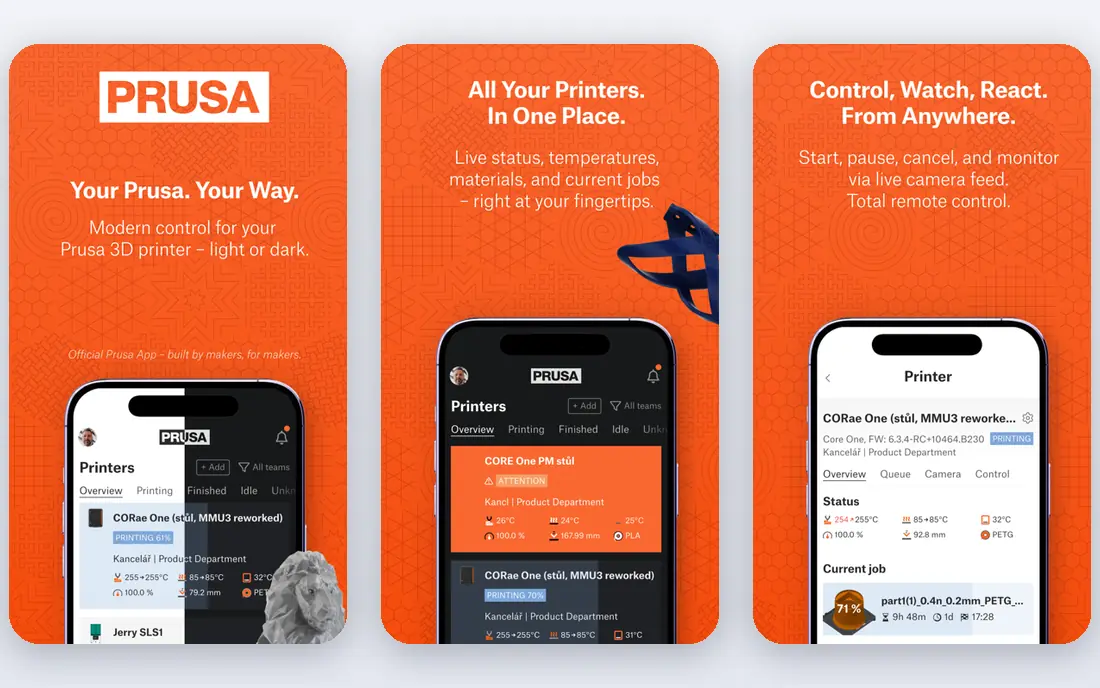
PrusaSlicer is our pick for most FDM printing because it balances control, reliability and cost, and cost here is zero. It grew out of the open-source Slic3r project and is maintained by Prusa Research, which gives it a steady update pace and a large community for help. Organic supports are the feature people switch for: tree-like structures that touch the model lightly and come off more cleanly than block supports.
The tool works with many printers beyond Prusa machines, but expect to spend time on profiles if your printer is not a Prusa. That setup pays off once dialed in, since the same settings carry across projects. Beginners may find the full settings view busy, but the simple mode keeps first prints approachable while the advanced options stay available for later.
- Free and open source
- Strong organic supports
- Reliable profiles for many printers
- Profiles for non-Prusa printers take setup
- Interface is denser than Cura in basic mode
UltiMaker Cura is the safest first slicer if you do not know which tool fits your printer. It supports hundreds of printer models, which means an unusual or budget machine is more likely to have a ready profile here than anywhere else. The basic mode hides most settings, so a first print is a matter of loading a model, picking a quality preset and slicing.
The plugin marketplace adds real value, from calibration shapes to post-processing scripts, without forcing you to learn a new program. The weakness is speed: slicing a large or detailed model on an older laptop can take a while, and hunting through settings menus gets tedious as you learn more. For a beginner or a household with more than one printer brand, Cura is still the easiest start.
- Largest library of printer profiles
- Simple basic mode
- Plugin marketplace for extra features
- Can feel slow on older computers with large models
- Advanced settings are spread across menus

Bambu Studio is the slicer made by Bambu Lab for its own printers, and that focus shows in the defaults. Profiles, filament settings and multi-material handling with the AMS system work out of the box, so new owners can print good parts quickly without tuning a profile from scratch. It also handles printer control and monitoring for Bambu machines in the same app.
If you do not own a Bambu printer, there is less reason to choose it over PrusaSlicer or OrcaSlicer, since its strengths are tied to Bambu hardware. Owners, however, should not overthink this choice: use the slicer your printer maker built, learn its workflow, and only switch if a specific feature pulls you elsewhere. Bambu Studio is free, so trying it costs nothing but time.
- Tight integration with Bambu Lab printers
- Excellent default profiles
- Multi-material support with AMS
- Built around Bambu hardware first
- Less appealing if you do not own a Bambu printer
OrcaSlicer started as a fork of Bambu Studio, which itself came from PrusaSlicer, and it adds the calibration tools that tuners love. Flow rate, pressure advance, temperature towers and retraction tests are built in, so you can dial in a printer or a new filament without hunting for test files online. That makes it the pick for makers who print often and want consistent results across materials.
The trade-off is screen density. A complete beginner will see more settings than Cura shows in basic mode, and that can slow a first print. OrcaSlicer also supports many printers beyond Bambu, including Creality and Prusa machines, so it works as a second slicer once you outgrow defaults. Keep Cura or your maker slicer for quick prints, and use OrcaSlicer when tuning matters.
- Built-in calibration tests
- Broad printer support
- Frequent community updates
- Busy interface for complete beginners
- Settings depth can overwhelm a first print
Tinkercad is the fastest way to go from an idea to a printable file if you have never modeled before. It runs in a browser, uses simple shapes that you combine and cut, and exports files your slicer can read. Teachers use it widely because students can start in minutes, and hobbyists use it for brackets, stands, cases and other simple parts.
The limits appear as soon as you need exact dimensions, fillets, threads or a complex assembly. Tinkercad can handle basic measurements, but it is not a parametric CAD tool, and editing a finished design can mean rebuilding parts of it. Treat it as a starter: learn shapes and export here, then move to Fusion 360 or FreeCAD when your parts need real engineering.
- Runs in a browser with no install
- Drag-and-drop shapes
- Great for classrooms and first designs
- Limited for precise or complex parts
- Not suited to large assemblies
Blender is a professional-grade modeling tool that happens to be free, and it shines for organic shapes: figures, props, costumes and decorative prints that need sculpting rather than exact measurements. Its mesh editing, sculpting brushes and modifiers give you control that a CAD tool does not, and the tutorial community is large enough that almost any technique has a free guide.
That power comes with a learning curve. The interface packs modeling, animation and rendering into one program, so a beginner can feel lost before the first print. Blender also works in meshes, not parametric solids, so changing a dimension later is harder than in Fusion 360. Use it for art and organic work, and keep a CAD tool for brackets and parts that must fit other hardware.
- Free and open source
- Powerful sculpting and mesh editing
- Huge tutorial community
- Steep learning curve
- Overkill for simple functional parts
Fusion 360 is the step up when your prints must fit the real world. You sketch, dimension and extrude parts, build assemblies, and change a measurement later without rebuilding the whole model. That parametric workflow suits brackets, enclosures, mounts and replacement parts where a millimeter matters, and it is the skill that transfers best to professional CAD work.
The free tier covers personal use and eligible startups, while commercial use above set thresholds needs a paid license, so check the current terms on the Autodesk site before using it for a business. Fusion 360 also needs an Autodesk account and cloud storage, which some makers dislike. If your parts are functional and dimensioned, those trade-offs are worth it.
- Parametric modeling for precise parts
- Assemblies and drawings
- Free personal use tier
- Commercial use requires a paid license
- Cloud account needed
Simplify3D was once the paid slicer that serious makers bought for support control and reliability. It still offers detailed support placement, process settings and a support channel that free tools do not, and it works with a wide range of printers. For a print farm that wants a single paid product with someone to call, that structure has appeal.
The honest problem is value. PrusaSlicer, Cura, Bambu Studio and OrcaSlicer now match or beat Simplify3D on most features for free, and their communities update faster. A $199 one-time license only makes sense if you specifically want its support workflow or its paid support. Most readers should start free and only consider Simplify3D after hitting a limit in a free slicer.
- Fine-grained support control
- Paid support channel
- Works across many printers
- Paid license is hard to justify when free slicers are this good
- Updates are slower than open-source rivals
How we picked these
We compared official product pages, download pages, printer compatibility lists and public reviews, and we favored tools that work today, are actively maintained, and fit a clear job: slicing, modeling or both. Prices are from vendor pages and pricing checks in October 2026, and free tools are listed as Free only where the core product is free to download and use without a paid tier for basic slicing or modeling.
How to choose your pair
Start with your printer maker slicer if you own a Bambu, Prusa or Creality machine, since its profiles will give you good first prints. If you own a mixed fleet or an unusual printer, start with Cura for profiles or PrusaSlicer for control. Add OrcaSlicer when you want to tune filament and calibration properly.
For modeling, start with Tinkercad if you are new, Blender if your work is organic, and Fusion 360 if your parts must fit bolts, cases or other hardware. Export a test model, slice it, and print a small calibration piece before committing to a large project. That short loop tells you more than any feature list about whether a tool fits your printer and your patience.