Best AI Image Editing Tools in 2026: 8 Tools Compared
By ToolNimba Editorial Team October 29, 2026 9 min read

- Top pick
 Adobe Photoshop
Layered pro editing
Starting price$22.99 per monthCheck out Adobe PhotoshopRead our review - Runner-up
 Adobe Lightroom
Photo libraries and RAW files
Starting price$11.99 per monthCheck out Adobe LightroomRead our review - Also great
 Canva
Social posts and quick edits
Starting price$18 per monthCheck out CanvaRead our review
How we researched this
We compared official pricing and feature pages, app store listings, privacy policies and public user reviews. Prices change, so check the provider's site before you pay.
Key takeaways
- Adobe Photoshop remains our pick for serious layered editing, while Lightroom is the better choice for large photo libraries.
- Canva is the fastest route from a photo to a finished social post, thanks to templates and one-click AI edits.
- Topaz Photo AI is the specialist for rescuing noisy, blurry, or low-resolution photos that other editors cannot fix.
- Free tools such as Photopea and Pixlr cover most casual edits, so pay only when you need batch work, high-resolution exports, or pro color tools.
Quick comparison
| Name | Best for | Starting price | Free plan | |
|---|---|---|---|---|
| Adobe Photoshop | Layered pro editing | $22.99 per month | Free trial | Visit |
| Adobe Lightroom | Photo libraries and RAW files | $11.99 per month | Free trial | Visit |
| Canva | Social posts and quick edits | $18 per month | Yes | Visit |
 Luminar Neo | Fast creative photo edits | $119 one-time | Free trial | Visit |
 Topaz Photo AI | Denoise, sharpen, and upscale | $199 per year | Free trial | Visit |
 Pixlr | Free browser editing | $2.49 per month | Yes | Visit |
 Fotor | One-click enhancements | $8.99 per month | Yes | Visit |
 Photopea | Free Photoshop-style editing | Free | Yes | Visit |
The best ai image editing tools
We compared official feature pages, pricing, app store listings, and public reviews for editors with real AI features, not just filters with an AI label. The list below mixes pro suites, one-click enhancers, and free browser tools.
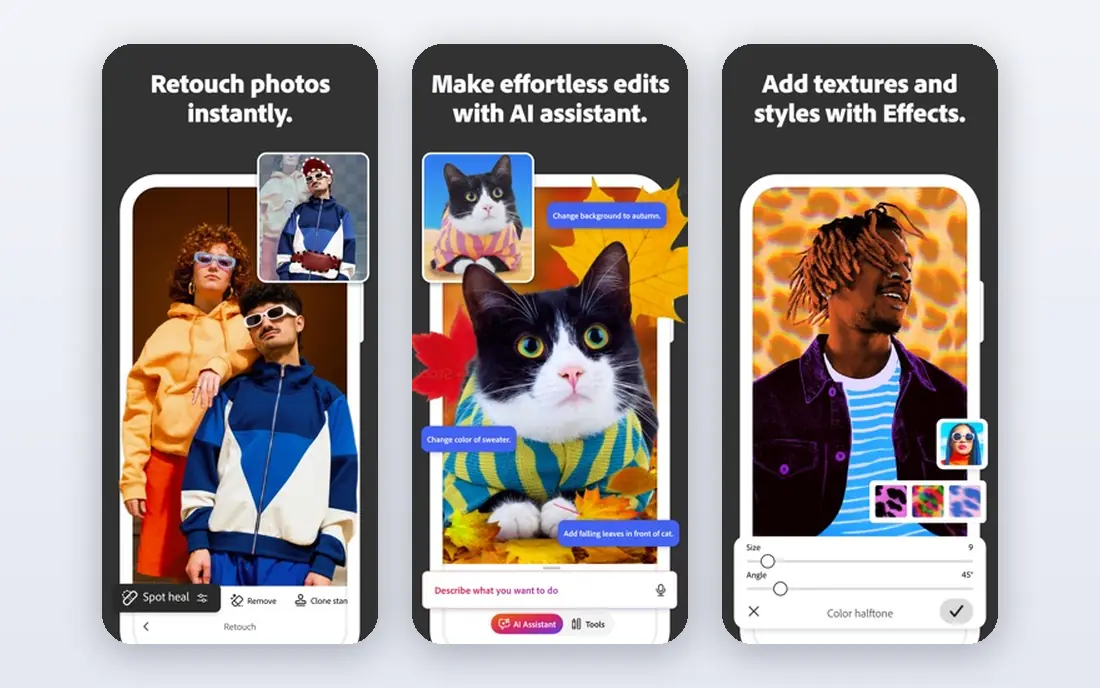
Photoshop is still the reference point for image editing, and its AI tools are now part of daily work rather than a novelty. Generative Fill can extend a background, remove a distraction, or replace a sky, and the result stays editable on its own layer. For compositing, retouching, and print work, no one-click app matches that control.
The price and learning curve are the honest costs. At $22.99 per month for the single app plan, casual users will pay for power they rarely use, and the interface assumes you know layers, masks, and blend modes. If you edit photos for clients or print, that depth earns its price. If you only fix phone photos, start with Canva or Pixlr and move up later.
- Full layer and mask control
- Generative Fill and Remove
- Huge plugin and tutorial library
- Subscription cost adds up
- Steep learning curve for beginners
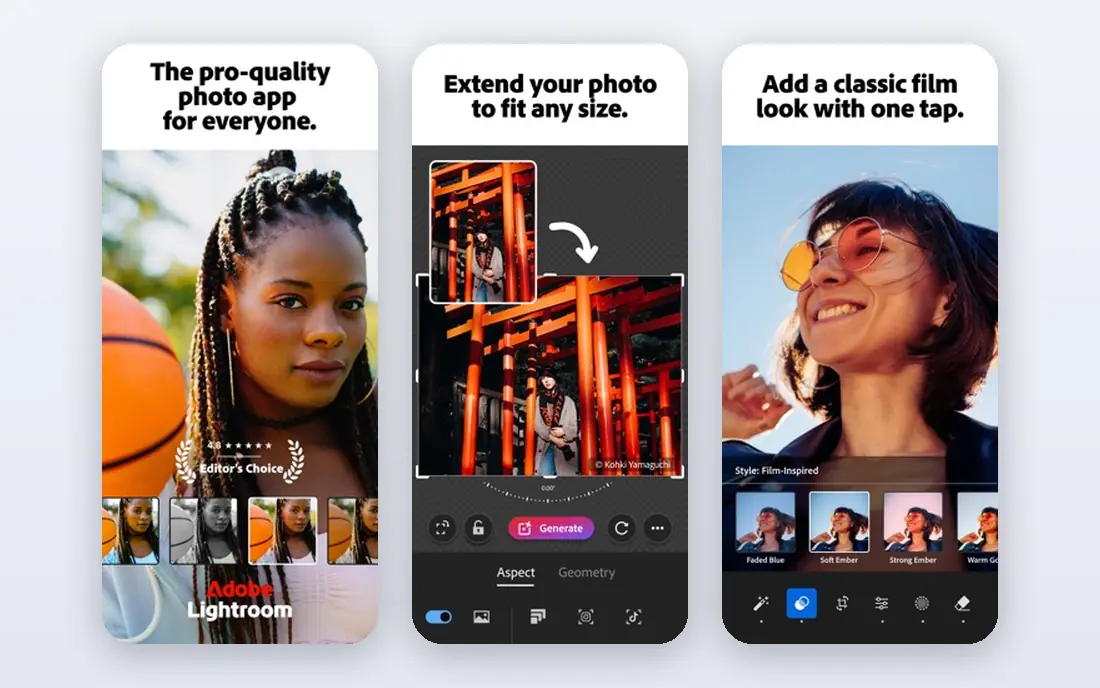
Lightroom is the tool we reach for when the job is hundreds of photos, not one hero image. Its AI masks can select a subject, sky, or background in a click, and edits stay non-destructive, so you can return to the original file at any time. RAW support, batch presets, and cloud sync make it a strong hub for photographers who shoot often.
It is not a Photoshop replacement. Layered compositing, heavy retouching, and text-heavy design work belong elsewhere. Lightroom also works best inside an Adobe subscription, so check the Photography plan, which bundles Photoshop and Lightroom, before paying for Lightroom alone.
- AI masking and Generative Remove
- Non-destructive RAW editing
- Cloud sync across devices
- Weaker than Photoshop for compositing
- Full features need a subscription
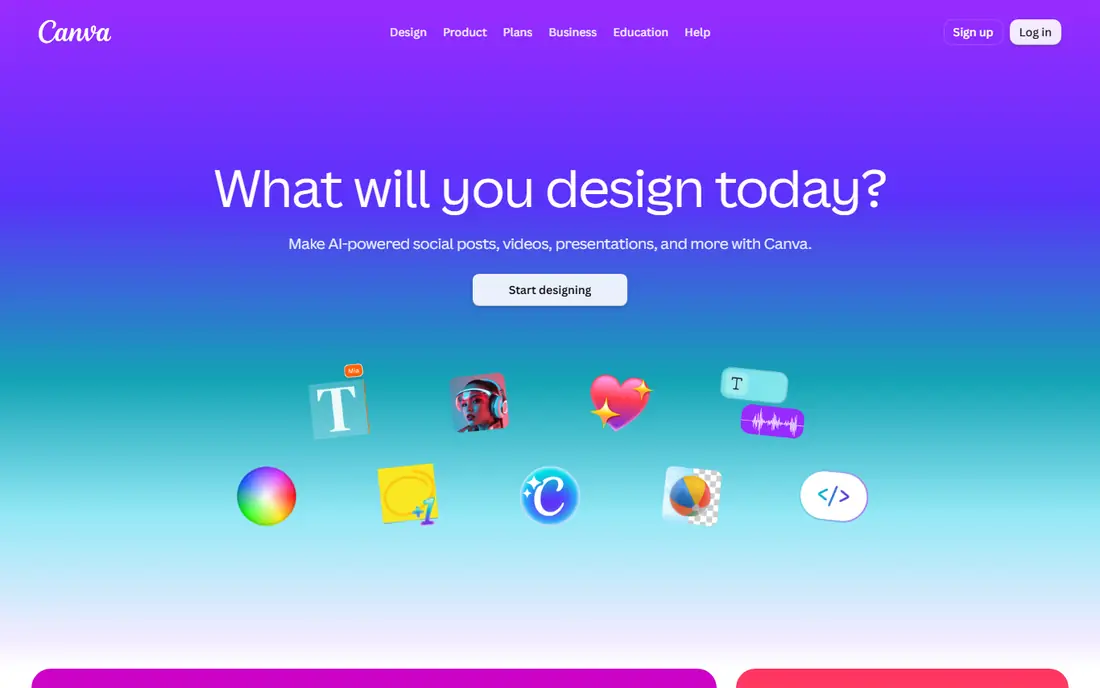
Canva wins on speed. Open a template, drop in a photo, use Magic Edit or the background remover, and you have a post, ad, or presentation slide in minutes. The free tier covers basic edits and many templates, and Pro adds the larger stock library, brand kits, and more AI uses per month.
Precision is where Canva stops. You cannot mask, retouch, or color grade with the same control as Lightroom or Photoshop, and AI edits sometimes need a second pass. Treat Canva as a design and social tool with good photo editing built in, not as a pro photo editor, and it will rarely disappoint.
- Huge template library
- Magic Edit and background remover
- Easy sharing and brand kits
- Limited fine-grained photo control
- Best AI features need Pro
Luminar Neo sits between one-click apps and full pro suites. Its AI tools handle sky replacement, portrait retouching, and scene relighting with sliders rather than manual masking, which makes a dramatic edit possible in a few minutes. A one-time purchase option also appeals to photographers who dislike subscriptions.
The trade is depth. Its catalog and batch workflow are not as deep as Lightroom, and its extension library is smaller than Photoshop. For photographers who want fast, creative edits without learning a pro suite, that trade is fair. For studio teams with shared catalogs, Lightroom still fits better.
- AI sky replacement and portrait tools
- Gentle learning curve
- One-time purchase option
- Smaller plugin library than Adobe
- Catalog tools are less deep than Lightroom
Topaz Photo AI does one job better than any general editor on this list. It cleans noise from high-ISO shots, sharpens soft images, and upscales low-resolution files while holding detail. Face recovery can also rescue old portraits that look lost in other tools. It works standalone or as a plugin, so it slots into a Lightroom or Photoshop workflow.
Do not buy it as your only editor. It has no layers, templates, or design tools, and the yearly price is steep if you only rescue a photo now and then. For wildlife, event, and travel photographers who regularly shoot in hard light, it pays for itself in saved shots.
- Strong denoise, sharpen, and upscale results
- Face recovery for old photos
- Works as a plugin
- Narrow focus, not a full editor
- Price is high for occasional use
Pixlr is our pick for free browser editing with real depth. It offers layers, AI cutout, generative tools, and quick enhancement in a tab, with no install and no desktop app to maintain. That makes it ideal for school, work, or shared computers where you cannot install software.
The free tier is genuinely usable but metered. Ads appear in the free version, and AI features draw on daily credits, so heavy AI use will push you toward Plus. If you need a free tool for layered edits and occasional AI help, Pixlr is the strongest no-cost starting point here.
- Layers in the browser
- AI cutout and generation tools
- No install needed
- Free tier shows ads and limits AI credits
- Interface feels busy
Fotor is built for people who want a better photo without learning an editor. Its AI enhancer fixes light, color, and sharpness in one click, and batch editing handles a folder of product or event photos at once. Portrait tools and templates make it useful for small business owners who need consistent listing photos.
Control is limited compared with Lightroom or Luminar Neo. You cannot fine-tune masks or build complex layered edits, and some exports and batch features need Pro. If speed matters more than precision, Fotor is a friendly middle ground between Canva and a pro suite.
- Simple one-click AI enhancer
- Batch editing
- Headshot and portrait tools
- Free exports can carry limits
- Pro features sit behind Pro
Photopea is the closest thing to Photoshop you can use for free. It opens PSD files, supports layers, masks, and smart objects, and runs entirely in the browser. For students, freelancers, and anyone on a borrowed computer, that combination is hard to match at zero cost.
Its AI side is thinner than the other tools here. You get manual editing power, not one-click sky replacement or generative fill at Photoshop level, and the free version shows ads. Pair Photopea with a specialist such as Topaz Photo AI or a free tier from Canva, and you cover both manual control and AI help without a subscription.
- Full layer and PSD support in the browser
- Free with no account needed
- Familiar Photoshop-style layout
- AI features are basic
- Free version shows ads
How we picked these
We compared official feature pages, pricing pages, app store listings, and public reviews, and we favored tools whose AI features are documented by the vendor rather than only claimed in marketing. Each tool had to be available in October 2026, work in a browser, on desktop, or on mobile, and offer a free plan or trial except where a one-time purchase is the model.
We did not claim hands-on testing of every tool, and we did not invent quality scores. Prices change often, so check the vendor page at checkout, especially for annual billing, which usually lowers the monthly figure quoted here.
How to choose the right AI photo editor
Start with the job, not the feature list. The best tool for a social post is rarely the best tool for a wedding gallery.
Match the tool to the output
Social posts and ads favor Canva or Fotor, where templates and fast exports matter most. Portrait and event work favors Lightroom or Luminar Neo, where batch edits and consistent color matter. Print and compositing favor Photoshop or Photopea, where layers and masks decide the result.
Watch the AI limits
Free tiers often cap AI uses, credits, or export resolution. Check how many AI edits, generations, or upscales you get per month before you commit to a workflow. A cheap plan that runs out mid-project costs more in time than a higher tier.
Test on your own photos
Run the same three photos through two or three tools before you pay: a portrait, a low-light shot, and an outdoor scene with a busy background. Look closely at edges, skin texture, and text in the image, since those areas show AI artifacts first. Keep the tool that handles your worst photo well, not just your best one.
Sources
- https://www.adobe.com/products/photoshop.html
- https://www.adobe.com/products/photoshop-lightroom.html
- https://www.canva.com
- https://skylum.com/luminar
- https://www.topazlabs.com/topaz-photo-ai
- https://pixlr.com
- https://www.fotor.com
- https://www.photopea.com
- https://rankite.com/blog/best-ai-photo-editing-software
- https://www.lilachbullock.com/adobe-creative-cloud-price/