Best AI Presentation Software for Education in 2026: 9 Tools Compared
By ToolNimba Editorial Team November 6, 2026 10 min read

- Top pick
 Gamma
Fast prompt-to-deck lessons
Starting price$9 per monthCheck out GammaRead our review - Runner-up
 Canva
Classroom templates and school plans
Starting price$15 per monthCheck out CanvaRead our review - Also great
 SlidesAI
AI drafts inside Google Slides
Starting price$10 per monthCheck out SlidesAIRead our review
How we researched this
We compared official pricing and feature pages, app store listings, privacy policies and public user reviews. Prices change, so check the provider's site before you pay.
Key takeaways
- For most classrooms, the deciding factors are export format, student data controls, and price, not how flashy the first draft looks.
- Gamma is the fastest route from notes to a presentable deck, while SlidesAI and Plus AI suit schools that must deliver in Google Slides or PowerPoint.
- Canva for Education can be free for eligible K-12 schools, so check what your school already provides before paying for another tool.
- Teachers should check AI content for errors and bias before sharing a deck, and keep student personal data out of prompts.
Quick comparison
| Name | Best for | Starting price | Free plan | |
|---|---|---|---|---|
| Gamma | Fast prompt-to-deck lessons | $9 per month | Yes | Visit |
| Canva | Classroom templates and school plans | $15 per month | Yes | Visit |
| SlidesAI | AI drafts inside Google Slides | $10 per month | Yes | Visit |
 Beautiful.ai | Consistent, clean lesson decks | $14.50 per month | Free trial | Visit |
 Prezi | Zoomable talks and visual lessons | $7 per month | Free trial | Visit |
 Pitch | Collaborative class and department decks | $10 per month | Yes | Visit |
 Plus AI | AI inside Slides and PowerPoint | $10 per month | Free trial | Visit |
 Curipod | Interactive lessons and student polls | See website | Free trial | Visit |
 Microsoft Copilot in PowerPoint | Schools already on Microsoft 365 | See website | No | Visit |
The best AI presentation software for education
Teachers and students need presentation tools that save time without creating new problems. A good education tool turns notes into a clear deck fast, exports in the format a teacher accepts, and respects school privacy rules. We compared official pricing pages, education plans, and feature pages, with a focus on classroom use: lesson decks, student projects, group work, and exports. Check your school policy on AI use and student data before rolling any tool out to a class.
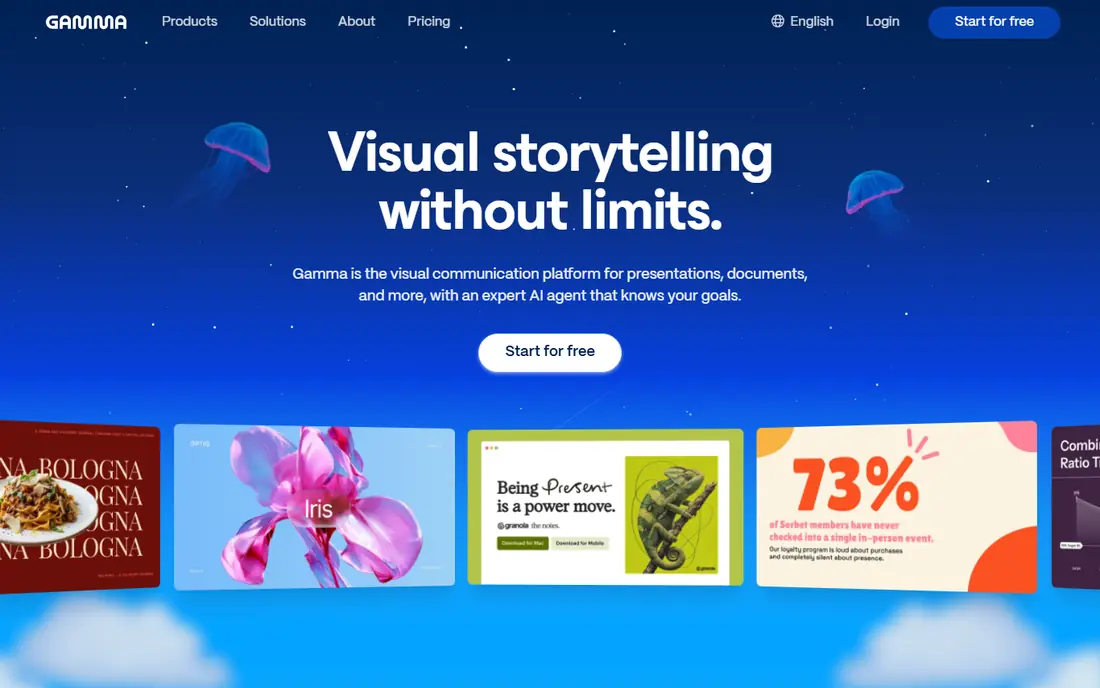
Gamma is our pick for a teacher who needs a lesson deck tonight. Paste notes or an outline, and Gamma builds a structured, good-looking deck in minutes, with images and layouts handled for you. The free plan gives starter credits to try real decks, and paid plans add more credits, branding control, and exports.
The catch for schools is export and cost. PowerPoint export sits on paid plans, and free credits run out, so a teacher who makes decks every week should budget for Plus. Gamma also produces a web-style deck first, so check the exported file before submitting it as a class handout. For speed and polish, though, Gamma is hard to beat.
- Very fast prompt-to-deck generation
- Free plan with starter credits
- PowerPoint and PDF exports on paid plans
- Web-first format can need fixes after PowerPoint export
- Free credits do not renew, so heavy use needs a paid plan
Canva is the most versatile classroom tool in this list, because it covers slides, posters, worksheets, and videos in one place. Teachers can start from a template, use AI to draft or restyle a deck, and share work with students for group projects. For eligible K-12 schools, Canva for Education can be free when set up through the school, which makes it the best value in many districts.
Individual pricing is different from school pricing, so do not judge Canva for a whole school by the personal Pro price. Check with your school or district first, since many already provide Canva. If your school does not, the free plan still covers basic decks, with AI uses limited per month.
- Huge template and asset library
- Magic Design AI features
- Education plans for eligible schools
- AI features are limited on the free plan
- Individual Pro pricing differs from school pricing
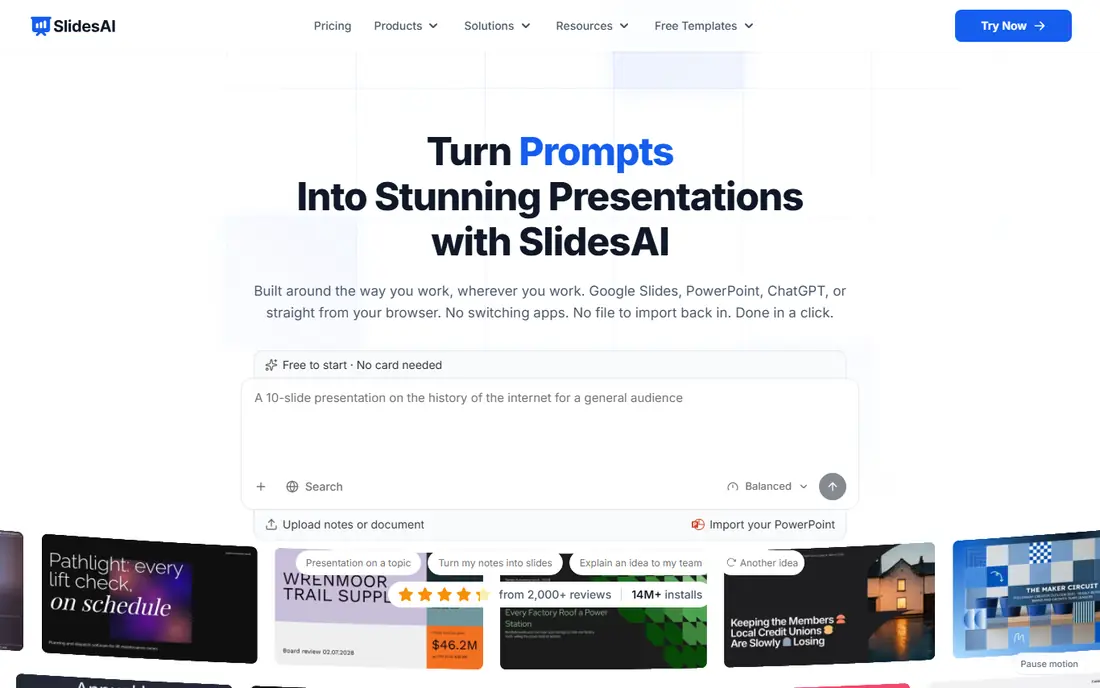
SlidesAI is the best fit for a Google Classroom school, because it runs as an add-on inside Google Slides. Students and teachers paste text or an outline, and SlidesAI builds slides they can edit with familiar Slides tools. That native format avoids export problems, since the deck stays a Google Slides file from start to finish.
Expect to edit. AI drafts can include errors, weak examples, or generic wording, so teachers should review student decks for accuracy before grading or sharing. The free plan covers a limited number of presentations per year, which suits occasional use, while regular users need Pro.
- Works inside Google Slides, so no new editor to learn
- Fast text-to-deck drafts
- Free basic plan for students
- Output still needs editing for accuracy and design
- Free plan limits presentations per year
Beautiful.ai suits teachers and departments that want every deck to look consistent without design training. Smart Slides adjust layout as content changes, so a teacher adding a bullet or an image does not break the slide. That discipline helps for department templates, parent presentations, and student work that must look tidy.
The price and trial-only free option make Beautiful.ai a weaker pick for a single student on a budget. It fits better as a teacher or department tool, where one subscription serves many decks. If your school values consistency over speed, Beautiful.ai is worth the trial.
- Smart layouts that stay balanced as you edit
- Clean, professional look without design skill
- PowerPoint export on paid plans
- No free plan, only a trial
- Less flexible than Gamma for creative or unusual layouts
Prezi takes a different approach: instead of flipping through slides, you zoom across a canvas that shows how ideas connect. That format works well for history timelines, science processes, and concept maps, where the big picture matters as much as each detail. AI tools help draft the structure, and the entry price is low.
The risk is overuse. A zooming deck can distract a class if every transition flies across the screen, and some teachers prefer a standard slide file for handouts. Use Prezi for talks where relationships matter, and keep a PDF or slide export ready for students who need notes.
- Zoomable canvas that suits storytelling and concept maps
- AI-assisted deck creation
- Low entry price
- Non-linear format can distract if overused
- Some school systems prefer standard slide files
Pitch is a good choice for group projects and department work, because collaboration and sharing are built in from the start. Students can co-edit a deck, teachers can comment, and sharing rooms let a class present without emailing files around. The free plan includes AI credits to try generation before paying.
As with Gamma, PowerPoint export needs a paid plan, so check your submission format first. If your class shares links and presents live, Pitch works well free. If every student must submit a PowerPoint file, budget for Plus or pick a Slides-native tool instead.
- Strong collaboration and sharing controls
- Free plan with AI credits
- Clean templates for team decks
- PowerPoint export sits on paid plans
- AI credits on the free plan are limited
Plus AI is the practical pick for a school that already standardizes on Google Slides or PowerPoint and does not want a new editor. It generates and edits slides inside the tool teachers already use, so decks stay in native format and need no export step. That matters when a teacher must submit, grade, or archive files in a set system.
Pricing is per user, so a whole-class rollout costs more than a single teacher subscription. Plus AI fits best for teachers, or for students working on a school-provided account. Trial it on an existing deck first, since editing old slides is where it differs most from prompt-to-deck tools.
- AI generation inside Google Slides and PowerPoint
- Keeps the native file format
- Useful for existing decks
- No free plan, only a trial
- Per-user pricing adds up for a whole class
Curipod is the classroom engagement pick, because it builds interaction into the deck itself. Teachers can add polls, open questions, and drawing prompts, and students respond from their devices during the lesson. That live response loop suits formative checks, where a teacher wants to see understanding before moving on.
Curipod is less of a general deck maker than Gamma or Canva, so it pairs best with a standard slide tool for static decks. Pricing varies by plan and school use, so ask for an education quote and trial it with one real lesson. For interactive teaching, it earns its place.
- Interactive polls, questions, and student responses built in
- Lesson decks designed for classroom engagement
- Pricing is not a simple public monthly rate
- More lesson tool than general presentation maker
Microsoft Copilot in PowerPoint
Best for: Schools already on Microsoft 365
Copilot in PowerPoint is the safest choice for a school already on Microsoft 365, because it adds AI to the tool students and teachers already use. It can draft a deck from an outline or a document, restyle slides, and summarize content, all inside PowerPoint. School admin controls and existing accounts also simplify privacy and access management.
The cost depends on your Microsoft licensing, since Copilot is an add-on rather than a standalone purchase. A school without qualifying Microsoft 365 plans should not buy Copilot alone. If your school already provides it, though, it is the lowest-friction AI presentation option available.
- AI inside PowerPoint, the format many schools require
- Works with existing Microsoft files and accounts
- Admin controls for schools
- Requires qualifying Microsoft 365 licensing, so total cost depends on your school plan
- No free standalone plan
How we picked these
We compared vendor pricing pages, education pages, and feature pages, and we favored tools with a free plan or education pricing, a clear export path, and classroom-friendly collaboration. We marked quote-based school pricing as See website rather than guessing a fee. We left out tools with no education use case and tools whose presentation products are no longer available. Teachers should still verify current education eligibility with each vendor, since school plans change by region and institution type.
How to choose for your classroom
Match the tool to the submission format first. If teachers accept Google Slides, SlidesAI and Plus AI are natural fits. If PowerPoint is required, Gamma, Beautiful.ai, or Copilot in PowerPoint are safer, with exports checked before the deadline.
Protect student data and check AI output
Never paste student names, grades, or personal details into a public AI tool prompt. Use class topics and sample content instead, and follow your school policy on AI accounts for underage students. Always review AI decks for factual errors, since a polished slide can still carry a wrong date, definition, or example.
Trial with one real lesson
Pick one upcoming lesson, build it in two tools, and present both to a colleague or a small group. Judge clarity, export quality, and time saved, not just the first draft look. The tool that saves time every week, without export surprises, is the right classroom pick.
Sources
Frequently asked questions
What is the best AI presentation software for teachers?
Gamma is fastest for a new lesson deck, Canva is best if your school already provides it, and SlidesAI or Copilot suit schools that require Google Slides or PowerPoint files.
Is Canva for Education really free?
Canva for Education can be free for eligible K-12 teachers and schools when set up through the school. Eligibility and setup vary, so check Canva education pages or ask your school administrator.
Can students use AI presentation tools for homework?
That depends on your school policy. Many schools allow AI for drafting and design, with students responsible for checking facts and citing sources. Teachers should state the rule clearly for each assignment.
Do AI presentation tools replace learning design skills?
No. AI handles a first draft and layout, but students still need to choose content, check facts, structure an argument, and present clearly. The best classroom use is drafting plus review, not copy and submit.
What format should students submit AI decks in?
Submit in the format your teacher asks for, usually PowerPoint or Google Slides. Always export and open the file before the deadline to check that layouts, images, and fonts survived the export.