Best AI Presentation Tools No Coding in 2026: 9 Tools Compared
By ToolNimba Editorial Team November 6, 2026 10 min read

- Top pick
 Gamma
Fastest prompt-to-deck without code
Starting price$9 per monthCheck out GammaRead our review - Runner-up
 Beautiful.ai
Smart layouts that design themselves
Starting price$14.50 per monthCheck out Beautiful.aiRead our review - Also great
 Canva
Templates plus AI for any user
Starting price$15 per monthCheck out CanvaRead our review
How we researched this
We compared official pricing and feature pages, app store listings, privacy policies and public user reviews. Prices change, so check the provider's site before you pay.
Key takeaways
- No-code AI presentation tools turn a prompt, outline, or document into a deck, so design skill is not a barrier to a good-looking result.
- Gamma is the fastest no-code route for most people, while Beautiful.ai suits teams that need every deck to stay on brand.
- Export format decides many choices: check PowerPoint and PDF export, and any branding on free exports, before you commit.
- Free plans are useful for trying a tool, but regular use usually needs a paid plan for credits, exports, and branding control.
Quick comparison
| Name | Best for | Starting price | Free plan | |
|---|---|---|---|---|
| Gamma | Fastest prompt-to-deck without code | $9 per month | Yes | Visit |
| Beautiful.ai | Smart layouts that design themselves | $14.50 per month | Free trial | Visit |
| Canva | Templates plus AI for any user | $15 per month | Yes | Visit |
 SlidesAI | AI decks inside Google Slides | $10 per month | Yes | Visit |
 Pitch | Team decks with no design skill needed | $10 per month | Yes | Visit |
 Prezi | Visual, zoomable decks without code | $7 per month | Free trial | Visit |
 Visme | Interactive decks and visuals | $12.25 per user per month | Yes | Visit |
 Decktopus | Guided AI decks with analytics | See website | No | Visit |
 Plus AI | AI inside Slides and PowerPoint | $10 per month | Free trial | Visit |
The best AI presentation tools no coding
No-code AI presentation tools are built for people who want a good deck without learning design software or writing code. You type a topic, paste notes, or upload a document, and the tool drafts slides, layouts, and images for you. We compared official pricing and feature pages for tools that generate decks from text alone, with editing done by clicking and typing, not by code. Every tool here can be used by a beginner, but exports, credits, and branding rules differ, so check those before you pay.
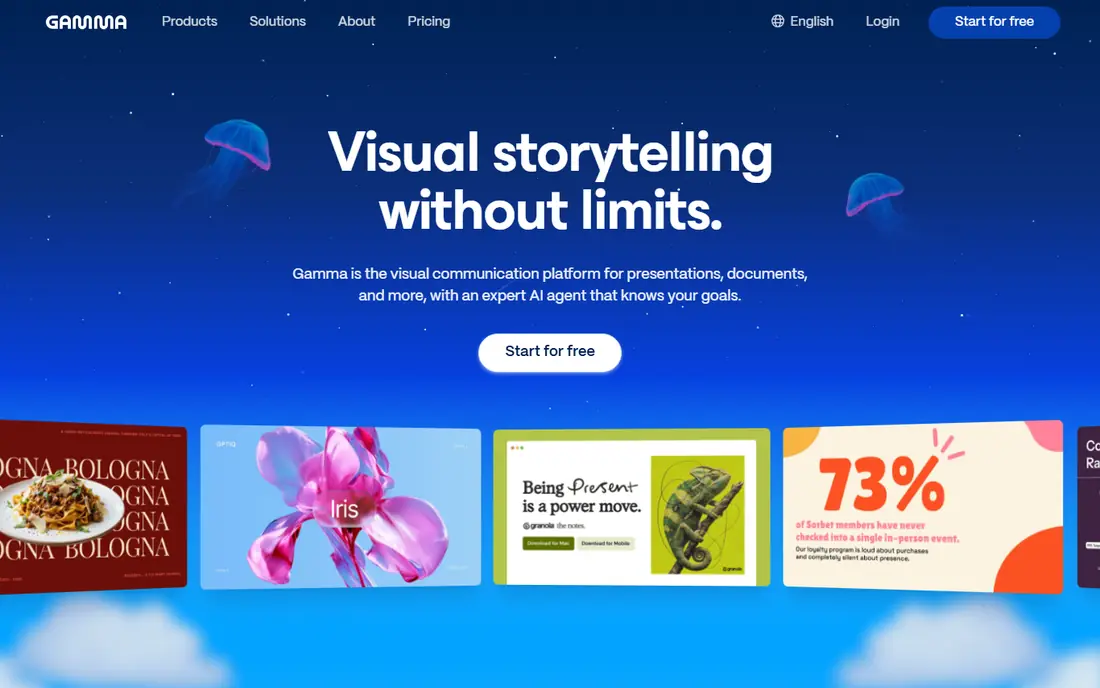
Gamma is our pick for most no-code users. Type a prompt or paste an outline, and Gamma builds a modern deck in minutes, with structure, layouts, and images handled for you. Editing is done in chat or by clicking, with no code and no design panels to learn. The free plan gives starter credits to build real decks before paying.
The limits are export and credit use. PowerPoint export sits on paid plans, and free credits run out, so regular users should budget for Plus. Gamma decks also start as web-style cards, so open any exported PowerPoint file before a meeting to check layouts. For speed and ease, Gamma still leads.
- Fastest prompt-to-deck workflow in this list
- Free starter credits
- PowerPoint and PDF exports on paid plans
- Web-first cards can need fixes after PowerPoint export
- Free credits do not renew
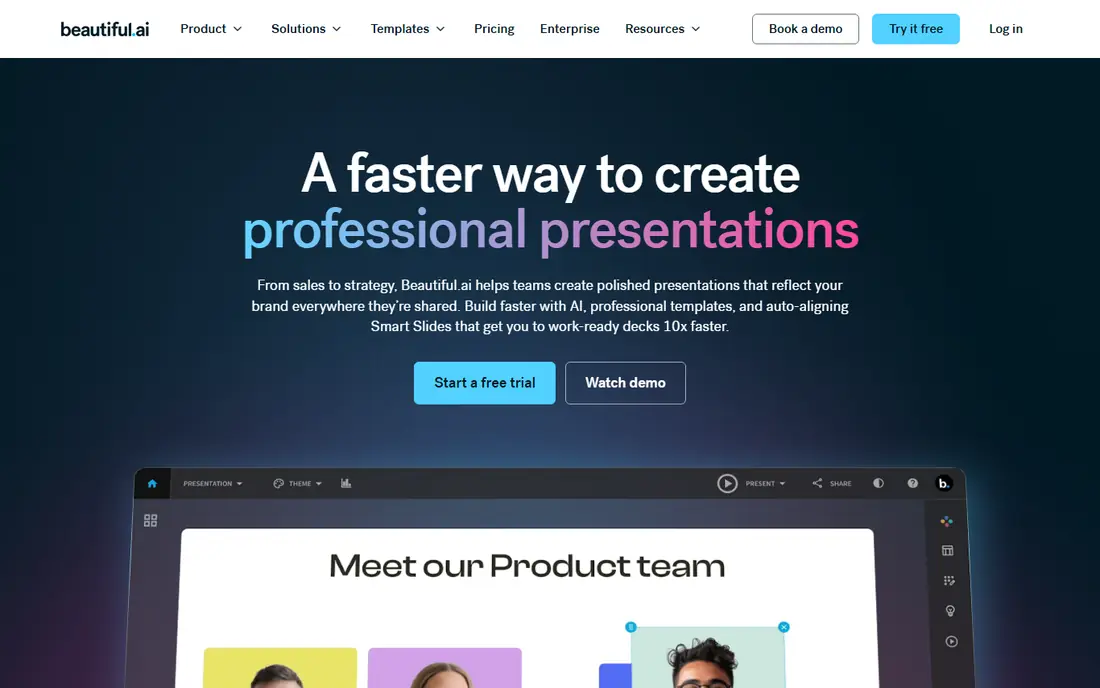
Beautiful.ai is the no-code pick for users who worry most about looking professional. Its Smart Slides adjust spacing, alignment, and layout as you type, so a deck stays tidy even if you add text or swap an image. You do not need to know design rules, because the tool applies them for you.
The trade-off is flexibility and price. There is no free plan, only a trial, and the layout system limits how freely you can move elements around. Beautiful.ai suits business users and teams that want consistent, client-ready decks without a designer. Creative users who want full control may prefer Canva.
- Smart Slides keep layouts balanced automatically
- Clean, professional templates
- PowerPoint export on paid plans
- No free plan, only a trial
- Less freeform control than Gamma or Canva
Canva is the most flexible no-code tool here, because it combines AI generation with a vast template library and simple drag-and-drop editing. A beginner can start from a template, use AI to draft or restyle slides, and finish with charts, photos, and brand colors, all without code. The free plan covers basic decks, which makes Canva a safe first try.
The catch is that AI features and premium assets are limited on the free plan, so regular users usually need Pro. Canva also offers more options than a pure prompt-to-deck tool, which can feel busy at first. If you want one tool for slides, social posts, and documents, Canva is the best all-round no-code choice.
- Huge template library and drag-and-drop editing
- Magic Design AI features
- Free plan for basic decks
- AI uses are limited on the free plan
- Premium templates and assets need Pro
SlidesAI is the simplest no-code route for Google Slides users. As an add-on, it turns pasted text or an outline into slides inside the editor you already know, so there is no new app to learn and no export step. Editing stays in Slides, with familiar fonts, images, and sharing controls.
Free use is limited to a set number of presentations per year, and AI drafts still need a human check for errors and generic wording. SlidesAI suits students, teachers, and office users who live in Google Workspace and want a fast first draft without leaving Slides.
- Runs inside Google Slides, so the format stays native
- Fast text-to-deck drafts
- Free basic plan
- Free plan limits presentations per year
- Drafts need checking for accuracy and tone
Pitch makes team decks easy without design skill. Templates give a clean starting point, AI helps draft content, and teammates can edit, comment, and present from shared links. That workflow suits small teams, startups, and class groups that need a polished deck fast.
As with Gamma, PowerPoint export sits on paid plans, so check your delivery format first. If you present from a link, the free plan may be enough. If you must hand over a PowerPoint file, budget for Plus. Pitch is strongest when collaboration, not just generation, is the main need.
- Easy collaboration and sharing
- Clean templates
- Free plan with AI credits
- PowerPoint export needs a paid plan
- Free AI credits are limited
Prezi offers a no-code way to build a visual talk that moves across a canvas instead of flipping slides. You add topics, zoom into details, and zoom back out to the big picture, which helps audiences follow how ideas connect. AI tools help draft the structure, and no coding or design training is needed.
The format is not right for every meeting. A formal board deck or a handout may suit standard slides better, and heavy zooming can distract if overdone. Use Prezi when the story and its connections matter most, and keep a PDF version ready for readers who prefer a static file.
- Zoomable canvas for storytelling
- AI-assisted deck creation
- Low entry price
- Non-linear format suits some talks better than others
- Standard slide exports need care
Visme suits users who want more than static slides, such as clickable content, charts, and embedded visuals, without coding. Its templates cover presentations, infographics, and reports, and AI features help draft and restyle content. The free plan lets you test a real project before paying.
Visme has more controls than Gamma or SlidesAI, so a first deck takes a little longer to learn. That depth pays off for data-heavy decks, where charts and visuals matter. If you only need a quick text-to-deck draft, a simpler tool will be faster.
- Interactive elements, charts, and data visuals
- Wide template range
- Free plan for a first project
- Learning the full editor takes longer than a pure prompt tool
- Some exports sit on paid plans
Decktopus guides a beginner through deck creation step by step, with suggested structures for common deck types such as sales, onboarding, and reports. That guidance helps users who stare at a blank page and do not know what a good deck should contain. Viewer analytics show who opened a shared deck, which helps sales and hiring teams follow up.
Pricing varies by plan, so confirm the current rate and what is included before buying, and note that there is no free plan listed in the same way as Gamma or Canva. Decktopus suits users who want structure and analytics more than freeform design freedom.
- Guided deck creation with suggested structure
- Viewer analytics
- Domain and sharing controls on paid plans
- Pricing is not a simple public monthly rate
- Fewer templates than Canva for freeform design
Plus AI is the no-code pick for users who already work in Google Slides or PowerPoint and do not want another editor. It generates new slides and edits existing decks inside those tools, so files stay native and ready to share or submit. That lack of an export step removes a common source of layout surprises.
There is no free plan, only a trial, and pricing is per user, so team costs add up. Plus AI fits individual professionals and teachers best, or teams on a school or company account. Trial it on an existing deck to see its editing strength before subscribing.
- AI generation inside Google Slides and PowerPoint
- Native file format, no export step
- Good for editing existing decks
- No free plan, only a trial
- Per-user pricing adds up for larger teams
How we picked these
We compared vendor pricing and feature pages, and we kept tools that generate a deck from a prompt, outline, or document with editing by clicking and typing alone. We favored tools with a free plan or trial, a clear export path, and a real no-code workflow, and we marked unclear pricing as See website. We left out design tools with no AI generation, code-based slide frameworks, and presentation products that are no longer available. Prices change, so confirm the current plan before buying.
How to choose a no-code presentation tool
Start with your delivery format. If you must submit PowerPoint, pick a tool with paid PowerPoint export and test it before the deadline. If you present from a link, a web-first tool such as Gamma or Pitch may be enough.
Test with your real content
Paste a real outline, not a sample topic, and judge the draft on clarity, accuracy, and editing time. A tool that looks great on a demo topic but needs heavy fixes on your content is not saving time. Also check free export branding, since some free plans add a logo or badge to exported files.
Watch credits and limits
Most no-code tools run on credits or generation limits. Check how many decks your plan covers per month, whether unused credits roll over, and what happens when you run out mid-project. A slightly higher plan is often cheaper than buying top-up credits repeatedly.
Sources
Frequently asked questions
Do I need design skills to use AI presentation tools?
No. These tools handle layout, fonts, and images for you. You still need to write clear content, check facts, and review the draft, but you do not need design training or code.
Can no-code AI tools export to PowerPoint?
Most paid plans can, including Gamma, Beautiful.ai, Canva, Pitch, and Plus AI. Free plans often limit exports or add branding, so check export terms before relying on a free plan for a graded or client deck.
Are free AI presentation tools good enough?
Free plans suit occasional decks and trials. Regular users usually need a paid plan for more credits, PowerPoint export, branding control, and larger decks.
Will an AI deck look generic?
It can, if you accept the first draft unchanged. Edit the outline, swap images, adjust colors to your brand, and rewrite key slides in your own words to make the deck feel personal.
Is my content private in these tools?
Privacy terms vary by vendor and plan, with business plans often offering stronger controls. Avoid pasting sensitive or personal data into prompts, and check the vendor privacy page before uploading confidential documents.