Best AI Tool for Precise Image Editing Sunglasses in 2026: 8 Tools Compared
By ToolNimba Editorial Team November 6, 2026 10 min read

- Top pick
 Adobe Photoshop
Precise professional editing
Starting price$22.99 per monthCheck out Adobe PhotoshopRead our review - Runner-up
 Affinity
Free professional editing
Starting priceFreeCheck out AffinityRead our review - Also great
 Photopea
Browser-based layered editing
Starting priceFreeCheck out PhotopeaRead our review
How we researched this
We compared official pricing and feature pages, app store listings, privacy policies and public user reviews. Prices change, so check the provider's site before you pay.
Key takeaways
- Photoshop and Affinity give the most precise pixel-level control for product photos, including frame, lens, and reflection edits.
- Photopea is the best free browser option when you need layered editing without installing software.
- insMind, Dreamina, and FlexClip add glasses to portraits with a brush or prompt, which suits quick try-on previews.
- Modelia and Fashion Diffusion are built for sellers who need on-model eyewear images without a photoshoot.
- Try-on previews are not a fit or prescription check, so keep real measurements and product specs next to every image.
Quick comparison
| Name | Best for | Starting price | Free plan | |
|---|---|---|---|---|
| Adobe Photoshop | Precise professional editing | $22.99 per month | Free trial | Visit |
| Affinity | Free professional editing | Free | Yes | Visit |
| Photopea | Browser-based layered editing | Free | Yes | Visit |
 insMind | Adding glasses to a portrait | See website | Yes | Visit |
 Dreamina | Prompt-based glasses try-on | See website | Yes | Visit |
 FlexClip | Quick glasses try-on for content | See website | Yes | Visit |
 Modelia | On-model eyewear for sellers | See website | Free trial | Visit |
 Fashion Diffusion | Sunglasses try-on from product photos | See website | Yes | Visit |
The best AI tool for precise image editing sunglasses
This topic covers two related jobs. The first is precise editing of sunglasses product photos: clean cutouts, accurate lens tint, reflections, and color. The second is showing sunglasses on a face, whether for a shopper preview or a seller's catalog. The tools below cover both, and the right pick depends on which job you do most.
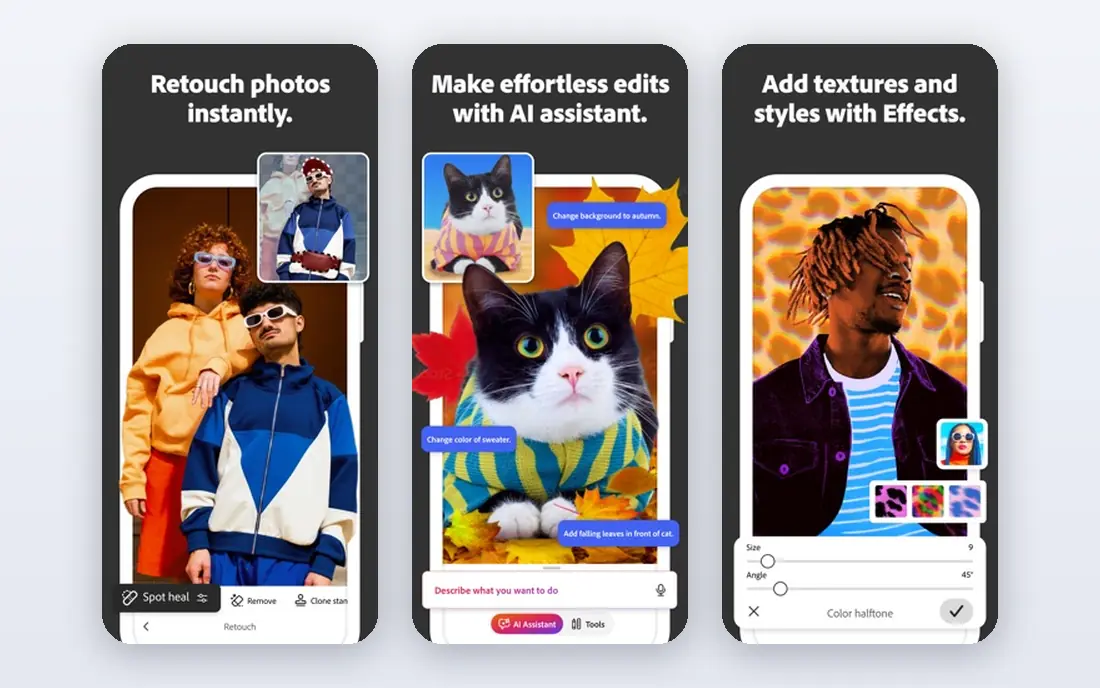
Photoshop remains the standard when precision matters more than speed. Its selection and masking tools let you isolate a frame, adjust lens tint without touching the metal, and clean reflections frame by frame. Generative Fill can remove a distracting background or extend a product shot, and the result stays editable as layers rather than a flattened guess.
The price is the main barrier: Photoshop costs $22.99 per month as a standalone plan, with a free trial to test it. For a seller editing a full catalog, that cost is easy to justify. For someone who only needs a quick try-on preview, the tools below are faster and cheaper. Use Photoshop when the image itself is the product.
- Most precise selection, masking, and retouching tools
- Generative Fill for clean edits
- Huge plugin and tutorial ecosystem
- Subscription cost adds up
- Learning curve is steep for casual users
Affinity, now free from Canva, is the best value in precise editing. It covers the core professional workflow: layers, masks, non-destructive adjustments, RAW development, and batch processing, without a subscription. For sunglasses product photos, that means careful color work, clean cutouts, and consistent catalog exports at no cost.
What it lacks is Photoshop's AI depth and any eyewear try-on feature. You will do try-on work manually, by compositing a frame onto a portrait with masks and perspective adjustments, which is precise but slow. If your priority is accurate product images on a zero budget, Affinity is the pick, and it pairs well with a try-on tool for previews.
- Full professional editor at no cost
- Layers, masks, and RAW support
- Fast on desktop
- AI features are thinner than Photoshop
- No built-in try-on workflow
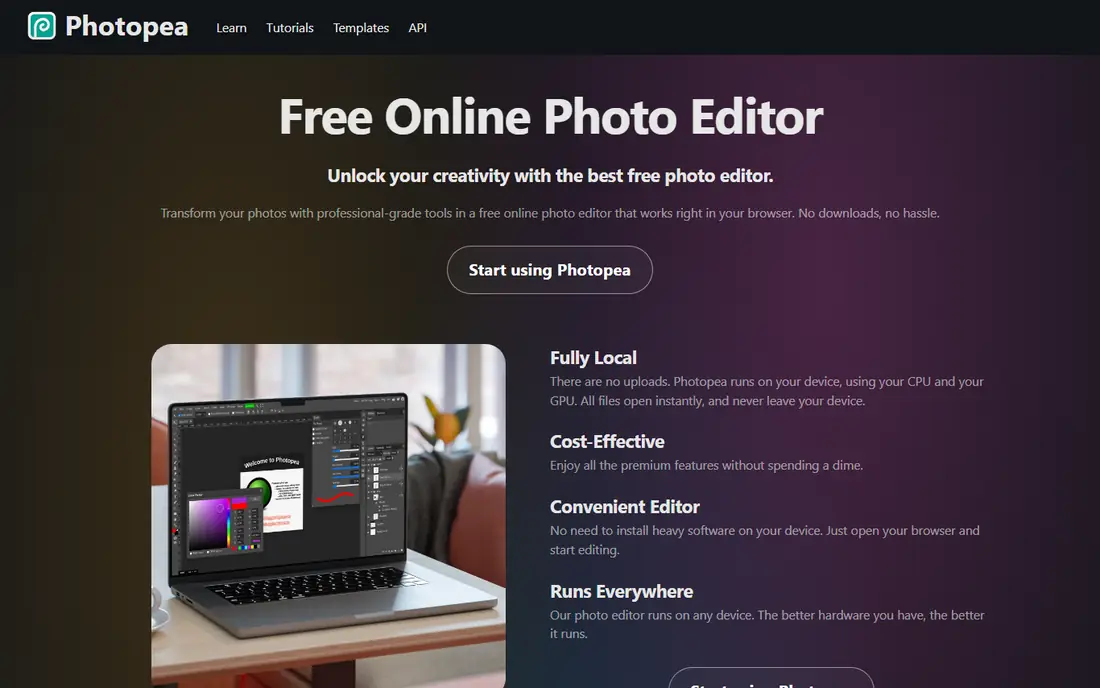
Photopea is the tool to open when you need real editing and cannot install software. It runs in the browser, opens PSD, XCF, and common image formats, and supports layers, masks, and adjustments that casual editors lack. For a quick product photo fix, such as straightening a frame, adjusting tint, or cleaning a background, it is surprisingly capable.
The free tier is supported by ads, and very large files can lag compared with a desktop editor. It also has no dedicated try-on mode, so placing sunglasses on a face is a manual compositing job. As a free, no-install precise editor, though, Photopea is hard to beat, and it is a good companion to the try-on tools below.
- Opens PSD files in the browser
- Layers and masks with no install
- Free tier is genuinely useful
- Ads on the free tier
- Heavy files can feel slower than desktop apps
insMind fits the shopper side of this topic: upload a portrait, brush over the eye area, and describe the frames you want, from round metal frames to black sunglasses. It blends the frames into the photo, so you can compare several styles on the same face before buying. That makes it useful for narrowing down a look, refreshing a profile photo, or testing a style idea.
The honest limit is accuracy. insMind gives a visual preview, not an optical fit check, and small details such as temple shape or lens tint can drift from the real product. Use it to shortlist styles, then confirm fit with real measurements and a retailer's return policy. Check the insMind site for current pricing, since free and paid tiers change.
- Brush the eye area and describe the frames
- Quick style comparisons
- No install needed
- Results are previews, not exact fit measurements
- Fine frame details can shift
Dreamina, from CapCut, approaches try-on as image generation: upload a portrait and a glasses reference, describe the result, and its Seedream model fuses them into a finished image. It supports multiple reference images and high-resolution output, which helps when the try-on image will appear in a catalog or social post rather than just a personal preview.
Results depend on the prompt and the quality of both inputs, so a blurry portrait or a low-resolution frame photo will show in the output. Pricing is credit-based, so confirm the current Dreamina pricing before generating a large batch. For sellers and creators who need varied, polished try-on images quickly, it is a strong option.
- Multi-image fusion keeps style consistent
- High-resolution output
- Reference images supported
- Prompt quality affects results
- Credit-based pricing can add up on many variations
FlexClip's AI glasses try-on tool is built for speed. Upload a photo, describe the glasses in plain words, or upload a reference image, and it adds the frames to the portrait. Because FlexClip is also a video editor, a still try-on image can become a short animated clip with little extra work, which suits social content and ads.
Precision is the trade-off. FlexClip will not match Photoshop for pixel-level control, and results vary with lighting, head angle, and hair over the eyes. For quick content, style tests, and fun previews, it is fast and easy. For a product catalog where frame accuracy is the selling point, pair it with a precise editor or a seller-focused tool such as Modelia.
- Simple prompt-based try-on
- Reference image support
- Easy path to video content
- Less precise than a desktop editor
- Output quality varies with the input photo
Modelia is the most seller-focused tool on this list. Upload a single product photo of sunglasses or optical glasses, describe the model, styling, and scene, and it generates on-model images for ecommerce, lifestyle, and editorial use. That replaces a photoshoot for many catalog needs, and it lets a small brand show the same frame on diverse models without casting costs.
The catch is transparency: pricing details require checking the Modelia site and often a trial, so budget carefully before a large catalog run. Generated models also raise a disclosure question for some brands, so be clear with customers about which images are AI-generated. For sellers, the time saved over studio photography is the main draw.
- Built for eyewear sellers
- Model, styling, and scene control by prompt
- No photoshoot needed
- Pricing is not fully transparent without signing up
- AI faces may not match a real customer base
Fashion Diffusion is built around one workflow: a sunglasses product photo plus a model photo becomes a finished on-model image. It reads frame shape, lens tint, temple detail, and material finish from the product shot, then detects facial structure and places the frame at a plausible angle and scale. For Shopify, Amazon, and social catalogs, that direct product-to-model path is efficient.
As a newer tool, it has less public track record than Photoshop or FlexClip, so test it with your own best-selling frames before relying on it for a full catalog. Product photo quality matters a lot: a clean, front-facing product shot gives far better results than a lifestyle photo. Confirm current pricing on the Fashion Diffusion site, since free and paid limits change.
- Reads frame shape, tint, and material from a product photo
- Places frames with facial fit in mind
- High-resolution downloads
- Newer, smaller tool with less track record
- Results depend on product photo quality
How we picked these
We compared official product pages and pricing pages, plus public guides to eyewear try-on, and kept only tools that are available now and genuinely fit precise editing or sunglasses try-on. We favored tools with clear input and output behavior, honest preview limits, and real seller or shopper use cases, and we left out generic image generators with no eyewear workflow. Prices change often, so confirm the current figure on each vendor site before you buy.
How to get accurate results
Start with the best inputs you can get. For product photos, use a clean, well-lit, front-facing shot on a plain background, since every tool here performs better with clear frame edges and true lens color. For try-on portraits, use a front-facing photo in natural light with the face fully visible and hair away from the eyes.
Then match the tool to the output. Use Photoshop, Affinity, or Photopea when color accuracy, cutouts, and catalog consistency matter. Use insMind, Dreamina, or FlexClip for quick personal previews and content. Use Modelia or Fashion Diffusion when you need many on-model seller images without a shoot. Always review the result at full size before publishing, and check frame shape, lens tint, and temple detail against the real product.
A workflow for sellers
Shoot or source one strong product photo per frame, then generate on-model variations with Modelia or Fashion Diffusion. Clean the best results in Affinity or Photoshop, checking tint and edges, and keep the original product photo on the listing next to the on-model image. That pairing gives shoppers both accuracy and context, and it avoids the main risk of AI try-on: a pretty image that does not match the product in the box.
Sources
Frequently asked questions
Can AI tools show exactly how sunglasses will fit my face?
No. Try-on tools give a visual preview of style, color, and general placement, but they do not measure bridge width, temple length, or lens position. Use them to shortlist styles, then check real measurements and a retailer's fit guide before buying.
Which tool is best for editing sunglasses product photos precisely?
Adobe Photoshop offers the most precise masking, color, and retouching controls, and Affinity matches most of that workflow for free. Photopea is the best free browser option when you cannot install software.
What is the best free AI sunglasses try-on tool?
insMind and FlexClip both offer free try-on workflows from a portrait and a text description, and Fashion Diffusion offers a free try-on path from a product photo. Results vary with photo quality, so try the same portrait in two tools before deciding.
Do sellers need to disclose AI-generated model images?
Disclosure rules vary by platform and region, and shoppers trust listings more when AI-generated images are labeled. Check your marketplace rules, and keep an unedited product photo on the listing alongside any on-model AI image.
Why do AI try-on results sometimes change the frame color?
Lens tint, reflections, and lighting in the portrait can shift how a frame reads in the output. Use a clean product photo, describe the tint and material in the prompt where the tool allows it, and compare the result against the real product at full size.
Can I use these tools for prescription glasses too?
Yes for style previews, but no for prescription accuracy. Try-on tools do not account for lens power, pupillary distance, or frame measurements, so an optician still needs to confirm fit and prescription details.