Best AI Tools for Work in 2026: 9 Tools Compared
By ToolNimba Editorial Team October 31, 2026 9 min read

- Top pick
 ChatGPT
General writing, reasoning, and drafting
Starting price$20 per monthCheck out ChatGPTRead our review - Runner-up
 Claude
Long documents and careful writing
Starting price$20 per monthCheck out ClaudeRead our review - Also great
 Google Gemini
Google Workspace users and research
Starting price$19.99 per monthCheck out Google GeminiRead our review
How we researched this
We compared official pricing and feature pages, app store listings, privacy policies and public user reviews. Prices change, so check the provider's site before you pay.
Key takeaways
- A general assistant like ChatGPT or Claude covers most drafting and analysis, while specialist tools earn their place on meetings, writing quality, and research.
- The best AI app for work depends on where your work already lives, in Google, Microsoft, or Notion, because native context beats a standalone chat window.
- Check usage limits and per-user pricing before rolling a tool out to a whole team, since headline prices often exclude the base plan.
Quick comparison
| Name | Best for | Starting price | Free plan | |
|---|---|---|---|---|
| ChatGPT | General writing, reasoning, and drafting | $20 per month | Yes | Visit |
| Claude | Long documents and careful writing | $20 per month | Yes | Visit |
| Google Gemini | Google Workspace users and research | $19.99 per month | Yes | Visit |
 Microsoft 365 Copilot | Office, email, and Teams work | $30 per user per month | No | Visit |
 Notion AI | Docs, wikis, and project notes | $10 per user per month | Yes | Visit |
 Grammarly | Writing quality, tone, and clarity | $12 per month | Yes | Visit |
 Otter.ai | Meeting transcription and summaries | $16.99 per month | Yes | Visit |
 Perplexity | Research with cited sources | $20 per month | Yes | Visit |
 Zapier | Connecting apps and automating tasks | $19.99 per month | Yes | Visit |
The best ai tools for work
An AI work platform should save time on real tasks, not just produce impressive demos. This list mixes general assistants with focused tools for meetings, writing, and automation, so you can build a small stack instead of buying everything at once.
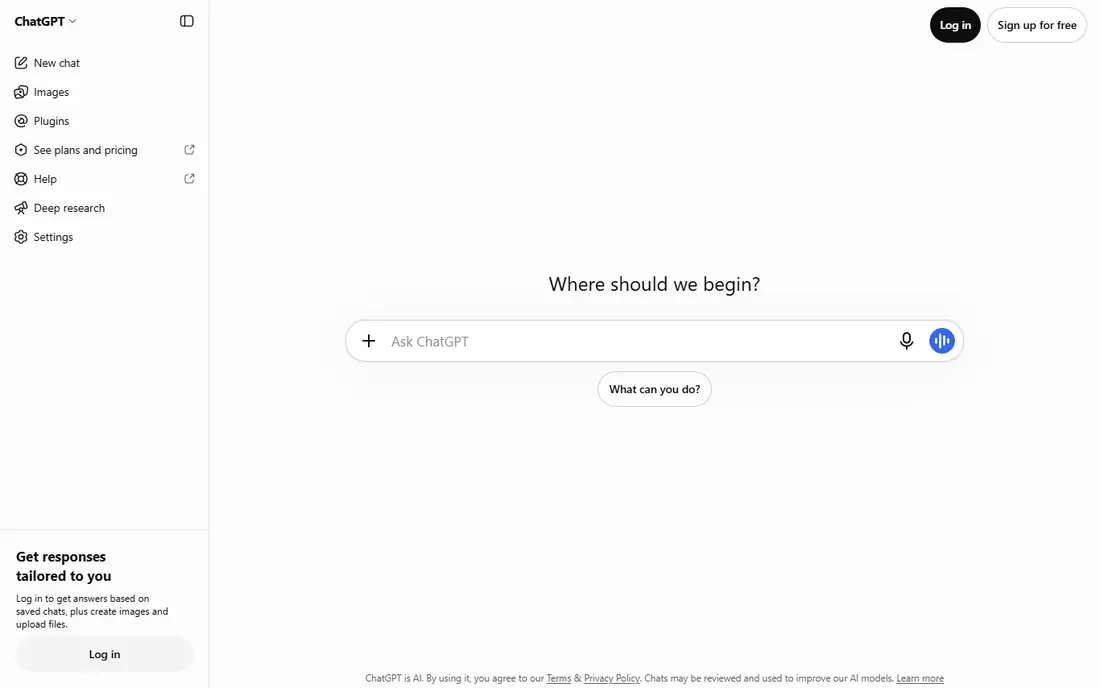
ChatGPT fits most office work because it drafts, summarizes, brainstorms, and explains topics in plain language from a single chat window. Teams use it for first drafts, meeting notes, email rewrites, and quick research, then edit the output for accuracy and tone. Its breadth is the advantage, since one tool covers writing, coding help, and analysis without switching apps. The catch is reliability, so factual claims, numbers, and quotes should always be checked against a source before use. Check the export or sharing step early, because a tool that feels fast while you edit can still add friction at delivery.
- Strong general assistant
- File and image handling
- Wide integration options
- Answers still need fact-checking
- Limits vary by plan
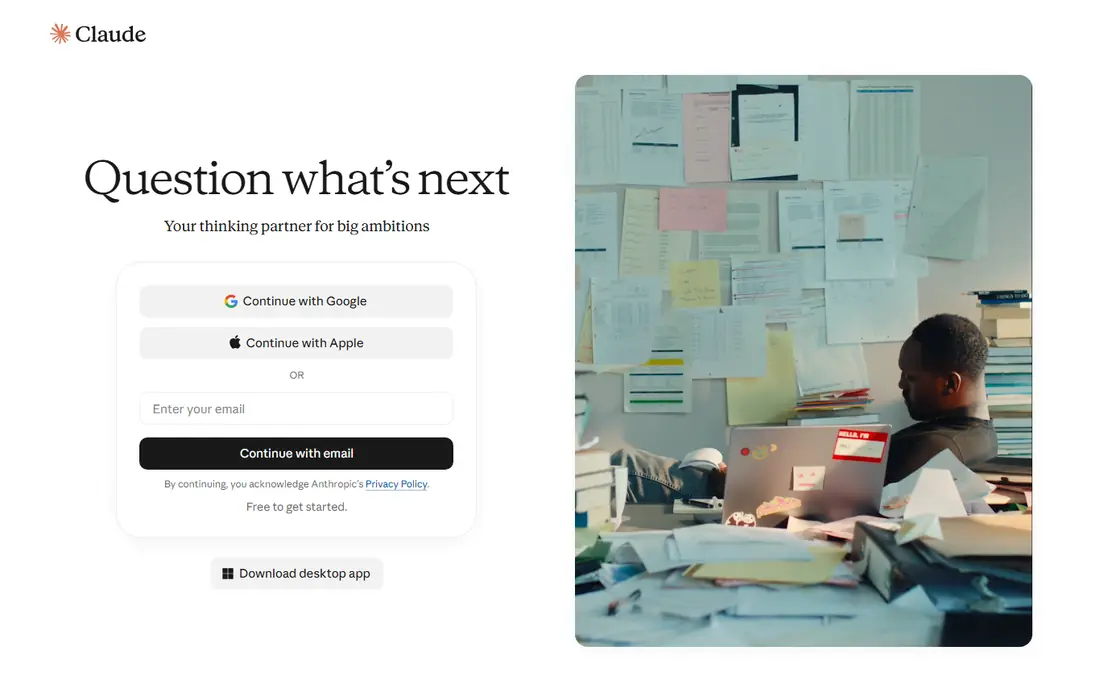
Claude fits knowledge work that starts with long documents, such as contracts, reports, specs, and research notes. It holds context across large inputs, which helps when you need a summary, a comparison, or a rewrite that respects the original detail. Writing quality is a genuine strength, especially for structured drafts that need a steady tone. The catch is usage limits, so very heavy daily users should check the higher tiers before relying on it all day. Try the free tier or trial on a small job first, and note what is locked behind a paid plan before you build a workflow around it.
- Handles long files well
- Clear, careful writing
- Useful for analysis
- Heavy use may need a higher tier
- Some integrations lag rivals
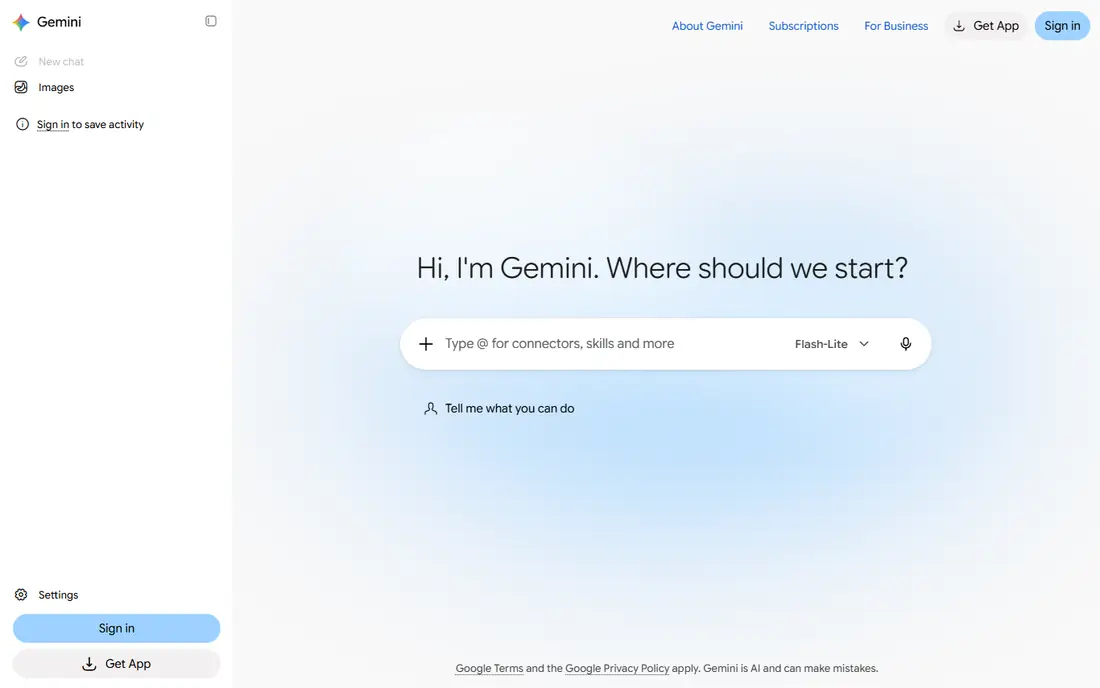
Google Gemini fits teams already working in Gmail, Docs, and Sheets, since its AI features sit inside the apps people already open. It can draft, summarize threads, and help with spreadsheets without exporting work to a separate tool. That integration saves time on everyday admin and document work. The catch is fit, because teams built around Microsoft tools will get less value from a Google-first assistant. Before you commit, test it on one real project with your usual files and export settings, so you can see where it slows down before it matters.
- Works inside Gmail, Docs, and Sheets
- Strong research features
- Best value depends on a Google account and plan
- Some features vary by region
Microsoft 365 Copilot fits organizations that live in Word, Excel, Outlook, and Teams and want AI grounded in their own documents and meetings. It can summarize a thread, draft from a document, and prepare meeting follow-ups without leaving the Microsoft apps. For large Office-based teams, that native context is hard to match with a standalone chatbot. The catch is price, since the per-user add-on sits on top of a base Microsoft 365 plan, so budget for the full stack. Check the export or sharing step early, because a tool that feels fast while you edit can still add friction at delivery.
- Native Word, Excel, Outlook, and Teams context
- Enterprise controls
- Requires a Microsoft 365 base plan
- Cost adds up per user
Notion AI fits teams that keep docs, wikis, and project notes in Notion and want AI to search, summarize, and draft inside that same workspace. Instead of pasting content into a separate chatbot, you ask questions against pages your team already maintains. That shared context makes it useful for onboarding, handovers, and finding decisions buried in old pages. The catch is dependence on Notion, since teams that do not centralize work there will see less benefit. Try the free tier or trial on a small job first, and note what is locked behind a paid plan before you build a workflow around it.
- AI search and drafting inside your workspace
- Good for team knowledge
- Worth most when work already lives in Notion
- Add-on cost per member
Grammarly fits professionals who write a great deal of email, reports, and proposals and want a second pass on clarity and tone. It checks grammar, conciseness, and consistency as you type, which helps busy teams send cleaner drafts the first time. Because it works across browsers and apps, it catches issues in places a standalone editor would miss. The catch is scope, since it improves writing rather than researching topics or analyzing large files. Before you commit, test it on one real project with your usual files and export settings, so you can see where it slows down before it matters.
- Works across email, docs, and browsers
- Tone and clarity checks
- Not a general research assistant
- Advanced features need a paid plan
Otter.ai fits teams with many meetings who need reliable notes, searchable transcripts, and clear follow-ups. It transcribes calls live, highlights key points, and lets you search past meetings instead of relying on memory. That searchable record is valuable for handovers and for checking what was actually agreed. The catch is audio quality, since overlapping speech and poor microphones still reduce accuracy. Check the export or sharing step early, because a tool that feels fast while you edit can still add friction at delivery.
- Live transcription
- Searchable meeting notes
- Summaries and action items
- Accuracy drops with crosstalk and accents
- Bot-joining policies vary
Perplexity fits research tasks where the answer needs sources you can open and verify, not just a confident paragraph. It searches the web, cites pages, and summarizes findings, which makes it a strong starting point for briefs and fact checks. For teams that spend hours gathering background, that source-first design saves real time. The catch is breadth, since it is a research tool first and a general workspace second. Try the free tier or trial on a small job first, and note what is locked behind a paid plan before you build a workflow around it.
- Source-first answers you can click
- Fast web research
- Less suited as a full work hub
- Some features need a paid plan
Zapier fits office teams that repeat the same manual steps between apps, such as copying form data, updating sheets, or sending notifications. Its no-code builder connects apps with triggers and actions, so non-technical staff can automate routine work. The integration catalog is the main draw, covering common office, CRM, and project tools. The catch is volume pricing, since high-frequency workflows can move you to a higher plan quickly. Before you commit, test it on one real project with your usual files and export settings, so you can see where it slows down before it matters.
- Thousands of app integrations
- No-code workflows
- AI workflow help
- Costs grow with task volume
- Complex logic needs care
How we picked these
We compared official feature pages, current pricing pages, app store listings, privacy policies where they mattered, and public reviews. We kept only products that exist and work today, and that fit the topic directly rather than loosely. Where a price was unclear or changed by plan, we used See website instead of guessing, and we treated free tiers as useful only when they cover real work, not just a demo. We also weighed the honest trade-offs. A strong feature set means less when the price, the learning curve, or the export options make everyday use harder. That is why each write-up below names a catch alongside the strengths, so you can match the tool to your budget, skill level, and the kind of output you actually need.
How to choose an AI tool for work
Start with one painful task
Pick a task you repeat weekly, such as meeting notes, first drafts, or status updates, and test two tools on that exact job. A tool that helps there is worth paying for, while a tool that only looks good in a demo is not.
Check where your data lives
AI is most useful when it can reach your docs, email, and calendar with proper permissions. Review privacy settings, admin controls, and data retention before connecting a team workspace, and keep sensitive material out of tools that do not meet your policy.
Watch the total cost
General assistants charge per user, and add-ons like Copilot or Notion AI sit on top of base plans. Add up the full monthly cost for your team size, and compare it with the hours the tool actually saves.