Best AI Video Editing Platforms for Quick Edits in 2026: 9 Platforms Compared
By ToolNimba Editorial Team November 6, 2026 10 min read

- Top pick
 CapCut
Fast social clips and captions
Starting priceSee websiteCheck out CapCutRead our review - Runner-up
 Descript
Transcript-based talking-head edits
Starting price$24 per monthCheck out DescriptRead our review - Also great
 VEED
Browser edits with subtitles
Starting priceSee websiteCheck out VEEDRead our review
How we researched this
We compared official pricing and feature pages, app store listings, privacy policies and public user reviews. Prices change, so check the provider's site before you pay.
Key takeaways
- CapCut is the fastest all-around choice for short social clips, thanks to auto-captions, templates, and auto-reframe in one app.
- Descript is the best pick when your video is mostly talking, because you edit by deleting words in a transcript instead of scrubbing a timeline.
- Opus Clip turns one long recording into many short clips automatically, which saves hours for podcasters and streamers.
- Runway is the strongest option when you need to generate or transform footage, not just cut what you already shot.
- Credit limits matter more than headline prices on AI tools, so check how many minutes or clips each plan actually includes before paying.
Quick comparison
| Name | Best for | Starting price | Free plan | |
|---|---|---|---|---|
| CapCut | Fast social clips and captions | See website | Yes | Visit |
| Descript | Transcript-based talking-head edits | $24 per month | Yes | Visit |
| VEED | Browser edits with subtitles | See website | Yes | Visit |
 Kapwing | Team edits in a browser | $16 per month | Yes | Visit |
 Runway | Generating and transforming footage | $15 per month | Free trial | Visit |
 Opus Clip | Turning long videos into shorts | $15 per month | Yes | Visit |
 Pictory | Script and article to video | $29 per month | Free trial | Visit |
 InVideo | Text-to-video marketing clips | $20 per month | Yes | Visit |
 Submagic | Styled captions and b-roll | See website | Free trial | Visit |
The best AI video editing platforms for quick edits
Quick edits mean different things to different creators. For some, it is captions and a clean cut in ten minutes. For others, it is turning a one-hour podcast into twenty vertical clips before lunch. The platforms below all use AI to cut that work down, but they aim at different jobs, so pick by your starting material.
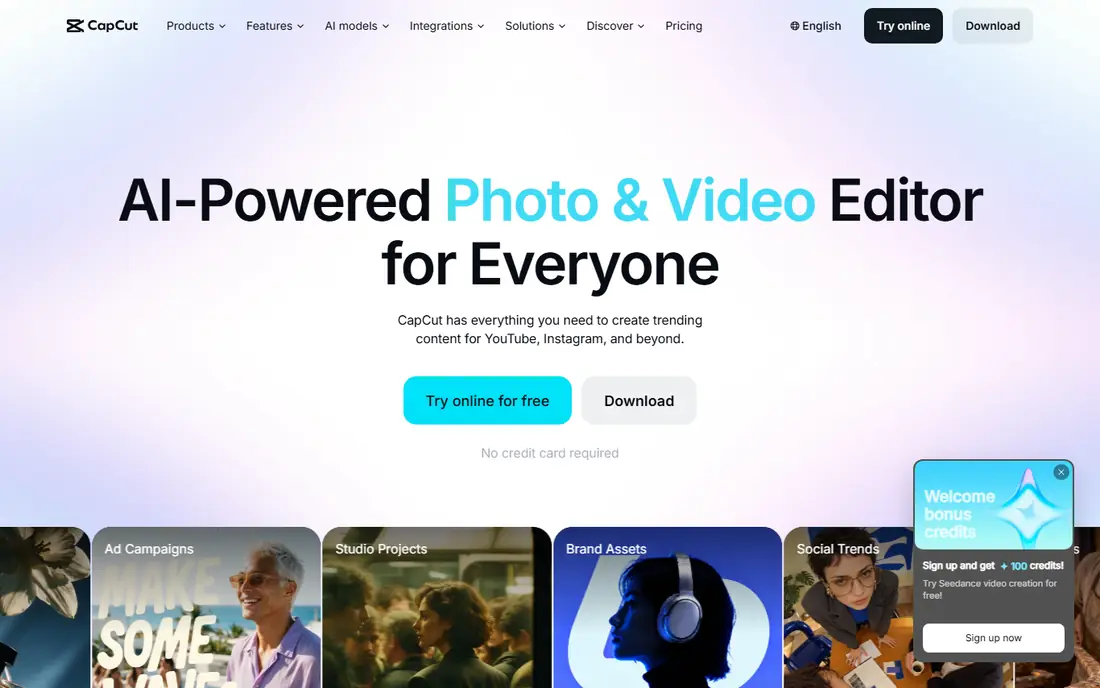
CapCut is the workhorse for short-form creators, and its speed is the reason. Auto-captions land accurately on most clear speech, auto-reframe keeps the subject centered when you switch a horizontal clip to vertical, and background removal works without a green screen. Templates let you reuse a proven format across many posts, which is where the real time savings show up for daily posters.
The honest catch is that CapCut assists rather than creates. It will not generate footage for you, and some of the better AI features sit behind the Pro tier, whose price varies by region and platform. It is also strongest for short clips rather than long documentaries. If your day is mostly TikTok, Reels, and Shorts, we think this is the best starting point.
- Accurate auto-captions
- Auto-reframe for vertical video
- Huge template library
- Pro pricing varies by region
- Some features need the paid tier
- Desktop and mobile features differ
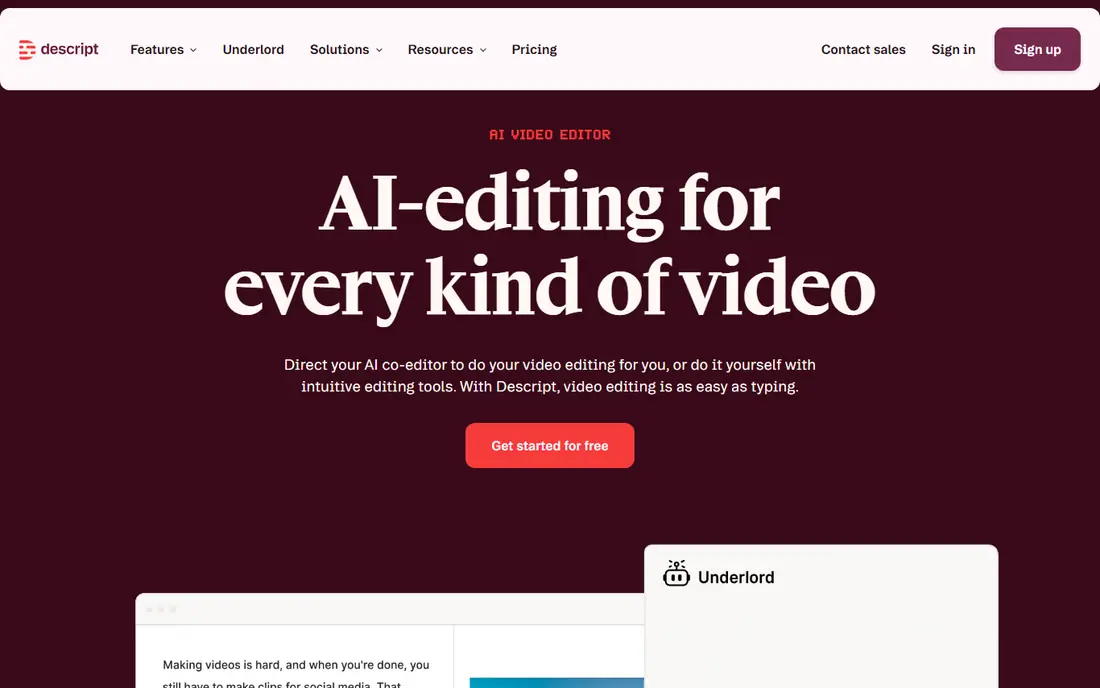
Descript changes the editing job completely for talking-head video. It transcribes your recording, and you cut the video by deleting words in the transcript. Removing filler words like "um" takes one click across a whole file, and Studio Sound cleans up echo and background noise without extra software. For podcasts, interviews, and courses, this is often faster than any timeline tool.
The trade-off is visual ambition. Descript is not the tool for layered effects, motion graphics, or cinematic color work, and paid plans cap media hours, so heavy users should check the limit. If most of your footage is a person talking to a camera, though, the transcript workflow is hard to give up once you try it. Our pick for podcasters and educators.
- Edit video by editing text
- Filler-word removal
- Studio Sound cleanup
- Not built for complex visual effects
- Media-hour limits on paid plans
- Learning curve for timeline editors
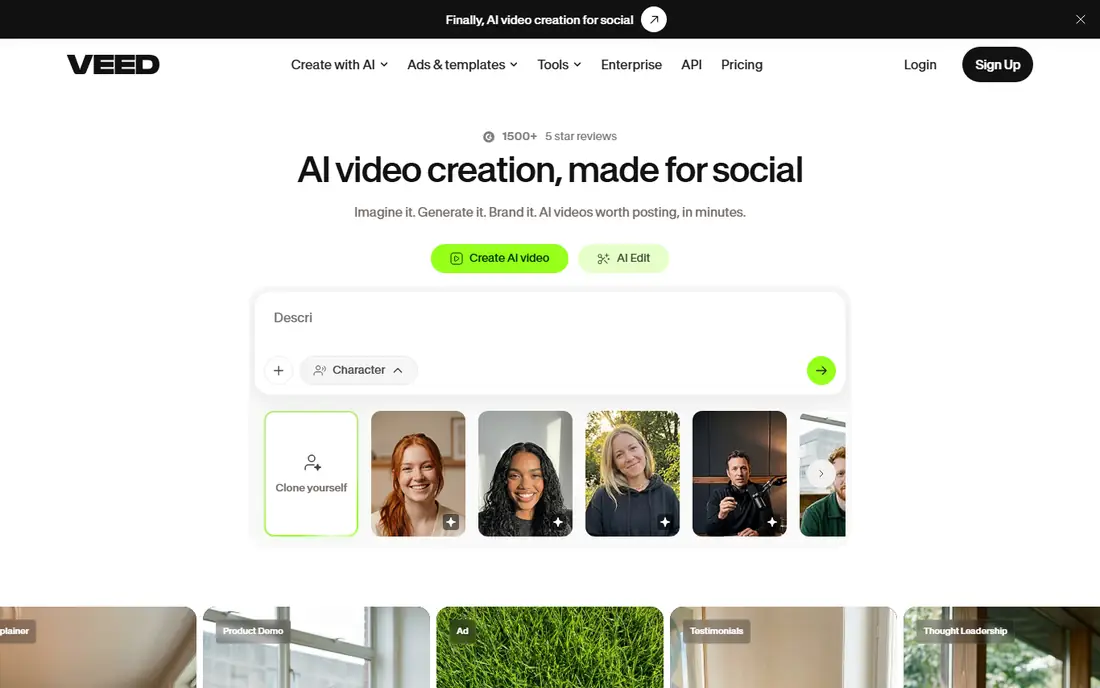
VEED suits creators who want to edit without installing software. Everything runs in the browser, from trimming and subtitles to translation and dubbing, and the timeline stays approachable for beginners. Auto-subtitles cover many languages, and eye-contact correction is a useful extra for webcam recordings that need a small polish.
Free exports carry a watermark and top out at lower resolution, so serious creators will need a paid plan, and very long or effects-heavy projects can feel sluggish in a browser tab. For quick marketing clips, training snippets, and social posts edited on a laptop or Chromebook, VEED is a strong, low-friction choice.
- Runs fully in the browser
- Strong auto-subtitles and translation
- Simple timeline
- Free exports carry a watermark
- Higher tiers needed for full HD exports
- Heavy projects can strain browsers
Kapwing is built for teams that edit together in a browser. Multiple people can comment, trim, and caption the same project, which suits social teams and classrooms better than solo desktop software. Its AI tools cover subtitles, background removal, and smart cutdowns, and because it runs online, it works on machines that could never run a heavy desktop editor.
The limits are the usual browser-editor ones. Free exports are watermarked, and Kapwing will not match a desktop editor for detailed color or effects work. If your team ships a lot of short content and needs shared folders, comments, and quick approvals, Kapwing earns its place. Solo creators who want maximum control may prefer a desktop app.
- Real-time collaboration
- AI subtitles and background removal
- Works on any device
- Free tier watermarks exports
- Advanced features trail desktop editors
- Export times vary with project size
Runway is the odd one out here, because it is less about cutting footage and more about making or changing it. Its generative models create new shots from text or images, remove objects, relight scenes, and extend clips, which makes it popular with filmmakers and agencies that need shots they never filmed. A free trial with one-time credits lets you test the quality before paying.
The catch is cost control. Credits disappear quickly on longer or higher-resolution generations, so the $15 starting plan covers experiments more than volume production. Generation also takes a minute or two per clip, which breaks the pace of a fast edit session. Use Runway when you need a shot you do not have, and pair it with a conventional editor for assembly.
- Strong generative models for new shots
- Object removal and relighting
- Adobe integration
- Credits burn fast at scale
- Generation takes time per clip
- Not a full timeline editor
Opus Clip answers a specific pain: you recorded for an hour, and now you need twenty vertical clips. It watches the whole video, scores moments for viral potential, and returns captioned, reframed shorts ready for review. For podcasters, coaches, and streamers, this turns a full afternoon of clipping into a quick review pass.
Its picks are not perfect. The scoring model is closed, so you cannot see exactly why it chose one moment over another, and you should still review every clip before posting. The free tier gives a useful taste, while the paid plan suits regular publishers. If repurposing is your main editing job, this is the most time-saving tool on this list.
- Automatic clip scoring and selection
- Auto-captions and reframing
- Direct social posting
- Clip choices need human review
- API access only on higher tiers
- Closed scoring model
Pictory starts where most editors stop: from a script, a blog post, or a long recording. It assembles a narrated video with stock footage, captions, and music, and it can also pull highlight clips from webinars and long talks. That makes it a good fit for marketers and bloggers who need video versions of written content without filming anything.
The trade-off is originality. Videos built from stock and templates can look similar to each other, and you should budget for generation credits on top of video minutes. Fine control over timing and visuals is thinner than in a timeline editor. If your goal is volume, turning text into watchable video fast, Pictory does that job well.
- Turns scripts, articles, and URLs into video
- Licensed stock library
- Highlight clipping
- Output can feel templated
- Generation credits are separate from video minutes
- Limited fine control
InVideo lets you describe a video in plain language and get a draft back, complete with stock clips, voiceover, and captions. That chat-style workflow suits marketers who need promo clips, product explainers, and social ads without learning an editor. Avatars and voice clones add options for faceless or multilingual versions of the same ad.
Drafts still need a human pass. AI-chosen clips and narration sometimes miss the mark, and the free tier limits you with watermarks and weekly caps. Treat InVideo as a fast first draft machine rather than a finished-product machine, and it will save you real time on marketing content.
- Chat-style video creation from prompts
- Large stock library
- Avatars and voice options
- AI output needs checking and editing
- Watermark on free tier
- Weekly limits on free plan
Submagic focuses on one thing and does it well: captions that look like the ones top creators use, with word highlights, emojis, and punchy styling, plus automatic b-roll and transitions to keep short clips moving. If your clips already look good but your captions look plain, Submagic closes that gap in minutes.
It is not a full editor, so longer projects and complex timelines belong elsewhere. Pricing has shifted over time, so check the current page before subscribing. For creators whose main bottleneck is caption styling on Shorts and Reels, it is a focused, affordable fix.
- Trendy caption styles with emojis and highlights
- Automatic b-roll and transitions
- Fast turnaround
- Narrower feature set than full editors
- Pricing varies
- Best for short clips only
How we picked these
We compared official feature pages and pricing pages, app store listings, and independent 2026 comparisons of AI video tools. We favored platforms with a real free tier or trial, a clear quick-edit workflow, and current availability in October 2026, and we mixed broad editors with focused tools for captions, repurposing, and generation. Prices change often and some are billed yearly, so treat the figures here as starting points and confirm on each pricing page before you pay. We did not test every tool hands-on; our comparison rests on published features, pricing, and public reviews.
Choosing by your starting material
Match the tool to what you already have. Talking-head footage goes to Descript, long recordings go to Opus Clip, scripts and articles go to Pictory or InVideo, and finished clips that need captions and formatting go to CapCut, VEED, or Submagic. Teams should lean toward Kapwing, and anyone who needs footage they never shot should look at Runway.
Before subscribing, run the same short project through two free tiers and compare export quality, caption accuracy, and speed. Check three limits that surprise buyers most: monthly credits or minutes, watermark rules on the plan you can afford, and export resolution. A cheap plan that caps you at 720p or burns credits on every caption is not a bargain if you publish daily.
Sources
- https://dev.to/raxxostudios/best-ai-video-tools-for-short-form-content-2026-comparison-3hn5
- https://www.revid.ai/blog/ai-video-editing
- https://magichour.ai/blog/best-ai-video-editing-tools-for-short-form-content
- https://www.blogpirate.org/best-ai-video-editors/
- https://www.capcut.com
- https://www.descript.com
- https://www.veed.io
- https://www.kapwing.com
- https://www.runwayml.com
- https://www.opus.pro
- https://www.pictory.ai
- https://www.invideo.io
- https://www.submagic.co
Frequently asked questions
What is the best AI video editing platform for quick edits?
For most creators, CapCut is the fastest all-around option for short social clips, while Descript wins for talking-head video because transcript editing is so fast. If your main job is repurposing long videos into shorts, Opus Clip saves the most time. The best pick depends on your starting material more than on any single feature list.
Are there free AI video editing tools?
Yes. CapCut, VEED, Kapwing, and InVideo all offer free tiers, and Runway and Pictory offer free trials or credits. Free plans usually add watermarks, cap resolution, or limit minutes and credits, so they work well for testing and occasional posts but not for daily publishing.
Can AI edit a video automatically?
AI can now handle rough cuts, silence removal, captions, reframing, and clip selection with little input, and tools like Opus Clip and Pictory produce near-finished drafts. Human review still matters for story, pacing, and brand fit, so think of AI as a fast assistant rather than a full replacement for an editor.
Do I need a powerful computer for AI video editing?
Not necessarily. Browser tools like VEED and Kapwing run on modest machines and Chromebooks, since processing happens in the cloud. Desktop editors and local AI features benefit from stronger hardware, but for quick social edits a browser tool is usually enough.
How much do AI video editing platforms cost?
Starting paid plans for the tools here run roughly from $15 to $29 per month, with annual billing often lowering the monthly figure. Credit-based tools can cost more in practice if you generate a lot of footage, so check what each plan includes before comparing headline prices.