Best AI Video Editor App in 2026: 8 Apps Compared
By ToolNimba Editorial Team November 6, 2026 9 min read

- Top pick
 Descript
Transcript editing
Starting price$16 per monthCheck out DescriptRead our review - Runner-up
 CapCut
Mobile short-form
Starting priceFreeCheck out CapCutRead our review - Also great
 Runway
Generated video
Starting price$12 per monthCheck out RunwayRead our review
How we researched this
We compared official pricing and feature pages, app store listings, privacy policies and public user reviews. Prices change, so check the provider's site before you pay.
Key takeaways
- AI video editors split into two jobs: editing footage you shot, and generating new footage from prompts, so pick the type that matches your work.
- Descript leads for transcript-based editing, CapCut leads for mobile short-form, and Runway leads for generated clips and effects.
- Free tiers are useful for learning, but exports, watermarks, captions and minutes are usually limited until you pay.
- Check export resolution, caption accuracy, commercial use terms and credit limits before you subscribe, since AI pricing changes often.
Quick comparison
| Name | Best for | Starting price | Free plan | |
|---|---|---|---|---|
| Descript | Transcript editing | $16 per month | Yes | Visit |
| CapCut | Mobile short-form | Free | Yes | Visit |
| Runway | Generated video | $12 per month | Yes | Visit |
 OpusClip | Long video to shorts | $15 per month | Yes | Visit |
 VEED | Browser editing | See website | Yes | Visit |
 Adobe Premiere Pro | Professional editing | $22.99 per month | Free trial | Visit |
 Filmora | Beginners on desktop | $49.99 per year | Yes | Visit |
 Pictory | Script to video | $25 per month | Free trial | Visit |
The best AI video editor apps
We compared official pricing pages, feature pages and public reviews for editors with real AI features, not just a template library. The picks below cover podcast editing, social clips, browser editing and professional timelines, so you can match the tool to the job.
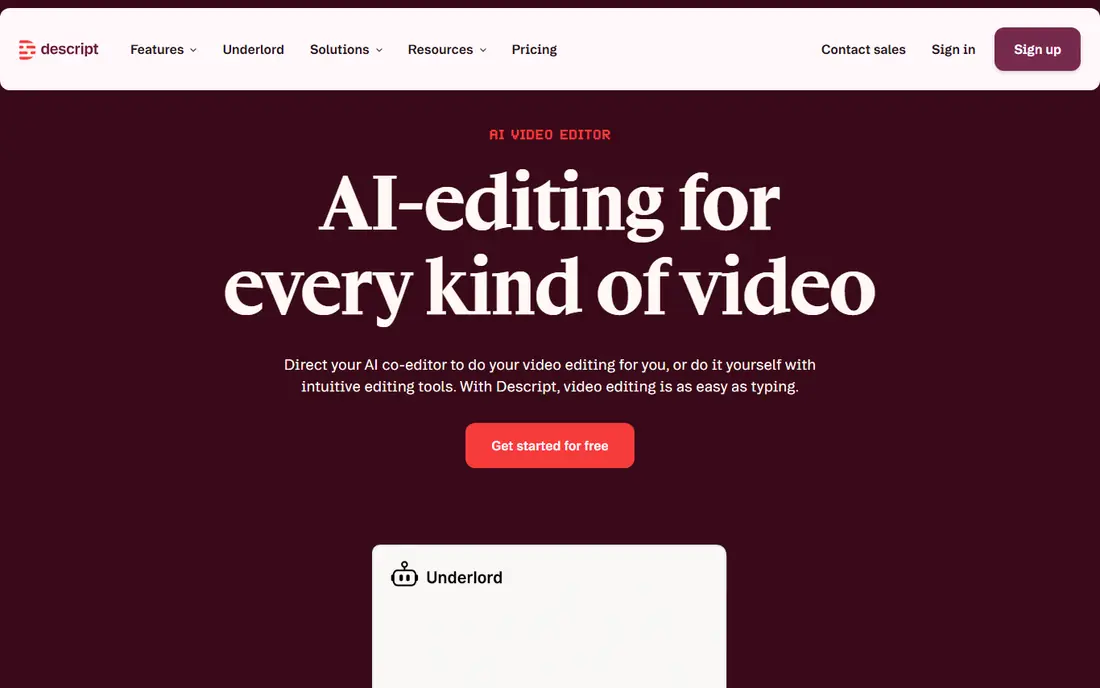
Descript changes how talking-head editing feels. You transcribe a recording, delete words from the text, and the video edits itself to match. Filler words and long pauses can be removed in bulk, and an AI co-editor can help build a rough cut from your instructions. For podcasts, interviews and YouTube talking-head videos, this is often the fastest workflow available.
The limits show up on other kinds of video. Descript is not a full cinematic editor with deep color and effects controls, and transcription hours are capped by plan. If most of your footage is people talking to camera, Descript is the pick. If it is travel film or narrative work, pair it with a traditional editor.
- Edit video by editing the transcript
- Strong filler-word and silence removal
- Studio Sound for cleaner audio
- Best for talking-head video, less so for cinematic editing
- Higher tiers needed for longer transcription hours
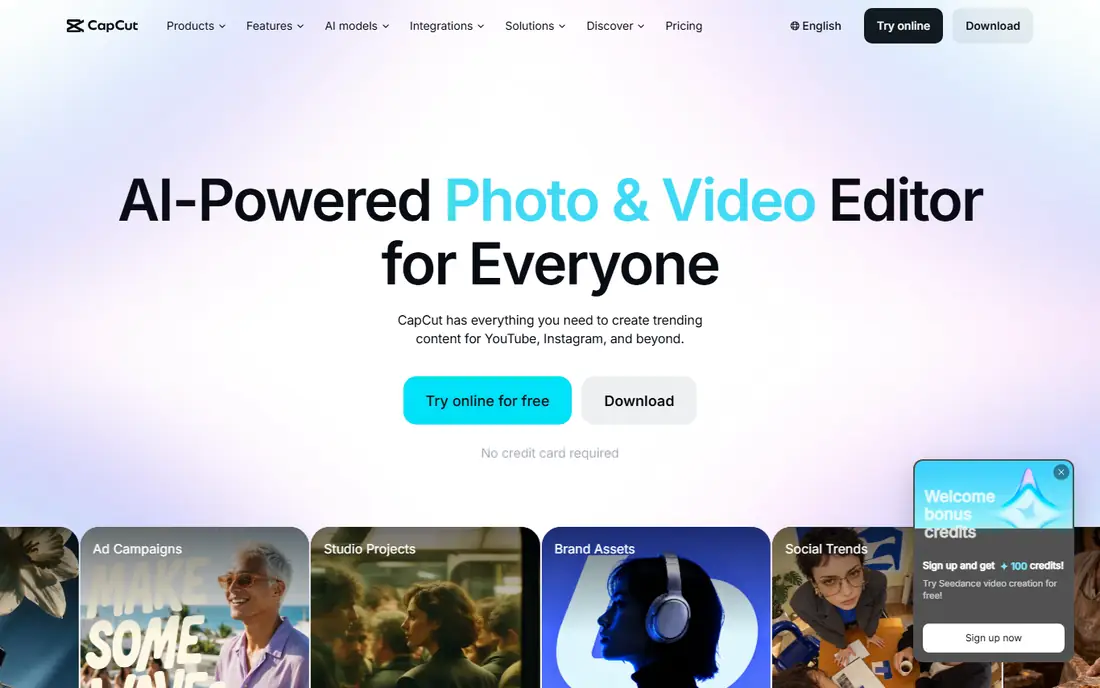
CapCut is the workhorse for phone-first creators. Auto-captions are accurate enough for most social posts, smart reframe adapts horizontal video for vertical feeds, and background removal and templates speed up recurring formats. The free tier handles quick social clips well, and the Pro plan starts at 9.99 dollars per month for more effects, cloud space and AI tools.
CapCut will not create footage for you, and heavy desktop editors may find its timeline simpler than they want. For TikTok, Reels and Shorts, that simplicity is the point. Shoot on your phone, edit in the same app, and publish without moving files between tools.
- Free tier covers a lot of social editing
- Auto-captions and smart reframe
- Huge template and effects library
- AI features are assistive, not generative
- Pro features and cloud storage need a subscription
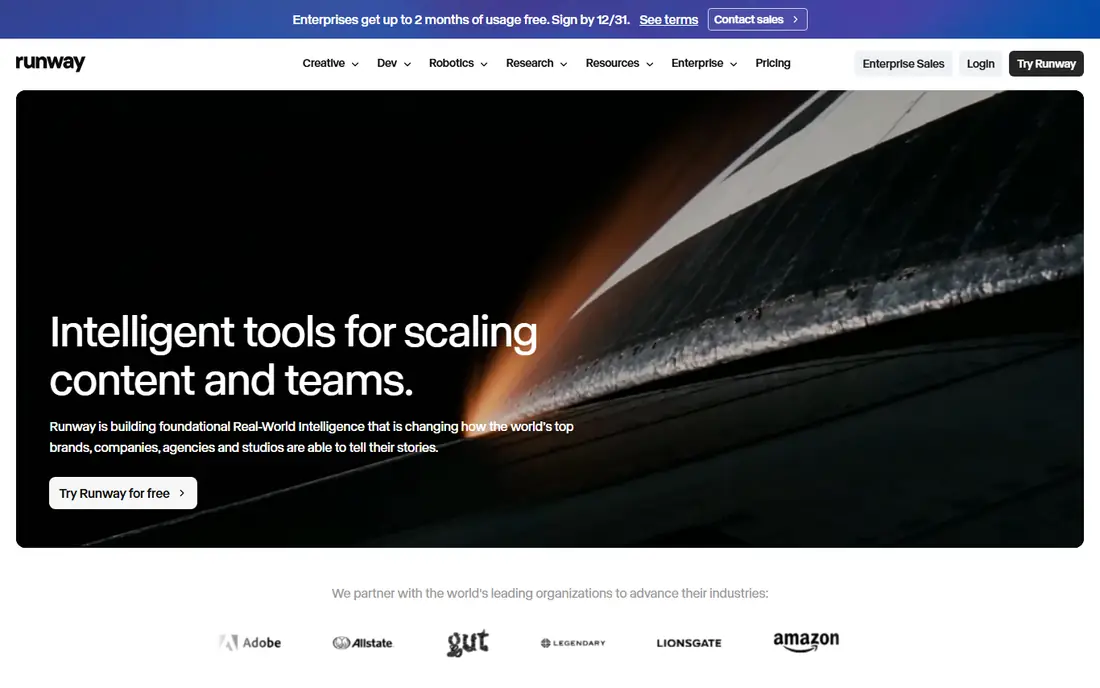
Runway is the pick when you need footage that does not exist yet. Its generation models turn text prompts and reference images into short clips, and its editing tools can alter existing shots, extend scenes and apply effects. That makes it useful for B-roll, product shots, style tests and visual ideas that would be costly to film.
Generation is not free in practice: paid plans include credits, and a project with many takes can burn through them. Prompts also need iteration, since the first clip is rarely the one you keep. Use Runway for shots you cannot film, not as a replacement for a full editor.
- Leading text-to-video and image-to-video generation
- Editing tools for existing shots
- Strong visual effects options
- Generation uses credits that run out on busy projects
- Results need review and re-prompting
OpusClip solves a specific, time-consuming job: turning a podcast, webinar or long interview into short clips. Upload a long video, and it picks moments, adds captions, reframes to vertical and scores clips for likely engagement. For creators who publish shorts daily, that automation saves hours of scrubbing through footage.
The AI picks moments with energy, not always the moments with the best ideas, so review every clip before posting. Hooks and captions may also need a human edit for accuracy. Used as a first-cut tool rather than an auto-publisher, OpusClip is one of the most practical AI video tools here.
- Turns long videos into captioned shorts automatically
- Virality scoring and hook suggestions
- Vertical reframe included
- Clip choices need manual review
- Free plan limits processing minutes
VEED suits marketing teams and solo creators who want to edit without installing software. It runs in the browser, offers auto-subtitles, translation, background removal and an eye-contact correction feature for webcam recordings. Teams can share projects and leave comments in the same workspace.
The free plan includes watermarks and limits, and paid plans vary by region and billing period, so check the current pricing page before you commit. VEED is a strong choice for quick, captioned business video, though professional editors will still want a desktop timeline for long projects.
- Full editing in the browser with no install
- Auto-subtitles and eye-contact correction
- Easy resizing for each platform
- Export quality and AI minutes depend on plan
- Browser editing needs a stable connection
Premiere Pro remains the professional standard, and its AI features now cover the tedious parts of editing. Text-based editing lets you cut by transcript, auto reframe adapts video for different aspect ratios, and generative tools can extend clips or create sound effects. Integration with After Effects, Audition and Photoshop keeps a complex project in one ecosystem.
The price is 22.99 dollars per month for the single app, and the learning curve is real for newcomers. Beginners should start with CapCut or Filmora unless they already work in Creative Cloud. For professionals, Premiere Pro pairs AI speed with the control that simpler apps lack.
- Full professional timeline with AI transcription, reframe and generative extensions
- Deep Creative Cloud integration
- Subscription cost adds up
- Learning curve is steep for beginners
Filmora is the middle ground between a phone app and a professional suite. It runs on desktop, offers AI captions, silence detection, smart cutout and text-to-video tools, and costs 49.99 dollars per year for the standard plan. The interface is approachable, with templates and effects that help beginners produce polished video quickly.
Exports on the free plan carry a watermark, so budget for a paid plan if you publish regularly. Filmora will not match Descript for transcript editing or Runway for generation, but as a general desktop editor with useful AI help, it is good value.
- Friendly desktop editor with AI tools for captions, silence and scene detection
- One-year plan is affordable
- Free exports carry a watermark
- AI features are less deep than Premiere Pro or Descript
Pictory is built for people who write more than they edit. Paste a script or article, pick a style, and Pictory builds a captioned draft with scene selection and voiceover in minutes. It also turns long videos into short clips, which helps marketers and educators repurpose webinars and lessons.
The visuals rely heavily on stock footage, so the result can feel generic for personal or cinematic projects. For content teams that publish often and need clean, captioned video from text, Pictory is fast and consistent. Check the monthly video minutes on your plan, since heavy publishers can hit the limit.
- Turns scripts, articles and blog posts into captioned video
- Long-video to short-clip tool included
- Voiceover options
- Stock-based visuals suit marketing more than personal storytelling
- Paid plan needed for watermark-free exports
How we picked these
We compared official pricing and feature pages, app store listings and public reviews for editors with genuine AI features. We kept tools that edit real footage and tools that generate footage, and we labeled each by its strength so readers do not buy the wrong type. Prices are the published starting points found in October 2026, and products without a stable public price are marked See website.
What to check before you subscribe
Start with the job, not the feature list. If you edit talking-head video, transcript editing matters most. If you publish shorts, clip generation and captions matter most. If you need B-roll, generation credits matter most. A tool that excels at one of these may be weak at the others.
Check the limits that affect daily work: monthly transcription minutes, generation credits, export resolution, watermark rules and commercial use terms. Test caption accuracy on your own voice and accent, since demo videos use clean audio. Finally, confirm that exports work in the formats your platforms require, and that projects can be exported or backed up if you cancel.
Free tiers are trials in disguise
Most free tiers here limit minutes, credits, resolution or exports, and some add watermarks. Use the free tier to test the workflow, not to judge final quality. If the free output looks good, the paid plan usually improves resolution, removes watermarks and raises limits, which is where the real value sits.
Keep a human in the edit
AI cuts, captions and clip picks still need review. Captions can mishear names and terms, generated clips can include odd details, and clip tools can pick the loudest moment instead of the smartest one. Budget review time into every project, and treat AI output as a strong first draft rather than a finished video.
Sources
Frequently asked questions
What is the best AI video editor app?
Descript is the best all-round pick for editing real footage, especially talking-head and podcast video. CapCut is the best free starting point for mobile short-form, and Runway is the best for generated footage. Choose by workflow first, then compare price and limits.
What is the best free AI video editor app?
CapCut offers the most capable free tier for social video, while Kapwing and OpusClip also include AI tools on free plans with export limits. DaVinci Resolve is free for editing, but its AI tools need the paid Studio license. For regular publishing, expect to pay for watermark-free exports and higher limits.
Can AI edit a video automatically from start to finish?
For short clips, mostly yes: OpusClip and CapCut can turn long recordings into finished shorts with captions. For longer videos with a story, AI builds a rough cut that still needs human review for pacing, structure and accuracy. Treat full automation as a starting point, not a final edit.
Which AI video editor is best for YouTube Shorts and TikTok?
CapCut is our pick if you shoot and edit on your phone. If your source is a podcast or webinar you already recorded, OpusClip is better, since it picks moments, reframes to vertical and adds captions before you touch anything. Both need a final human pass before posting.
Is Descript or Premiere Pro better for AI editing?
Descript is faster for transcript-based editing of talking-head video, while Premiere Pro is stronger for professional timelines, color, effects and generative extensions. Many professionals use both: Descript for the rough cut, Premiere Pro for the finish. Beginners should start with Descript or Filmora unless they already use Creative Cloud.