Best Apps for Digital Painting in 2026: 8 Apps Compared
By ToolNimba Editorial Team October 29, 2026 10 min read

- Top pick
 Procreate
iPad painting and illustration
Starting price$12.99 one-timeCheck out ProcreateRead our review - Runner-up
 Clip Studio Paint
Comics, manga, and illustration
Starting price$49.99 one-timeCheck out Clip Studio PaintRead our review - Also great
 Krita
Free desktop painting
Starting priceFreeCheck out KritaRead our review
How we researched this
We compared official pricing and feature pages, app store listings, privacy policies and public user reviews. Prices change, so check the provider's site before you pay.
Key takeaways
- Procreate remains the best value for iPad artists at a $12.99 one-time purchase, while Krita gives desktop artists a full painting tool for free.
- Clip Studio Paint is the strongest pick for comics and illustration work that moves between desktop and tablet.
- Adobe Fresco and MediBang Paint are the easiest free starting points, but each has limits on desktop features and file handling.
- If you want realistic traditional media, Corel Painter and its brush simulation are hard to match, but the price is aimed at committed artists.
Quick comparison
| Name | Best for | Starting price | Free plan | |
|---|---|---|---|---|
| Procreate | iPad painting and illustration | $12.99 one-time | No | Visit |
| Clip Studio Paint | Comics, manga, and illustration | $49.99 one-time | Free trial | Visit |
| Krita | Free desktop painting | Free | Yes | Visit |
 Adobe Photoshop | Painting plus photo editing | $22.99 per month | Free trial | Visit |
 Corel Painter | Realistic traditional media | $429 one-time | Free trial | Visit |
 MediBang Paint | Free comics and illustration | Free | Yes | Visit |
 ibisPaint | Mobile painting and social sharing | Free | Yes | Visit |
 Adobe Fresco | Free touch-based painting | Free | Yes | Visit |
The best apps for digital painting
The best digital painting software depends less on brand and more on your device, your budget, and the kind of art you make. We compared official feature pages, pricing pages, and app store listings to sort the strong options from the ones that only look strong in ads.
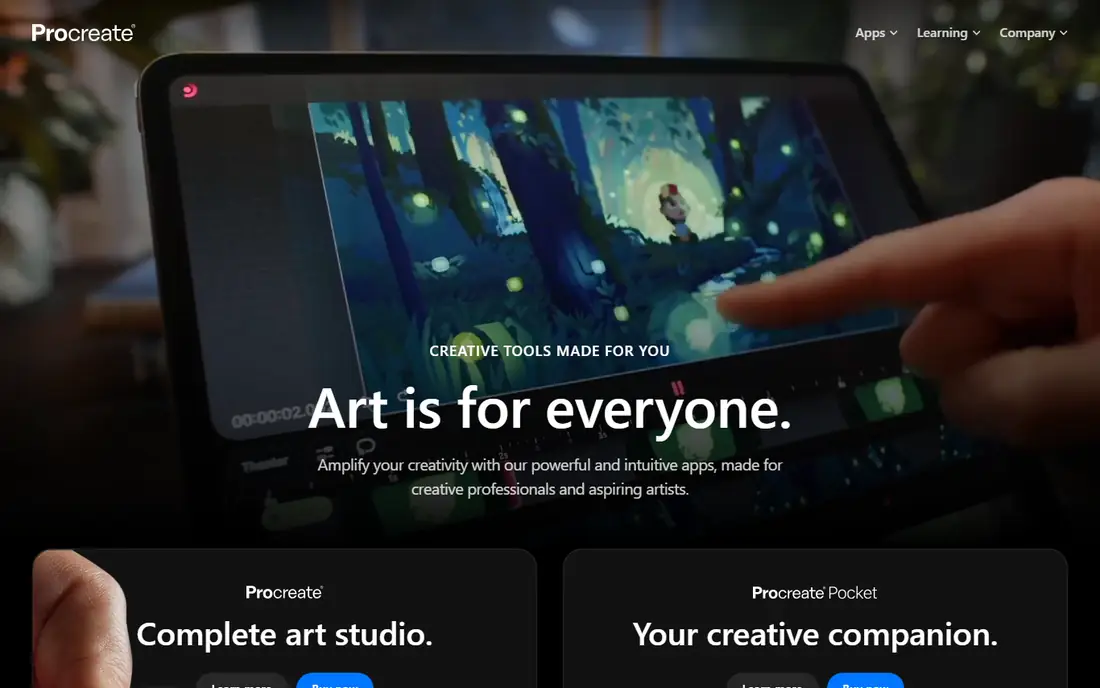
Procreate is our pick for most iPad artists because it keeps things simple without feeling limited. The brush engine covers painting, sketching, inking, and texture work, and you can adjust almost every brush setting or import brushes made by other artists. Layers, masks, blend modes, and animation assist cover most illustration projects without a subscription hanging over you.
The catch is the platform lock-in. If you later move to Windows or Android, your Procreate files and workflow do not carry over cleanly, though you can export layered PSD files. It also lacks the page management tools that comic artists get in Clip Studio Paint. For single illustrations, portraits, and concept art on an iPad, though, it is hard to beat at this price.
- One-time price with no subscription
- Deep brush library and customization
- Smooth Apple Pencil performance
- IPad only, with no desktop version
- No built-in vector tools for logo work
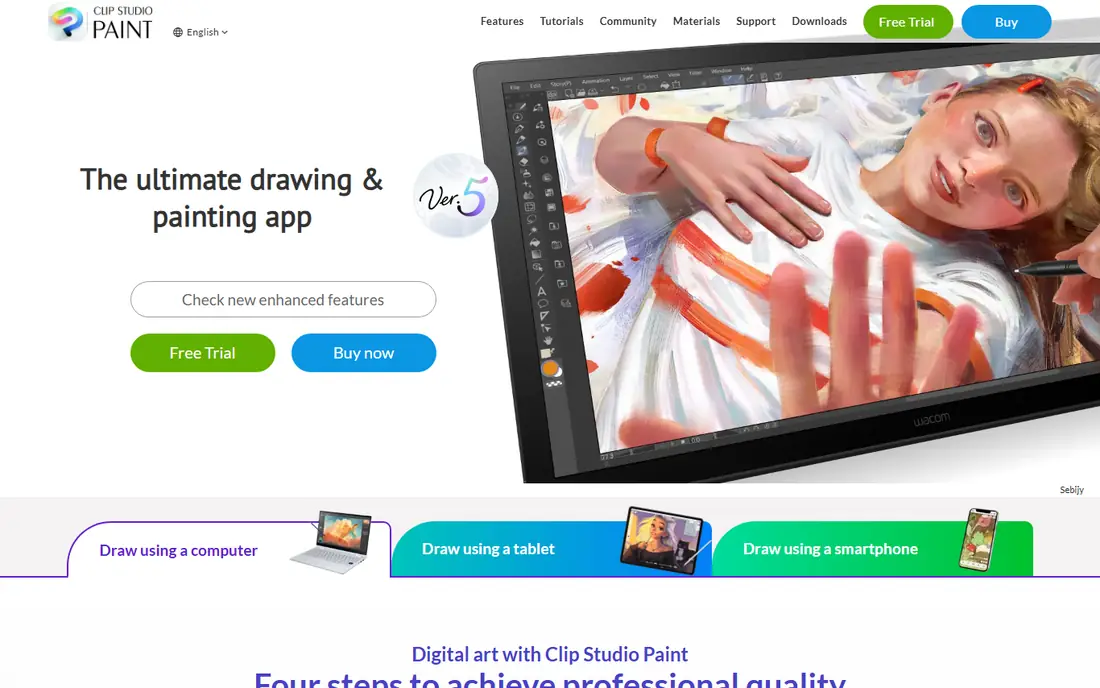
Clip Studio Paint earns its place by doing something most painting apps skip: it treats comics as a first-class workflow. Panel frames, speech balloons, screentones, and multi-page management sit alongside the painting tools, so a comic artist does not need a second app to finish a story. The brush engine also handles inking and coloring well, with stabilization that helps line work look clean.
Pricing needs a careful read before you buy. The Pro edition starts at $49.99 as a one-time purchase for desktop, while mobile plans use subscriptions and EX adds animation and multi-page book features. Check which edition matches your device before paying. If you mainly paint single images, Procreate or Krita may be simpler, but comic makers will get real value here.
- Strong comic page and panel tools
- Works on desktop, tablet, and phone
- Large library of brushes and materials
- Version and plan options can confuse new buyers
- The full EX edition costs much more than Pro
Krita is the rare free tool that professionals actually use for finished work, not just for practice. It ships with brush sets for painting, inking, and texture, plus layer styles, masks, and color management that matter when you print or deliver client files. Because it is open source, there is no subscription, no locked export, and no ad-supported tier nudging you toward a paid plan.
New users should expect a learning curve. The menus hold a lot of options, and finding the right brush or docker panel takes time at first. The community documentation and tutorials help, and the payoff is a desktop painting tool that costs nothing and keeps improving. For students, hobbyists, and Linux users, Krita is the obvious first download.
- Completely free and open source
- Strong brush engines and layer tools
- Runs on Windows, macOS, and Linux
- Interface can feel busy for beginners
- Animation tools are capable but less polished than dedicated apps
Photoshop stays relevant for painters because it does everything around painting too. You can sketch, paint, retouch photos, prepare print files, and hand off PSD files that almost any client or collaborator can open. The brush settings are deep, and the range of third-party brushes, textures, and plugins is wider than any rival on this list.
The downside is the ongoing cost and the weight of the app. At $22.99 per month, a year of Photoshop costs far more than a one-time painting app, and beginners can feel lost among photo editing panels they do not need. Painters who only need brushes and layers should try Krita or Procreate first. Those who also edit photos, design, or work with clients in PSD format will find the subscription easier to justify.
- Huge brush and plugin ecosystem
- Strong layer and color tools
- Industry standard file compatibility
- Subscription cost adds up over time
- Interface carries many photo tools painters may never use
Corel Painter aims at one thing and does it better than the rest: making digital paint behave like real paint. Oils build up texture, watercolors bleed and dry, and pastels smudge in ways that feel closer to a studio than a screen. Artists who come from traditional media often settle here because the brushes respond the way their hands expect.
That realism comes with trade-offs. The price is far above every other app on this list, and large canvases with heavy brushes need a capable computer. The interface also carries years of accumulated panels, so new users should plan on spending time with tutorials. If you paint digitally every week and miss traditional media, the cost can pay off. Casual painters will be happier with a cheaper tool.
- Best-in-class simulation of oils, watercolor, and pastels
- Large curated brush library
- One-time purchase
- High upfront price
- Demanding on older computers
- Interface feels dated in places
MediBang Paint is a friendly free route into digital comics and illustration. It runs on Windows, macOS, iOS, and Android, and the comic tools cover panels, tones, and fonts without asking you to pay first. Cloud saving means a sketch started on a phone can continue on a desktop, which suits artists who work in short bursts across devices.
The free model has visible seams. Mobile users see ads, and some brushes and features sit behind optional purchases, which can frustrate artists who expect everything free. The painting engine also lacks the depth of Krita for heavy blending work. Still, for beginners, students, and comic hobbyists, MediBang delivers a complete workflow at no cost, and that is a strong starting point.
- Free on desktop and mobile
- Comic panel and tone tools included
- Cloud saving across devices
- Ads and optional paid extras on mobile
- Brush engine is simpler than Krita or Clip Studio Paint
ibisPaint is built for artists who draw on a phone or tablet and share work online. The app includes thousands of brushes, filters, and tools, and it can record your drawing process as a video, which many social media artists value. The community features let you follow other artists, study their process videos, and post your own work without leaving the app.
Working on a phone screen has natural limits. Detailed work needs zooming and patience, and the free version shows ads between sessions. A paid option removes ads, but the core drawing tools stay free, which keeps the barrier low. If your main device is a phone and you like sharing art, ibisPaint is the most complete free option we found.
- Free with a very large brush library
- Built-in recording of the drawing process
- Active online community
- Ads in the free version
- Small-screen workflow suits phones better than large canvases
Adobe Fresco became much more appealing when Adobe made the full app free, with only a free Adobe account required. Its live brushes are the highlight: watercolors bloom and bleed, and oils blend on the canvas in a way that feels closer to real paint than most free apps manage. Vector and pixel brushes can share one canvas, which suits illustrators who mix line work and painting.
Fresco is not a Photoshop replacement. It lacks deep photo editing, large-scale page management, and some advanced layer tools, and it feels best on a touch device with a stylus. Desktop mouse users may find it less comfortable. As a free companion to Procreate or Photoshop, or as a first painting app on an iPad, it is an easy recommendation.
- Completely free with a free Adobe account
- Live watercolor and oil brushes
- Works on iPad, iPhone, and Windows
- Smaller feature set than Photoshop
- Best experience needs a stylus and touch device
How we picked these
We compared official feature pages, pricing pages, and app store listings for each app, and we checked that each one is still available and actively maintained in 2026. We favored apps that cover real painting needs, such as brush customization, layer support, and export to common formats, over apps that only offer filters or coloring pages.
We also weighed platform coverage and total cost, not just the headline price. A free app with heavy ads or a subscription that locks exports scored lower than a one-time purchase with open file support. We did not run hands-on lab tests for this roundup; our findings rest on vendor documentation, pricing, and public user reviews.
What to check before you pay
Start with your device, because that choice eliminates half the list at once. iPad owners get the best value from Procreate and Fresco, while Windows, macOS, and Linux users should start with Krita and test Clip Studio Paint or Corel Painter only if they need those specific strengths. Phone-first artists should lean toward ibisPaint or MediBang Paint.
Next, match the app to the work. Comic and manga artists need page tools, so Clip Studio Paint and MediBang deserve a closer look. Portrait and concept artists need brush depth and layer control, which Krita, Procreate, and Photoshop all handle. Traditional media painters should use the free trials for Corel Painter and Fresco to compare how oils and watercolors feel before spending.
Finally, think about total cost over two years, not just day one. A $12.99 one-time app and a free app look similar at first, but a $22.99 monthly subscription passes $550 in two years. Export a test file, try your usual brush size, and check that your stylus pressure works before you commit to any paid plan.
Sources
- https://procreate.com
- https://www.clipstudio.net/en/
- https://krita.org
- https://www.adobe.com/products/photoshop.html
- https://www.painterartist.com
- https://medibangpaint.com
- https://ibispaint.com
- https://www.adobe.com/products/fresco.html
- https://www.manypixels.co/blog/illustrations/digital-art-software
- https://www.g2.com/products/clip-studio-paint/reviews?locale=de&page=3