Best Collaboration Tools for Remote Teams in 2026: 9 Tools Compared
By ToolNimba Editorial Team November 6, 2026 12 min read

- Top pick
 Slack
Team messaging
Starting price$7.25 per user per monthCheck out SlackRead our review - Runner-up
 Microsoft Teams
Microsoft-centered teams
Starting price$4 per user per monthCheck out Microsoft TeamsRead our review - Also great
 Zoom Workplace
Video meetings
Starting price$14.16 per user per monthCheck out Zoom WorkplaceRead our review
How we researched this
We compared official pricing and feature pages, app store listings, privacy policies and public user reviews. Prices change, so check the provider's site before you pay.
Key takeaways
- Most remote teams need three layers: chat for daily talk, video for live meetings, and a permanent home for docs and decisions.
- Slack suits teams outside the Microsoft ecosystem, while Microsoft Teams suits teams already paying for Microsoft 365.
- Notion and Miro handle async work well, with docs, databases, and whiteboards that reduce the need for live meetings.
- Loom cuts meeting load by turning updates and walkthroughs into short videos that teammates can watch on their own schedule.
Quick comparison
| Name | Best for | Starting price | Free plan | |
|---|---|---|---|---|
| Slack | Team messaging | $7.25 per user per month | Yes | Visit |
| Microsoft Teams | Microsoft-centered teams | $4 per user per month | Yes | Visit |
| Zoom Workplace | Video meetings | $14.16 per user per month | Yes | Visit |
 Google Workspace | Docs and email in one suite | $7 per user per month | No | Visit |
 Notion | Docs and async workspaces | $10 per user per month | Yes | Visit |
 Miro | Visual workshops | $8 per user per month | Yes | Visit |
 Loom | Async video updates | $12.50 per user per month | Yes | Visit |
 Asana | Task tracking for teams | $10.99 per user per month | Yes | Visit |
 ClickUp | All-in-one work platform | $7 per user per month | Yes | Visit |
The best collaboration tools for remote teams
Remote collaboration fails when decisions live only in chat, meetings multiply, and no one can find the final version of a document. The tools below cover chat, video, docs, whiteboards, and task tracking, and most teams will need more than one. We compared official pricing pages, product documentation, and 2026 feature comparisons, and we favored tools with real free plans or trials, strong integrations, and clear async features.
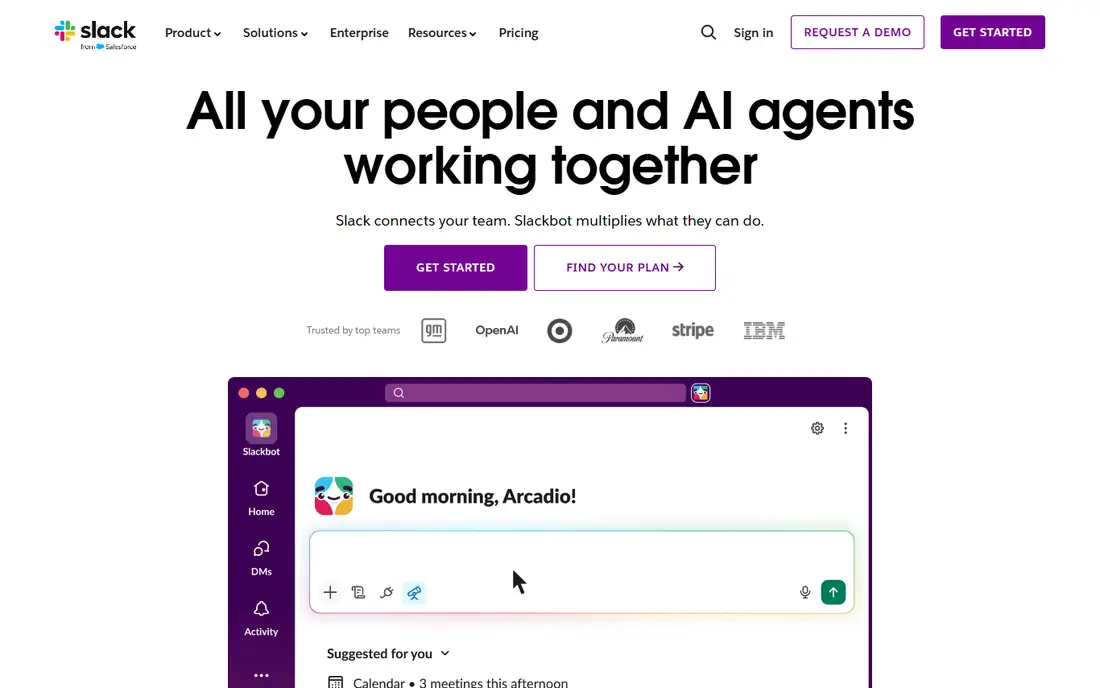
Slack remains the standard for remote team messaging outside the Microsoft world. Channels organize talk by team, project, or topic, threads keep side discussions tidy, and huddles offer quick voice chats without a formal meeting. Integrations with tools such as Google Drive, Asana, Notion, Miro, and Zoom mean updates can flow into chat instead of requiring another meeting.
The free plan limits searchable message history, which hurts teams that need to find old decisions. Good channel rules, such as a small number of main channels and a clear place for decisions, matter more than any feature.
Slack is our pick for daily messaging when the team does not already live in Microsoft 365. Pair it with a docs tool such as Notion, so decisions are stored somewhere permanent, not just in chat.
- Channels, threads, and huddles for daily talk
- Huge integration catalog
- Slack Connect for external partners
- Free plan limits message history
- Chat can become noisy without channel discipline
Microsoft Teams combines chat, video meetings, file sharing, and app integration in one place, and it fits naturally for teams already using Outlook, OneDrive, SharePoint, and Office apps. Meetings, shared files, and team channels live alongside the documents people already edit, which reduces switching between apps. Teams Essentials is listed at $4 per user per month in 2026 comparisons, while fuller value comes with Microsoft 365 Business plans.
Teams can feel heavier than Slack, especially for small teams that only need chat. The interface packs many features into one window, and setup and administration take more effort in larger organizations. Teams also makes the most sense when the organization already pays for Microsoft products; otherwise, Slack plus Google Workspace may be simpler.
Choose Teams when the team already uses Microsoft 365, or when IT requires Microsoft security and compliance controls. For a small, non-Microsoft team, Slack is usually faster to adopt.
- Chat, meetings, and files in one Microsoft app
- Deep Microsoft 365 integration
- Free plan available
- Interface can feel heavy
- Best value comes only with a Microsoft 365 subscription
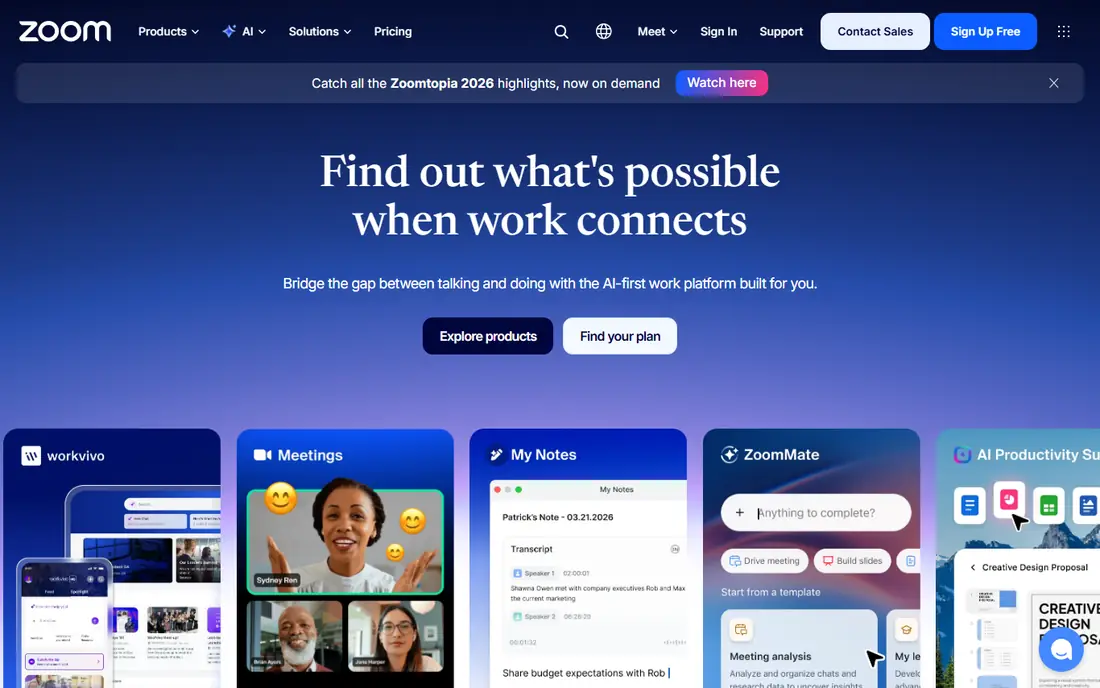
Zoom Workplace is still the most reliable choice for video meetings, especially for large calls, webinars, and hybrid sessions. Video quality, breakout rooms, and screen sharing are dependable, and Workplace adds team chat, whiteboard, and docs around the meeting itself. AI Companion can summarize meetings and list action items, which helps teammates in other time zones catch up.
The free Basic plan limits group meetings to 40 minutes, which pushes most teams to a paid plan, listed at $14.16 per user per month billed annually in some 2026 comparisons. That cost adds up for a large team, so many organizations use Zoom only for meetings and pair it with Slack or Teams for daily chat.
Pick Zoom when live video is the core of your collaboration, such as for sales, training, or large all-hands meetings. For async-first teams, Loom plus Slack may reduce the meeting load more effectively.
- Reliable video for large meetings
- Chat, whiteboard, and docs in Workplace
- AI Companion summaries
- Free plan limits group meetings to 40 minutes
- Paid price adds up for large teams
Google Workspace gives remote teams email, calendar, Drive storage, Docs, Sheets, Slides, and Meet in one subscription, with Business Starter listed at $7 per user per month in 2026 comparisons. Real-time co-editing is its main strength: several people can edit the same document, leave comments, and track changes without sending files back and forth. That shared editing habit is the foundation of async collaboration for many teams.
Google Workspace does not offer a permanent free business plan, though personal Google accounts offer free versions of Docs and Drive for individuals. Some enterprises also find Microsoft 365 admin and compliance controls a better fit, especially for Windows-centered organizations. For small and mid-size teams, however, Google Workspace is often the simplest suite to adopt.
Choose Google Workspace when docs, email, and video need to work together with minimal setup. It pairs well with Slack for chat and Notion for longer-lived documentation.
- Real-time co-editing in Docs, Sheets, and Slides
- Gmail, Drive, Calendar, and Meet in one suite
- No permanent free business plan
- Admin controls are lighter than Microsoft 365 for some enterprises
Notion combines docs, wikis, databases, and task tracking in one flexible workspace, which makes it a strong home for async remote work. Teams can build a handbook, a project tracker, a meeting notes database, and a roadmap in the same place, with templates to start quickly. Comments and mentions keep discussion tied to the document, rather than scattered across chat.
Without clear ownership, a Notion workspace can grow into a maze of duplicate pages and outdated docs. Teams need a simple structure, such as one handbook, one project database, and one meeting notes database, and a regular cleanup habit. The free plan works for individuals and small teams, while Plus starts at $10 per user per month billed annually.
Notion fits remote teams that want decisions and docs in one searchable place, and that are willing to maintain that structure. It is less suited as a pure chat tool or a strict sprint tool, where Slack, Jira, or Linear fit better.
- Docs, wikis, databases, and tasks in one workspace
- Flexible templates
- Good for async updates
- Can become messy without ownership
- Plus plan is $10 per user per month billed annually
Miro gives remote teams a shared visual canvas for brainstorming, workshops, planning, and design reviews. Sticky notes, diagrams, timelines, and templates let a distributed team work together in real time, or leave comments for teammates in other time zones. For product discovery, retrospectives, and journey mapping, a visual board often surfaces ideas that a document or chat thread misses.
The free plan limits the number of editable boards, reported at three boards in 2026 comparisons, so active teams will need the Starter plan at $8 per user per month billed annually. Large boards also need facilitation: without a clear agenda and someone to organize notes, a Miro board can become hard to read after a workshop ends.
Miro is our pick for visual collaboration, especially for workshops, retrospectives, and planning sessions. Pair it with Notion or Google Docs to turn workshop output into a permanent decision record.
- Infinite canvas for workshops and brainstorming
- Many templates
- Real-time collaboration
- Free plan limits editable boards
- Large boards can become cluttered without facilitation
Loom lets you record a screen, a camera, or both, and share a short video with a link, transcript, and comments. That format suits walkthroughs, design feedback, status updates, and onboarding, where a live meeting would waste time across time zones. Teammates can watch at double speed, skip to chapters, and reply in comments, which keeps work moving without a calendar block.
Loom is priced per creator, with paid plans listed at $12.50 per user per month in 2026 comparisons, so costs depend on how many people record versus watch. Loom also does not replace live discussion for sensitive topics, brainstorming, or decisions that need real-time debate.
Pick Loom when meetings are eating the week and many updates could be recorded instead. Start with one team, set a short-video habit, and keep live meetings for decisions and relationships.
- Short screen and camera videos replace many meetings
- Transcripts and comments
- Integrates with Slack and Notion
- Paid price is high per creator
- Free plan limits video count
- Not a replacement for live discussion
Asana gives remote teams a shared view of who is doing what, by when, with tasks, timelines, portfolios, and goals. That visibility matters when teammates work in different time zones and cannot ask in person. Templates for launches, campaigns, and requests help teams start quickly, and the interface is easier to learn than a developer-focused sprint tool.
Asana does not replace chat or video, so it works best alongside Slack or Teams and Zoom or Meet. The free Personal plan is limited to a small number of users in recent plans, and Starter starts at $10.99 per user per month billed annually. Teams that need deep Scrum features should compare Asana with Jira or Linear.
Choose Asana when task visibility and cross-team coordination are the main gaps, especially for marketing, operations, and product teams that are not purely engineering.
- Clear tasks, timelines, and portfolios
- Easy for non-technical teams
- Strong templates
- Chat and video need separate tools
- Starter plan is $10.99 per user per month billed annually
ClickUp aims to cover chat, docs, tasks, goals, and whiteboards in one workspace, which appeals to remote teams that want fewer subscriptions. The Free Forever plan includes unlimited tasks and members, and Unlimited starts at $7 per user per month billed annually. Views for lists, boards, calendars, and timelines let each team work in the format it prefers.
The breadth needs discipline. A team that turns on every feature at once can end up with a confusing workspace, and ClickUp chat may not fully replace Slack for teams that rely on many integrations or external channels. Assign one owner for setup, start with tasks and docs, and add features only when the team asks for them.
ClickUp fits small to mid-size remote teams that want one platform for most work and that have someone to set it up well. Larger teams may prefer best-in-class tools such as Slack, Notion, and Asana together.
- Tasks, docs, chat, goals, and whiteboards in one place
- Generous free plan
- Many views
- Setup can overwhelm small teams
- Chat features may not replace Slack for larger teams
How we picked these
We compared official pricing pages, product documentation, and 2026 collaboration comparisons, and we favored tools that are clearly available now, that serve a distinct layer of remote work, and that offer a free plan or trial. We left out tools whose pricing could not be checked, and we left out niche tools that duplicate a larger platform without a clear advantage.
We also weighed async strength. Tools that let teammates in different time zones contribute without a live meeting scored higher, since time zone coverage is the main challenge for remote teams.
How to build a remote stack that works
Start with the smallest stack that covers chat, docs, and tasks, then add video and whiteboards where they clearly help. More tools do not mean better collaboration; they usually mean more places to check.
Use three layers, not ten tools
Pick one chat tool, one docs home, and one task tracker as the core. Add Zoom or Meet for live meetings, Miro for workshops, and Loom for async video only when a specific need appears. Write down where each type of work lives, such as decisions in Notion, tasks in Asana, and daily talk in Slack, and share that guide with new hires.
Make async the default
Write decisions, context, and next steps in a document, not only in chat or a meeting. That habit lets teammates in other time zones contribute without waiting for a live call, and it creates a record that new team members can read. Reserve live meetings for debate, sensitive topics, and relationship building, and record a Loom summary when a meeting produces a decision.
Review the stack every quarter
Check which tools the team actually opens each week, and cancel or downgrade tools that sit unused. A quarterly review also catches price changes, seat creep, and duplicate tools that appeared when a new team joined. The goal is a stack the team can explain in one sentence.
Sources
Frequently asked questions
What are the best collaboration tools for remote teams?
Slack or Microsoft Teams for chat, Zoom or Google Meet for video, Notion or Google Workspace for docs, and Asana or ClickUp for tasks form a strong core. Miro helps visual workshops, and Loom helps async video updates. The best stack depends on whether the team already uses Microsoft or Google products.
What is the best free collaboration tool for remote teams?
Slack, Microsoft Teams, Notion, Miro, Asana, and ClickUp all offer free plans that cover real small-team work, with limits on history, boards, users, or features. Google Workspace does not offer a permanent free business plan, though personal Google accounts offer free Docs and Drive for individuals.
Do remote teams need both Slack and Microsoft Teams?
No. Most teams should pick one chat tool. Teams suits Microsoft 365 organizations, while Slack suits teams outside that ecosystem or teams that need Slack Connect for external partners. Running both usually splits conversation and confuses new hires.
How can remote teams reduce meetings?
Use Loom for updates and walkthroughs, Notion or Google Docs for decisions and context, and Asana or ClickUp for task status. Reserve live meetings for debate and sensitive topics, and share a written summary after any meeting that produces a decision.
What is the best collaboration platform for remote teams on a budget?
Start with free plans for Slack, Notion, and ClickUp or Asana, plus free Zoom or Google Meet for short meetings. That stack covers chat, docs, and tasks at no cost for a small team, and you can pay for one tool at a time as limits appear.