Best Design Software for Beginners in 2026: 9 Tools Compared
By ToolNimba Editorial Team November 8, 2026 8 min read

- Top pick
 Canva
All-round beginner design
Starting price$18 per monthCheck out CanvaRead our review - Runner-up
 Adobe Express
Branded social content
Starting price$9.99 per monthCheck out Adobe ExpressRead our review - Also great
 Figma
Learning interface design
Starting price$16 per monthCheck out FigmaRead our review
How we researched this
We compared official pricing and feature pages, app store listings, privacy policies and public user reviews. Prices change, so check the provider's site before you pay.
Key takeaways
- Canva is the easiest starting point for social posts, presentations, and marketing graphics.
- Adobe Express is the closest low-cost alternative, with strong templates and AI image tools.
- Figma, Affinity, GIMP, and Inkscape suit beginners who want to grow into professional design work.
- Free plans vary widely, so check export limits, watermarks, and storage before you rely on one.
Quick comparison
| Name | Best for | Starting price | Free plan | |
|---|---|---|---|---|
| Canva | All-round beginner design | $18 per month | Yes | Visit |
| Adobe Express | Branded social content | $9.99 per month | Yes | Visit |
| Figma | Learning interface design | $16 per month | Yes | Visit |
 Affinity | Professional desktop design | Free | Yes | Visit |
 VistaCreate | Budget Canva alternative | $10 per month | Yes | Visit |
 Snappa | Fast social graphics | $10 per month | Yes | Visit |
 Pixlr | Browser photo editing | $1.99 per month | Yes | Visit |
 GIMP | Free photo editing | Free | Yes | Visit |
 Inkscape | Free vector illustration | Free | Yes | Visit |
The best design software for beginners
Beginner design software should let you make something good on day one, then still be useful in six months. The tools below split into template editors, which are fastest, and professional editors, which take longer to learn but offer more control.

Canva is our pick for most beginners because it removes the blank page. Start from a template for a post, flyer, presentation, or video, swap the text and images, and export. The free plan includes a large template set and storage, which is enough for regular social and marketing work.
Pro adds background removal, resize tools, a larger stock library, and more storage. The cost is per user per month, or lower on an annual plan, so a solo creator should compare that total with Adobe Express before paying. For print work that needs precise type control, a desktop tool will eventually serve you better.
- Huge template and stock library
- Very easy editor
- Useful free plan for real work
- Best features, such as background remover, need Pro
- Fine typography control is limited
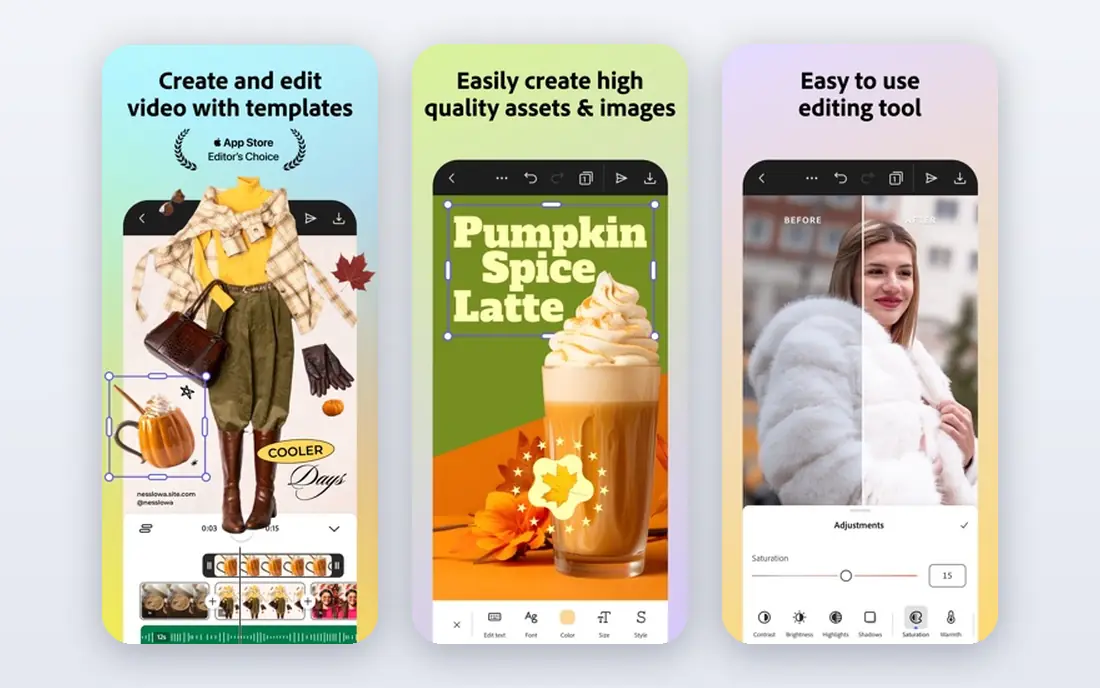
Adobe Express is the closest swap for Canva, and it is cheaper at the paid tier. The editor is similarly template-led, with quick actions for removing backgrounds, resizing, and animating posts. Brand kits keep colors, fonts, and logos consistent, which matters for a small business posting often.
The free plan is genuinely usable, though some conveniences sit behind Premium. If you already use Adobe tools or want AI image features tied to a major stock library, Express is a strong choice. If you need the widest template choice, Canva still leads.
- Strong templates and brand tools
- AI image generation included
- Good Adobe stock access
- Resize and full brand kits need Premium
- Smaller template library than Canva
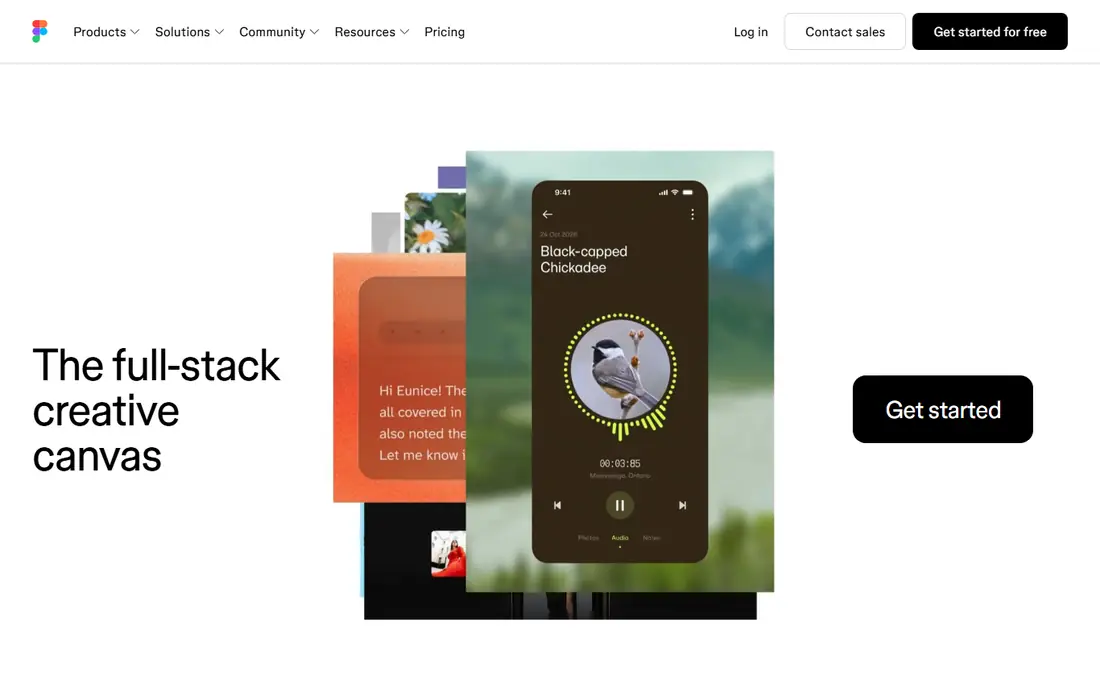
Figma is where many beginners learn interface design, because it runs in a browser and teams can work in the same file at once. You can design app screens, websites, and presentations, share a link for feedback, and build reusable components as you learn. The starter plan is free, with a limit on files.
The learning curve is steeper than Canva, since Figma expects you to place shapes, frames, and text yourself rather than fill a template. That effort pays off if you aim at product design, web design, or a design job, where Figma skill is widely expected.
- Industry-standard interface design
- Real-time collaboration
- Strong free starter plan
- Full seats cost more for teams
- Less suited to print layout than desktop tools
Affinity, now owned by Canva, gives beginners a path to professional desktop design without a monthly subscription. The suite covers photo editing, vector illustration, and page layout in separate apps that share a familiar workflow. For a learner who wants real control over type, color, and print output, it is a serious step up from template editors.
The trade-off is guidance. Affinity expects you to build from scratch more often, and its template library is thinner. Beginners who want quick posts should start with Canva or Express, then move to Affinity when a project needs precision that templates cannot give.
- Desktop-class photo, vector, and layout tools
- No subscription for the core apps
- Fast performance
- Needs a Canva account
- Template and stock ecosystem is smaller than Canva
VistaCreate feels familiar to anyone who has used Canva, with templates for social posts, ads, and presentations and a simple drag-and-drop editor. The free plan is notable because it does not watermark exports, so a beginner can publish real work without paying.
Pro is priced below Canva Pro on annual billing and adds resize, HD downloads, and more storage. The library is smaller, and team features are limited, but for a solo creator on a budget, VistaCreate is a credible, cheaper route to the same kind of output.
- Similar template workflow to Canva
- No watermark on the free plan
- Affordable Pro plan
- One seat on Pro
- Resize and HD download need Pro
- Smaller library than Canva
Snappa is built for speed. Pick a social size, choose a template or stock photo, add text, and export. There is little to learn, and the editor stays out of the way, which suits owners who make a few graphics a week and do not want a design hobby.
The free plan caps monthly downloads, so heavy posters will need Pro. Snappa also lacks the depth for presentations, multi-page documents, or detailed illustration. Use it when social graphics are the whole job, and pick Canva when you need a wider range of formats.
- Very fast for social sizes
- Built-in stock photos
- Simple editor with little clutter
- Free plan limits downloads per month
- Less suited to long documents or print
Pixlr brings layered photo editing to the browser, so you can retouch photos, remove backgrounds, and build graphics without installing software. It suits beginners who want more photo control than a template editor offers, but who do not want to learn a full desktop app yet.
Ads on the free plan and paid AI features are the main annoyances. The low paid price, billed annually, removes ads and adds more tools, making Pixlr one of the cheapest ways to learn photo editing properly. For vector work or print layout, pair it with Inkscape or Affinity instead.
- No install needed
- Layered photo editing in a browser
- Very low paid entry price
- Free plan shows ads
- AI credits need a paid plan
- Interface can feel busy
GIMP is the long-standing free alternative to Photoshop. It handles retouching, compositing, color correction, and layered editing with no cost and no subscription, on Windows, Mac, and Linux. For a beginner on a zero budget who wants real photo skills, it is unmatched.
The interface is the hurdle. Menus and workflows assume some design vocabulary, and a first session can feel confusing compared with Canva. Beginners should follow a few guided tutorials for basic edits, then judge GIMP on what it can do, not on its first impression.
- Completely free and open source
- Deep photo editing and retouching
- Large plugin community
- Interface feels dated
- Learning curve is steep for absolute beginners
Inkscape is the free vector counterpart to GIMP, used for logos, icons, illustrations, and diagrams. Vector shapes stay sharp at any size, which matters for logos and print, and the tool supports standard vector formats for sharing with other designers.
Like GIMP, Inkscape rewards patience. There are no ready-made social templates to fill in, so beginners start by drawing shapes and learning paths, fills, and strokes. That slower start builds a skill that template editors never teach, and it pairs well with Canva for finished social posts.
- Completely free and open source
- Strong vector drawing for logos and illustration
- Good file compatibility
- No template library like Canva
- Performance can lag on very complex files
How we picked these
We compared official pricing pages, free plan limits, and public documentation for beginner-friendly design tools, favoring tools that a new user can open and use without a course, plus a few professional tools that reward learning. We checked whether free plans watermark exports, limit downloads, or gate key features, since those limits shape the real cost.
How to choose your first tool
Match the tool to the output. Social posts and flyers point to Canva, Adobe Express, or VistaCreate. App and web screens point to Figma. Logos and illustration point to Inkscape or Affinity. Photo retouching points to Pixlr or GIMP. Starting with the output keeps you from learning a complex tool for a simple job.
Then set a time limit for learning. If a tool still feels confusing after a few short projects, switch to a simpler editor and return later. Design skill grows faster from finished work than from watching tutorials about a tool you rarely open.
Sources
- https://www.canva.com
- https://www.adobe.com/express
- https://www.figma.com
- https://affinity.serif.com
- https://www.vistacreate.com
- https://www.snappa.com
- https://www.pixlr.com
- https://www.gimp.org
- https://www.inkscape.org
- https://rankite.com/blog/top-creative-design-software-for-beginners
- https://aialleyway.com/canva-alternatives/
Frequently asked questions
What is the best graphic design software for beginners?
Canva, because it combines templates, stock assets, and an easy editor with a useful free plan. Adobe Express and VistaCreate are the closest alternatives if you want a lower paid price.
Is there completely free design software?
Yes, GIMP for photo editing and Inkscape for vector illustration are free and open source, with no watermarks. Canva, Adobe Express, Pixlr, and Figma also offer free plans, with limits on features or exports.
Should a beginner learn Figma or Canva first?
Learn Canva first for quick marketing graphics, and Figma if you want to design apps or websites. The two skills complement each other, and many designers use both for different jobs.
Can beginners make professional-looking designs?
Yes, templates, consistent fonts and colors, and good photos carry most beginner work. Professional polish comes from restraint, such as fewer fonts, aligned elements, and generous spacing, rather than from expensive software.
Do I need a paid plan to start?
No, start free and upgrade only when a limit blocks real work, such as a watermark, a download cap, or a missing background remover. Paying early rarely makes designs better on its own.