Best Free PDF Split Software in 2026: 9 Tools Compared
By ToolNimba Editorial Team October 31, 2026 9 min read

- Top pick
 PDFsam Basic
Offline private splitting
Starting priceFreeCheck out PDFsam BasicRead our review - Runner-up
 iLovePDF
Quick online splits
Starting priceFreeCheck out iLovePDFRead our review - Also great
 PDF24 Tools
Free online and offline toolbox
Starting priceFreeCheck out PDF24 ToolsRead our review
How we researched this
We compared official pricing and feature pages, app store listings, privacy policies and public user reviews. Prices change, so check the provider's site before you pay.
Key takeaways
- PDFsam Basic is our pick for private, offline splitting, since it runs on your computer and offers page, range and bookmark splits for free.
- iLovePDF and PDF24 are the easiest online starting points for a quick split, with no install needed.
- Sejda suits more complex splits, including by bookmark or file size, but its free tier has hourly and file limits.
- For sensitive documents, prefer an offline tool over uploading to a website, and delete online files after download where possible.
Quick comparison
| Name | Best for | Starting price | Free plan | |
|---|---|---|---|---|
| PDFsam Basic | Offline private splitting | Free | Yes | Visit |
| iLovePDF | Quick online splits | Free | Yes | Visit |
| PDF24 Tools | Free online and offline toolbox | Free | Yes | Visit |
 Smallpdf | Occasional browser splits | Free | Yes | Visit |
 Sejda | Advanced split modes | Free | Yes | Visit |
 PDFgear | Free desktop PDF tools | Free | Yes | Visit |
 Adobe Acrobat Online | Large files and familiar brand | Free | Yes | Visit |
 PDF2Go | Simple visual splits | Free | Yes | Visit |
 Lumin | Splits inside document work | Free | Yes | Visit |
The best free PDF split software
Splitting a PDF usually means one of three jobs: pulling out a few pages, cutting a long file into chapters, or turning every page into its own file. The tools below all do at least one of those jobs for free, and they differ mainly on privacy, limits and extra features.
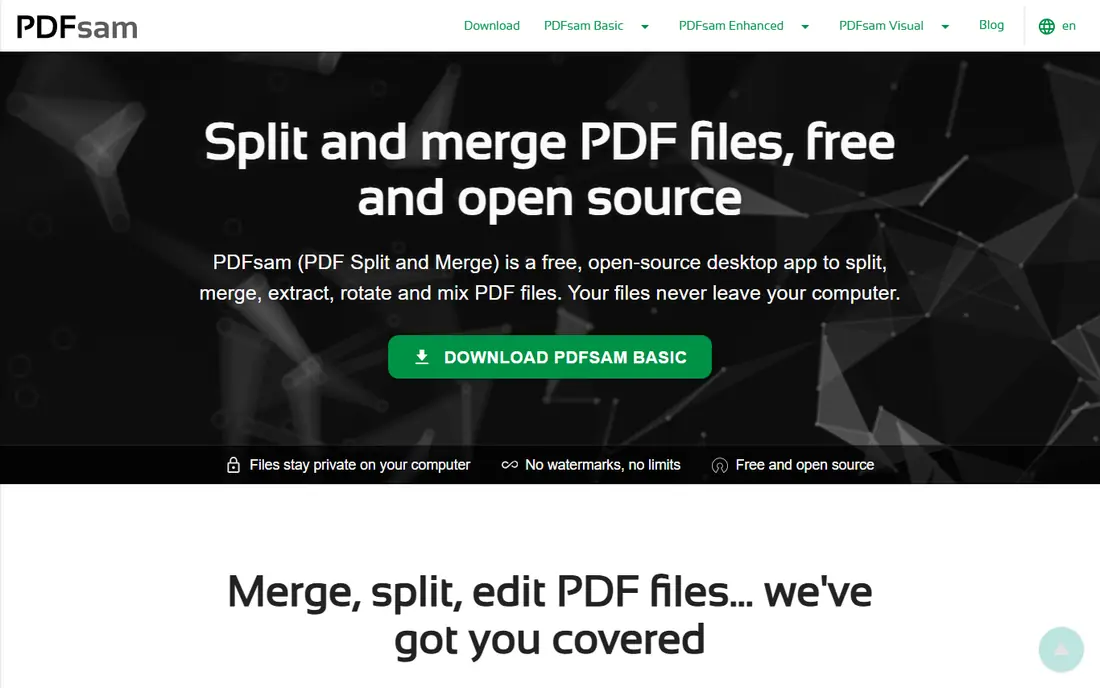
PDFsam Basic is our pick for most people who split PDFs regularly or handle sensitive files. Because it runs locally, you do not upload a contract, a medical form or a school record to a website just to cut it in half. Split modes cover the common cases well, including every N pages, custom ranges and bookmarks, which helps with long reports and scanned bundles.
The trade-off is that you need to install it, and the design will not win awards. For a one-off split on a borrowed computer, an online tool is faster. For repeat work, privacy and control make PDFsam Basic the tool we would install first.
- Free and open source
- Splits by page, range, bookmark and file size
- Files never leave your computer
- Requires a desktop install
- Interface is functional rather than polished
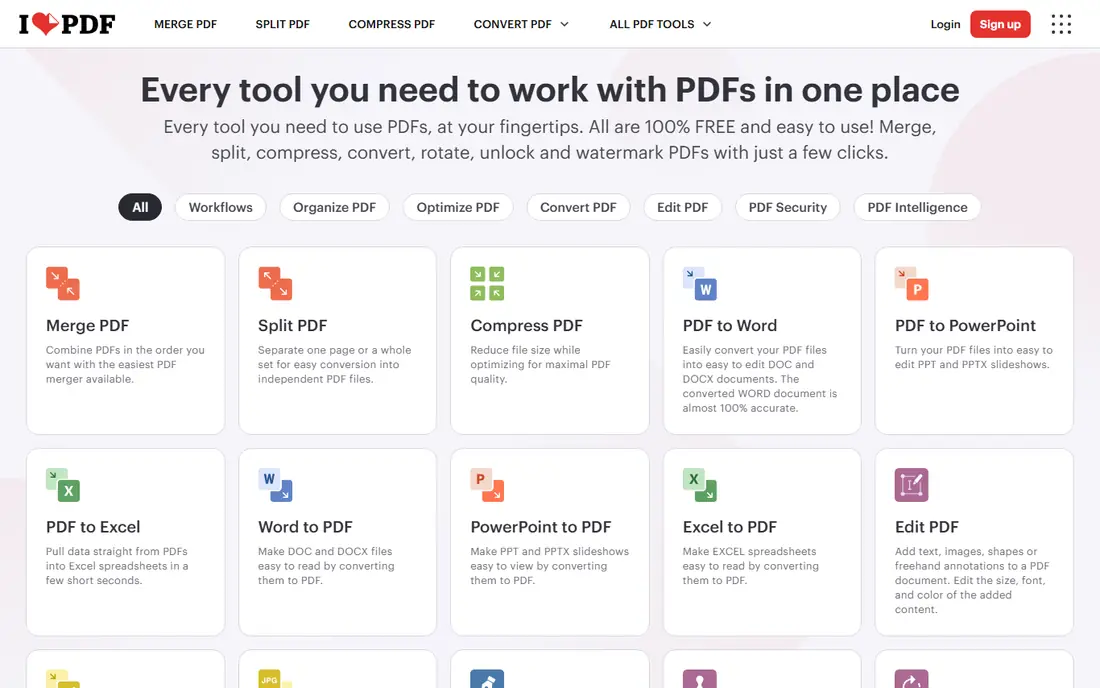
iLovePDF is the online tool most people reach for first, and for good reason. Upload a file, pick ranges or single pages, and download the results in a couple of minutes. It also sits inside a wider PDF toolkit, so you can compress or merge the pieces afterwards without learning a new service.
Free use is limited, so heavy daily splitting will hit caps and push you toward a paid plan, listed from around $9 per month in third-party pricing checks. It is also an upload-based service, so keep sensitive documents offline. For quick, low-stakes splits, iLovePDF is hard to beat for speed.
- Very easy split workflow
- Custom ranges and page extraction
- Mobile apps available
- Free use has processing limits
- Sensitive files are uploaded to a server
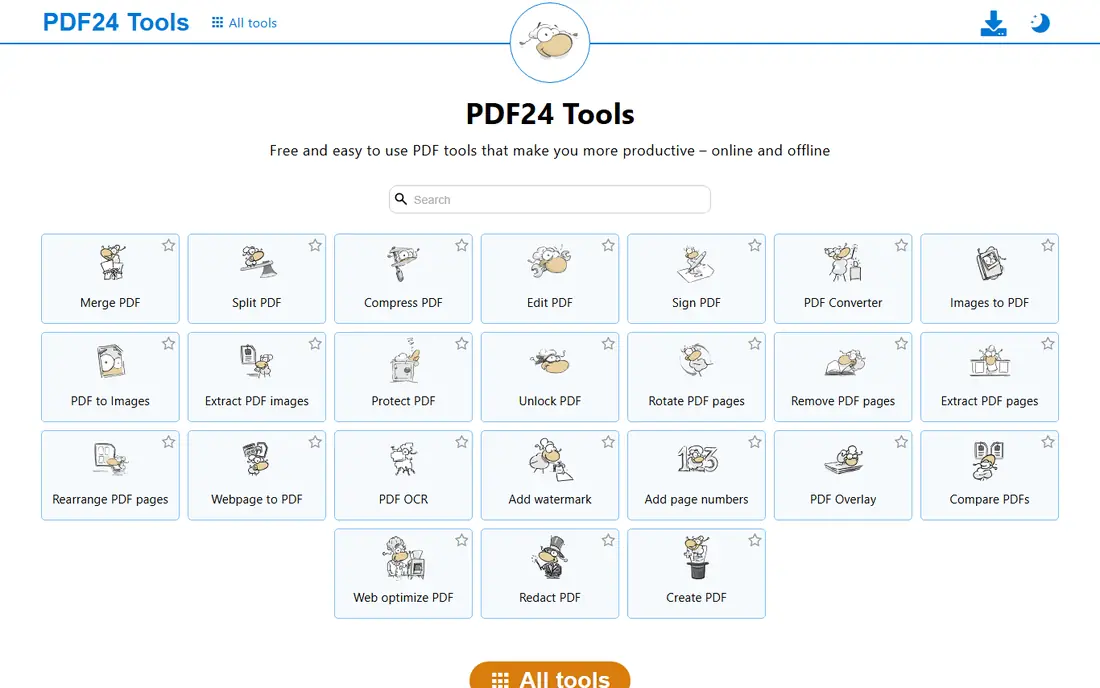
PDF24 stands out because its online tools are published as free without the tight daily limits some rivals use. You can split by page in the browser, then use the same service for compression, conversion or merging. Windows users can also install PDF24 Creator for local work, which is a useful second option.
The desktop app does not help Mac or Linux users, who must use the browser version. As with any online tool, avoid uploading highly sensitive files. For frequent, general PDF work at no cost, PDF24 is one of the most generous free options here.
- Online tools are free with few artificial limits
- Windows desktop app available
- Wide PDF toolkit
- Desktop creator is Windows only
- Online processing still uploads your file
Smallpdf is a good choice when you split a PDF once in a while and want a clean, guided workflow. You can extract pages or split manually, and the same account covers other common tasks such as compression and conversion. It works well across devices, which helps if you start on a phone and finish on a laptop.
The free tier is the limit. Daily task limits mean it is not the tool for a whole archive in one afternoon. If you only need a split now and then, that limit rarely matters. If you split daily, PDFsam Basic or PDF24 will save you frustration.
- Clean browser workflow
- Page extraction and manual splitting
- Works across devices
- Free use is subject to a daily download limit
- Advanced features need a paid plan
Sejda is the tool to try when a simple page split is not enough. Splitting by bookmark is especially useful for books and reports that already have a table of contents, and splitting by file size helps when an email limit is the real problem. The interface explains each mode clearly, which reduces mistakes on large files.
Free limits are strict compared with PDF24, at 200 pages or 50 MB and three tasks per hour for the standard online splitter in recent comparisons. That still covers most everyday jobs. For large or frequent advanced splits, check the paid plan or switch the heavy work to PDFsam Basic.
- Split by range, every page, bookmark, file size and text
- Desktop option available
- Clear privacy focus
- Free online use is limited to 200 pages or 50 MB and three tasks per hour
- Larger jobs need a paid plan
PDFgear is worth a look if you want a free desktop PDF app, not just a website. Splitting sits alongside editing, conversion and annotation, so a split file can be tidied up in the same program. Because the desktop version works locally, it is also a better privacy choice than an upload-only tool.
It does not have the same long track record as Adobe, and some features differ between Windows, Mac and mobile versions. Check that the split mode you need is in your version before relying on it. For zero-cost desktop PDF work, PDFgear is a strong, underrated option.
- Free desktop app with editing and splitting
- No subscription for core tools
- Works offline
- Smaller brand than Adobe or iLovePDF
- Feature set varies by platform
Adobe is the company behind the PDF format, and its online splitter reflects that. It handles large files that choke lighter web tools, and the workflow is simple: upload, place dividers or choose pages, and download. If you already use Acrobat, splitting is a natural extra, not a new tool to learn.
Free use is limited, and the full desktop version is a subscription product, so Adobe is not the cheapest route for frequent splitting. Use the free online tool for occasional large files, and use PDFsam Basic if you split often or need offline privacy.
- Online splitter supports large files up to 1 GB and 1,500 pages in recent comparisons
- Trusted brand
- Desktop Acrobat adds deeper controls
- Free transactions are limited
- Full desktop Acrobat is a paid subscription
PDF2Go suits a beginner who wants to see the pages and click where the split should happen. The visual approach reduces errors when a document has a tricky layout or when you only need one section out of a long file. There is nothing to install, which helps on a shared or work computer.
Because it is cloud-based, it shares the privacy trade-off of other online tools, and its free usage allowance is less clearly published than Sejda or Smallpdf. For a simple visual split of a non-sensitive file, it works well. For sensitive or repeated work, prefer an offline tool.
- Visual page-break splitting in the browser
- No install needed
- Simple for beginners
- Cloud-based, so files are uploaded
- Usage allowance is not clearly published
Lumin is a good pick when splitting is one step in longer document work, such as preparing a file for review, signature or sharing from Google Drive. You can split, edit and share without moving the file between several services, which saves time on collaborative documents.
If you only need to split and nothing else, a specialist tool such as PDFsam Basic is faster and more private. Lumin earns its place here for people already working in Drive or needing editing and signing after the split. Check the free plan limits before a large job.
- Split and merge alongside editing and signing
- Google Drive integration
- Useful free plan
- Splitting is part of a wider suite, not a specialist splitter
- Some features need a paid plan
How we picked these
We compared online and desktop splitters that offer a genuinely free way to split a PDF in October 2026, using vendor pages, pricing pages and recent tool comparisons. We favoured tools with clear split modes, working free tiers and no requirement to pay just to download a split file. We also separated online tools from offline tools, since privacy is a real difference for this task, not a minor detail.
What to check before you split
Start with privacy. If the PDF contains personal, medical, legal or financial information, use an offline tool such as PDFsam Basic or PDFgear, or at least check how long an online service keeps your file. For a public report or a school handout, an online tool is fine and faster.
Match the split mode to the job
A chapter split needs ranges or bookmarks, a handout split needs single-page extraction, and an email-size problem needs a file-size split. Check the mode before you upload a large file, since not every free tool offers every mode. Test on a copy first when the original matters, and confirm page order in the output.
Watch free limits and file size
Free tiers differ a lot: some cap tasks per hour, some cap pages or file size, and some cap daily downloads. If your file is large, Adobe Online and PDFsam Basic handle bigger jobs better than most free browser tools. When in doubt, split a large file locally to avoid a failed upload halfway through.
Sources
- https://www.blogthetech.com/best-tools-to-split-pdf/
- https://www.sales-hacking.com/en/post/meilleurs-logiciels-gratuit-diviser-pdf
- https://www.explosion.com/190664/edit-merge-and-split-pdfs-free-no-software-needed/
- https://pdfsam.org
- https://www.ilovepdf.com
- https://tools.pdf24.org
- https://smallpdf.com
- https://www.sejda.com
- https://www.pdfgear.com
- https://www.adobe.com/acrobat/online/split-pdf.html
- https://www.pdf2go.com
- https://www.luminpdf.com