Best Mac Apps in 2026: 8 Apps Compared
By ToolNimba Editorial Team October 31, 2026 8 min read

- Top pick
 Raycast
Launching and workflow
Starting priceFreeCheck out RaycastRead our review - Runner-up
 Alfred
Launcher with automation
Starting priceFreeCheck out AlfredRead our review - Also great
 Rectangle
Window management
Starting priceFreeCheck out RectangleRead our review
How we researched this
We compared official pricing and feature pages, app store listings, privacy policies and public user reviews. Prices change, so check the provider's site before you pay.
Key takeaways
- Raycast is the best first install for most Mac users, since its free tier replaces Spotlight plus several small utilities.
- The best free Mac apps cover launching, windows, notes, and passwords without any spending at all.
- Paid apps earn their price when they save daily time, such as Things 3 for tasks or Magnet for window snapping.
- Install a few apps at a time, and only add more when a specific friction appears in your daily work.
Quick comparison
| Name | Best for | Starting price | Free plan | |
|---|---|---|---|---|
| Raycast | Launching and workflow | Free | Yes | Visit |
| Alfred | Launcher with automation | Free | Yes | Visit |
| Rectangle | Window management | Free | Yes | Visit |
 Obsidian | Notes in local files | Free | Yes | Visit |
 Notion | Team docs and wikis | Free | Yes | Visit |
 Things 3 | Task management | $49.99 one-time | Free trial | Visit |
 Magnet | Window snapping | $7.99 one-time | No | Visit |
 1Password | Password management | See website | Free trial | Visit |
The best Mac apps
The best Mac apps are the ones you use every day without thinking about them. This list covers launchers, window tools, notes, tasks, and passwords, with a mix of free and paid picks. We compared official pricing pages, app store listings, and independent Mac app roundups. We focused on productivity first, since that is where most users feel the biggest gain.
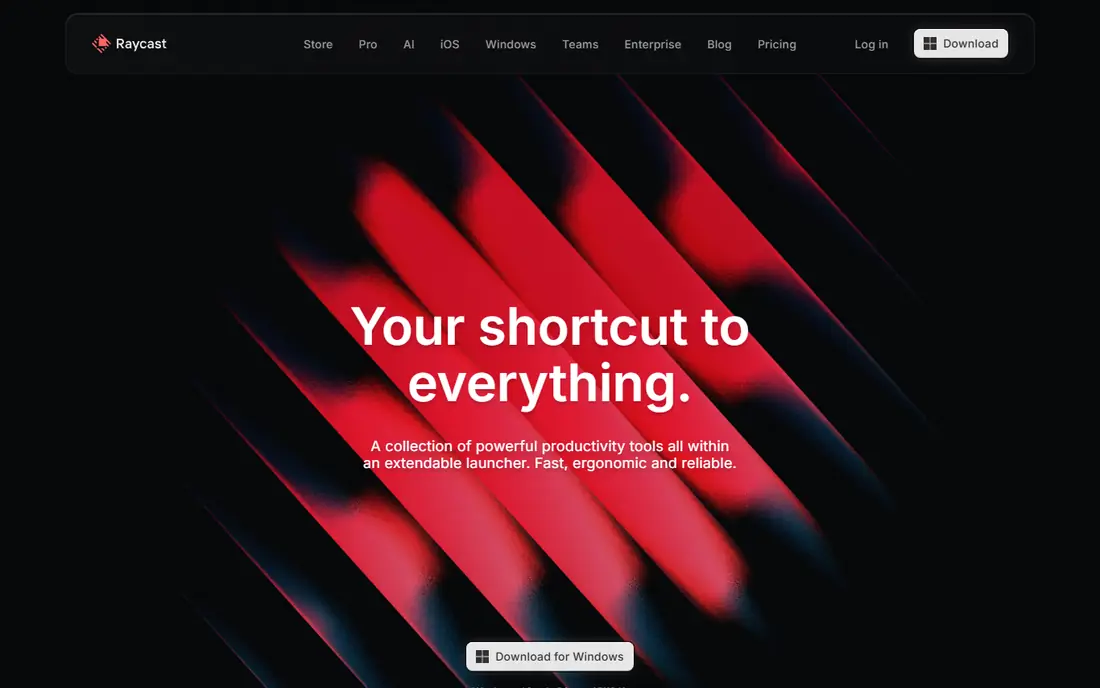
Raycast is our pick for most people, and it is the first app we install on a new Mac. It replaces Spotlight with a faster launcher, then adds clipboard history, snippets, window management, and extensions for tools such as GitHub, Notion, and Linear. Most of that is free, which is why it beats paid launchers for many users.
Pro adds AI chat and cloud sync, listed around $8 to $10 per month depending on billing, but most users do not need it to get value. The main downside is platform lock-in: it is a Mac-first tool, so Windows users get a thinner experience.
- Free core features
- Clipboard history
- Window management
- Large extension store
- AI features need Pro
- Mac only for full features

Alfred has been the Mac power user launcher for years, and it still wins for automation. Its Workflows let users chain actions together visually, from file handling to web searches, without writing code. The core app is free, and the Powerpack is a one-time purchase, listed around 34 pounds for a single license, which appeals to users who dislike subscriptions.
Raycast offers a larger extension store and more built-in features free, so new users may prefer it. Alfred remains the pick for users who want to own their launcher and build deep custom workflows.
- Powerful Workflows
- One-time Powerpack purchase
- Fast file search
- Extension catalog is smaller than Raycast
- Advanced features need Powerpack
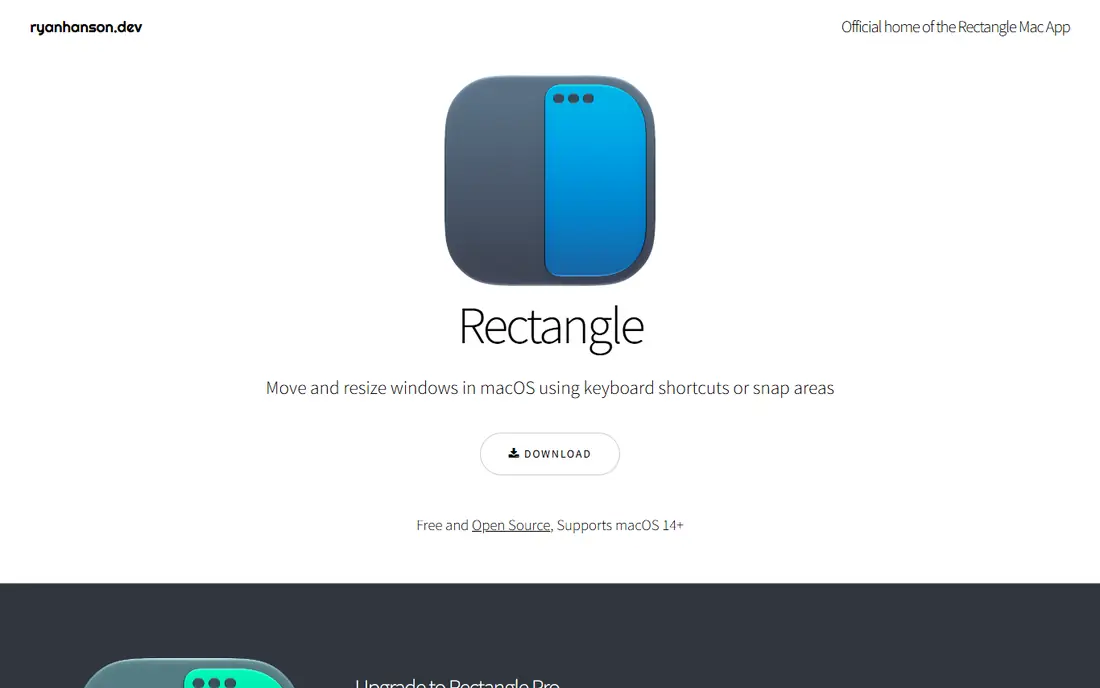
Rectangle solves a daily annoyance: arranging windows on a Mac. With keyboard shortcuts, users can snap windows left, right, or into quarters, and move them between displays. It is free, light, and easy to learn, which makes it a better first pick than paid window tools for most users.
Paid tools such as Magnet and Mosaic add more layouts and drag gestures, but Rectangle covers the core need. If you rarely manage more than two windows at once, you may not need it at all. If you do, it pays off within a day.
- Free
- Keyboard shortcuts for window tiling
- Simple and light
- Fewer advanced layouts than paid rivals
- No cloud sync needed for most users
Obsidian suits users who want notes they truly own. Notes live as plain Markdown files on the Mac, so they work offline and can be opened in other apps. Links between notes, tags, and a graph view help build a personal knowledge base over time, and plugins add calendars, tasks, and canvases.
The trade-off is setup. Obsidian is less guided than Notion, and sync across devices costs extra unless users arrange their own sync. For personal notes and long-term archives, that control is worth it. For team wikis, Notion is easier.
- Notes stored as local Markdown files
- Powerful linking
- Large plugin community
- Sync and publishing are paid add-ons
- Setup takes time for new users
Notion is the best Mac app for shared docs, project trackers, and team wikis. Its blocks mix text, tables, calendars, and embeds in one page, and templates cover meeting notes, roadmaps, and habit trackers. The free plan suits personal use and small teams, while paid plans add collaboration controls.
It is not the best pure notes app for everyone. Large workspaces can feel slower than local apps, and offline access is limited compared with Obsidian. For teams that share docs daily, those limits are usually outweighed by collaboration.
- Flexible docs, databases, and wikis
- Good sharing
- Templates for many workflows
- Can feel slow on very large workspaces
- Offline use is limited
Things 3 is the best-designed task manager on the Mac, and its one-time price avoids subscription fatigue. Tasks flow from inbox to today to upcoming, with projects, areas, and deadlines that stay simple to use. The design encourages daily review, which is where most task systems actually succeed or fail.
It is not a team tool. There is no shared workspace or assignment system like Notion or Todoist, and it only runs on Apple devices. For personal task management on a Mac, it is hard to beat.
- Beautiful design
- Natural task flow
- One-time purchase, no subscription
- Mac and iOS only
- No built-in team collaboration
Magnet is the paid window manager many Mac users buy first, because it is simple and cheap. Drag a window to an edge to snap it, or use keyboard shortcuts for halves, thirds, and quarters. At $7.99 one-time, it costs less than a lunch and removes daily window friction.
Rectangle covers much of the same ground free, so Magnet is best for users who prefer drag gestures and a polished App Store experience. Power users with multi-display setups may want a more advanced tool, but most users will be happy here.
- Simple drag snapping
- Keyboard shortcuts
- Low one-time price
- Less powerful than Rectangle Pro or Mosaic for complex layouts
- Paid only
1Password is our pick for password management on Mac, because it covers more than passwords: passkeys, secure notes, credit cards, and shared vaults for families and teams. Watchtower flags weak, reused, or breached passwords, which helps users fix the riskiest accounts first. It works across Mac, iOS, Windows, and browsers.
It is subscription-based, so users who want a free password manager should look at Bitwarden instead. For most households and teams, the family and business sharing features justify the cost.
- Strong security
- Family and team plans
- Watchtower alerts for weak passwords
- Subscription only
- Free tier does not cover full use
How we picked these
We compared official pricing pages, Mac App Store listings, and independent Mac app roundups from 2026. We kept apps that run well on current macOS, are widely used, and solve a daily problem, not a niche one. We favored free apps where they match paid quality, and we noted where a paid app earns its price.
What to check before you buy
Start free. Raycast, Rectangle, Obsidian, and Notion cover launching, windows, notes, and docs without spending. Add paid apps only after a week of noticing the same friction, such as window juggling or task overload. That rule keeps the Mac fast and the budget sane.
Check Apple silicon and macOS support
Most apps here run natively on Apple silicon, but check the vendor page for your macOS version before buying an older one-time app. Also check whether sync, backup, or iCloud features work the way you expect.
Avoid app overload
Installing twenty productivity apps at once usually hurts productivity. Pick one app per job: one launcher, one window tool, one notes app, one task app. Replace an app only when it clearly fails at its job.
Watch subscription totals
A few $8 to $15 subscriptions add up fast. Prefer one-time purchases for core tools where possible, such as Things 3, Magnet, and Alfred Powerpack, and keep subscriptions for services that need servers, such as password sync.
Check update history before buying a paid Mac app. An app updated for the current macOS version, with Apple silicon support, is far less likely to break after a system upgrade. Also check whether a one-time purchase includes future major versions or only minor updates, since that detail changes the long-term cost.
Also think about backup before changing core apps. If notes move from one app to another, export a copy first and keep it somewhere safe. The same applies to password managers and task lists: a clean export, stored offline, means a failed migration is an inconvenience rather than a loss. Most of the apps here offer export, but the steps differ, so test export on a small set before moving everything.