Best OCR Software in 2026: 9 Tools Compared
By ToolNimba Editorial Team October 31, 2026 9 min read

- Top pick
 ABBYY FineReader PDF
Accuracy-critical conversion
Starting price$99 per yearCheck out ABBYY FineReader PDFRead our review - Runner-up
 Adobe Acrobat Pro
Full PDF workflows
Starting price$19.99 per monthCheck out Adobe Acrobat ProRead our review - Also great
 Readiris
One-time purchase OCR
Starting price$99 one-timeCheck out ReadirisRead our review
How we researched this
We compared official pricing and feature pages, app store listings, privacy policies and public user reviews. Prices change, so check the provider's site before you pay.
Key takeaways
- ABBYY FineReader PDF is our pick for accuracy-critical work, with broad language support and strong document conversion.
- Adobe Acrobat Pro suits people who already live in PDFs and want OCR inside a full editing suite.
- Tesseract is the best free option for developers and patient users who do not mind a command-line tool.
- Readiris and UPDF offer lower-cost routes to solid OCR, while cloud APIs suit high-volume automated work.
Quick comparison
| Name | Best for | Starting price | Free plan | |
|---|---|---|---|---|
| ABBYY FineReader PDF | Accuracy-critical conversion | $99 per year | Free trial | Visit |
| Adobe Acrobat Pro | Full PDF workflows | $19.99 per month | Free trial | Visit |
| Readiris | One-time purchase OCR | $99 one-time | Free trial | Visit |
 UPDF | Low-cost PDF OCR | $59.99 per year | Yes | Visit |
 PDFelement | Everyday PDF editing with OCR | $79.99 per year | Free trial | Visit |
 Tesseract | Free open-source OCR | Free | Yes | Visit |
 Nitro PDF Pro | Business PDF editing with OCR | $15.74 per month | Free trial | Visit |
 OmniPage Ultimate | Batch document conversion | $149 one-time | Free trial | Visit |
 Foxit PDF Editor | Lower-cost Acrobat alternative | See website | Free trial | Visit |
The best OCR software
OCR software turns scanned pages, photos and PDFs into searchable, editable text. We compared official pricing pages, feature documentation and language support, and we favored tools that handle real-world scans, tables and multi-language documents, not just clean test pages. Accuracy claims vary by vendor, so test any shortlisted tool on your own documents first.
ABBYY FineReader PDF is the reference point for desktop OCR. It converts scanned PDFs and images into editable Word, Excel and searchable PDF files, with support for a large set of languages. Document comparison, redaction and PDF editing sit beside OCR, so it works as a daily document tool rather than a one-off converter.
The price is the main barrier for casual users, and the interface packs in more than a light user needs. For legal, academic or archival work where a missed character matters, FineReader earns its place. Try the trial on your hardest documents, such as faint scans or mixed layouts, before paying.
- Broad language support
- Strong accuracy on printed documents
- Good PDF editing and conversion
- Yearly price is higher than budget rivals
- Full feature set takes time to learn
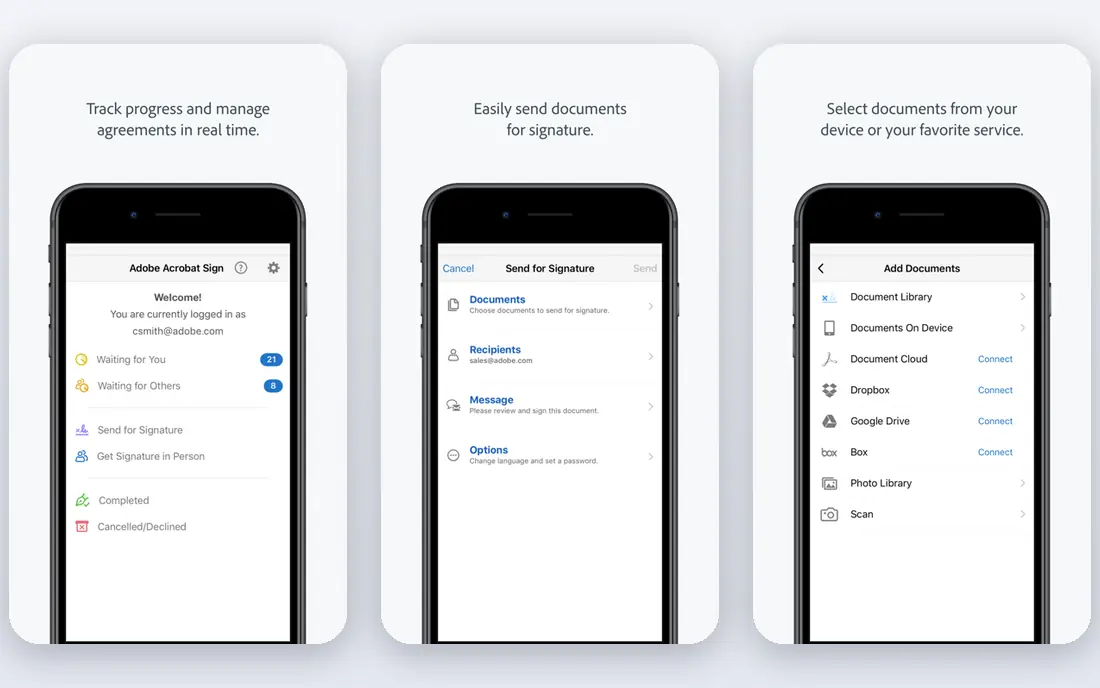
Adobe Acrobat Pro adds OCR to the PDF editor most offices already know. Scanned pages become searchable and editable, and the same app handles signing, form filling, page organization and cloud sharing. Mobile apps extend the workflow to phone scans through Adobe Scan.
Acrobat is subscription only, so the cost adds up for people who convert documents rarely. It is also a large app for a single job. If you already pay for Acrobat, its OCR is a strong reason to stay. If you only need occasional conversion, a cheaper tool or a free option may be enough.
- OCR inside a complete PDF suite
- Signing, forms and collaboration
- Works across devices
- Subscription only
- Pricey if you only need OCR
Readiris appeals to people who dislike subscriptions. A one-time license covers OCR and document conversion across many formats, with language support that suits most everyday documents. It can also convert documents to audio, which helps readers who listen rather than read on screen.
The interface is less modern than ABBYY or Adobe, and team features are thin. Readiris is a personal desktop tool, not a cloud collaboration platform. For a home office that converts scans a few times a week and wants to pay once, it remains a sensible buy.
- One-time license option
- Broad format support
- Audio conversion of documents
- Interface feels older than rivals
- Fewer collaboration features
UPDF pairs OCR with PDF editing, annotation and conversion at a lower yearly price than ABBYY or Adobe. It runs on Windows, Mac, iOS and Android, so a scan started on a phone can be finished on a computer. The free tier lets users test basic PDF work before paying for OCR.
Difficult scans, such as low-contrast pages or dense tables, can challenge UPDF more than FineReader. Some AI helpers also sit on higher plans. For everyday office scans and student notes, UPDF gives a good balance of price and capability, and the trial is worth running on your own files.
- Lower yearly price
- OCR plus PDF editing on desktop and mobile
- AI features on higher plans
- OCR accuracy varies on difficult scans
- Some features need higher tiers
PDFelement from Wondershare combines OCR with PDF editing, form tools and batch conversion in one desktop app. Scanned documents become editable text, and users can also build forms, redact content and convert files in bulk. That mix suits small offices that handle a steady flow of paperwork.
The price is neither the cheapest nor the most expensive here, which can make the choice harder. The interface also packs many menus into a small space. For teams that need OCR plus regular PDF editing without Adobe pricing, PDFelement is a practical middle option.
- OCR plus full PDF editing
- Form creation
- Batch processing
- Yearly cost sits between budget and premium tools
- Interface has many menus
Tesseract is a free, open-source OCR engine maintained by a community of developers. It reads printed text in many languages and powers a large number of other tools and scripts. Developers can embed it in apps, automate batch conversion, and tune it for specific document types.
There is no friendly point-and-click app included, so casual users face a learning curve. Layout handling and handwriting are weaker than in commercial tools, and setup takes time. For developers, researchers and budget-conscious users with technical skill, Tesseract is unmatched on price and flexibility.
- Free and open source
- Strong for developers
- Supports many languages
- Command-line tool with no polished interface
- Setup takes technical skill
Nitro PDF Pro offers OCR, editing, signing and conversion for business users who want an Acrobat-style suite at a lower price. Teams can share documents, request signatures and manage PDF workflows without moving to a separate platform. The app feels familiar to anyone used to office software.
Pricing is still subscription-based, and feature parity between Mac and Windows versions is not complete, so check the version for your platform. For businesses standardizing on a PDF suite, Nitro is a credible alternative to Adobe, with OCR that handles everyday office scans well.
- OCR inside a business PDF suite
- Signing and collaboration
- Lower cost than Acrobat for teams
- Monthly price still adds up
- Mac and Windows versions differ in features
OmniPage Ultimate, now under Tungsten Automation, is built for converting large sets of documents in batches. It handles forms, tables and multi-page scans, and outputs editable files in common formats. A one-time license suits offices that want to pay once for a conversion workhorse.
The interface shows its age, and mobile or cloud workflows are thinner than in newer rivals. OmniPage is a desktop conversion tool first, not a collaboration app. For archives, back-office scanning and batch jobs, that focus is exactly what many buyers want.
- Strong batch conversion
- One-time license
- Good form and table handling
- Dated interface
- Less cloud and mobile support than rivals
Foxit PDF Editor combines OCR with editing, signing and collaboration in a package that often costs less than Acrobat for similar office work. Scanned PDFs become searchable, and teams can comment, share and manage documents through Foxit cloud options. The app feels lighter on modest computers than some larger suites.
Pricing depends on the edition, so buyers should compare the standard and business versions carefully. Some advanced features sit on higher tiers. For small teams that want a capable PDF editor with OCR and a familiar layout, Foxit is a strong alternative to check beside UPDF and PDFelement.
- OCR plus PDF editing
- Lighter feel than Acrobat
- Team and cloud options
- Pricing varies by edition
- Some advanced features need higher tiers
How we picked these
We compared official pricing pages, feature documentation and language support, and we favored tools that convert scanned PDFs into usable text rather than only reading clean images. We included desktop suites, a one-time purchase option, a free open-source engine and a batch specialist, because OCR buyers range from students to archives. Prices are starting rates and may differ by edition or region.
What to check before you buy
Test OCR on your worst documents, not your best. Faint print, handwritten notes, tables, stamps and skewed scans expose accuracy gaps that clean pages hide. Check language support if you work in more than one language, and confirm whether handwriting is handled at all, since many tools handle print far better than handwriting.
Also check output format. Some jobs need editable Word files, others need searchable PDFs, and automated workflows may need plain text or structured data. If you convert in volume, look at batch tools and cloud APIs rather than a desktop app. A short trial on real files will tell you more than any feature list.