Best PDF Rotator Service in 2026: 9 Tools Compared
By ToolNimba Editorial Team October 31, 2026 9 min read

- Top pick
 iLovePDF Rotate PDF
Easy per-page rotation
Starting priceFreeCheck out iLovePDF Rotate PDFRead our review - Runner-up
 PDF24 Rotate PDF
Free rotation with no account
Starting priceFreeCheck out PDF24 Rotate PDFRead our review - Also great
 Smallpdf Rotate PDF
Beginner-friendly rotation
Starting priceFreeCheck out Smallpdf Rotate PDFRead our review
How we researched this
We compared official pricing and feature pages, app store listings, privacy policies and public user reviews. Prices change, so check the provider's site before you pay.
Key takeaways
- iLovePDF, PDF24 Tools, and Smallpdf offer the simplest browser rotation, with per-page control on most of their tools.
- Foxit and Adobe suit work documents where output quality and file handling matter more than a free tier alone.
- PDFsam Basic and PDF2Go are strong picks when you want offline work or a wider set of PDF tools alongside rotation.
- Rotating the whole file is not enough for mixed scans, so check whether a tool rotates single pages as well as all pages.
- Save rotation into the file itself, rather than relying on a viewer setting, so the corrected orientation travels with the document.
Quick comparison
| Name | Best for | Starting price | Free plan | |
|---|---|---|---|---|
| iLovePDF Rotate PDF | Easy per-page rotation | Free | Yes | Visit |
| PDF24 Rotate PDF | Free rotation with no account | Free | Yes | Visit |
| Smallpdf Rotate PDF | Beginner-friendly rotation | Free | Yes | Visit |
 Foxit Rotate PDF | Work files and large uploads | Free | Yes | Visit |
 Adobe Acrobat Rotate PDF | Trusted output for work | Free | Yes | Visit |
 Sejda Rotate PDF | Precise page selection | Free | Yes | Visit |
 PDF2Go Rotate PDF | Rotation plus editing tools | Free | Yes | Visit |
 PDFsam Basic | Offline page rotation | Free | Yes | Visit |
 PDF Candy Rotate PDF | Rotation in a broad toolkit | Free | Yes | Visit |
The best pdf rotator service apps
A sideways scan is easy to ignore until you send it to someone else. We compared official feature pages, pricing pages, and public reviews to find rotators that fix orientation permanently, page by page, without fuss.
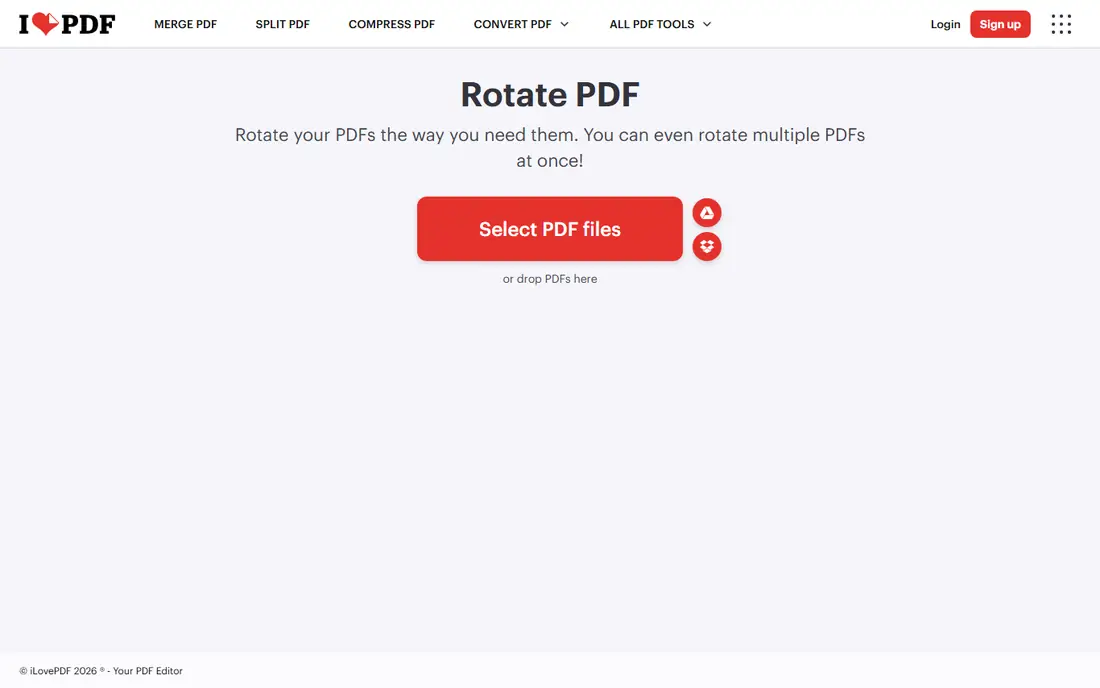
iLovePDF Rotate PDF is a good first stop because the workflow is obvious. Upload a file, click the rotate control on the pages that need it, and download the corrected PDF. You can rotate one page at a time, which matters for scans where only a few pages came out sideways.
The wider iLovePDF suite is useful after rotation, since you can merge, compress, or split the corrected file without changing sites. Free use has limits on frequency, so heavy users should check Premium pricing. For occasional fixes, the free tier is more than enough, and the preview helps you catch a page you missed.
- Rotate single pages or whole files
- Clean preview
- Part of a large PDF suite
- Free use has task limits
- Some features need Premium
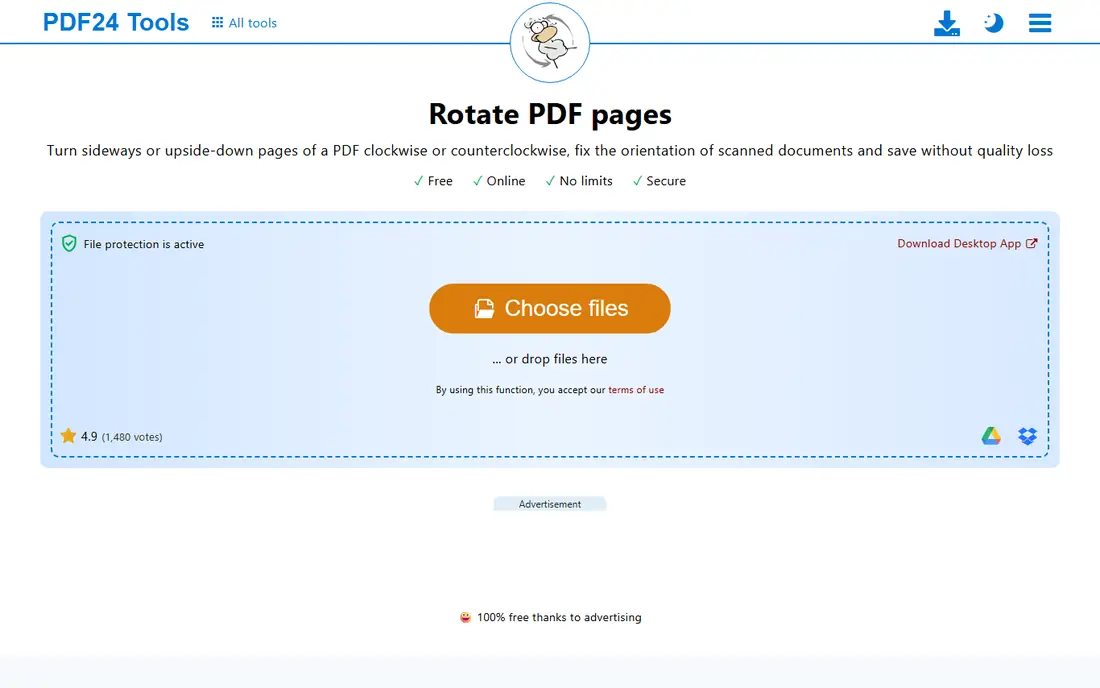
PDF24 Rotate PDF does the core job without asking for an account or a payment. Its online tools state that they are free of charge, and files are removed from servers after a short time. That combination suits quick fixes and users who dislike sign-up walls for a simple task.
If you rotate often, PDF24 Creator for Windows moves the work offline, which is better for private documents. The interface is plain, and the site is supported by advertising, but neither point affects the output. For a free, no-fuss rotator, PDF24 is hard to beat.
- Free web tools with no account needed
- Desktop Creator for offline work
- Files removed after a short time
- Plain interface
- Web pages show advertising
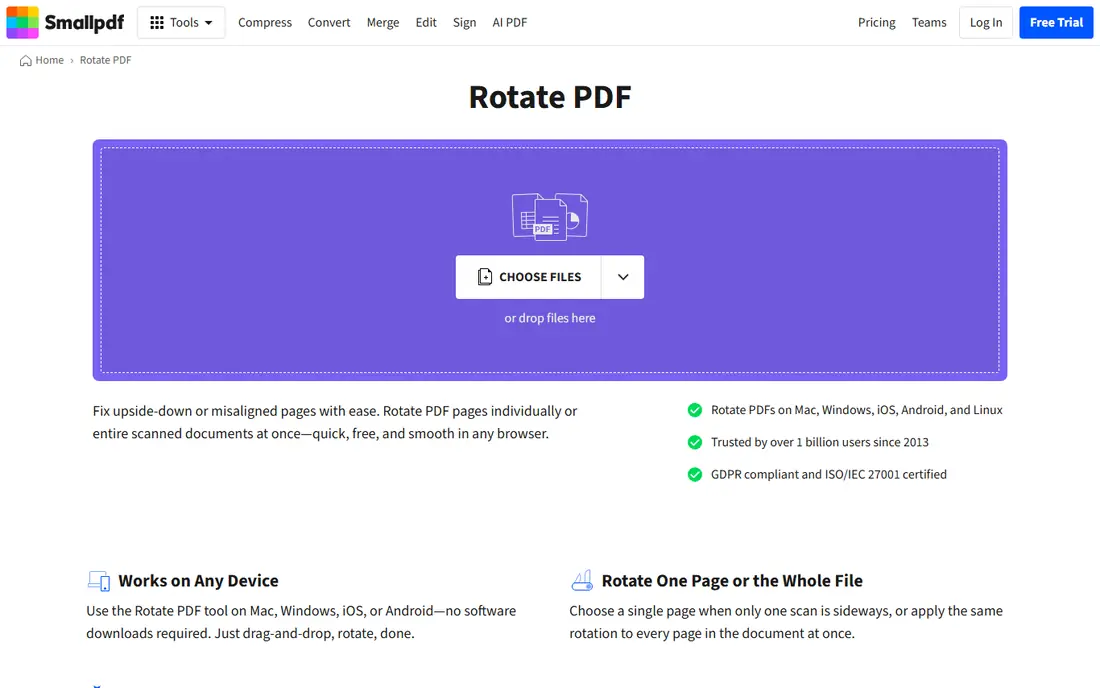
Smallpdf Rotate PDF keeps rotation to a few clicks. Add a file, rotate the pages that need it, and download the result. Links to Google Drive and Dropbox help when the file is not on your device, and the mobile browser workflow is tidy enough for a quick fix on a phone.
The limit is frequency. Free users get only a small number of tasks per day, so Smallpdf is best for occasional rotation. Pro lifts those limits and adds desktop and mobile apps. If you rotate one file a week, the free tier will serve you well.
- Very simple steps
- Cloud storage links
- Works well on mobile browsers
- Free tier allows only a small number of tasks per day
- Pro needed for heavy use
Foxit Rotate PDF is aimed at people who handle larger work files. Its online page lists a 100 MB upload limit, and it opens the file in a thumbnail view where you can rotate individual pages before saving. Foxit states that original and updated files are deleted after rotation, which is a clear privacy point.
The online tool is free for basic rotation, while the full Foxit PDF Editor is a paid product with much wider editing. If you only need to fix orientation, start with the free online tool. If you edit PDFs daily, the desktop editor may be worth comparing with Adobe.
- Online tool accepts files up to 100 MB as listed
- Per-page rotation in thumbnail view
- Files deleted after rotation
- Full desktop editor needs a paid licence
- Online tool needs an internet connection
Adobe Acrobat Rotate PDF is the conservative choice for documents that will be shared at work. Rotation is straightforward, and Adobe's handling of page layout is dependable. When a corrected contract or report goes to a client, that steadiness matters more than a slightly faster free tool.
Free online use is limited, so this is not the best pick for bulk rotation. Users who already pay for Acrobat Standard or Pro should use the desktop rotate tools, which offer more control and batch handling. Occasional users can use the online tool for single files.
- Reliable page handling
- Good for client-facing files
- Links to full Acrobat desktop apps
- Free online use is limited
- Advanced editing needs a paid subscription
Sejda Rotate PDF suits mixed documents where pages face different directions. You can select pages, choose a rotation angle, and apply it only to those pages. That precision saves time compared with rotating a whole file and then fixing the pages that were already correct.
Free use has published limits on pages and tasks per hour. For short jobs, that is fine. For long reports or frequent rotation, a paid plan lifts the caps. Sejda states that files are deleted after processing, so read its privacy page if you handle sensitive scans.
- Rotate selected pages by angle
- Clear task controls
- Files deleted after processing
- Free tier limits pages and tasks per hour
- Larger jobs need a paid plan
PDF2Go Rotate PDF is useful when rotation is one step in a longer fix. You can rotate pages, then compress, edit, or convert the same file without moving to another service. Uploads from your device, Dropbox, or Google Drive keep the workflow flexible.
Free use has limits, and Premium raises them while adding larger uploads. Check those limits against your file size before starting. For everyday rotation of small to medium files, the free tier is practical.
- Rotate plus edit, compress, and convert
- Cloud upload options
- No install needed
- Free tier has size and frequency limits
- Premium upsells appear in the workflow
PDFsam Basic rotates PDF pages on your own computer, so sensitive scans never need to be uploaded. It also merges, splits, and extracts pages, which makes it a handy desktop companion for document cleanup. The interface is functional rather than polished, but the controls are clear once you have used it once.
The paid Enhanced version adds visual editing and other advanced tools, but rotation itself is covered by the free Basic app. If privacy or offline work matters, PDFsam Basic is a strong, no-cost choice.
- Free desktop app for Windows, Mac, and Linux
- Rotate locally with no upload
- Merge and split included
- Plain interface
- Advanced features need the paid Enhanced version
PDF Candy Rotate PDF fits people who want one site for many PDF jobs. The rotate tool shows a preview, lets you turn pages in 90-degree steps, and saves a corrected file you can then compress or merge elsewhere on the same site. That breadth is convenient when rotation is part of tidying a set of files.
Free web use is limited per hour, so it suits occasional fixes rather than bulk work. A paid plan and a desktop version lift those limits. For a single sideways scan, PDF Candy is quick and clear.
- Page preview before saving
- Many PDF tools on one site
- Desktop version available
- Free web use has hourly task limits
- Heavy use needs a paid plan
How we picked these
We compared official feature pages, pricing pages, and privacy notes for widely used PDF rotators, plus public reviews of free-tier limits. We favoured tools that rotate single pages as well as whole files, save the change into the file, and state their limits and deletion timing openly. Tools that only change a viewer setting, or that could not be verified as working, were left out.
How to choose the right rotator
Rotate pages, not just files
Mixed scans are common. A report may have portrait text pages and wide tables, or a scanned pack may have a few pages upside down. A tool that only rotates the whole file will fix one problem and create another. Choose a rotator with per-page controls if your files are mixed.
Check the save step
Some viewers let you turn a page on screen without changing the file. That fix disappears when the file is opened elsewhere. Use a rotator that writes the new orientation into the PDF and downloads a corrected copy. Open the downloaded file in a different viewer to confirm the change held.
Match limits to file size
Free tiers often cap file size, pages, or tasks per hour. A tool that handles a short letter may reject a long scanned report. If you rotate large files often, a desktop tool such as PDFsam Basic or PDF24 Creator avoids most web limits and keeps files local.
Privacy for scans
Scans can contain signatures, IDs, and personal details. For such files, prefer offline rotation or a service with a short, stated deletion window. Read the privacy page before uploading anything sensitive, and delete the original from your downloads folder if it is no longer needed.
Sources
- https://www.ilovepdf.com/rotate_pdf
- https://tools.pdf24.org/en/rotate-pdf
- https://www.smallpdf.com/rotate-pdf
- https://www.foxit.com/rotate-pdf/
- https://www.adobe.com/acrobat/online/rotate-pdf.html
- https://www.sejda.com/rotate-pdf
- https://www.pdf2go.com/rotate-pdf
- https://pdfsam.org/download-pdfsam-basic/
- https://pdfcandy.com/rotate-pdf.html