Best Photo Collage Apps in 2026: 9 Apps Compared
By ToolNimba Editorial Team October 29, 2026 11 min read

- Top pick
 Canva
Templates and easy design
Starting priceFreeCheck out CanvaRead our review - Runner-up
 Adobe Express
Polished design with AI help
Starting priceFreeCheck out Adobe ExpressRead our review - Also great
 PicsArt
Creative mobile editing
Starting priceFreeCheck out PicsArtRead our review
How we researched this
We compared official pricing and feature pages, app store listings, privacy policies and public user reviews. Prices change, so check the provider's site before you pay.
Key takeaways
- Canva is our pick for most people, thanks to its huge template library, easy drag-and-drop editing, and web and mobile access.
- PicCollage and PhotoGrid suit quick phone collages, while Adobe Express suits users who want stronger design tools and AI features.
- Free plans vary a lot on watermarks and export quality, so check export terms before you spend time on a large project.
- For print, pick a tool that exports at high resolution and lets you set the exact size, rather than a social-only app.
Quick comparison
| Name | Best for | Starting price | Free plan | |
|---|---|---|---|---|
| Canva | Templates and easy design | Free | Yes | Visit |
| Adobe Express | Polished design with AI help | Free | Yes | Visit |
| PicsArt | Creative mobile editing | Free | Yes | Visit |
 PicCollage | Playful phone collages | Free | Yes | Visit |
 Fotor | Browser collages with editing | Free | Yes | Visit |
 BeFunky | Simple grid layouts | Free | Yes | Visit |
 PhotoGrid | Fast phone grids | Free | Yes | Visit |
 FotoJet | Quick no-fuss web collages | Free | Yes | Visit |
 PhotoScape X | Desktop collage and editing | Free | Yes | Visit |
The best photo collage apps
A good collage app should get out of the way. You want a layout that fits your photos, text and stickers that do not fight you, and an export that looks good where you plan to share or print it. We compared official product pages, pricing pages, and app store listings to find tools for phone, web, and desktop, with a mix of free and paid options.
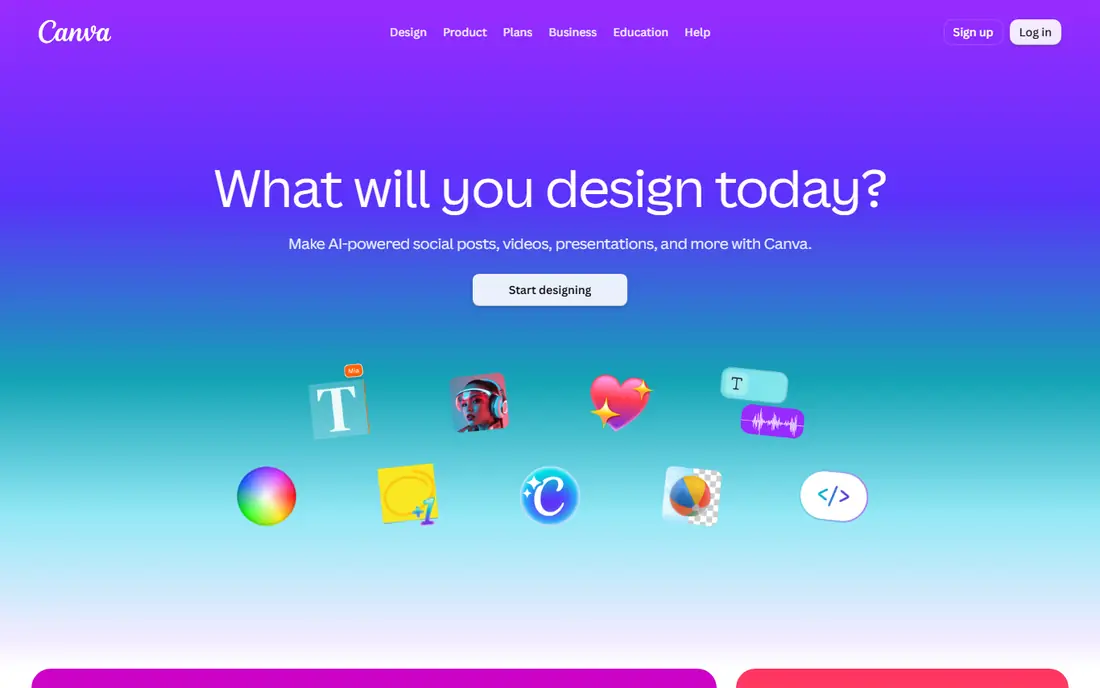
Canva is the easiest recommendation on this list, because it covers the most ground with the least friction. You can start from a collage template, drop in photos, add text, stickers, and shapes, and share the result to social media or send it to print, all from a browser or a phone. The free tier includes a large number of templates and assets, which is enough for birthday posts, invitations, and family albums.
The limit is that the best templates, stock photos, and brand tools sit behind Pro, and precise print control is weaker than in Adobe Illustrator or a desktop editor. Canva also nudges you toward its own ecosystem, so a user who wants full offline desktop editing may prefer PhotoScape X or BeFunky. For most people making a collage for social media, a card, or a poster, Canva is the fastest path to a result that looks designed rather than assembled.
- Very large template library
- Drag-and-drop editing on web and mobile
- Easy sharing and printing options
- Best templates and assets need Pro
- Export size control is less precise than a desktop design tool
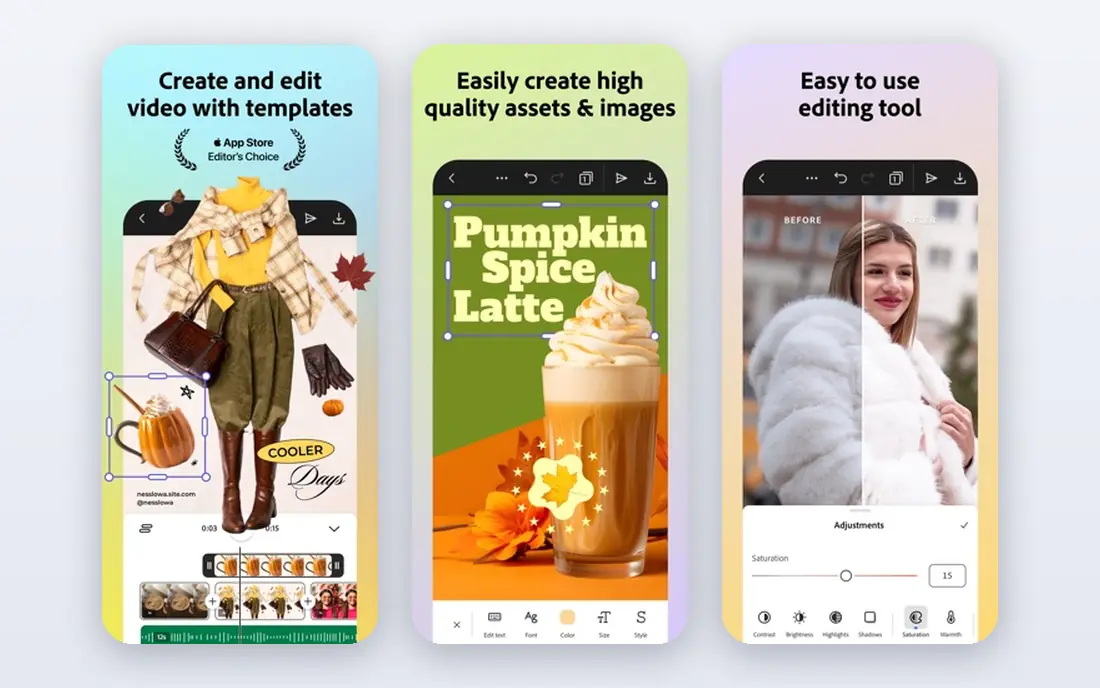
Adobe Express is the pick for users who want a collage to look polished without learning a full design suite. It offers templates, stock assets, and AI tools such as background removal, and it connects to Adobe Fonts and Adobe Stock for users who already work in that world. The free tier covers a useful range of templates and editing, which is enough for social posts and simple print pieces.
The trade-offs are sign-in and subscription. You need an Adobe account before you can edit, and the premium plan opens the fuller asset library and AI features. The interface also leans toward social and marketing content, so a user who just wants a simple family grid may find Canva or PicCollage faster. For a creator who already uses Adobe tools, or who wants AI help with cutouts and backgrounds, Adobe Express is a strong choice.
- Strong templates and design assets
- AI tools for background removal and generation
- Good Adobe integration
- Full access needs a subscription
- Sign-in required before editing
- Some features feel geared to marketers
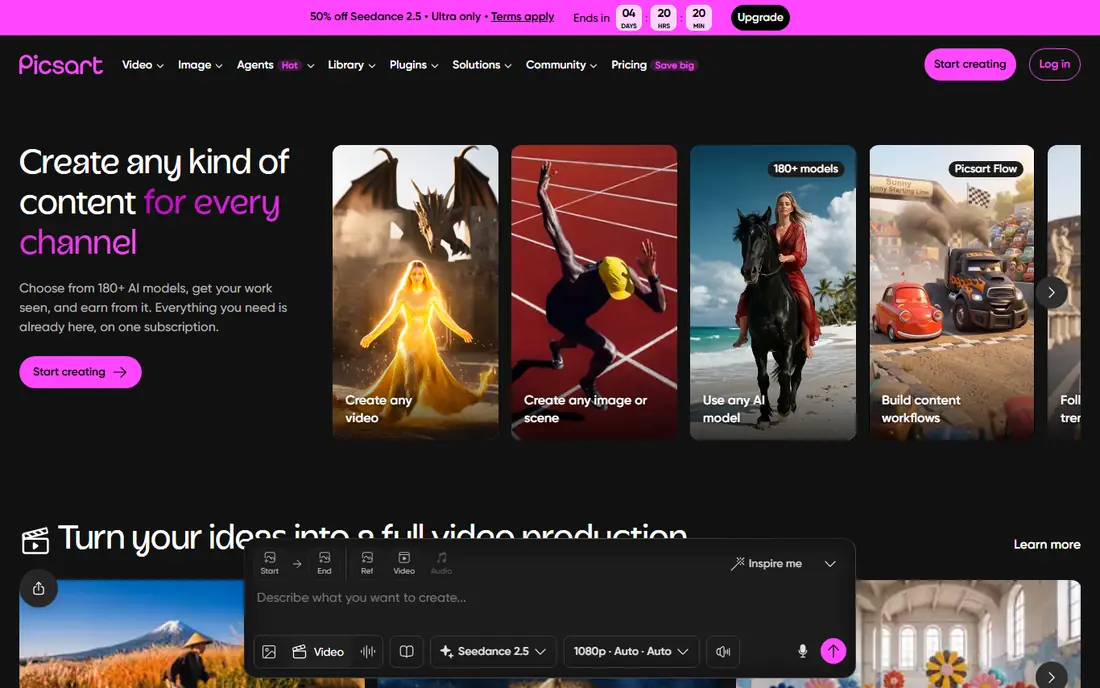
PicsArt is the most creative mobile pick on this list. Beyond grids, it offers freestyle collages where photos can overlap, rotate, and layer, plus filters, effects, stickers, and drawing tools that let a collage feel like art rather than a simple arrangement. That makes it popular for social media creators who want a distinctive look, not just a tidy grid.
The free tier is usable, but the best filters, effects, and assets need the Gold subscription, and free users will see ads and upgrade prompts. The interface is also busier than PicCollage or PhotoGrid, which can slow a quick project. For a phone-first creator who enjoys editing and experimenting, PicsArt offers the most creative range. For a quick family collage, a simpler app will be faster.
- Powerful mobile editing with filters and effects
- Freestyle collage layouts
- Large sticker and template library
- Many best effects need Gold
- Ads and upsells on the free tier
- Interface can feel busy
PicCollage is built for fun, fast phone collages. You can pick a grid or a freestyle layout, add photos, stickers, backgrounds, and text, and share the result in minutes. The tone is playful, which suits birthday cards, travel albums, holiday posts, and classroom projects, and the learning curve is close to zero.
The limit is the subscription. The free tier covers the basics, but many stickers, backgrounds, and features need VIP, and free exports can carry limits that matter for print. That makes PicCollage best for social sharing and casual cards, rather than for a large printed poster. For a parent, teacher, or casual creator who wants a cheerful collage quickly, PicCollage is one of the easiest apps to hand to someone and let them enjoy.
- Easy freestyle and grid modes
- Fun stickers, backgrounds, and text
- Popular for cards and social posts
- Best stickers and features need a subscription
- Watermark or limits can apply on free exports
Fotor suits users who want to edit photos and arrange them in the same browser tab. Its collage maker offers grids, templates, and aspect ratios for social media and print, and its photo editor covers adjustments, filters, and touch-ups before a photo goes into a layout. That combination saves a round trip between two apps, which matters when you are working through a set of holiday photos.
The catch is the free export. Free collages can carry a watermark, and higher-resolution, watermark-free exports need a Pro subscription. The interface is also less slick than Canva for pure design work. For a desktop user who wants editing plus collage in one place, and who is willing to pay for Pro on a larger project, Fotor is a practical, capable choice.
- Browser-based collage maker plus photo editing
- Many templates and aspect ratios
- Batch processing
- Free exports can carry a watermark
- Best tools and high-resolution exports need Pro
BeFunky is the calm, simple option in this group. Its collage maker focuses on grids and layouts, with clear controls for spacing, borders, and backgrounds, and it connects to the BeFunky photo editor for adjustments before or after arranging photos. That simplicity makes it a good pick for users who find Canva busy, or who want a traditional grid without a lot of extra design noise.
The trade-off is range. BeFunky has fewer templates than Canva or Adobe Express, and its Plus plan, starting at about $4.99 per month in older listings, opens more effects, higher-resolution downloads, and commercial use. For a straightforward grid collage, especially for a card, a poster, or a family album page, BeFunky is easy to learn and pleasant to use. For a heavily templated social campaign, Canva will offer more starting points.
- Clean, simple collage maker
- Good grid and layout control
- Integrated photo editor
- Best effects and high-resolution exports need Plus
- Template range is smaller than Canva
PhotoGrid is built for speed on a phone. You pick photos, pick a grid, adjust borders and backgrounds, and share, often in under a minute. It also offers video grids, scrapbook styles, and stickers, which suit social stories and reels as well as still collages. For a traveler or parent who wants to post a day's photos quickly, PhotoGrid is hard to beat for pace.
The limit is depth. PhotoGrid is a social-first app, so print control, precise sizing, and design polish are weaker than in Canva or Adobe Express, and the best features need a subscription. Free users will also see ads and upgrade prompts. For fast phone collages to share online, PhotoGrid is an excellent pick. For a printed family poster, use a web or desktop tool with high-resolution export instead.
- Very fast grid creation on a phone
- Video grids and scrapbook styles
- Easy social sharing
- Best features need a subscription
- Interface leans toward social trends rather than print design
FotoJet is the pick for a user who wants to make one collage and move on. It runs in a browser, lets you start without creating an account for many templates, and offers layouts for collages, cards, posters, and social posts. The editing is simple, with text, clipart, and backgrounds that do not require a tutorial.
The trade-offs are ads in the free editor and a Plus plan for the best templates and higher-resolution exports. FotoJet also lacks the deep photo editing of Fotor or PicsArt, so heavy retouching needs another app. For a quick card, invitation, or social collage on a desktop, FotoJet is refreshingly direct. For a regular design workflow, Canva or Adobe Express will serve you better over time.
- No-registration quick design in a browser
- Many templates for cards, posters, and social posts
- Simple editing
- Ads in the free editor
- Best templates and high-resolution exports need Plus
PhotoScape X suits users who prefer a desktop app and want to work offline. It combines a collage maker with photo editing, batch processing, filters, and frames, so a photographer or hobbyist can sort a folder of photos, edit them, and arrange a collage without uploading anything to a website. That offline, desktop workflow is increasingly rare, and it matters for privacy and for large files.
The interface looks older than Canva or Adobe Express, and the template range is more traditional. Pro features need a purchase, and the app is less suited to social templates and trends. For a desktop user who wants a capable, offline collage and editing tool, PhotoScape X is a solid, free starting point. For a social-first creator, a mobile or web app will feel more current.
- Desktop editor with collage, batch editing, and filters
- Works offline
- Good for larger photo sets
- Interface looks dated
- Pro features need a purchase
- Fewer modern templates than Canva
How we picked these
We compared official product pages, pricing pages, and app store listings, and we favored tools that are still available in October 2026 and that offer a real collage maker, not just a photo editor with a grid filter. We included phone, web, and desktop options, and free and paid tiers, so different workflows are covered. We paid special attention to free export terms, because a watermark or a low-resolution export can ruin an otherwise good collage.
How to get a collage that looks good
Start with fewer photos than you think you need. A grid of four to six strong photos usually looks better than a grid of twelve small ones, because each photo stays large enough to see. Pick one focal photo, give it more space, and let the others support it, rather than giving every photo the same size.
Then check the export before you share or print. Look at the resolution, the aspect ratio, and whether a watermark appears, and test a small print if the collage is for a wall or a gift. If you plan to print, choose a tool with high-resolution export and exact size control, such as Canva, Fotor, or PhotoScape X. If you plan to post online, a phone app such as PicCollage or PhotoGrid will be faster, and the export limits matter less.