Best Recording Software for PC in 2026: 9 Tools Compared
By ToolNimba Editorial Team October 29, 2026 10 min read

- Top pick
 OBS Studio
Free recording and streaming with no limits
Starting priceFreeCheck out OBS StudioRead our review - Runner-up
 Camtasia
Polished tutorials with built-in editing
Starting price$179.88 per yearCheck out CamtasiaRead our review - Also great
 Loom
Quick async video messages for teams
Starting priceSee websiteCheck out LoomRead our review
How we researched this
We compared official pricing and feature pages, app store listings, privacy policies and public user reviews. Prices change, so check the provider's site before you pay.
Key takeaways
- OBS Studio is the best free option, with no time limits or watermarks, but it expects you to learn its settings and edit elsewhere.
- Camtasia is our pick for polished tutorials, because recording and a full editor live in one app, though it costs far more than the alternatives.
- Loom is the fastest choice for short team videos, since recording produces a shareable link in seconds.
- Gamers should look at Bandicam first, as it is built for high frame rates with low impact on performance.
- If you only need quick captures, the free Xbox Game Bar already built into Windows may be all you need.
Quick comparison
| Name | Best for | Starting price | Free plan | |
|---|---|---|---|---|
| OBS Studio | Free recording and streaming with no limits | Free | Yes | Visit |
| Camtasia | Polished tutorials with built-in editing | $179.88 per year | Free trial | Visit |
| Loom | Quick async video messages for teams | See website | Yes | Visit |
 Bandicam | Recording games at high frame rates | $39.95 one-time | Free trial | Visit |
 Snagit | Screenshots and short annotated clips | $39 per year | Free trial | Visit |
 ScreenPal | Affordable recording for teachers and teams | $3 per month | Yes | Visit |
 ShareX | Free lightweight capture for technical users | Free | Yes | Visit |
 Movavi Screen Recorder | Simple recording with scheduling | $34.95 per year | Free trial | Visit |
 Xbox Game Bar | Quick clips with nothing to install | Free | Yes | Visit |
The best recording software for PC
Recording your screen on a PC can mean very different things, from a two-minute bug report to a full training course. These nine tools cover that whole range, and we weighed price, ease of use, and editing power for each one.
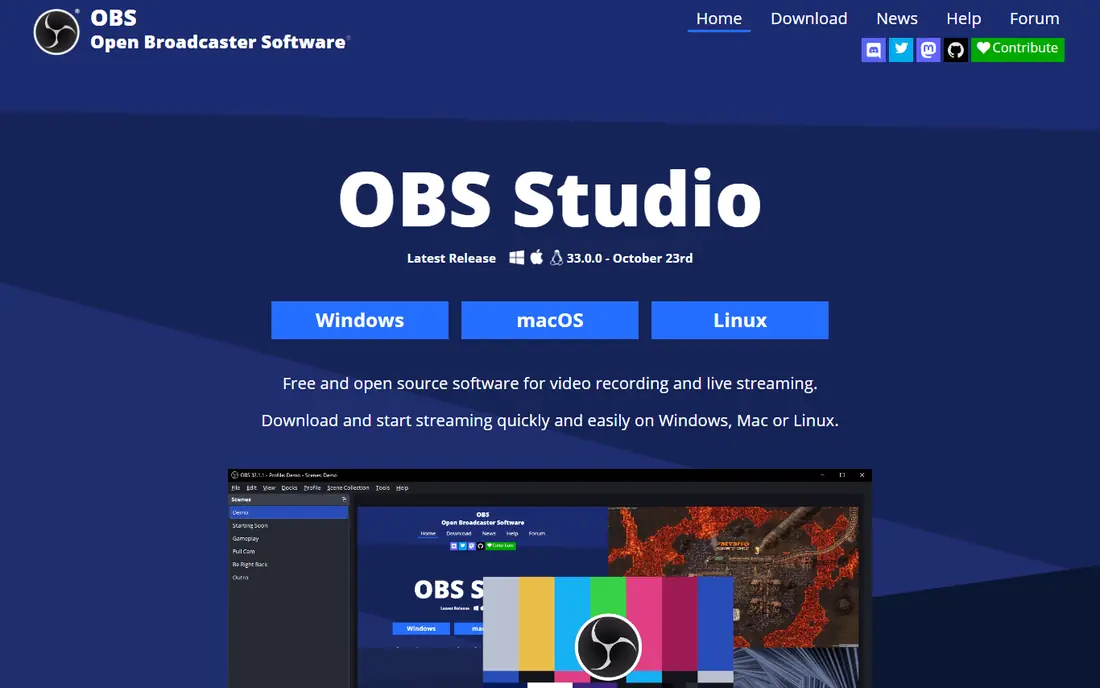
OBS Studio is the free, open source tool that most serious creators start with, and for good reason. It records your full screen, a single window, or a game, and it can mix in a webcam, microphone, and several audio sources at once. There are no recording time limits, no watermarks, and no paid tier waiting behind a feature you need. If you stream to YouTube or Twitch, OBS also handles the live side without a second app.
The trade-off is that OBS expects some patience. The settings menu is deep, and first-time users often need a guide to get audio routing right. It also has no video editor, so trimming or adding callouts means opening another program. For anyone willing to spend an evening learning it, though, OBS delivers more than most paid recorders. It is our pick for most people who want a capable recorder for nothing.
- Completely free with no watermark
- Records and live streams
- Supports multiple sources, scenes, and audio tracks
- Steep learning curve
- No built-in video editor
Camtasia is the tool training teams reach for when a recording has to look finished, not just captured. You record your screen and webcam, then cut, annotate, zoom, and add quizzes or captions in the same program. That single workflow is the point: there is no exporting to another editor and no re-learning a second interface. For anyone producing courses or onboarding videos regularly, the time saved is real.
The price is the obvious catch. At close to 180 dollars a year, Camtasia only makes sense if you record often or earn from the videos. It is also a heavier app than the free options, so older machines may feel it during editing. If your output is occasional, OBS plus a free editor will get you there for less. If you make tutorials every week, Camtasia is the most complete package here.
- Recording and a full editor in one app
- Callouts, quizzes, and animations
- Good for training courses
- Expensive for casual use
- Heavier on older PCs
Loom is less a recorder and more a way to replace a meeting with a video. Hit record, talk over your screen, and Loom gives you a link you can drop into email or Slack. Viewers can react and comment at specific timestamps, which keeps feedback tied to the exact moment it refers to. For remote teams, that loop is faster than writing a long message or booking a call.
What Loom is not is a precision capture tool. You will not find the deep settings of OBS or the editing depth of Camtasia, and longer videos and some team features sit behind paid plans. But for the common job of showing a colleague what you mean, nothing here is quicker. If your recordings are mostly short explanations for work, start with the free plan and see how far it takes you.
- Recording becomes a shareable link in seconds
- Viewer comments and reactions
- Works in the browser
- Less control over recording quality
- Best features need a paid plan
Bandicam has been a gamer favorite for years because it is built around one job: capturing fast-moving games without dragging down frame rates. It uses hardware acceleration to keep the recording smooth, and it can capture DirectX and OpenGL games as well as anything on your desktop. The one-time license is also a welcome change from the subscriptions that dominate this list.
The limits are plain. Bandicam runs on Windows only, and its editing features are basic, so most users will still trim footage elsewhere. The free version also caps recordings at ten minutes and adds a watermark. For gameplay capture on a Windows PC, though, that combination of low overhead and a single payment is hard to beat.
- Low performance impact while gaming
- High frame rate capture
- Hardware acceleration support
- Windows only
- Limited editing tools
Snagit comes from the same company as Camtasia, but it solves a smaller problem: grabbing something on screen and explaining it fast. Its screenshot tools are the best in this roundup, with arrows, callouts, blur, and step numbering that make documentation look professional in minutes. Short video clips use the same simple workflow, and sharing to common destinations is built in.
Where Snagit falls short is length. It is not the tool for a 30-minute tutorial or a full game session, and the yearly subscription adds up for what is mostly a capture utility. But if your daily work is support tickets, bug reports, and quick how-to clips, Snagit earns its keep. Pair it with a free recorder for longer jobs and you cover nearly everything.
- Excellent annotation tools
- Captures images and video
- Easy sharing
- Not suited to long recordings
- Yearly subscription
ScreenPal, formerly Screencast-O-Matic, is the budget all-rounder of this list. Paid plans start at a few dollars a month, and you get recording, a straightforward editor, and hosting for your videos in one place. It runs on Windows, Mac, and Chromebook, which makes it a popular choice in schools and small teams with mixed devices.
The free plan is usable but limited, with shorter videos and fewer editing options than paid tiers. Power users will also miss the advanced controls found in OBS or Camtasia. Still, for teachers, trainers, and small businesses that need dependable recordings without a big subscription, ScreenPal is a sensible middle ground between free tools and professional suites.
- Low starting price
- Works on Windows, Mac, and Chromebook
- Simple editor and hosting
- Free plan limits video length
- Fewer advanced features
ShareX is the free tool for people who like to set things up once and then capture with a hotkey forever. It records video and GIFs, takes scrolling screenshots, and can upload results automatically to dozens of destinations. It is open source, has no ads or watermarks, and uses very little system resources. For developers and support staff who capture all day, it is a quiet workhorse.
The interface is the hurdle. ShareX packs in so many options that new users can feel lost, and it only runs on Windows. There is no cloud sharing service of its own and no video editor. If you want a simple record button, look elsewhere. If you want a free tool you can tune exactly to your workflow, ShareX is hard to beat.
- Completely free and open source
- Huge range of capture modes
- Automatic uploads and workflows
- Windows only
- Interface can feel overwhelming
Movavi Screen Recorder aims at the user who wants to press record and not think about settings. The interface is clean, you can draw on the screen as you record, and a scheduler can start and stop captures automatically, which is handy for webinars and live streams you cannot watch live. It records system audio and webcam alongside the screen without fuss.
The trial version watermarks exports, and the built-in editing is limited to trimming and simple cuts. At its yearly price it sits between the free tools and Camtasia, and that is exactly where it fits: a step up from free recorders in convenience, without the professional price tag. Casual creators and office users will find it comfortable.
- Easy to learn
- Scheduled recording
- Draws on screen while recording
- Trial exports carry a watermark
- Editing is basic
Xbox Game Bar is already on your Windows PC, and that is its whole appeal. Press a hotkey and it captures the last 30 seconds of a game or records a clip on demand, with no download and no account to set up. For saving a great play or a funny glitch, it is the fastest path from screen to file.
It is not a general recorder. It focuses on games, offers few settings, and lacks the editing or sharing depth of the other tools here. But if you only record occasionally, try Game Bar before spending anything. Many people find it covers their needs entirely, and it costs nothing to check.
- Already included with Windows
- Instant clips with a hotkey
- Low effort
- Windows only
- Few settings
- Not for tutorials
How we picked these
We compared official feature pages, pricing pages, and app store listings for the leading PC recorders, and we favored tools that are still actively maintained in 2026. We weighed recording quality, ease of use, editing options, and price, and we made sure the list covers free tools, budget options, and one professional suite. We did not claim hands-on testing; our comparison rests on published specifications, pricing, and public user reviews.
What to look for before you choose
Start with the job, not the feature list. If you record games, frame rate and performance matter more than editing. If you teach, editing and captions matter more than raw capture power. And if you record for work messages, sharing speed matters more than either.
Check the free tier first. OBS, ShareX, and Game Bar cost nothing, and Loom and ScreenPal have usable free plans. Only pay when a free tool has actually failed you, not before. Also check the export limits: some trials watermark videos or cap length, which can waste a recording session. Finally, confirm the tool runs on your system, since Bandicam, ShareX, and Game Bar are Windows only, while OBS and ScreenPal cover more platforms.