Best Software for Opening PDFs in 2026: 9 Tools Compared
By ToolNimba Editorial Team October 29, 2026 8 min read

- Top pick
 Adobe Acrobat Reader
Standard compatibility
Starting priceFreeCheck out Adobe Acrobat ReaderRead our review - Runner-up
 Foxit PDF Reader
Fast everyday reading
Starting priceFreeCheck out Foxit PDF ReaderRead our review - Also great
 SumatraPDF
Lightest reader
Starting priceFreeCheck out SumatraPDFRead our review
How we researched this
We compared official pricing and feature pages, app store listings, privacy policies and public user reviews. Prices change, so check the provider's site before you pay.
Key takeaways
- Adobe Acrobat Reader is the standard free PDF reader, with the best compatibility for forms and complex documents.
- Foxit PDF Reader and SumatraPDF are lighter and faster for everyday reading, with SumatraPDF the lightest of all.
- Your browser already opens PDFs: Edge and Chrome cover quick viewing without any install.
- PDF-XChange Editor is the best value editor, with a perpetual license from about 62 dollars.
- PDFelement and Nitro PDF Pro suit users who also need to edit, convert and sign PDFs regularly.
- For just opening and reading, a free reader is enough: pay only if you edit, convert or sign often.
Quick comparison
| Name | Best for | Starting price | Free plan | |
|---|---|---|---|---|
| Adobe Acrobat Reader | Standard compatibility | Free | Yes | Visit |
| Foxit PDF Reader | Fast everyday reading | Free | Yes | Visit |
| SumatraPDF | Lightest reader | Free | Yes | Visit |
 PDF-XChange Editor | Value editing | $62 one-time | Yes | Visit |
 Apple Preview | Mac users | Free | Yes | Visit |
 Microsoft Edge | Quick browser viewing | Free | Yes | Visit |
 Google Chrome | Quick browser viewing | Free | Yes | Visit |
 PDFelement | Budget full editor | $79.99 per year | Free trial | Visit |
 Nitro PDF Pro | Team editing and signing | $15 per month | Free trial | Visit |
The best software for opening PDFs
Opening a PDF sounds simple, but readers differ on speed, form support, annotation and editing, and the wrong choice wastes time on large or complex files. We compared official feature pages, pricing pages and public documentation to build this list, covering free readers, browsers and full editors.

Adobe Acrobat Reader is the free standard for opening PDFs, and it handles forms, digital signatures, comments and complex layouts more reliably than most rivals. It runs on Windows, Mac, mobile and web, with cloud storage and sharing built in.
The app is heavier than lightweight readers, so very old machines may prefer SumatraPDF. Editing, conversion and advanced tools need a paid Acrobat subscription. For compatibility above all, Reader is the safe default.
- Best compatibility with forms and complex PDFs
- Annotation and commenting
- Huge user base
- Heavier than rivals
- Editing and conversion need a paid Acrobat plan

Foxit PDF Reader opens PDFs quickly with tabbed reading, annotation, form filling and commenting, in a smaller package than Acrobat. It suits everyday reading and review work on Windows and Mac.
Advanced editing, OCR and conversion sit in the paid Foxit PDF Editor, which costs about 10.99 dollars per month on annual billing, with a perpetual license around 210 dollars. For fast, free reading with useful markup tools, Foxit is a strong pick.
- Faster and lighter than Acrobat
- Annotation and form filling
- Tabbed reading
- Some advanced features need the paid Editor
- Interface has upsells
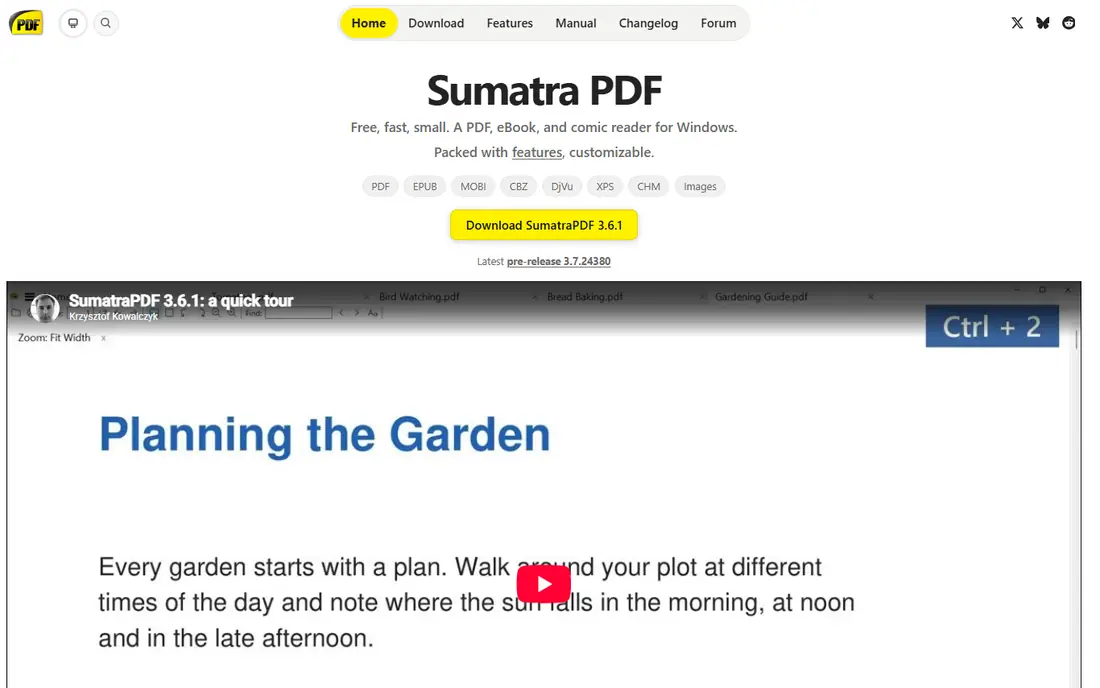
SumatraPDF is a free, open source reader for Windows that opens PDFs, ebooks and comic files with remarkable speed and a tiny footprint. It starts instantly even on old hardware and keeps the interface minimal.
The trade is features: annotation is minimal and there is no editing, form filling or conversion. For users who just want to read PDFs fast on Windows, SumatraPDF is unmatched.
- Extremely light and fast
- Open source
- Also opens ebooks and comics
- Windows only
- Minimal annotation and no editing
PDF-XChange Editor is a Windows PDF reader and editor with strong annotation, editing, OCR and form tools, at a perpetual license price from about 62 dollars, with no subscription required. The free version covers reading and basic markup, while tools marked Pro add a watermark on output until licensed.
The Windows-only limit rules out Mac users, but for Windows users who want editing without a subscription, PDF-XChange is the best value in this list.
- Perpetual license from about 62 dollars
- Strong annotation and editing
- Fast performance
- Windows only
- Paid features watermark output on free version
Preview comes free with every Mac and opens PDFs instantly, with annotation, highlighting, form filling and signature tools built in. It also handles images, so it covers most everyday document tasks without an install.
The app is Mac only, and advanced editing like OCR or page manipulation needs a dedicated editor. For Mac users who mainly read, annotate and sign, Preview is all you need.
- Built into every Mac
- Fast
- Annotation, signing and form filling included
- Mac only
- Advanced editing needs another app
Microsoft Edge opens PDFs directly in the browser with reading, highlighting, commenting and read-aloud features, and it is already installed on Windows. It suits quick viewing of attachments and web PDFs without opening another app.
Editing is limited to basic markup, and complex forms may render less reliably than in Acrobat. For quick reads and simple annotations, Edge is convenient and free.
- Already installed on Windows
- Good reading and annotation
- Read aloud feature
- Editing is limited
- No advanced PDF tools
Google Chrome includes a built-in PDF viewer that opens files instantly on Windows, Mac, Linux and ChromeOS, with basic zoom, search and download. It suits quick viewing of web PDFs and attachments without extra software.
Annotation is minimal and complex forms may not work fully, so serious form or review work needs a dedicated reader. For fast, no-install viewing, Chrome is the simplest option.
- Opens PDFs instantly in the browser
- Works on every platform
- No install needed
- Basic viewing only
- Annotation and forms are limited
Wondershare PDFelement is a full PDF editor with editing, conversion, OCR, forms, batch processing and AI features, at 79.99 dollars per year, with a perpetual license option around 129.99 dollars. It runs on Windows, Mac and mobile, making it a budget alternative to Acrobat.
The interface packs many tools, so new users should expect a learning curve. For users who open, edit, convert and sign PDFs regularly and want AI features at a lower price, PDFelement is a strong pick.
- Full editing at a lower price
- AI features included
- Cross-platform apps
- Annual subscription for full features
- Interface can feel busy
Nitro PDF Pro offers full PDF editing, conversion, OCR, e-signatures and collaboration tools for teams, at 15 dollars per user per month on subscription, with a 14 day free trial. A Classic one-time license costs about 270 dollars for a 3 year Windows license.
The e-signature tools suit businesses handling contracts, while the subscription suits teams that need cloud features. For editing plus signing in one package, Nitro is a capable Acrobat alternative.
- Full editing plus e-signatures
- Collaboration tools
- One-time license option
- Subscription costs add up
- Classic license is Windows only and lasts 3 years
How we picked these
We compared official feature pages, pricing pages and public documentation for each tool, and favored products that are actively sold and supported in October 2026. We mixed free readers, browsers and full editors so the list covers reading, annotation and editing. Prices come from vendor pricing pages checked in 2026, and where pricing varies by license type we note the common figure.
How to choose PDF software
Start with your job. Reading only points to Acrobat Reader, Foxit, SumatraPDF or your browser. Annotation and signing point to Preview on Mac or PDF-XChange on Windows. Regular editing, conversion or OCR points to PDFelement or Nitro, with Acrobat for enterprise compliance.
Check form compatibility
Complex government and business forms render best in Acrobat Reader. If you fill forms often, test your actual forms in a free reader before switching away from Acrobat.
Keep a two-tool setup if you read more than you edit. Use a fast, light reader for daily viewing, and open a full editor only when you need to change, sign or combine documents. This split keeps everyday reading instant while giving you editing power on demand, and it avoids paying for a heavy editor you open twice a month. Sync both tools to the same folders so files stay easy to find.
Use browser viewing for quick checks and a dedicated reader for real reading. Browsers open PDFs instantly for a fast look, while dedicated readers offer better search, bookmarks, annotation and form filling for longer documents. Keeping both habits avoids the trap of reading a 200 page report in a browser tab with no bookmarks or notes.