Best Software to Reduce PDF Size in 2026: 8 Tools Compared
By ToolNimba Editorial Team October 31, 2026 8 min read

- Top pick
 Adobe Acrobat
Professional control
Starting price$14.99 per monthCheck out Adobe AcrobatRead our review - Runner-up
 Smallpdf
Quick online compression
Starting price$12 per monthCheck out SmallpdfRead our review - Also great
 iLovePDF
Easy online tools
Starting price$7 per monthCheck out iLovePDFRead our review
How we researched this
We compared official pricing and feature pages, app store listings, privacy policies and public user reviews. Prices change, so check the provider's site before you pay.
Key takeaways
- Smallpdf and iLovePDF are the easiest online options for a quick compression, with free tiers for basic files.
- Adobe Acrobat and Foxit PDF offer the most control for professionals who need batch work and precise quality settings.
- PDF24 Creator is our pick for Windows users who want a free desktop tool without uploading files.
- For sensitive files, prefer a desktop tool or a browser-based tool that does not upload your document.
Quick comparison
| Name | Best for | Starting price | Free plan | |
|---|---|---|---|---|
| Adobe Acrobat | Professional control | $14.99 per month | Free trial | Visit |
| Smallpdf | Quick online compression | $12 per month | Yes | Visit |
| iLovePDF | Easy online tools | $7 per month | Yes | Visit |
 Sejda PDF | Advanced free settings | $7.50 per month | Yes | Visit |
 PDF24 Creator | Free Windows desktop tool | Free | Yes | Visit |
 Foxit PDF Editor | Business PDF editing | See website | Free trial | Visit |
 PDFelement | Affordable desktop editing | $79.99 per year | Free trial | Visit |
 Soda PDF | Simple desktop and online tools | See website | Free trial | Visit |
The best software to reduce pdf size
PDF files grow large when they contain high-resolution images, embedded fonts, or scanned pages. Compression tools shrink those files by reducing image quality, removing unused data, or both. The eight below cover online tools, desktop apps, and free options.
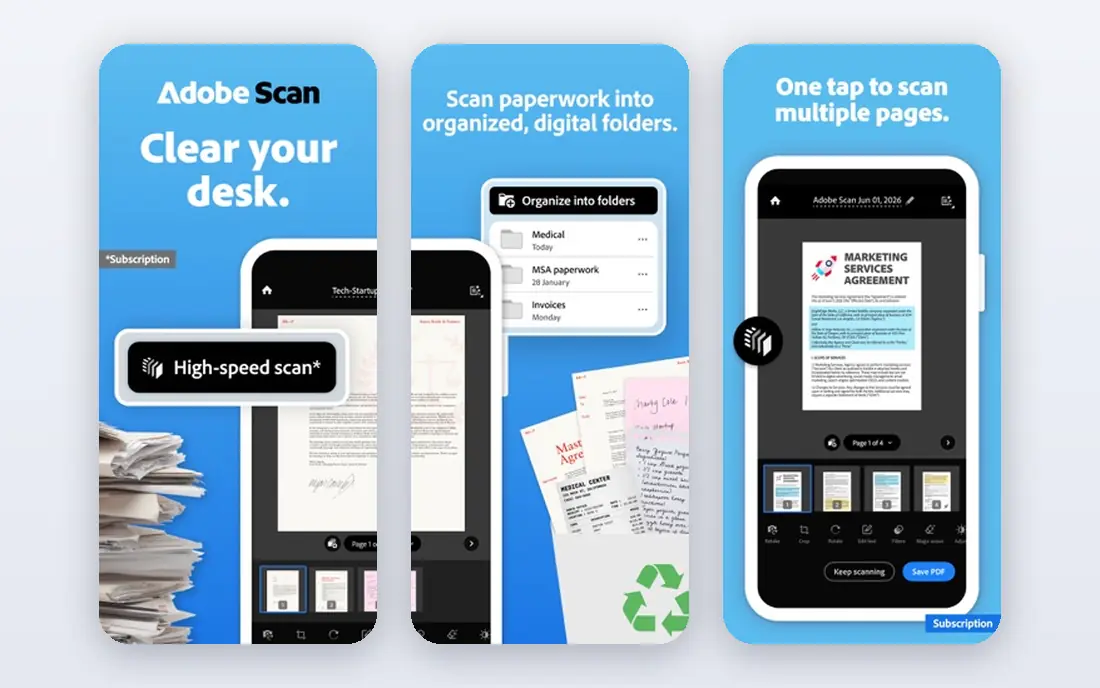
Adobe Acrobat is the reference PDF tool, and its optimization settings give professionals the most control over file size and quality. You can choose compression levels, downsample images, remove unused objects, and preview the result before saving. Acrobat also offers an online compressor for single files, though paid desktop features go further.
The cost is the main drawback. Acrobat starts at around $14.99 per month with an annual commitment, which is steep if you only compress a file now and then. For professionals who handle PDFs daily and need reliable output, Acrobat is still the safest choice.
- Precise optimization settings
- Batch tools
- Trusted PDF standard
- Subscription cost
- More than most casual users need
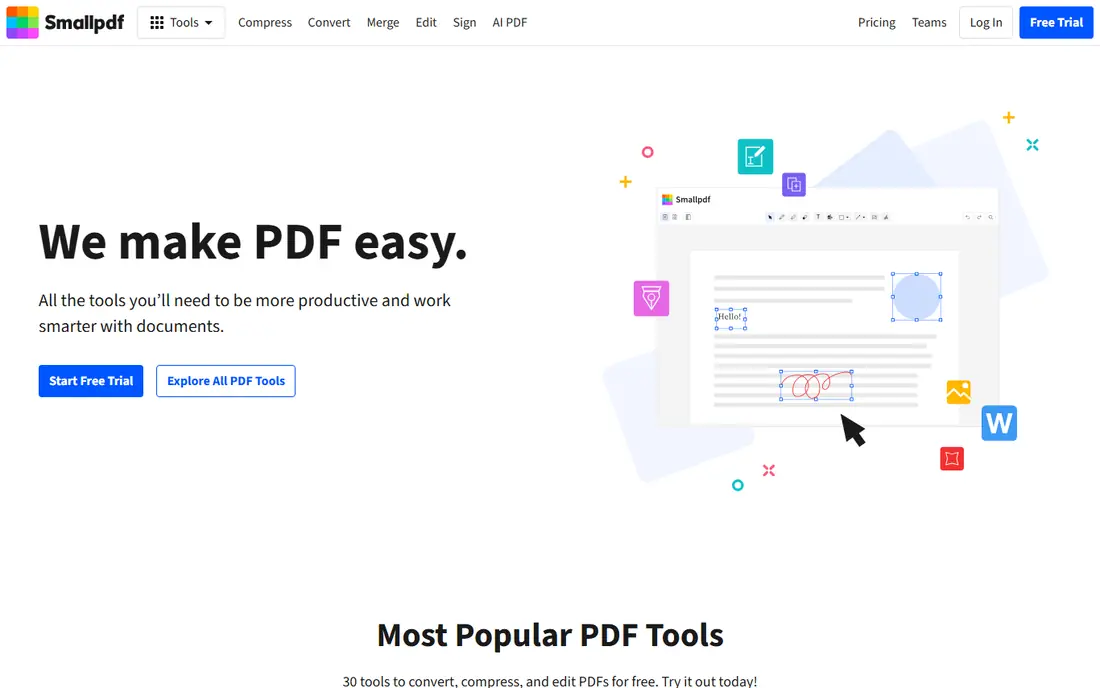
Smallpdf is one of the easiest online tools for reducing PDF size. Upload a file, choose basic or strong compression, and download the result in seconds. The free tier covers basic compression with daily limits, while Pro adds strong compression, batch work, and a full set of PDF tools.
Strong compression is the main reason to pay, since the free tier only offers basic settings. Smallpdf also uploads files to its servers, so sensitive documents are better handled with a desktop tool. For a quick, occasional compression, Smallpdf is hard to beat for simplicity.
- Very simple interface
- Strong basic compression
- Desktop and mobile apps
- Strong compression needs Pro
- Free use is limited per day
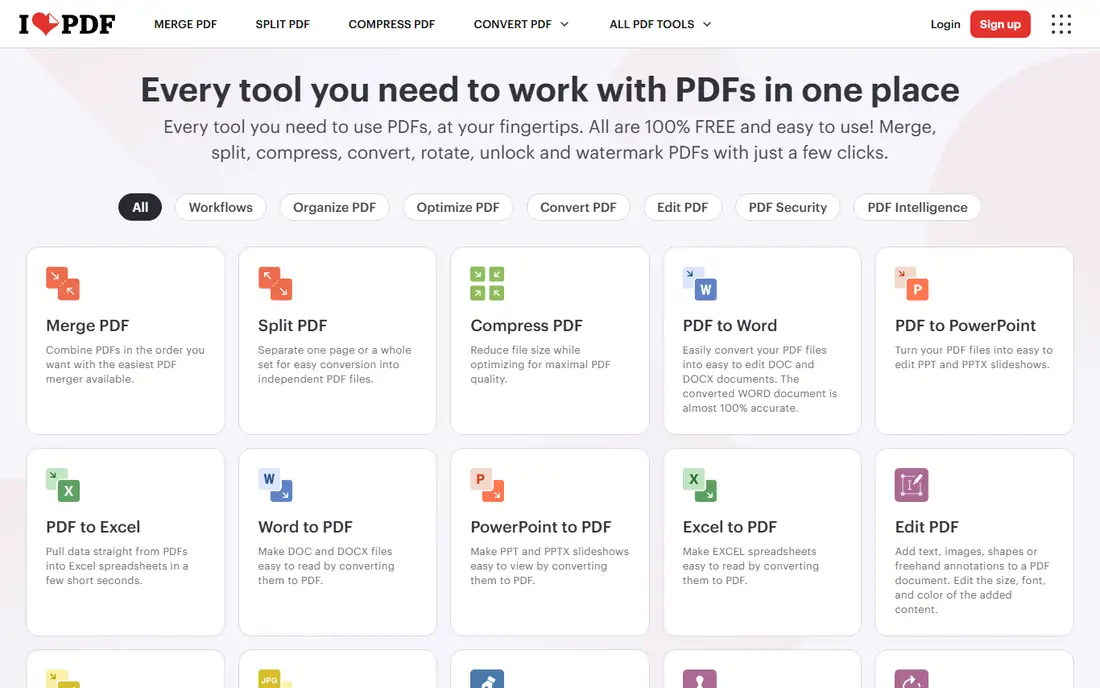
iLovePDF offers three compression levels: less compression for high quality, recommended compression for a good balance, and high compression for the smallest file. That choice helps when you need to meet an email or upload limit without ruining image quality. The site also offers merge, split, convert, and other PDF tools in one place.
Pricing starts at around $7 per month, with an annual option that lowers the monthly equivalent. Free use covers basic tasks with limits. Like Smallpdf, iLovePDF processes files online, so check its privacy policy for sensitive work. For an affordable all-round online PDF tool, iLovePDF is a strong pick.
- Simple three-level compression
- Full PDF toolset
- Desktop and mobile apps
- Free tier has file and task limits
- Files are uploaded for processing
Sejda PDF stands out because its free version offers more compression control than most rivals. You can adjust image quality and size, and the desktop app handles files up to a generous size for free use. Sejda also offers a wide set of online PDF tools, including some harder-to-find options such as metadata editing.
Online use has hourly and daily task limits, and paid plans remove those caps. Sejda is less polished than Adobe or Smallpdf for business workflows, but for users who want control without paying at first, it is an excellent choice.
- Advanced compression settings in free version
- Desktop app
- Good image controls
- Online task limits
- Fewer extra tools than larger suites
PDF24 Creator is our pick for Windows users who want a free desktop compressor. It installs on your PC, compresses files locally, and includes merge, split, convert, and editing tools. Because files stay on your computer, it suits sensitive documents that you should not upload to a website.
The tool is Windows only, and its interface is more functional than beautiful. Mac and Linux users will need another option. For free, private, desktop compression on Windows, PDF24 Creator is the best value in this list.
- Free desktop tool
- No upload needed
- Batch and editing tools
- Windows only
- Interface is functional rather than polished
Foxit PDF Editor is a business-focused PDF suite with compression, editing, forms, and collaboration tools. Its optimization options let you balance file size and quality, and batch tools help teams process many files at once. Foxit is a common Adobe alternative in offices that want a full PDF editor at a different price point.
Pricing varies by plan and region, so check the current Foxit pricing page for your area. Casual users who only need compression will find Foxit excessive. For businesses that need editing plus compression in one suite, Foxit is a credible alternative to Acrobat.
- Strong PDF editing suite
- Good compression controls
- Business features
- Price is quote or plan-based
- Full suite is more than a compressor alone
PDFelement, from Wondershare, offers desktop PDF editing with compression, conversion, forms, and OCR in one app. Batch compression helps when you need to shrink many files at once, and the price is lower than Adobe Acrobat for a yearly plan. A perpetual license option has also been offered in the past, so check the current page.
The full feature set requires a paid plan, and the interface packs many tools into each screen. For users who want a desktop editor plus compression at a moderate price, PDFelement offers good value.
- Affordable desktop suite
- Batch compression
- Good editing tools
- Annual subscription for full features
- Interface can feel busy
Soda PDF offers online and desktop PDF tools, including compression, editing, conversion, and forms. Its interface is straightforward, which suits users who want a simple tool without learning a complex suite. A free trial lets you test compression before paying.
Pricing varies by plan, so check the current Soda PDF page for the option that fits your use. Soda PDF is less well known than Adobe or Smallpdf, but for a simple desktop and online mix, it is a reasonable choice.
- Simple interface
- Online and desktop options
- Full PDF toolset
- Pricing varies by plan
- Free tier is limited
How we picked these
We compared official feature pages, pricing pages, and app store listings, plus public reviews, for tools that are live in October 2026 and truly compress PDFs. We favored tools with clear free tiers or trials, real compression settings, and a path for batch work. Where a vendor does not publish a single starting price, we say so rather than repeating an estimate as fact.
What to check before you compress
Start with the file limit you must meet. Email systems, job portals, and court systems often set a maximum size, and that target decides how much compression you need. Try the recommended or medium setting first, then check text clarity and image quality before sending the file.
Next, think about privacy. Online tools upload your file to a server, even if they delete it soon after. For contracts, medical forms, or financial documents, use a desktop tool such as PDF24 Creator, Acrobat, or Foxit, or a browser-based tool that processes files locally. Finally, keep an original copy. Compression can reduce image quality, and you cannot recover that quality from the compressed file alone.
Reducing PDF size without losing quality
The best results come from downsampling only oversized images and removing unused fonts and objects, rather than applying maximum compression to everything. If a PDF is mostly scanned images, OCR and image settings matter more than text compression. Test one file at several settings and compare size and readability before you compress a whole batch.