Best Tools for Motion Design in 2026: 9 Tools Compared
By ToolNimba Editorial Team October 31, 2026 9 min read

- Top pick
 Adobe After Effects
Broadcast and video motion graphics
Starting price$22.99 per monthCheck out Adobe After EffectsRead our review - Runner-up
 Blender
Free 3D and 2D motion work
Starting priceFreeCheck out BlenderRead our review - Also great
 Rive
Interactive app and game animation
Starting priceFreeCheck out RiveRead our review
How we researched this
We compared official pricing and feature pages, app store listings, privacy policies and public user reviews. Prices change, so check the provider's site before you pay.
Key takeaways
- After Effects still leads for broadcast-grade control, while free tools like Blender and DaVinci Resolve cover serious work at no license cost.
- Interactive and web animation belongs to Rive, Jitter, and LottieFiles, not to video editors, so match the tool to the output.
- Generative tools like Runway help with footage and ideas, but they do not replace frame-accurate motion design.
Quick comparison
| Name | Best for | Starting price | Free plan | |
|---|---|---|---|---|
| Adobe After Effects | Broadcast and video motion graphics | $22.99 per month | Free trial (7 days) | Visit |
| Blender | Free 3D and 2D motion work | Free | Yes | Visit |
| Rive | Interactive app and game animation | Free | Yes | Visit |
 Jitter | Fast browser-based UI and social motion | Free | Yes | Visit |
 DaVinci Resolve | Editing plus Fusion motion graphics | Free | Yes | Visit |
 SVGator | Animated SVG for websites | Free | Yes | Visit |
 Runway | AI-generated video and motion clips | $12 per month | Yes | Visit |
 LottieFiles | Lottie animation creation and sharing | Free | Yes | Visit |
 Canva | Quick branded social animation | Free | Yes | Visit |
The best tools for motion design
Motion design splits into video, interactive, and web animation, and the best tool depends on which output you ship most. This list covers all three, so you can start with your delivery format and work backward to the editor that fits it.
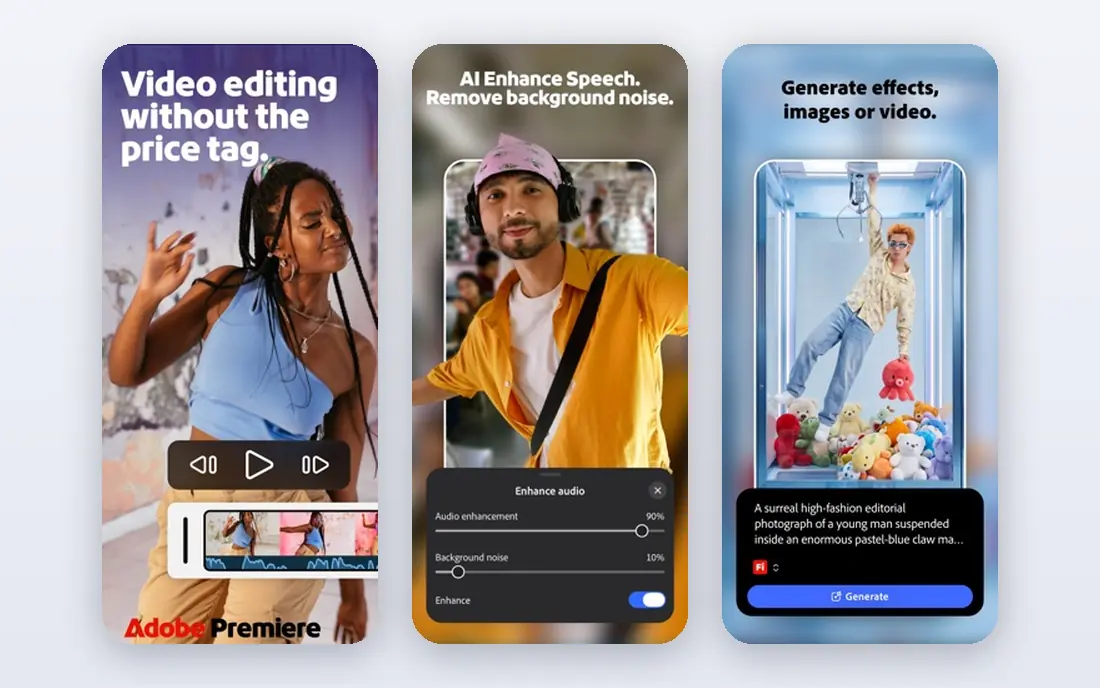
Adobe After Effects remains the standard for video, broadcast, and advertising work because it handles layered compositing, camera tracking, masking, and effects in one timeline. Studios and freelancers choose it when a project needs precise control over timing, easing, and layered visuals that simpler tools cannot match. The plugin library is a real advantage, since it extends the app into 3D, particles, and Lottie export through third-party tools. The catch is cost and complexity, so beginners should expect a long learning period before work feels fast. Check the export or sharing step early, because a tool that feels fast while you edit can still add friction at delivery.
- Deep compositing and effects
- Huge plugin library
- Industry-standard handoff
- Steep learning curve
- Subscription cost adds up
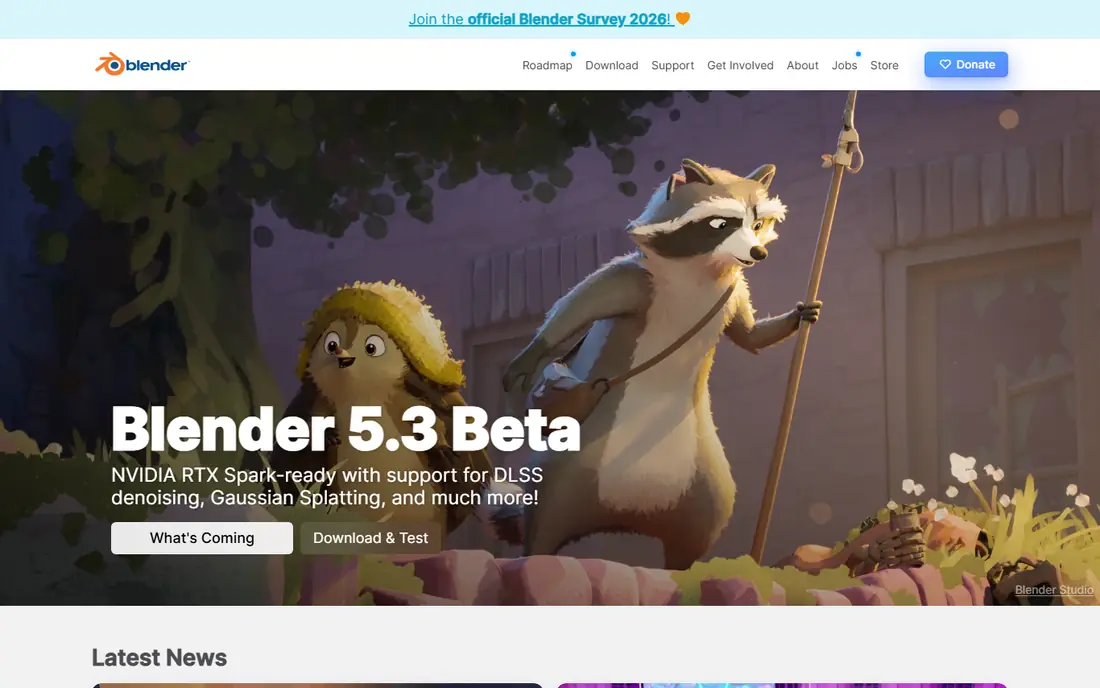
Blender suits motion designers who want 3D animation, 2D drawing animation, and video editing without paying for a license. Its Grease Pencil tools let you draw and animate directly in 3D space, which opens up styles that are hard to copy in a flat timeline. The community is a genuine strength, with tutorials, add-ons, and shared files for almost every technique. The catch is the interface, which packs a great deal into every panel, so plan time to learn the basics before a deadline. Try the free tier or trial on a small job first, and note what is locked behind a paid plan before you build a workflow around it.
- Full 3D, 2D Grease Pencil, and video tools at no cost
- Large community
- Very steep learning curve
- Interface can overwhelm new users
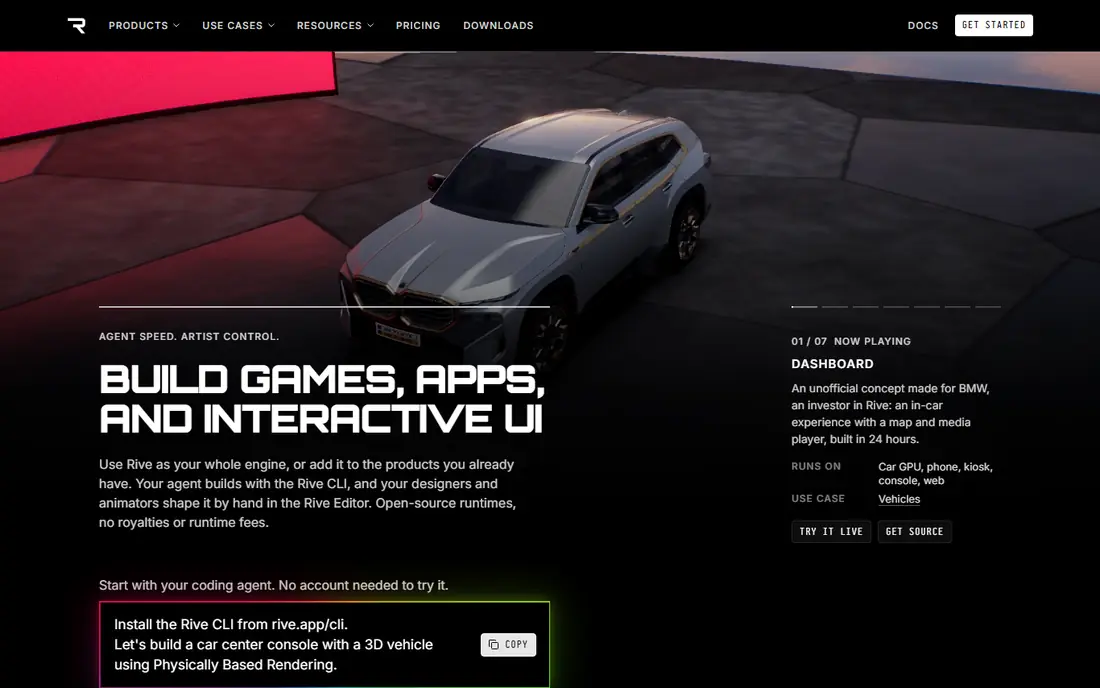
Rive fits product and game teams that need animation to respond to taps, hovers, and changing data, rather than simply play from start to finish. Its state machines let one animation shift between idle, pressed, and loading states, which keeps app motion feeling alive. The runtime files stay small, which matters for mobile apps and websites where loading time counts. The catch is that Rive is not a video editor, so long broadcast-style sequences are better made elsewhere. Before you commit, test it on one real project with your usual files and export settings, so you can see where it slows down before it matters.
- State machines for interactive motion
- Small runtime files
- Web and mobile playback
- Interactive logic takes time to learn
- Less suited to long video edits
Jitter fits designers who already work in Figma and want to animate those frames without moving to a heavy desktop app. You can build UI motion, social clips, and product demos in the browser, then export video, GIF, or Lottie files for handoff. Speed is the point here, since templates and a familiar timeline cut the time from idea to finished clip. The catch is depth, because complex compositing and long edits will push you toward a desktop tool. Check the export or sharing step early, because a tool that feels fast while you edit can still add friction at delivery.
- Browser timeline
- Imports from Figma
- Quick Lottie and video export
- Less depth for long-form video
- Advanced effects are limited
DaVinci Resolve fits editors who want motion graphics inside the same project as their edit, without round-tripping between apps. Its Fusion page handles node-based compositing, titles, and effects, while the color page remains one of the strongest free toolsets available. The free version covers a great deal of real client work, which makes it a smart starting point for video creators. The catch is Fusion itself, which uses nodes rather than layers, so After Effects users should expect an adjustment period. Try the free tier or trial on a small job first, and note what is locked behind a paid plan before you build a workflow around it.
- Free editor with Fusion effects
- Strong color tools
- One app for edit and effects
- Fusion page has a learning curve
- Studio extras cost $295
SVGator fits web designers who need lightweight animated icons, illustrations, and logos that scale cleanly on any screen. You animate vector shapes on a timeline in the browser, then export animated SVG that loads fast and stays sharp. That web focus is a strength, since the output works directly in pages without heavy video files. The catch is scope, because this is not the tool for edited video, sound design, or long broadcast sequences. Before you commit, test it on one real project with your usual files and export settings, so you can see where it slows down before it matters.
- Browser-based vector animation
- Clean SVG export
- No code needed for basic motion
- Best for web graphics, not video
- Paid plans open full exports
Runway fits creators who need footage-style clips, b-roll, or visual ideas quickly, without shooting or building every frame by hand. Its generative models turn a prompt or image into a short clip, which can fill gaps in a project or spark a direction. It works best as a companion to a real motion tool, where you generate material and then refine it elsewhere. The catch is precision, since exact text, logos, and repeatable timing remain difficult for generative video. Check the export or sharing step early, because a tool that feels fast while you edit can still add friction at delivery.
- Text and image to video generation
- Useful for b-roll and mood clips
- Generative output is hard to control precisely
- Credits limit heavy use
LottieFiles fits product teams that use Lottie animations in apps and websites and need a shared place to create, test, and hand them off. Its creator tools and library help designers build lightweight animations, while developers get files sized for mobile and web. The library is useful for inspiration and for common UI patterns that do not need a custom build. The catch is the free export limit, so teams shipping many animations should check paid plans before committing. Try the free tier or trial on a small job first, and note what is locked behind a paid plan before you build a workflow around it.
- Lottie and dotLottie authoring
- Large animation library
- Developer handoff tools
- Free exports are limited
- Best when used with a design workflow
Canva fits small teams and non-designers who need branded social clips fast, without learning a timeline editor. Its templates, stock assets, and simple animations let one person produce a consistent set of posts in an afternoon. For everyday marketing content, that speed matters more than precise keyframe control. The catch is originality, since heavy template use can make different brands look similar, so custom assets still help. Before you commit, test it on one real project with your usual files and export settings, so you can see where it slows down before it matters.
- Templates and simple animation for social posts
- Easy brand kits
- Limited frame-level control
- Output can look templated
How we picked these
We compared official feature pages, current pricing pages, app store listings, privacy policies where they mattered, and public reviews. We kept only products that exist and work today, and that fit the topic directly rather than loosely. Where a price was unclear or changed by plan, we used See website instead of guessing, and we treated free tiers as useful only when they cover real work, not just a demo. We also weighed the honest trade-offs. A strong feature set means less when the price, the learning curve, or the export options make everyday use harder. That is why each write-up below names a catch alongside the strengths, so you can match the tool to your budget, skill level, and the kind of output you actually need.
What to check before you pay for a motion tool
Start from the output, not the feature list
If you ship video, you need timeline control, sound, and video export. If you ship app or web animation, you need small files, state control, and developer handoff. A tool that excels at one often feels awkward at the other, so list your top three deliverables before you compare plans.
Test the learning curve on a real brief
Watching a tutorial is not the same as finishing a client-style clip. Try a short project with your own assets, including text, a logo, and an export, and time how long it takes. That test reveals whether the interface helps you or slows you down.
Check export and licensing costs
Free plans often limit resolution, watermark exports, or cap monthly output. Confirm what the paid plan adds, and whether team seats, plugins, or stock assets add extra cost on top of the headline price.