Best Video Recording Software in 2026: 9 Tools Compared
By ToolNimba Editorial Team November 7, 2026 8 min read

- Top pick
 OBS Studio
Free recording without limits
Starting priceFreeCheck out OBS StudioRead our review - Runner-up
 Camtasia
Polished tutorials and courses
Starting price$179.88 per yearCheck out CamtasiaRead our review - Also great
 Loom
Async video messages
Starting price$18 per user per monthCheck out LoomRead our review
How we researched this
We compared official pricing and feature pages, app store listings, privacy policies and public user reviews. Prices change, so check the provider's site before you pay.
Key takeaways
- OBS Studio is the best free video recorder, with no watermark, no time limit, and 4K capture at 60 frames per second.
- Camtasia is the best all-in-one recorder and editor for polished tutorials and courses.
- Loom is the fastest way to record a video message and share it by link, with a usable free tier.
- Riverside is the best choice for recording remote interviews and podcasts in high quality.
- ScreenFlow is the best Mac option for creators who record and edit their own lessons.
Quick comparison
| Name | Best for | Starting price | Free plan | |
|---|---|---|---|---|
| OBS Studio | Free recording without limits | Free | Yes | Visit |
| Camtasia | Polished tutorials and courses | $179.88 per year | Free trial | Visit |
| Loom | Async video messages | $18 per user per month | Yes | Visit |
 ScreenFlow | Mac creators who record and edit | $199 one-time | Free trial | Visit |
 ScreenPal | Teachers and quick how-tos | $3 per month | Yes | Visit |
 Bandicam | High-frame-rate game recording | $33.26 per year | Free trial | Visit |
 Riverside | Remote interviews and podcasts | $24 per month | Yes | Visit |
 Movavi Screen Recorder | Simple everyday recording | See website | Free trial | Visit |
 ApowerREC | Scheduled and automatic capture | See website | Free trial | Visit |
The best video recording software
Video recording software captures your screen, your webcam, or both, for tutorials, courses, YouTube videos, and team messages. The tools below cover free capture, all-in-one editing, quick sharing, and remote interviews, so the right pick depends on what you record and where the finished video has to live.
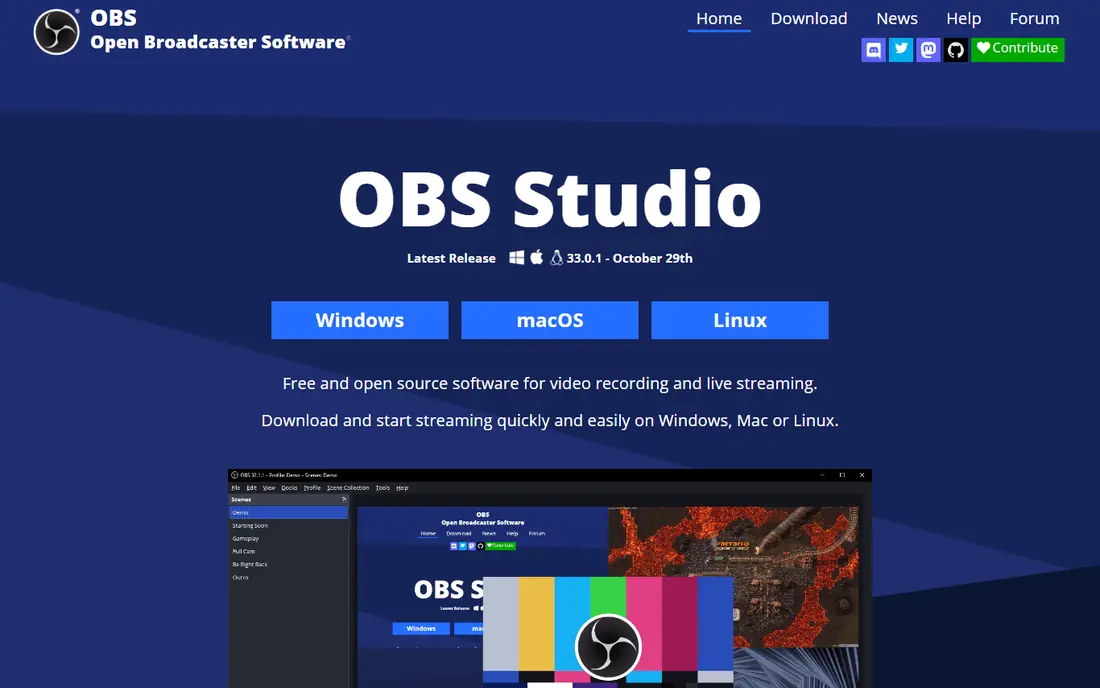
OBS Studio is the best free video recorder by a wide margin. It works on Windows, Mac, and Linux, records without watermarks or time limits, and supports 4K capture at 60 frames per second with multi-source scenes. Streamers, teachers, and YouTubers use it for everything from gameplay to lectures.
The learning curve is real, and there is no editor, so you will cut footage in another app. But for pure recording quality at zero cost, nothing else here matches OBS. Our top pick for creators who already have an editor they like.
- Completely free with no watermark
- 4K capture at 60 frames per second
- Multi-source scenes and separate audio tracks
- No built-in editor
- Setup takes patience
- Interface is functional rather than friendly
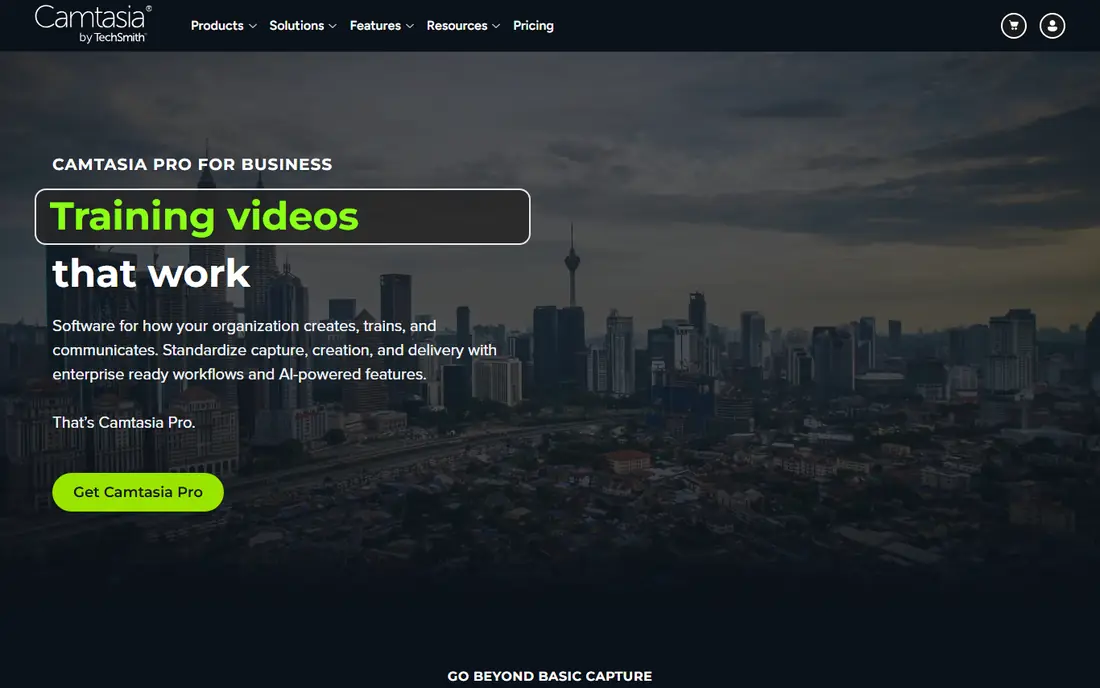
Camtasia is the complete tutorial-making suite. It records screen, webcam, and audio on separate tracks, then gives you a timeline for trims, callouts, zooms, captions, and quizzes, with SCORM export for learning management systems. Training teams use it to produce polished courses without switching apps.
The subscription costs $179.88 per year for Essentials, and the trial exports with a watermark. Hardware needs are moderate, with 8GB of RAM at minimum. For course creators and training teams, Camtasia is the industry standard for a reason.
- Recorder plus full editing timeline
- Cursor effects, callouts, and quizzes
- SCORM export for courses
- Subscription pricing from $179.88 per year
- Needs decent hardware
- Overkill for quick clips
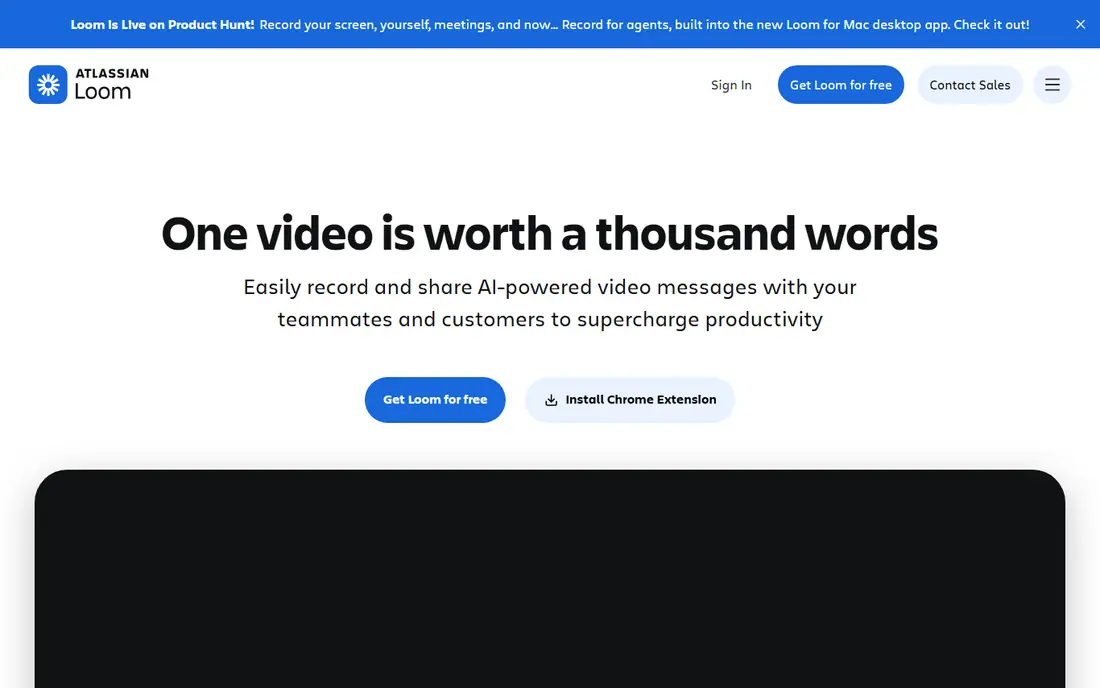
Loom is built for speed. Record your screen and webcam, and the video is ready to share by link almost immediately, which makes it ideal for async explanations, feedback, and team updates. The free tier covers short clips, with 25 videos at up to 5 minutes each in recent terms, while paid plans add longer recordings and AI summaries.
Editing is minimal, limited to trimming, and long-form tutorials belong elsewhere. For remote teams replacing meetings with video messages, Loom is the fastest tool available.
- Record and share by link in under a minute
- Trim and light cleanup
- AI summaries on paid plans
- Free plan caps recordings at 5 minutes
- Business plan costs $18 per user per month
- Minimal editing
ScreenFlow is the Mac answer for creators who record and edit their own lessons. It captures screen, webcam, iOS devices, and multiple audio sources, then offers a layered timeline with transitions and motion graphics. Long lectures record smoothly thanks to hardware acceleration on Apple silicon. Pricing is $199 one-time, with a trial available.
It is Mac only, and the upfront price exceeds a month of a subscription tool. For Mac-based course creators, ScreenFlow is the best long-term value.
- Strong layered editor
- Smooth long recordings on Apple silicon
- One-time purchase
- Mac only
- Upfront price
- Smaller template library than Camtasia
ScreenPal, formerly Screencast-O-Matic, is the budget pick for teachers and quick how-tos. It runs on Windows, Mac, Chromebook, iOS, and Android, covers recording plus a simple editor and hosting, and paid plans start around $3 per month. That combination makes it popular in schools.
The free tier caps recordings at 15 minutes, and the editor stays basic. For educators and small teams on tight budgets, ScreenPal delivers the best value per dollar.
- Very low starting price
- Apps for nearly every device
- Simple editor and hosting
- Free tier caps recordings at 15 minutes
- Editor is basic
- Advanced features need paid plans
Bandicam is the specialist for high-frame-rate recording of games and applications. Its low system impact means recording does not slow down what you are playing, and long sessions record cleanly. Pricing starts around $33.26 per year, with a trial that caps recordings at five minutes.
It is Windows-focused and the interface shows its age. For gamers and app demo creators who need smooth, high-frame-rate footage, Bandicam is a proven, affordable choice.
- High-performance capture with low system impact
- Long recording support
- Clean high-frame-rate footage
- Windows-focused
- Trial caps recordings at 5 minutes
- Interface is dated
Riverside solves the remote interview problem: each guest's audio and video record locally on their device, then upload in high quality, so a bad connection does not ruin the recording. It runs in the browser, suits podcasts and video interviews, and includes a basic editor and cloud workflow. Paid plans start around $24 per month billed annually, with a free tier that has limits.
Editing is basic compared with Camtasia, and the price exceeds simple screen recorders. For podcasters and interviewers who record guests remotely, Riverside's local recording is the feature that matters most.
- Records each guest locally in high quality
- Browser-based
- Basic editor and cloud workflow
- Starts at $24 per month billed annually
- Free tier has limits
- Editing is basic
Movavi Screen Recorder is the simple, reliable everyday recorder. It captures screen and webcam with scheduled recording options, so you can set a capture to start automatically, and sharing is straightforward. A trial lets you test it, though exports carry a watermark until you pay.
Editing is light, and pricing varies, so check the current page. For users who want a no-fuss recorder that just works, Movavi is a dependable middle option.
- Simple, reliable recording
- Scheduled capture
- Easy sharing
- Trial exports carry a watermark
- Editing is light
- Pricing varies by region
ApowerREC stands out for scheduled and automatic capture. Set a task and it records at the right time without you starting it, which suits lectures, webinars, and recurring streams you want archived. A simple editor covers trims, and a trial is available.
The interface is plain and advanced features trail Camtasia. For anyone who needs recordings to happen on a schedule, ApowerREC is the most practical pick.
- Scheduled and automatic recording
- Task-based capture
- Simple editor
- Trial has limits
- Interface is plain
- Fewer advanced features
How we picked these
We compared official pricing pages and independent 2026 comparisons of video recording software, favoring tools with current availability in October 2026, a real free tier or trial, and a clear job: free capture, tutorial production, quick sharing, game recording, or remote interviews. We mixed desktop and browser tools across platforms. Prices change often, so confirm on each vendor page before you pay. We did not test every recorder hands-on; our comparison rests on published features, pricing, and public reviews.
Recording video people actually watch
Two habits matter more than the tool. First, record in a quiet room with decent light on your face, since audio quality affects trust more than resolution does. Second, plan the first thirty seconds: state what the video covers and why it matters before diving into detail.
Check limits before you commit: free tier recording caps, watermark rules, and export resolution. A free plan that caps recordings at five minutes is fine for messages but useless for a forty-minute lesson. Test your longest real recording on the free tier before paying.
Sources
- https://swarmify.com/blog/screen-recorder-app-the-best-options-at-your-disposal/
- https://rankite.com/blog/best-screen-recording-software
- https://www.myshengong.com/best-screen-recording-software/index.html
- https://obsproject.com
- https://www.techsmith.com
- https://www.loom.com
- https://www.telestream.net
- https://screenpal.com
- https://www.bandicam.com
- https://riverside.fm
- https://www.movavi.com
- https://www.apowersoft.com
Frequently asked questions
What is the best video recording software for YouTube?
For most YouTube creators, OBS Studio is the best free recorder, with 4K capture and no limits. Camtasia is best if you want recording plus editing in one app for tutorials. Loom suits quick walkthroughs and community updates, while Riverside suits remote interviews.
Can I record video for free?
Yes. OBS Studio is completely free with no watermark or time limit. Loom and ScreenPal offer free tiers with caps, and most paid tools offer trials. Built-in OS tools like Windows Game Bar and macOS QuickTime also record for free at a basic level.
What is the difference between Loom and Camtasia?
Loom is built for quick async video messages: record a clip and share a link instantly, with minimal editing. Camtasia is a full recording and editing suite for polished training and tutorial content, with timelines, callouts, quizzes, and SCORM export. Loom is faster, Camtasia is deeper.
Do I need a webcam to record tutorial videos?
Not necessarily. Screen-only tutorials work well for software demos, and many creators record voiceover without showing their face. A webcam adds trust and connection for courses and YouTube, so use one if you are comfortable on camera, but it is not required.
How much does video recording software cost?
Entry prices here run from free for OBS Studio to $199 one-time for ScreenFlow, with subscriptions from $3 per month for ScreenPal to $179.88 per year for Camtasia. Riverside starts around $24 per month billed annually. Free tools cover many needs, so pay only for editing, sharing, or watermark-free exports.