Best AI Apps to Make Videos for Free in 2026: 9 Apps Compared
By ToolNimba Editorial Team November 2, 2026 9 min read

- Top pick
 CapCut
Short social videos
Starting priceFreeCheck out CapCutRead our review - Runner-up
 InVideo AI
Prompt to video
Starting priceFreeCheck out InVideo AIRead our review - Also great
 Canva
Branded social videos
Starting priceFreeCheck out CanvaRead our review
How we researched this
We compared official pricing and feature pages, app store listings, privacy policies and public user reviews. Prices change, so check the provider's site before you pay.
Key takeaways
- CapCut is the best free starting point for short social videos, with a generous free plan and fast templates.
- InVideo AI suits prompt to video work, but its free exports carry a watermark and weekly limits apply.
- Canva is the easiest free option when you need a finished video with text, branding, and simple animation.
- Clipchamp and VEED are strong browser options that avoid a heavy download for basic edits.
- Free does not always mean watermark free, so check export terms before you make a video for a client or a channel.
Quick comparison
| Name | Best for | Starting price | Free plan | |
|---|---|---|---|---|
| CapCut | Short social videos | Free | Yes | Visit |
| InVideo AI | Prompt to video | Free | Yes | Visit |
| Canva | Branded social videos | Free | Yes | Visit |
 Clipchamp | Browser editing on Windows | Free | Yes | Visit |
 VEED | Subtitles and simple edits | Free | Yes | Visit |
 Kapwing | Quick online edits | Free | Yes | Visit |
 Runway | Short AI generated clips | Free | Yes | Visit |
 Lumen5 | Blog to video | Free | Yes | Visit |
 Pictory | Text to video from scripts | Free | Yes | Visit |
The best ai apps to make videos for free
We compared official pricing pages, free plan limits, and export terms for each app. The best ai app to make videos for free depends on whether you want AI generated clips, a template based edit, or a tool that turns text into video.

CapCut is the first app we suggest to most casual creators. The free plan covers trimming, templates, effects, and auto captions, and many exports do not carry a forced watermark on basic edits. That combination makes it fast for TikTok, Reels, and Shorts, where speed matters more than complex effects.
The paid Pro plan costs $19.99 per month billed monthly, with an Ultra tier above it, and AI credits meter heavier generation. For most short form work, the free plan is enough to learn the workflow. Pay only when you need premium assets, 4K exports, or a steady supply of AI credits.
- Generous free plan
- Fast templates and auto captions
- Mobile, desktop, and web versions
- Paid Pro costs $19.99 per month billed monthly
- AI credits limit heavy use
- Terms vary by region
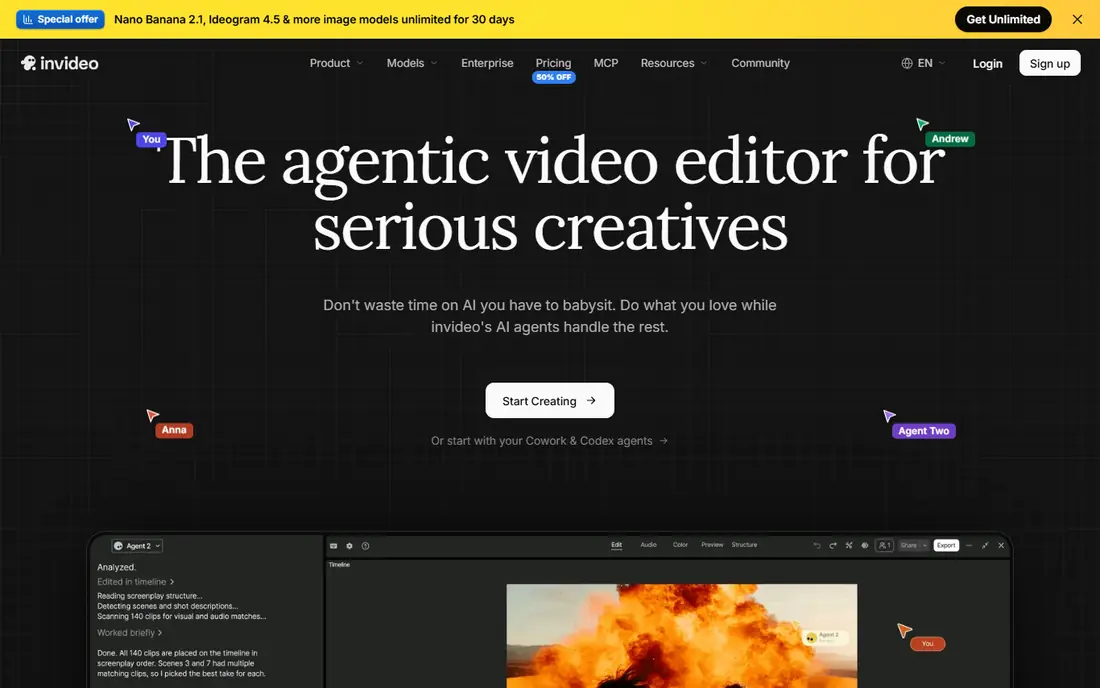
InVideo AI is built for people who want to type an idea and get a video draft back. You enter a prompt, pick a style, and the tool assembles clips, text, and voiceover into a first version you can edit by typing commands. That workflow suits marketers, educators, and small businesses that need a video without filming.
The free plan is a trial in practice, with a limited weekly quota and watermarked exports. Paid Plus costs $20 per month billed monthly, or $17 per month billed annually, and adds watermark free exports and more credits. Use the free plan to test prompt quality, then pay if the draft style fits your channel.
- Turns a prompt into a full video draft
- Stock media and voiceover included
- No card needed to try
- Free exports are watermarked
- Weekly quota resets
- Paid Plus starts at $20 per month billed monthly

Canva is the easiest free video app for people who already design graphics. You can start from a video template, swap in your text and colours, add stock clips, and export a short branded video without learning a pro editor. That makes it ideal for announcements, product posts, and event promos.
The free plan includes limited AI uses and basic video tools, while Pro costs $15 per month, or $120 per year, and adds full Magic Studio tools and more storage. Canva will not replace a full editor for complex cuts, but for short branded videos it is hard to beat on speed.
- Easy templates and brand kit on Pro
- Drag and drop timeline
- Huge stock library
- AI video uses are limited on free
- Timeline is simpler than a full editor
- Pro costs $15 per month
Clipchamp is Microsoft's browser based video editor, and it is a strong free option for Windows users who do not want to install a heavy app. You can trim clips, add text, use templates, and export in common formats from a browser tab. It also fits well with OneDrive and other Microsoft tools.
The free plan covers basic editing, but premium stock, filters, and some export options sit behind paid plans. AI features are useful for captions and simple enhancements, but they are not as deep as a dedicated AI generator. Choose Clipchamp for straightforward edits rather than full AI generation.
- Free browser editor
- Templates and stock media
- Works well on Windows
- Some premium assets and exports need a paid plan
- AI features are limited on free
- Needs a stable internet connection
VEED stands out for subtitles and talking head videos. Its auto caption tool is fast and accurate for clear speech, and you can style captions for social feeds where many viewers watch with sound off. The browser editor also covers trimming, text, and basic effects without a download.
The catch is the free export. Free videos carry a VEED watermark and have limits on length and quality, so free is best for testing and drafts. Paid plans remove the watermark and raise limits, which makes VEED a better pick for creators who publish subtitled videos every week.
- Strong auto subtitles
- Browser based
- Simple sharing and editing tools
- Free exports carry a watermark
- Video length and quality limits on free
- Paid plans needed for regular use
Kapwing is a quick online editor for short, shareable videos. You can paste a link, trim a clip, add captions, and export a meme or promo in minutes, which suits social managers and students. Collaboration features also help small teams comment on a draft without passing files around.
Free exports carry a watermark and have time limits, so Kapwing is best for drafts and casual posts unless you pay. Paid plans remove the watermark and add more AI tools and storage. Use it when speed and sharing matter more than long form editing.
- Fast browser workflow
- Good for memes and short clips
- Collaboration tools
- Free exports carry a watermark
- Export limits on free
- AI tools are limited without a paid plan
Runway is the most creative tool in this list. Instead of assembling stock clips, it generates new video from text or an image, which suits artists, filmmakers, and marketers who want a unique shot they cannot film. The browser interface keeps the workflow simple for short experiments.
Free credits cover only a small amount of generation, and clips are short by design. That makes Runway a great tool for testing ideas, title cards, and visual experiments, but not for making a full free video every day. Pay for a plan if you need steady generation for a project.
- Strong text to video and image to video models
- Useful for creative clips
- Browser based
- Free credits are limited
- Clips are short
- Paid plans needed for regular generation
Lumen5 is built for turning written content into video. Paste a blog post or script, and it suggests scenes, stock clips, and text overlays that match the words. That workflow suits bloggers, nonprofits, and small businesses that already publish articles and want a video version without filming.
The free plan includes Lumen5 branding and limits on resolution and features, so it is best for testing the blog to video flow. Paid plans add custom branding, higher resolution, and more media. If your videos start from text, Lumen5 will save more time than a general editor.
- Turns blog posts into video drafts
- Templates for social formats
- Easy text based editing
- Free plan has branding and limits
- Videos can look template heavy
- Paid plans needed for custom branding
Pictory suits creators who write scripts first and want video second. You paste a script or article, and Pictory builds scenes with stock footage, text, and voiceover, which you can then edit scene by scene. That structure helps YouTube creators, course makers, and marketers repurpose long text into short videos.
Pictory's free access is a trial rather than a generous ongoing free plan, so check the current trial terms before you start a project. Paid plans are needed for regular, watermark free publishing. Use Pictory when your content already exists as text and you want a fast first draft.
- Turns scripts and articles into videos
- Auto captions
- Stock media included
- Free trial is limited, not a full free plan
- Output needs editing for a natural feel
- Paid plans start higher than some rivals
How we picked these
We compared official pricing pages, free plan terms, and export limits, and we kept only apps that offered a working free plan or free trial in October 2026. We included different kinds of free video tools on purpose, since a template editor, a prompt to video tool, and a text to video tool solve different jobs. We also checked watermark and export terms carefully, because a free app that watermarks every export is not truly free for publishing.
How to get a usable free video
Start with the end use. For social posts, CapCut or Canva will give you the fastest clean export. For a video from a prompt, InVideo AI is the better test, even with a watermark on free exports. For a video from a blog post, Lumen5 or Pictory will save the most time.
Before you spend hours on a draft, make a 15 second test and export it. Check the watermark, resolution, captions, and audio, and confirm the file plays well on the platform where it will be published. That test will tell you whether the free plan is enough or whether a paid month is worth it for that project.