Best AI Generative Recolor Service in 2026: 9 Options Compared
By ToolNimba Editorial Team November 19, 2026 11 min read
We did not test these tools hands-on. Picks are based on vendor documentation and public information. Read our editorial policy and disclosure.

- Top pick
 Adobe Photoshop
Precise object recoloring
Starting price$22.99 per monthCheck out Adobe PhotoshopRead our review - Runner-up
 Canva
Quick recoloring for social and design
Starting priceFreeCheck out CanvaRead our review - Also great
 Recraft
AI image recoloring and restyling
Starting priceSee websiteCheck out RecraftRead our review
How we researched this
We compared official pricing and feature pages, app store listings, privacy policies and public user reviews. Prices change, so check the provider's site before you pay.
Key takeaways
- Generative recolor tools differ sharply: some recolor a selected object, some colorize a black and white photo, and some restyle a whole image.
- Photoshop and Canva suit creators who need control and layers, while Palette.fm suits fast black and white colorizing.
- Recraft and Picsart suit object and product recoloring, but check output resolution and commercial terms before client work.
- Always check the source photo rights and, for photos of people, get consent before sharing an edited version, especially for realistic edits.
- Test the same photo on two or three tools before choosing, because colour accuracy, edges, and texture vary by tool and by image.
Quick comparison
| Name | Best for | Starting price | Free plan | |
|---|---|---|---|---|
| Adobe Photoshop | Precise object recoloring | $22.99 per month | Free trial | Visit |
| Canva | Quick recoloring for social and design | Free | Yes | Visit |
| Recraft | AI image recoloring and restyling | See website | Yes | Visit |
 Palette.fm | Colorising black and white photos | Free | Yes | Visit |
 Fotor | Fast AI photo recoloring | See website | Yes | Visit |
 Picsart | Mobile recoloring and AI replace | See website | Yes | Visit |
 Luminar Neo | Photo editing with AI colour tools | See website | Free trial | Visit |
 MyEdit | Browser AI recoloring | See website | Yes | Visit |
 PhotoDirector | AI object and colour editing | See website | Yes | Visit |
The best AI generative recolor service
Generative recolor means using AI to change the colour of an object, a garment, a product, or a whole photo, while keeping shape, texture, and lighting plausible. It is useful for product mockups, social posts, and restoring old photos, but it is not magic: edges, shadows, and mixed colours can still look wrong, and realistic edits of people need care. The tools below cover object recoloring, black and white colorizing, and full image restyling, so pick by the job, not by the brand name alone.
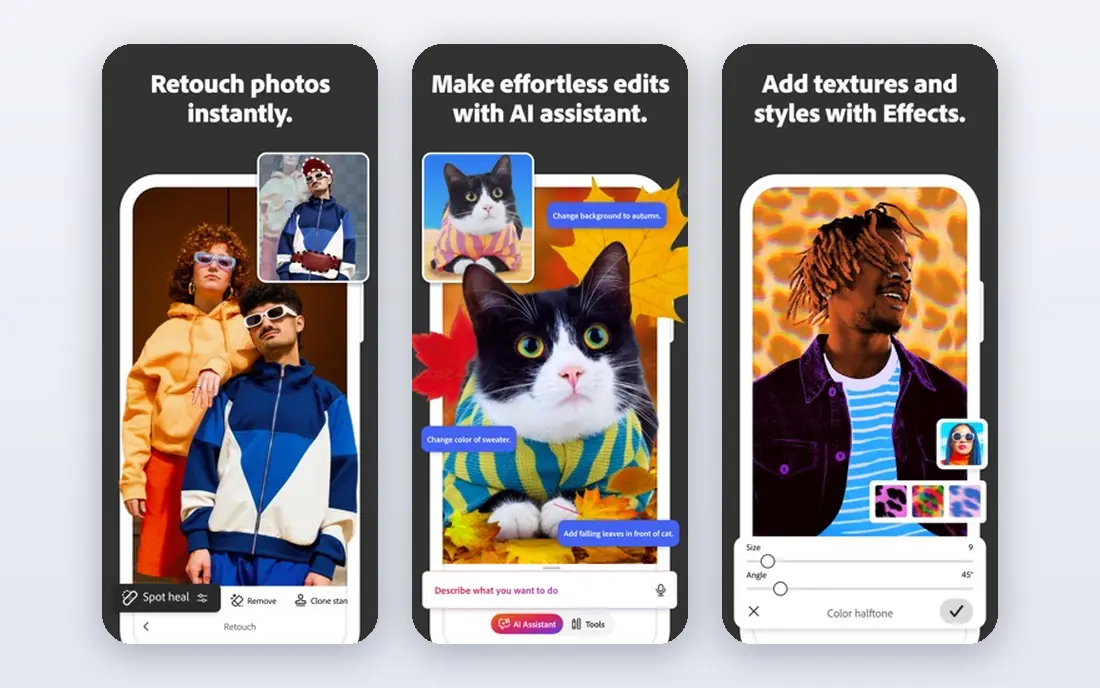
Photoshop is the most controlled recolor tool on this list, because selections, masks, adjustment layers, and generative fill let an editor change one object while leaving the rest of a photo untouched. For product work, that control matters: a garment, a car, or a piece of furniture can be recoloured in several variants, with shadows and texture preserved, and each variant can be exported at high resolution for print or web.
The cost is a subscription at $22.99 per month for the single app on an annual plan billed monthly, plus a learning curve for editors new to masks and layers. Photoshop also uses generative credits on some plans, so check the allowance before a large batch of edits. For professional product and editorial work where colour accuracy and clean edges matter, Photoshop remains the benchmark.
- Precise selections and layers
- Generative fill and recolor controls
- High-resolution output
- Monthly subscription
- Learning curve for new editors
Canva suits creators who need a quick recolor inside a design, not a full photo retouch. Its Magic Edit and related AI tools let users select an area and describe a change, while its design templates turn a recoloured photo into a social post, flyer, or presentation in the same app. The free plan covers basic design and many AI trials, with paid plans adding more credits and features.
Precision is the limit. Canva is faster than Photoshop for a simple change, but it is harder to control edges, shadows, and subtle colour shifts, and output quality depends on the source image. For social content, mockups, and quick client previews, Canva is a practical choice. For final product photography, finish the recolor in Photoshop or a dedicated photo editor.
- Free starting plan
- Easy Magic Edit and design tools
- Templates for social posts
- Less precise than Photoshop
- Some AI features need a paid plan
Recraft is an AI image platform that suits creators who want to generate, recolor, and restyle images in one place. Its editing tools let users change colours, styles, and details by prompt and selection, and it supports both raster and vector output for design work. That combination helps product and brand teams that need many colour variants of the same concept without a photoshoot for each one.
Pricing varies by plan and credits, so use See website for the current figure and check how many generations and edits each plan includes. Prompt tuning also matters: a vague colour prompt can shift more than the intended object, so test with a clear prompt and a tight selection. For AI-led recoloring and restyling, Recraft is a strong specialist pick.
- Strong AI image generation and editing
- Recolor and restyle controls
- Vector and raster output
- Pricing varies by plan
- Output style can need prompt tuning
Palette.fm is the simplest tool for one specific job: turning a black and white photo into colour. Upload a photo, pick a colour filter, and download a colorized version. That simplicity suits family historians, archivists, and creators restoring old portraits, where the goal is a plausible colour version, not a precise product recolor.
The limit is scope. Palette.fm is not built for changing one object in a colour photo, and its AI colour choices can be wrong for clothing, skin, or backgrounds, so check the result closely. Free access covers basic use, with paid options for higher resolution and more features. For black and white colorizing, it is the fastest starting point on this list.
- Fast black and white colorizing
- Simple upload flow
- Filter options
- Focused on colorizing, not object recoloring
- Output can need correction
Fotor suits creators who want fast AI recoloring in a browser or app without learning Photoshop. Its AI tools cover recoloring, object replacement, and photo enhancement, with templates for social posts and product images. A free plan lets users test the workflow, while paid plans add higher resolution, batch processing, and more AI credits.
Quality varies by image, as with most AI editors, and some of the best features sit behind a paid plan. Check output resolution before client work, and compare the same photo on Fotor and Canva to see which handles edges better for your subject. For quick, everyday recoloring, Fotor gives a friendly middle ground between a simple colorizer and a professional editor.
- Browser and app editing
- AI recolor and replace tools
- Templates and batch options
- Pricing varies by plan
- Some AI features need a paid plan
Picsart is the mobile pick for recoloring on a phone, with AI replace, recolor, and background tools inside a full photo and video editor. It suits social creators who shoot, edit, and post from one device, and who need quick product or outfit colour variants for a post. Templates, stickers, and text tools help turn a recoloured photo into finished content without moving to a desktop app.
The mobile workflow is also the limit for professional work. Fine selections and high-resolution output are harder on a small screen, and full AI features need a paid plan. For social and mobile-first creators, Picsart is a strong choice. For print or large product catalogues, use a desktop editor for the final files.
- Strong mobile editing
- AI replace and recolor tools
- Large template library
- Mobile-first workflow
- Paid plan needed for full AI features
Luminar Neo suits photographers who want AI colour tools inside a full desktop photo editor. Its AI tools help with relighting, colour grading, and object-aware edits, alongside raw processing, layers, and export for print. That combination helps a photographer who wants to adjust a photo's colour mood and recolor a subject without moving between several apps.
Luminar Neo is not a single-purpose recolor service, so a user who only needs one quick recolor may find a browser tool faster. Pricing also varies by plan and licence type, so check the current offer and trial before buying. For photographers who already edit in Luminar Neo, its AI colour tools are a natural addition to the workflow.
- AI photo editing
- Colour and relight tools
- Desktop workflow for photographers
- Pricing varies by plan
- AI recolor is part of a larger editor, not a single-purpose tool
MyEdit, from CyberLink, suits users who want AI recoloring in a browser without installing software. Upload a photo, use AI tools to recolor or replace an object, and download the result. The simple workflow helps non-specialists, teachers, and small business owners who need a quick colour variant for a listing or post.
Browser limits apply for large files, and high-resolution exports may need a paid plan, so check resolution before using an edit for print or a large product image. For quick web use and social posts, MyEdit is a practical, low-friction option, and it pairs well with a desktop editor for final professional files.
- Browser editing with no install
- AI recolor and object tools
- Simple workflow
- Browser limits for large files
- Paid plan needed for high-resolution exports
PhotoDirector suits creators who want AI object editing and colour tools in a desktop editor with layers and presets. Its AI tools can remove, replace, or recolor objects, while its colour grading and preset system helps keep a series of product photos consistent. That consistency matters for a catalogue where the same product appears in several colours.
Pricing varies by subscription and perpetual options, so compare plans carefully, and advanced layer work takes some learning. For a creator who edits product photos regularly and wants AI recoloring plus a full editor, PhotoDirector gives a strong desktop alternative to Photoshop, at a different price and learning curve.
- AI object removal and replacement
- Colour tools
- Layers and presets
- Pricing varies by plan
- Learning curve for advanced layer work
How we picked these
We compared official feature pages, pricing pages, and documentation for AI recolor tools that are live now, focusing on whether they recolor a selected object, colorize black and white photos, or restyle a whole image. We used See website where pricing varies by plan, credits, or licence type, and we noted free plans and trials where they exist. We kept only tools that offer a real AI recolor or colorize function, not general photo editors with only manual colour sliders.
Getting a believable recolor
Start with the best source photo you have, with good light and a clear subject, because AI recoloring cannot fix a blurry or badly lit original. Select only the object you want to change, and check edges, shadows, and reflections after the edit, since those areas reveal a bad recolor first. For product work, keep the background, lighting, and angle identical across colour variants, so buyers compare colour, not photography.
Test colour accuracy on a calibrated screen or by printing a proof when colour matters for a sale. A colour that looks right on a phone may shift on another screen or in print, so note the colour values you used and save each variant as a separate file. If an edit looks plausible but not accurate, say so in the listing, and do not present an AI recoloured photo as a photo of the exact physical item unless it truly matches it.
Sources
Frequently asked questions
What is the best AI generative recolor service?
Photoshop is best for precise professional recoloring, Canva is best for quick social edits, and Palette.fm is best for black and white colorizing. Recraft and Picsart suit AI-led object recoloring, while Fotor and MyEdit suit fast browser edits. Pick by whether you need precision, speed, or black and white colorizing.
Can AI recolor a single object without changing the whole photo?
Yes, with tools that support selections, masks, or AI replace, such as Photoshop, Canva, Recraft, and Picsart. Select only the object, check edges and shadows after the edit, and export at full resolution. A whole-image restyle tool may change the background too, so choose a selection-based tool for product work.
Is AI colorizing accurate for old black and white photos?
It gives a plausible colour version, not a guaranteed accurate one. Skin, clothing, and background colours are AI estimates, and they can be wrong, especially for faded or damaged photos. Treat a colorized photo as an interpretation, check it against any colour references you have, and keep the original black and white version.
Can I use AI recoloured photos for product listings?
Yes, if the recoloured photo truly matches the product colour you sell and you disclose AI editing where a marketplace requires it. Do not use a recoloured photo to show a colour you do not stock, and check colour accuracy on more than one screen. Misleading product photos can lead to returns and complaints.
Do free AI recolor tools give high-resolution downloads?
Some do for basic use, while others limit resolution on free plans and require a paid plan for print-quality files. Check export size before starting a project, and test one file at full size. For client or print work, a paid plan or a desktop editor usually gives safer output.
How do I avoid unrealistic AI recolor results?
Use a clear selection, a specific colour description, and a high-quality source photo, then check edges, texture, and shadows closely. If the result shifts the background or changes the object shape, tighten the selection and try again with a simpler prompt. Save each attempt separately so you can compare and revert.