Best App for Shrinking PDFs in 2026: 9 Tools Compared
By ToolNimba Editorial Team November 10, 2026 10 min read

- Top pick
 iLovePDF
Easy online compression
Starting priceFreeCheck out iLovePDFRead our review - Runner-up
 Smallpdf
Simple online compression
Starting priceFreeCheck out SmallpdfRead our review - Also great
 Adobe Acrobat
Most compression control
Starting priceSee websiteCheck out Adobe AcrobatRead our review
How we researched this
We compared official pricing and feature pages, app store listings, privacy policies and public user reviews. Prices change, so check the provider's site before you pay.
Key takeaways
- iLovePDF and Smallpdf are the easiest online options for a quick shrink, with free tiers for occasional files.
- Adobe Acrobat offers the most control over compression quality, which matters for print-ready or image-heavy PDFs.
- PDF24 Tools is a strong free option for desktop and online compression without a subscription.
- For sensitive files, prefer an offline or on-device compressor, since online tools upload files to a server.
Quick comparison
| Name | Best for | Starting price | Free plan | |
|---|---|---|---|---|
| iLovePDF | Easy online compression | Free | Yes | Visit |
| Smallpdf | Simple online compression | Free | Yes | Visit |
| Adobe Acrobat | Most compression control | See website | Free trial | Visit |
 PDF24 Tools | Free desktop and online tools | Free | Yes | Visit |
 Sejda PDF | Online compression plus editing | Free | Yes | Visit |
 PDF2Go | Custom compression levels | Free | Yes | Visit |
 Foxit PDF Editor | Desktop compression and editing | See website | Free trial | Visit |
 Xodo PDF | Cross-platform PDF tools | Free | Yes | Visit |
 Soda PDF | Online compression and editing | Free | Yes | Visit |
The best apps for shrinking PDFs
A PDF can be large for many reasons: high-resolution images, embedded fonts, or uncompressed scans. The tools below shrink PDFs by downsampling images, removing redundant data, and optimizing fonts, with different levels of control. All are current, active products, and most offer a free tier for occasional use.
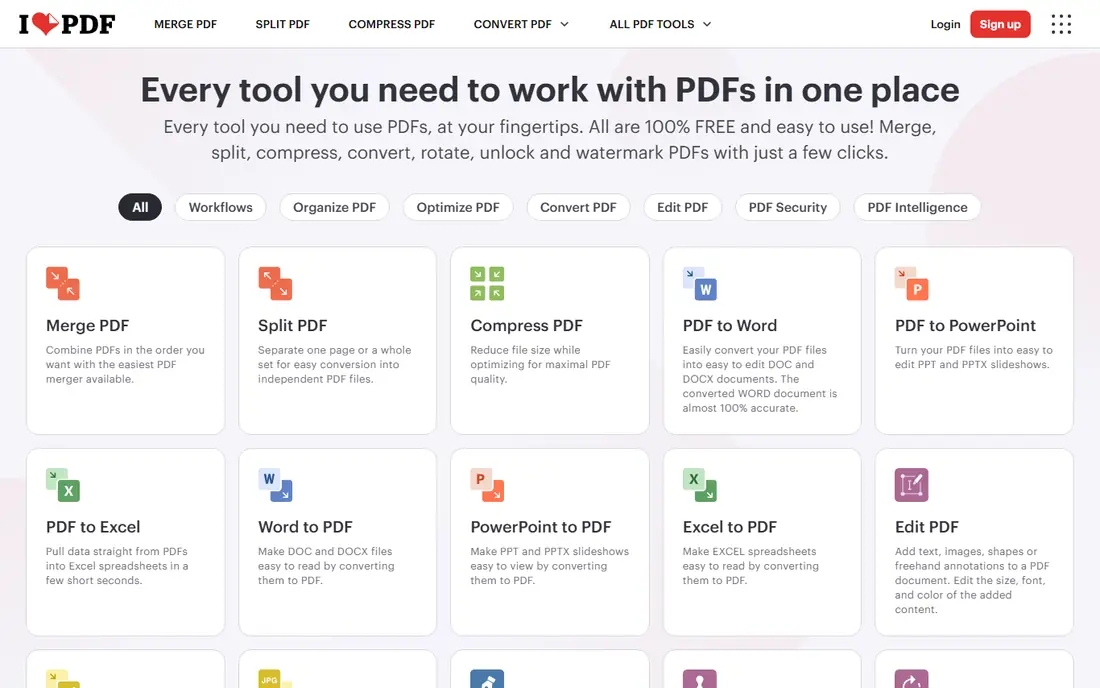
iLovePDF is the easiest starting point for shrinking a PDF quickly. Upload a file, choose a compression level, download the smaller result, and move on. The interface is clean, the process takes seconds for most files, and the site also offers merging, splitting, converting, and signing tools in one place.
Compression levels help users balance size and quality. A basic level keeps images sharp while trimming redundant data, while stronger levels downsample images more aggressively for email or web upload. That choice matters, since a file shrunk too far can look blurry when printed.
The limits are free-tier caps and privacy. Free users face daily task limits, and files are uploaded to iLovePDF servers for processing, so sensitive documents should not be compressed online. For everyday, non-sensitive PDFs, iLovePDF is the fastest option.
- Very easy to use
- Compression level choices
- Many other PDF tools
- Free tier has daily limits
- Sensitive files are uploaded to a server
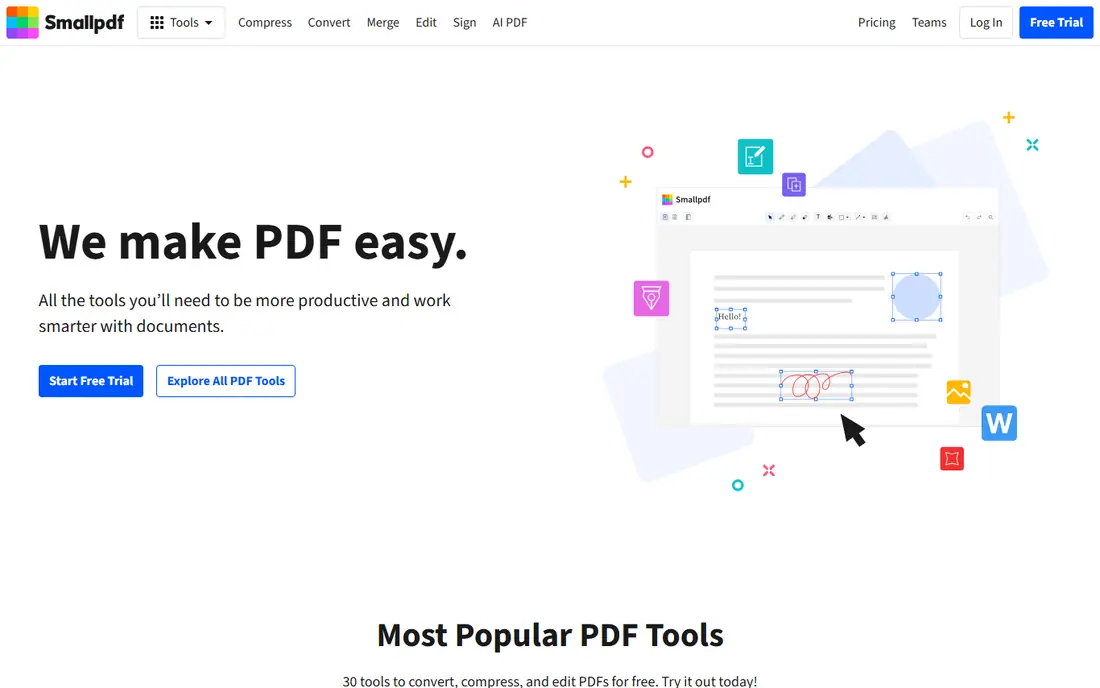
Smallpdf offers a similarly simple online compressor, with drag-and-drop upload, a choice of basic or strong compression, and a quick download. The basic compression is free and suits most email and upload needs, while strong compression requires a paid plan in many cases. The mobile app extends the same workflow to phones.
Quality is a strength. Smallpdf balances size reduction with readable text and clear images, which helps for reports and presentations. The site also bundles conversion, merging, splitting, and e-signing tools, so users can fix a PDF in one place rather than switching sites.
The free tier limits the number of compressions per day, and larger files may need a paid plan. As with iLovePDF, files are uploaded to a server, so avoid online compression for confidential documents. For quick, everyday shrinking, Smallpdf is reliable and easy.
- Simple drag-and-drop workflow
- Good quality balance
- Mobile app available
- Free compressions limited per day
- Full features need a paid plan
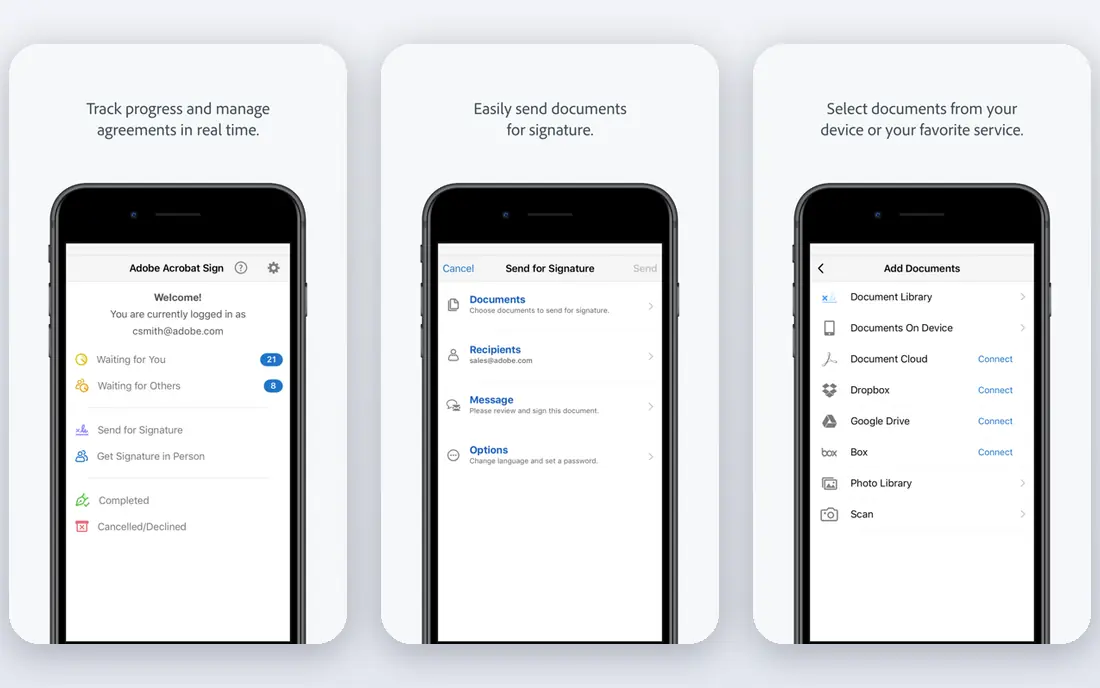
Adobe Acrobat is the pick for users who need control, not just a smaller file. Its Optimize PDF feature lets users adjust image resolution, font embedding, color space, and object cleanup, with previews that show the effect on size and quality. That control matters for print files, scanned archives, and image-heavy reports.
Acrobat also handles the full PDF workflow, including editing, signing, forms, and redaction, so compression fits into a larger document process. The online Acrobat tools offer a simpler compress option for quick jobs, while the desktop app gives the full controls. For professionals, that depth is worth the learning curve.
The drawback is price and complexity. Acrobat requires a subscription for full desktop features, and the Optimize settings can overwhelm casual users. For a one-off email attachment, iLovePDF or Smallpdf is faster. For repeated, quality-sensitive work, Acrobat leads.
- Finest control over image and font settings
- Excellent quality
- Trusted PDF standard
- Subscription cost
- More complex than online tools
PDF24 Tools is a strong free option for shrinking PDFs without a subscription. The online compressor handles common files quickly, and the free desktop Creator app for Windows offers offline compression for sensitive files. That offline option is a real privacy advantage over online-only tools.
The toolset is broad, covering merge, split, convert, protect, and compress in one suite. The online version requires no account for basic tasks, and the desktop app adds batch processing for users who shrink many files at once. For students, small businesses, and budget users, PDF24 covers a lot for free.
The interface is functional rather than polished, and the desktop app is Windows-focused, which limits Mac users to the online tools. Compression controls are also simpler than Acrobat. PDF24 is best for free, everyday shrinking, especially on Windows.
- Free online and desktop options
- Many PDF tools
- No account needed for basic use
- Interface is functional rather than polished
- Offline app is Windows-focused
Sejda PDF combines compression with a capable online editor, which suits users who need to shrink a file and fix it in the same session. The compressor offers quality choices, and the editor handles text, images, signatures, and page organization. That combination saves switching between tools.
Privacy handling is clearer than many rivals. Sejda states that uploaded files are deleted after a short period, which helps users judge risk, though online upload still carries more risk than offline processing. The interface is clean, and the workflow is fast for single files.
Free use is limited by files per hour and file size, so heavy users need a paid plan. Sejda is best for users who want compression plus editing online, with a clear, honest free tier. For sensitive files, use the desktop version or an offline tool instead.
- Good compression options
- Strong editing tools
- Clear privacy deletion policy
- Free tier limits files per hour and size
- Larger files need a paid plan
PDF2Go stands out for customization in an online tool. Users can choose compression presets or adjust image quality and resolution, which helps when a file must hit a specific size limit for email or upload. That control sits between simple one-click tools and full desktop Acrobat.
The site also offers conversion, merging, splitting, editing, and protection tools, with options to pull files from cloud storage or a URL. That flexibility helps users who store files in Drive, Dropbox, or OneDrive. The workflow is straightforward once the options are understood.
The free tier limits file size and daily tasks, and the interface can feel busy with many tool links. PDF2Go is best for users who want more control than iLovePDF but do not want to install desktop software. For confidential files, prefer an offline compressor.
- Custom quality and resolution settings
- Many PDF tools
- Optional cloud storage links
- Free tier has limits
- Interface can feel busy
Foxit PDF Editor is a desktop alternative to Acrobat for shrinking and editing PDFs. Its optimization tools reduce file size by compressing images, removing redundant objects, and managing fonts, with settings that suit business documents and scanned files. The editor also covers annotation, forms, signing, and collaboration.
Performance is a plus. Foxit opens large PDFs quickly and handles batch work well, which helps offices that process many files. The interface will feel familiar to Acrobat users, with a ribbon layout and clear tool groups. Cloud and mobile versions extend the workflow beyond the desktop.
The cost and density are the drawbacks. Foxit requires a subscription or license for full features, and the interface can feel dense for casual users. Foxit is best for businesses and professionals who already use it for PDF editing and want compression built in.
- Strong desktop compression
- Full PDF editing
- Good for business use
- Subscription cost
- Interface can feel dense
Xodo PDF is a cross-platform option that works on web, iOS, Android, and Windows, with a consistent interface across devices. Its compression tools shrink PDFs for sharing, while annotation, form filling, and signing cover everyday document work. That breadth suits users who move between phone, tablet, and computer.
The free tier covers core tools, including viewing, annotating, and basic compression, which makes Xodo a good low-cost starting point. Sync through cloud storage keeps files available across devices, and collaboration features let teams comment on the same file.
Compression controls are simpler than Acrobat or Foxit, with fewer fine-grained settings for images and fonts. Some advanced features also require a paid plan. Xodo is best for users who want a free, cross-platform PDF tool with solid compression, rather than maximum control.
- Works on web, mobile, and desktop
- Good annotation
- Free core tools
- Compression controls are simpler than Acrobat
- Some features need a paid plan
Soda PDF offers an easy online compressor plus a desktop app for offline work. The web version handles quick shrinking with a simple upload and download flow, while the desktop app adds editing, conversion, and batch tools. That mix suits users who want both a quick web option and a fuller desktop tool.
The interface is clean, and the toolset covers merging, splitting, converting, signing, and protecting PDFs. Compression quality is solid for everyday files, with presets that balance size and readability. The desktop app helps with sensitive files, since processing can stay local.
Free web use has limits on file size and daily tasks, and the web version uploads files to a server. Soda PDF is best for users who want a simple online compressor with a desktop upgrade path, rather than a free unlimited tool.
- Easy online workflow
- Good editing tools
- Desktop app available
- Free tier has limits
- Online upload needed for web version
How we picked these
We compared official tool pages, free tiers, compression controls, platform support, and privacy handling, and we checked that each homepage loads and belongs to the listed product. We favored tools with current availability, a clear compression workflow, and a free tier or trial. We did not claim hands-on compression tests on identical files, and we treated free limits as variable, since vendors change them often.
How to shrink a PDF without ruining it
Start with the least aggressive setting that meets the size limit, then check the result at full zoom. Text should stay sharp, and images should not show obvious blur or banding. If the file must be printed, keep image resolution higher and accept a larger file, since print reveals compression flaws that screens hide.
Privacy and file size tips
For contracts, medical records, or financial documents, use an offline desktop tool such as Acrobat, Foxit, or PDF24 Creator, rather than an online compressor. For non-sensitive files, online tools are fine and faster. Also check the original file first: removing blank pages, oversized images, and embedded attachments often shrinks a PDF more than compression alone.
Sources
- https://www.ilovepdf.com
- https://smallpdf.com
- https://www.adobe.com/acrobat.html
- https://tools.pdf24.org
- https://www.sejda.com
- https://www.pdf2go.com
- https://www.foxit.com
- https://www.xodo.com
- https://www.sodapdf.com
- https://dev.to/hwlsniper/how-to-compress-a-pdf-without-losing-quality-6-methods-tested-2026-521p
- https://www.datanumen.com/blogs/11-best-compress-pdf-tools-free/
Frequently asked questions
What is the best app for shrinking PDFs?
iLovePDF is the best easy online pick, Smallpdf is a close second for simplicity, and Adobe Acrobat is best for maximum control. PDF24 Tools is the best free option, especially on Windows. The right pick depends on file sensitivity, quality needs, and budget.
How can I shrink a PDF for free?
iLovePDF, Smallpdf, PDF24 Tools, Sejda, and PDF2Go all offer free compression for occasional files. Free tiers limit file size, daily tasks, or compression strength. For frequent use, a paid plan or a free desktop tool such as PDF24 Creator may be cheaper.
Will shrinking a PDF reduce quality?
Strong compression can reduce image quality, especially for photos and scanned pages, while text usually stays readable. Use the lightest setting that meets the size limit, and check the result before sending. For print, keep resolution higher and accept a larger file.
What is the best app for shrinking PDFs on a phone?
Smallpdf and iLovePDF both offer mobile apps and mobile-friendly web tools for shrinking PDFs on a phone. Adobe Acrobat mobile also offers compression in supported plans. For large or sensitive files, compress on a desktop instead, where controls and privacy are better.
How small can a PDF get?
That depends on the original content. Text-heavy PDFs shrink less in absolute terms, while image-heavy PDFs can shrink a lot through downsampling. A scanned PDF with high-resolution images can often drop by half or more, while an already optimized PDF may shrink only slightly.
Is it safe to compress PDFs online?
Online compression is safe for everyday, non-sensitive files, but files are uploaded to a server for processing. For contracts, medical records, or financial documents, use an offline desktop tool instead. Check the vendor privacy policy for file deletion times before uploading anything important.