Best App to Insert PDFs on My Phone in 2026: 8 Apps Compared
By ToolNimba Editorial Team November 10, 2026 9 min read

- Top pick
 Adobe Acrobat
Everyday PDF viewing, editing, and signing on mobile
Starting priceFreeCheck out Adobe AcrobatRead our review - Runner-up
 PDF Expert
iPhone and iPad users who want fast, clean editing
Starting priceFreeCheck out PDF ExpertRead our review - Also great
 Foxit PDF Editor
People who edit PDFs on phone and computer
Starting price$129.99 per yearCheck out Foxit PDF EditorRead our review
How we researched this
We compared official pricing and feature pages, app store listings, privacy policies and public user reviews. Prices change, so check the provider's site before you pay.
Key takeaways
- Adobe Acrobat and PDF Expert are the safest first choices for most phone users, with strong editing and signing tools.
- Foxit and PDFelement suit people who also edit PDFs on a computer and want the same files on mobile.
- iLovePDF, Smallpdf, and PDFgear are handy for quick page inserts, merges, and conversions without a heavy app.
- Check whether page insertion, image insertion, and signing sit on the free tier before you pay.
Quick comparison
| Name | Best for | Starting price | Free plan | |
|---|---|---|---|---|
| Adobe Acrobat | Everyday PDF viewing, editing, and signing on mobile | Free | Yes | Visit |
| PDF Expert | iPhone and iPad users who want fast, clean editing | Free | Yes | Visit |
| Foxit PDF Editor | People who edit PDFs on phone and computer | $129.99 per year | Yes | Visit |
 PDFelement | Full PDF editing with forms and scanned documents | See website | Free trial | Visit |
 iLovePDF | Quick merges, page inserts, and conversions | Free | Yes | Visit |
 Smallpdf | Simple, guided PDF tasks on phone or web | Free | Yes | Visit |
 Xodo PDF | Annotation, form filling, and page organization | Free | Yes | Visit |
 PDFgear | Free PDF editing without a subscription | Free | Yes | Visit |
The best apps to insert PDFs on your phone
Inserting something into a PDF on a phone can mean adding a page, dropping in an image or a scanned page, adding text, or placing a signature. The apps below cover those jobs in different ways, so pick based on whether you need a quick one-off fix or a daily editing tool.
Adobe Acrobat
Best for: Everyday PDF viewing, editing, and signing on mobile
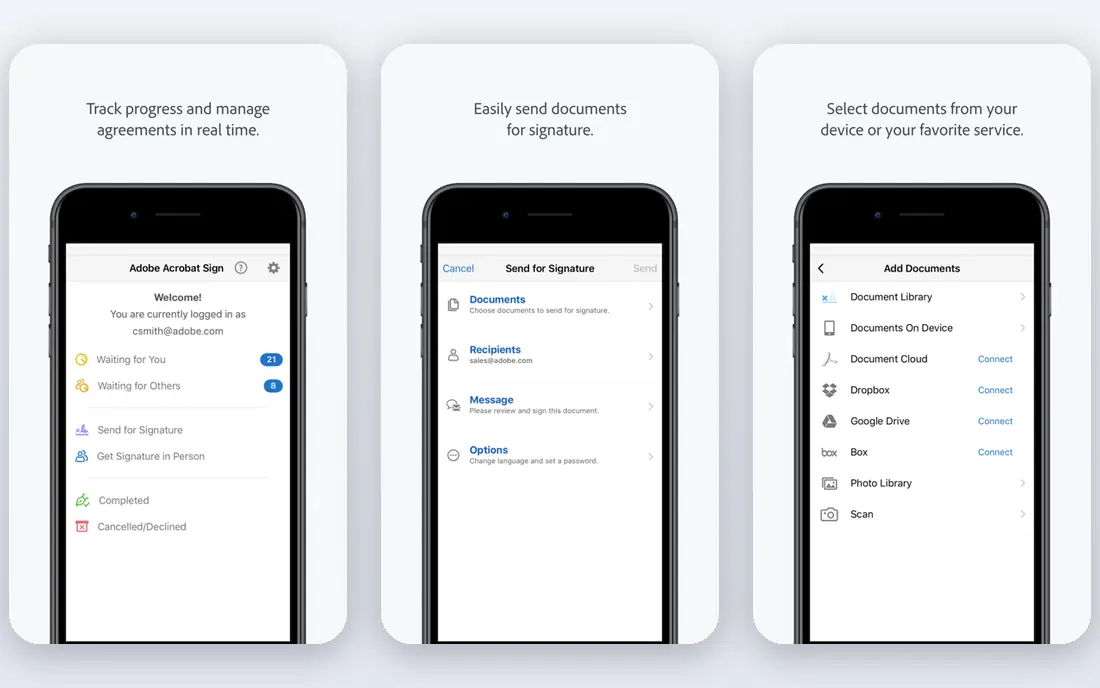
Adobe Acrobat is the default choice for many phone users because files made in Acrobat open cleanly almost everywhere. On mobile, you can view, annotate, fill forms, add text, insert pages from other files, and sign documents. That range matters when a PDF arrives by email and needs a fix before it goes back.
The free Reader covers viewing and basic annotation, while Acrobat Pro starts at $19.99 per month and adds full editing, conversion, and more signing tools. If you only insert a page now and then, start free and upgrade only when a paid feature blocks you.
- Familiar and widely supported
- Strong mobile editing and signing
- Good cloud sync with Adobe storage
- Full Pro features need a paid plan
- App can feel large for simple tasks
- Some AI features cost extra
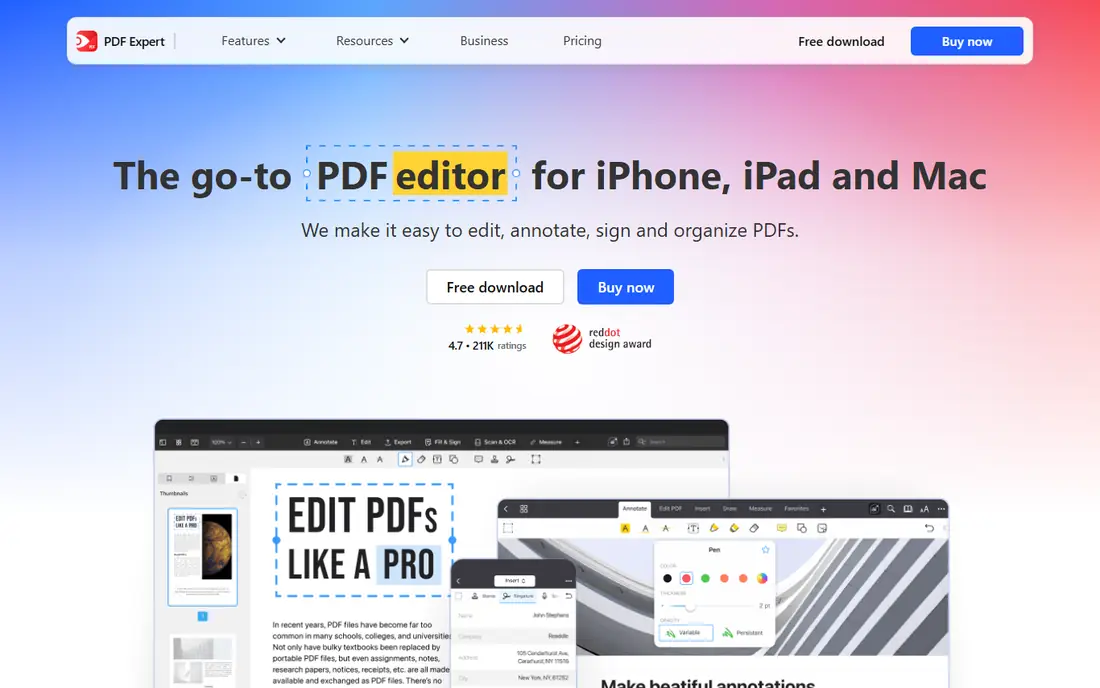
PDF Expert is built around doing PDF work quickly on an iPhone or iPad. You can reorder pages, insert new pages, add text and images, highlight, and sign, all with a layout that stays readable on a small screen. For someone who handles contracts or school forms on an iPad, that focus shows.
The app is free to download with basic tools, and a subscription adds full editing and advanced features. Check the current in-app price before you subscribe, since app store pricing can differ by region and plan length.
- Fast and polished on Apple devices
- Easy page management
- Strong annotation and signing
- Android support is limited compared with Apple platforms
- Advanced features need a subscription
- Pricing varies by store
Foxit suits a user who starts a document on a computer and finishes it on a phone. The free reader handles viewing and basic annotation, while PDF Editor adds page organization, text editing, forms, conversion, and OCR for scanned pages. That makes it a solid pick for work files rather than one-off reads.
PDF Editor costs $129.99 per year for individuals in the pricing we found, with a higher tier adding mobile access and e-signature envelopes. Confirm the tier that includes mobile editing before you buy, since reader and editor are not the same product.
- Strong editing, forms, and OCR
- Reader is free
- Good for larger files
- Full editor is a paid upgrade
- Mobile features vary by plan
- Interface has many menus
PDFelement, from Wondershare, is a full editor rather than a simple reader. On mobile you can insert and reorder pages, add text and images, annotate, fill forms, and sign. OCR helps when the page you need to insert comes from a scan rather than a clean digital file.
Pricing is listed by platform and plan on the vendor site, so we list it as See website rather than guessing a single mobile price. Try the trial with a real file, especially a scanned one, before committing to a yearly plan.
- Wide editing and page tools
- OCR for scanned pages
- Works across phone and desktop
- Pricing varies by platform and plan
- Free version has limits
- Some features need a desktop license
iLovePDF is a good pick when the job is simple: combine two PDFs, insert pages, split a file, compress it, or convert it. The task-based layout means you pick the job first, upload the file, and get a result without learning an editor. The mobile app covers the common tasks, and the website covers the rest.
The free tier handles occasional use, while premium removes limits and adds more processing. If you need deep text editing or form design, pair it with a full editor rather than forcing iLovePDF to do that job.
- Very easy merge and organize tools
- Works in a browser and on mobile
- Clear task-based layout
- Heavy or frequent use needs a premium plan
- Editing depth is less than a full editor
- Needs a connection for web tools
Smallpdf takes a similar task-first approach to iLovePDF, with a clean layout that suits a user who does PDF work a few times a month. You can merge files, organize pages, add a signature, compress a large file, and convert to and from PDF. The mobile app keeps the most common tools close at hand.
Free use has daily limits, so a user who processes files all day will hit a wall. Check the current Pro price on the Smallpdf site before upgrading, and use the free tier first to confirm the exact tool you need is included.
- Clean step-by-step tools
- Merge, split, and compress work well
- Good for occasional users
- Free use is limited per day
- Full editing needs Pro
- Some tools need a connection
Xodo is a strong free-first option for reading, marking up, and organizing PDFs on a phone. You can annotate, fill forms, add signatures, and manage pages, and cloud sync helps when a file moves between phone and computer. For students and field workers who mark up documents daily, that free depth matters.
Paid tiers add more editing and collaboration features, so check what your workflow needs before paying. If your main job is inserting pages and signing, the free tools may already cover it.
- Strong free annotation set
- Syncs with cloud storage
- Works on iPhone and Android
- Advanced editing sits behind paid tiers
- Layout can feel busy
- Some features vary by platform
PDFgear stands out because it offers a wide editing set for free, including page management, text and image editing, annotation, and signing. That makes it worth trying before paying for a subscription, especially for a user who inserts pages or images a few times a month.
The trade-off is scale. PDFgear does not have the same enterprise support footprint as Adobe or Foxit, and some advanced tools work best on desktop. For everyday phone editing, though, it is a genuinely useful free option, and it is easy to test with a copy of a file first.
- Full editing tools at no cost
- Page, text, and image tools
- No account needed for many tasks
- Smaller support and update footprint than Adobe
- Some advanced features are desktop-first
- Check privacy settings for cloud use
How we picked these
We compared official product pages, app store listings, and pricing pages for apps that run on iPhone or Android and can insert pages, images, or text into a PDF. We favored apps that are still maintained, clearly state what is free, and handle common phone workflows such as signing and sharing. We did not claim hands-on testing, and we used See website where a single mobile price could not be verified cleanly.
Pick by the job, not the brand
Start by naming the exact insert you need. Adding a scanned page calls for OCR or image insertion, adding a signature calls for a signing tool, and combining reports calls for merge and page tools. Test that one job with a copy of a real file before you pay, and keep the original safe until you are happy with the result.
Watch for limits that matter on a phone
Free tiers often limit file size, daily tasks, or export quality, and paid tiers can differ between iPhone, Android, and web. Check whether your plan covers all your devices, whether files stay on the device or upload to a cloud, and whether a watermark appears on free exports. Those details matter more than a long feature list.
Keep sensitive files safe
PDFs often hold contracts, IDs, and medical forms, so avoid uploading sensitive files to a tool you do not trust. Prefer apps with clear privacy policies, use on-device editing when offered, and delete uploaded files after a web task finishes. When in doubt, use a well-known editor for sensitive documents.
Sources
Frequently asked questions
What is the best PDF app for iPhone?
Adobe Acrobat and PDF Expert are strong starting points on iPhone. Acrobat covers the widest range of tasks and sharing, while PDF Expert feels fast and clean for daily editing and signing on Apple devices. Try both free tiers with the same file before choosing.
What is the best PDF app for Android?
Adobe Acrobat, Foxit, Xodo, and PDFgear all run on Android and cover page insertion and signing. Acrobat is the safest general pick, Foxit suits users who also edit on desktop, and Xodo and PDFgear offer strong free tools for everyday use.
What is the best app for PDF editing on a phone?
For full editing, Adobe Acrobat Pro, Foxit PDF Editor, and PDFelement lead this list, with page, text, image, and form tools. For quick merges and page inserts, iLovePDF and Smallpdf are faster. The best app is the one whose paid tier matches the exact edits you make each week.
Can I insert a page into a PDF for free on my phone?
Yes, in many cases. Free tiers from Adobe, Xodo, and PDFgear, plus task tools from iLovePDF and Smallpdf, can insert or merge pages without paying. Limits on file size or daily use may apply, so test with your file before relying on a free tier for work.
How do I insert an image into a PDF on my phone?
Open the PDF in an editor such as Adobe Acrobat, PDF Expert, or PDFgear, choose the edit or insert image tool, place the image on the page, and resize it before saving. For a scanned page, use an app with image insertion or OCR, and save a copy so the original stays intact.