Best Beginner Video Editing Software in 2026: 9 Tools Compared
By ToolNimba Editorial Team November 1, 2026 10 min read

- Top pick
 CapCut
Short-form social video
Starting price$19.99 per monthCheck out CapCutRead our review - Runner-up
 iMovie
Mac and iPhone owners making a first edit
Starting priceFreeCheck out iMovieRead our review - Also great
 Clipchamp
Free watermark-free editing on Windows
Starting priceFreeCheck out ClipchampRead our review
How we researched this
We compared official pricing and feature pages, app store listings, privacy policies and public user reviews. Prices change, so check the provider's site before you pay.
Key takeaways
- CapCut, Clipchamp, DaVinci Resolve, and Shotcut all let beginners learn for free, and most export without watermarks on free tiers.
- iMovie remains the easiest first editor on Mac and iPhone, while Clipchamp is the closest free equivalent for Windows users.
- Filmora at $49.99 per year is the best paid starter for template-driven social and YouTube content.
- DaVinci Resolve's free version is professional-grade, but it asks more from your hardware and patience than any other pick here.
- Start with the editor that matches your device and video type, not the one with the longest feature list.
Quick comparison
| Name | Best for | Starting price | Free plan | |
|---|---|---|---|---|
| CapCut | Short-form social video | $19.99 per month | Yes | Visit |
| iMovie | Mac and iPhone owners making a first edit | Free | Yes | Visit |
| Clipchamp | Free watermark-free editing on Windows | Free | Yes | Visit |
 Filmora | Template-driven creators | $49.99 per year | Yes | Visit |
 DaVinci Resolve | Ambitious beginners going pro | Free | Yes | Visit |
 Shotcut | Free open-source editing | Free | Yes | Visit |
 OpenShot | The simplest free timeline | Free | Yes | Visit |
 PowerDirector | Guided learning modes | $74.99 per year | Yes | Visit |
 Movavi Video Editor | Friendly paid Windows and Mac editor | $69.95 per year | No | Visit |
The best beginner video editing software
Beginner editing software should get you to a finished export quickly, without a manual the size of a textbook. We compared official feature and pricing pages and recent beginner editor comparisons, focusing on tools that are actively supported in 2026 and genuinely easy for a first-time editor.

CapCut is the best starting point if your videos live on TikTok, Reels, or Shorts. Its mobile app is fast, its template library matches trending formats, and auto-captions with animation styles take seconds. Background removal, text-to-speech, and AI effects are built in, so a beginner can make a polished short video without learning a full timeline first.
The catch is the Pro price. At $19.99 per month billed monthly, CapCut Pro is now more expensive than several desktop rivals, and some premium effects still watermark free exports. Start on the free tier, and only upgrade when a specific Pro feature blocks a video you actually publish.
- Huge template library for TikTok and Reels
- Auto-captions and AI effects
- Mobile, desktop, and web versions
- Pro plan at $19.99 per month is pricey for casual use
- Some premium effects carry watermarks on free exports
iMovie is the easiest editor here, full stop, if you own Apple hardware. It comes free with Mac, iPhone, and iPad, its interface has almost no clutter, and trailer templates can turn a pile of clips into a polished video in minutes. Green screen, picture-in-picture, and split-screen cover the basics most beginners need.
The limits are platform and ceiling. There is no Windows or Android version, and editors who outgrow iMovie will need to move to Final Cut Pro or DaVinci Resolve. For family videos, vlogs, and school projects, though, iMovie is all most beginners need, and it costs nothing extra.
- Free and bundled with Apple devices
- Simplest interface on this list
- Trailer templates and green screen built in
- Mac and iOS only
- Limited advanced features
- No auto-captions
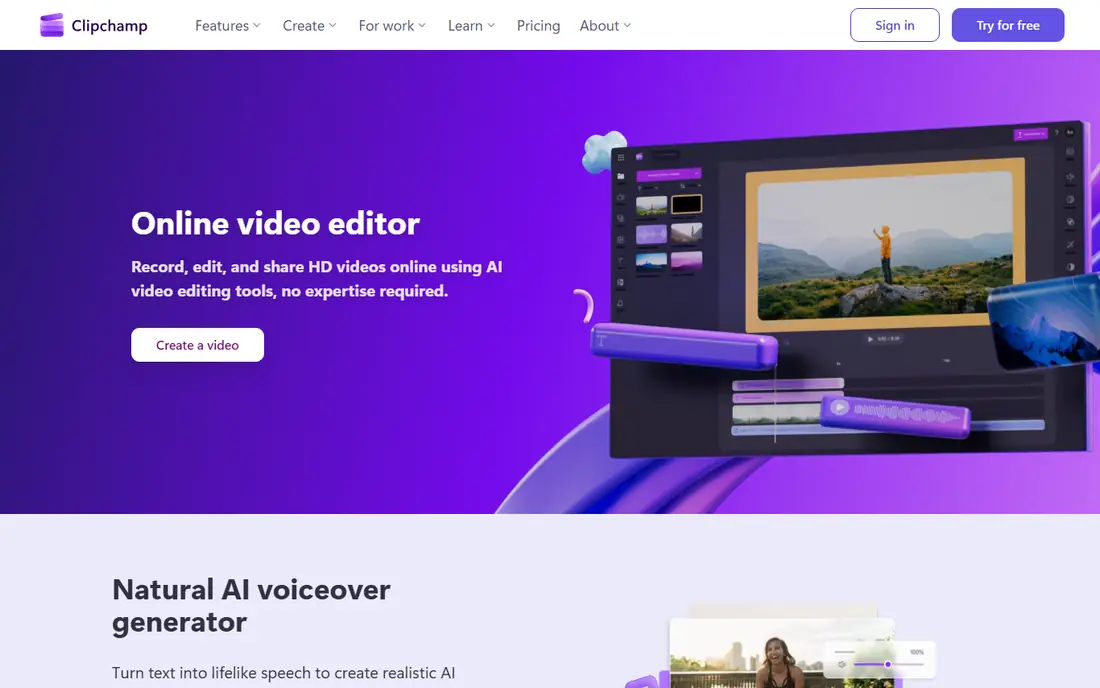
Clipchamp is the Windows answer to iMovie. It runs in the browser, is built into Windows 11, and its free plan exports without a watermark, which is rare among free editors. AI voiceover, auto-captions, and a stock library make it capable for quick YouTube, work, and social videos.
The paid side is less clear. Premium exports and features are tied to Microsoft 365 plans, with Personal at $99.99 per year, so heavy users should check what is included before paying. For most beginners on Windows, the free tier alone covers the first months of learning.
- Free plan exports without watermark
- Built into Windows 11
- Browser-based, so no install needed
- AI voiceover and auto-captions
- Paid features sit behind Microsoft 365 plans
- Browser editing needs a stable connection
Filmora is the best paid starter for creators who want polish without a steep learning curve. Its templates, transitions, and effects library suit YouTube videos and social content, and AI tools handle captions and background removal with little effort. The timeline is more capable than CapCut's mobile editor, so skills transfer better to professional tools later.
Free exports carry a watermark, so the $49.99 per year Basic plan is effectively required for publishing. That is still cheaper than CapCut Pro over a year, and the desktop experience is stronger for longer videos. If you edit weekly and want templates, Filmora is a fair price.
- Large template and effects library
- AI tools for captions and background removal
- Gentle learning curve for a desktop editor
- Free exports carry a watermark
- Yearly subscription adds up over time
DaVinci Resolve is the most powerful free editor in existence, and the best choice for a beginner who wants editing as a long-term skill. The free version includes professional editing, color grading, visual effects, and audio tools, with no watermark. The paid Studio version is a $295 one-time purchase, which is good value if you ever need it.
The price is time and hardware. Resolve's interface is dense, its color and effects pages take weeks to learn, and it runs best on a capable computer with plenty of memory. Patient beginners who watch tutorials will outgrow every other free editor here. Impatient beginners should start with CapCut or Clipchamp and move to Resolve later.
- Professional-grade editing, color, and audio for free
- No watermark on free exports
- Skills transfer to paid studio work
- Steep learning curve
- Demands a capable computer
- Interface can overwhelm a first-time editor
Shotcut is the honest free desktop editor. It is open source, runs on all major desktop systems, exports without a watermark, and handles a wide range of formats. For a beginner on Linux, or on any system where paid software is out of reach, it is a strong, no-strings choice.
The interface is the compromise. Shotcut looks and feels more technical than Filmora or iMovie, and it offers fewer templates and guided modes for first-time editors. If you are comfortable learning from tutorials and want a free timeline that never asks for payment, Shotcut delivers.
- Completely free and open source
- Runs on Windows, Mac, and Linux
- No watermark
- Wide format support
- Interface is less polished than paid rivals
- Fewer templates and guided modes
OpenShot is even simpler than Shotcut, which makes it a good first desktop editor for absolute beginners. The timeline is clean, trimming and transitions are obvious, and it runs on Windows, Mac, and Linux for free. For short videos and school projects, that simplicity is exactly right.
The limit is scale. OpenShot has fewer advanced features than Shotcut or Resolve, and large projects with many clips can feel slow. Treat it as a learning editor: start here if every other timeline looks intimidating, then move to Shotcut or Resolve when you need more power.
- Simplest timeline among free desktop editors
- Free and open source
- Runs on Windows, Mac, and Linux
- Fewer advanced features
- Performance can lag on large projects
PowerDirector suits beginners who want guidance built into the software. Its guided modes explain each step, from trimming to titles to effects, which helps first-time editors finish a video without hunting for tutorials. The template library and effects are strong, and rendering is fast on many Windows and Mac systems.
The PowerDirector 365 plan at $74.99 per year costs more than Filmora, so compare the two before paying. If guided learning is what gets you to a finished video, the extra cost is justified. If you already know the basics, Filmora or Resolve gives you more for less.
- Guided modes walk beginners through edits
- Strong template and effects library
- Fast rendering on many systems
- Subscription price is higher than Filmora
- Free version has limits that push toward paid plans
Movavi Video Editor is a friendly, lightweight paid editor for Windows and Mac. Its interface is clean, its effects and transitions are easy to apply, and it runs well on computers that struggle with Resolve. For beginners who want a simple paid editor without a subscription to a large suite, Movavi is a solid option.
The downside is price and trial limits. There is no free plan, only a trial, and the $69.95 per year plan costs more than Filmora while offering a smaller template library. Try the trial on a real project before paying, and compare it with Filmora's yearly plan on the same footage.
- Friendly interface for a paid editor
- Good effects and transitions
- Lightweight on many systems
- Free trial only, no free plan
- Yearly price is higher than Filmora
How we picked these
We compared official feature and pricing pages and recent beginner editor comparisons, favoring tools that are actively supported in 2026, offer a free tier or trial, and can export a finished video without expert knowledge. We included mobile, browser, and desktop options across Windows, Mac, Linux, iOS, and Android, and we left out professional-only tools such as Premiere Pro that assume prior editing experience.
What to check before you choose
Match the editor to your device first, then to your video type. A Mac owner should start with iMovie, a Windows owner with Clipchamp, and a phone-first creator with CapCut. Switching devices later is harder than switching editors, so pick the tool that runs well where you actually edit.
Start free, then pay for a specific need
Free tiers on this list cover most beginner work. Upgrade only when a watermark, a missing effect, or a format limit blocks a video you publish. That rule keeps costs low and stops you paying for features you never use.
Learn one timeline well
Every editor here teaches the same core skills: trimming, cutting on action, balancing audio, and adding titles. Learning one timeline properly matters more than trying five editors at once. Finish ten short videos in one tool before judging whether you need another.
Sources
- https://www.capcut.com
- https://www.apple.com/imovie/
- https://clipchamp.com
- https://filmora.wondershare.com
- https://www.blackmagicdesign.com/products/davinciresolve
- https://shotcut.org
- https://www.openshot.org
- https://www.cyberlink.com/products/powerdirector-video-editing-software
- https://www.movavi.com/video-editor/
- https://rankite.com/blog/best-beginner-video-editing-software
- https://www.revid.ai/blog/video-editing-software-for-beginners