Best Benchmark Software in 2026: 9 Tools Compared
By ToolNimba Editorial Team November 12, 2026 9 min read

- Top pick
 Geekbench 6
Cross-platform CPU and GPU tests
Starting priceFreeCheck out Geekbench 6Read our review - Runner-up
 Cinebench 2024
CPU rendering performance
Starting priceFreeCheck out Cinebench 2024Read our review - Also great
 3DMark
Gaming graphics performance
Starting price$34.99Check out 3DMarkRead our review
How we researched this
We compared official pricing and feature pages, app store listings, privacy policies and public user reviews. Prices change, so check the provider's site before you pay.
Key takeaways
- Geekbench 6 is the best cross-platform starting point, since it compares phones, Macs and PCs on one scale.
- Cinebench is free and remains the standard for CPU rendering performance, while 3DMark is the standard for gaming graphics.
- CrystalDiskMark covers SSD speeds, and PassMark and AIDA64 suit users who want deep diagnostics and big comparison databases.
- Scores only compare within the same tool and version, so never compare a Geekbench score with a 3DMark score.
Quick comparison
| Name | Best for | Starting price | Free plan | |
|---|---|---|---|---|
| Geekbench 6 | Cross-platform CPU and GPU tests | Free | Yes | Visit |
| Cinebench 2024 | CPU rendering performance | Free | Yes | Visit |
| 3DMark | Gaming graphics performance | $34.99 | Free trial | Visit |
 PCMark 10 | Real-world office performance | Free | Yes | Visit |
 PassMark PerformanceTest | Detailed per-component scores | $39 one-time | Free trial | Visit |
 CrystalDiskMark | SSD and drive speeds | Free | Yes | Visit |
 Novabench | Quick whole-system check | Free | Yes | Visit |
 AIDA64 Extreme | Diagnostics plus stress testing | See website | Free trial | Visit |
 FurMark | GPU stress testing | Free | Yes | Visit |
The best benchmark software
Benchmark software measures your computer under controlled workloads so you can compare machines, check an upgrade, or find a bottleneck. The tools below cover different parts of the system, and most people need two or three of them rather than one. Run tests with background apps closed and laptops plugged in, or your scores will wander.
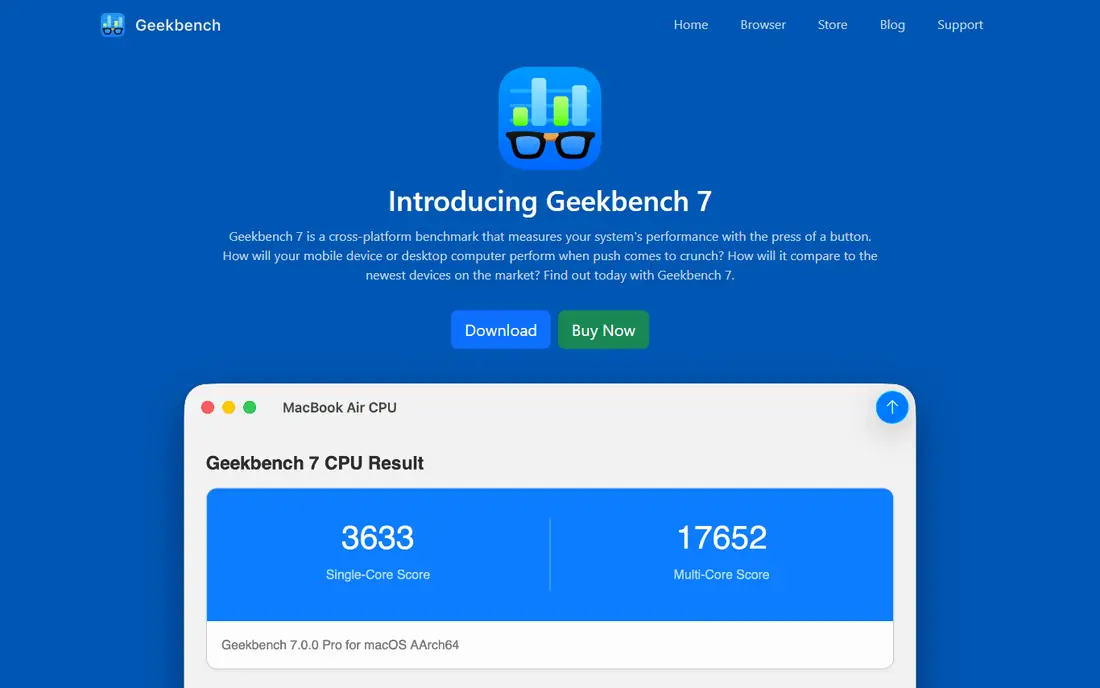
Geekbench 6 is our pick for most people because it answers the common question, is this machine faster than that one, across device types. It runs CPU tests based on everyday tasks such as image processing, text work and machine learning, plus GPU compute tests. The free version covers personal use, and results upload to the Geekbench Browser for comparison.
The limit is that Geekbench measures a slice of performance, not a whole workflow. A high score does not guarantee a fast video export or a smooth game. Use it for quick comparisons, then confirm with a workload-specific test such as Cinebench or 3DMark.
- Same tests on Windows, Mac, Linux, Android and iOS
- Fast runs
- Large online result browser
- Synthetic workloads differ from real apps
- Pro features cost extra for commercial use

Cinebench 2024 renders a complex scene using Maxons Cinema 4D engine, which stresses every CPU core in a way that matches real 3D work. That is why reviewers use it as a headline CPU test. It is free for Windows and Mac, and it reports single-core and multi-core scores separately.
Single-core scores matter for everyday responsiveness, while multi-core scores matter for rendering, compiling and video work. Do not compare Cinebench 2024 scores with Cinebench R23 scores, since the workload and scoring changed. Compare only within the same version.
- Free from Maxon
- Real rendering workload
- Standard in CPU reviews
- CPU only
- A full run takes about ten minutes
- Scores do not compare with older Cinebench versions
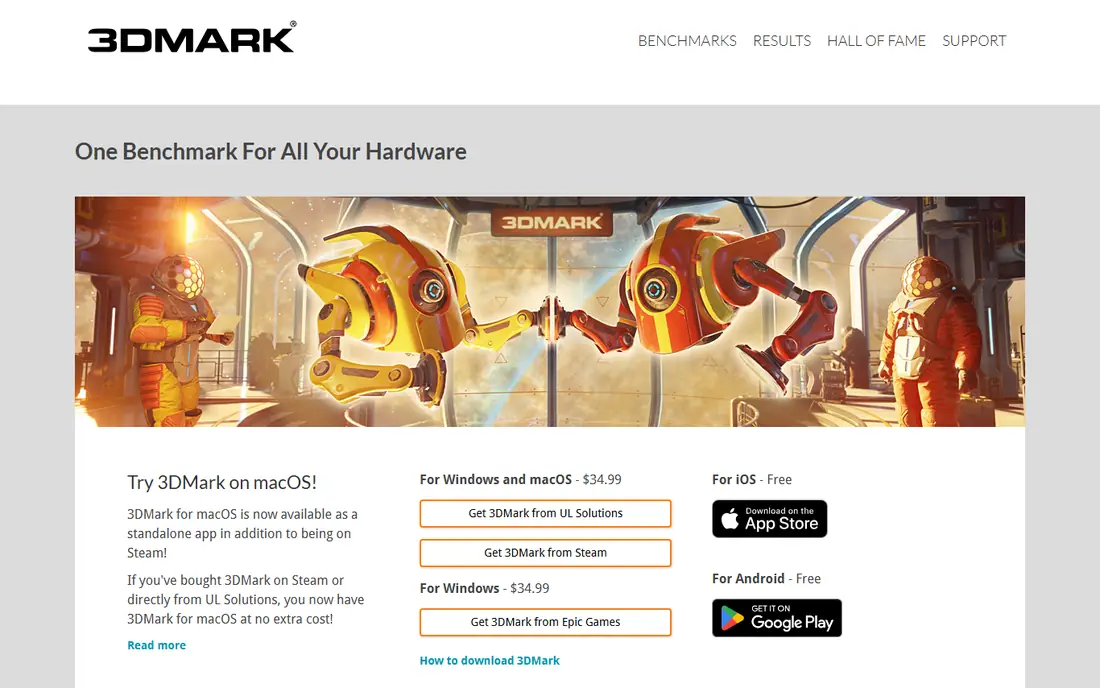
3DMark is the benchmark gamers know, with tests such as Time Spy for DirectX 12 and Steel Nomad for newer graphics features. The full Windows suite costs $34.99, while a free demo on Steam covers popular tests for a first check. Scores let you compare graphics cards and check whether a new card performs as reviews suggest.
The catch is scope. 3DMark stresses graphics first, so pair it with Cinebench for CPU and CrystalDiskMark for storage before judging a whole PC. Also note that ray tracing tests punish older cards hard, which is fair for future games but harsh for a budget build.
- Industry-standard GPU tests
- Time Spy and Steel Nomad cover modern games
- Large result database
- Full suite is paid
- Some tests are large downloads
- CPU tests are secondary
PCMark 10 measures a PC the way an office worker uses it, with tests for web browsing, writing, spreadsheets, video calls and light photo work. The Basic Edition is free and covers the main benchmark, while Advanced at $29.99 adds express and extended tests plus offline result saving. That makes it useful for buyers choosing laptops for a team.
It is less useful for gamers or creators, who should use 3DMark and Cinebench instead. PCMark also runs only on Windows, so Mac buyers should stick with Geekbench and Cinebench for cross-platform numbers.
- Tests based on everyday office tasks
- Battery life tests on higher editions
- Good for procurement
- Windows only
- Advanced Edition costs $29.99
- Full professional features are expensive
PerformanceTest gives every part of your PC its own score, then rolls them into one PassMark Rating. That breakdown helps when one component drags a system down, such as a slow drive hiding behind a fast CPU. The standard test suite is free to try, and a license costs $39, while Linux, Mac and mobile versions are free.
The database is a real asset. You can look up baseline results for a CPU or graphics card and see whether your machine sits near the median or far below it. A result far below the median usually points to heat, power settings or background software rather than a faulty part.
- Per-component CPU, GPU, disk and memory scores
- Huge baseline database
- Runs from a USB drive
- Interface looks dated
- Advanced tests need the paid version
- Windows version is the full product
CrystalDiskMark is the small free tool reviewers use for drive speed. It measures sequential read and write speeds, which matter for copying large files, and random speeds, which matter for loading apps and games. It runs in seconds and needs no install expertise.
Treat results as a snapshot, not a promise. A nearly full SSD, an older SATA connection or a drive without DRAM will all score lower than a review sample. Leave at least 10 percent of the drive free and close other apps before testing.
- Free and simple
- Sequential and random speed tests
- Standard in SSD reviews
- Storage only
- Heavy testing writes data to the drive
- Results vary with drive fill level
Novabench is the fastest way to answer whether a new or second-hand machine performs as it should. It tests CPU, GPU, memory and disk in one run, gives an overall score, and lets you compare with other systems online. For a quick health check before buying a used laptop, it is hard to beat.
Depth is the trade-off. Novabench will tell you something is slow, but PassMark or AIDA64 will tell you more precisely which part and why. Use Novabench first, then dig deeper only if the score looks wrong.
- Free full suite
- Finishes in a few minutes
- Simple overall score
- Smaller comparison database
- Less depth than PassMark
- MacOS and Windows only for full tests
AIDA64 Extreme is a diagnostic tool first and a benchmark second. It identifies almost every component in a system, reports sensor temperatures and voltages, and runs stress tests that push CPU, memory and disks together. That combination makes it popular with technicians checking stability after an upgrade or overclock.
The price is the barrier for casual users, so check the vendor site for current Extreme pricing and trial terms. If you only want a speed number, Geekbench or Novabench will do it free. Choose AIDA64 when you need to know exactly what hardware you have and whether it stays stable under load.
- Extremely detailed hardware detection
- System stability and stress tests
- Sensor monitoring
- Paid software
- Interface is dense
- Benchmark scores are secondary to diagnostics
FurMark renders a furry donut that loads a graphics card as hard as possible, which makes it a stress test rather than a fair speed test. Use it to check cooling, fan noise and stability after installing a new card, and watch temperatures closely while it runs. It is free for Windows.
Do not use FurMark scores to rank graphics cards for gaming, since no game loads a GPU this way. Its value is finding a cooling problem in twenty minutes instead of discovering it during a long gaming session.
- Free
- Pushes GPUs to maximum load
- Useful for stability and cooling checks
- Not a realistic gaming benchmark
- Extreme load can overheat weak cooling
- Scores are not comparable across versions
How we picked these
We compared official product pages, pricing and documentation for benchmark tools that are actively maintained and genuinely measure hardware performance. We favored tools with free versions or trials, a public comparison database, and a clear job, such as CPU, GPU, storage or whole-system testing. Prices shown are starting prices checked in October 2026, and older versions of the same tool use different scoring, so always compare within one version.
How to read benchmark scores without fooling yourself
Compare like with like. A score only means something against the same tool, same version and same test, run under similar conditions. Background apps, power plans, thermals and driver versions all move scores, so run a test twice and use the better run only if conditions were clean both times.
Also remember that synthetic scores are a proxy, not a verdict. A laptop that wins Geekbench may still throttle during a long video export, and a graphics card that wins 3DMark may still stutter in one badly optimized game. Use benchmarks to narrow choices and spot problems, then check real-world tests for the exact work you do.
A simple test routine
For a new PC, run Novabench or Geekbench for an overall check, Cinebench for CPU, 3DMark for graphics and CrystalDiskMark for storage. Save the results, then repeat the same tests after any upgrade or driver change. That baseline is what makes later scores meaningful.
When scores look wrong
A score far below similar machines usually has a boring cause: a laptop on battery saver, a driver that did not install, a dusty cooler, or a background update. Fix those first. If temperatures hit their limit during a stress test, stop the test and improve airflow before running it again.
Sources
- https://www.geekbench.com/
- https://www.maxon.net/en/cinebench
- https://www.3dmark.com/
- https://www.pcmark.com/
- https://www.passmark.com/products/performancetest/
- https://crystalmark.info/en/software/crystaldiskmark/
- https://novabench.com/
- https://www.aida64.com/products/aida64-extreme
- https://geeks3d.com/furmark/
Frequently asked questions
What is the best free benchmark software?
Geekbench 6 for CPU and GPU, Cinebench 2024 for CPU rendering, CrystalDiskMark for SSDs and Novabench for a quick whole-system check are all free for personal use. Together they cover most of a PC without spending anything.
Can benchmarking damage my computer?
Normal benchmarking is safe, since it loads parts the way demanding software does. Sustained stress tests on a machine with poor cooling can overheat it, so watch temperatures and stop if a system throttles hard or shuts down.
Why do my scores differ from reviews?
Reviews use clean installs, controlled temperatures and high-performance power plans. Background programs, power settings, thermals and driver versions all shift scores, so a result within a few percent of a review sample is normal.
Is UserBenchmark a good benchmark?
UserBenchmark is fast and free, but its overall scoring and buying recommendations have been widely criticized, so we did not include it. Its per-part percentile comparisons can still be a useful diagnostic if you treat the headline verdicts with skepticism.
How long does a benchmark take?
Quick tools such as Novabench and Geekbench finish in a few minutes. Cinebench takes about ten minutes for a full run, and 3DMark can take much longer if you run every test. Stress tests should run for at least 20 to 30 minutes to mean anything.