Best Cloning Software in 2026: 8 Tools Compared
By ToolNimba Editorial Team November 9, 2026 10 min read

- Top pick
 Acronis Cyber Protect Home Office
Cloning plus full backup
Starting price$49.99 per yearCheck out Acronis Cyber Protect Home OfficeRead our review - Runner-up
 Macrium Reflect
Dependable Windows cloning
Starting price$49.99 per yearCheck out Macrium ReflectRead our review - Also great
 Clonezilla
Free expert-grade cloning
Starting priceFreeCheck out ClonezillaRead our review
How we researched this
We compared official pricing and feature pages, app store listings, privacy policies and public user reviews. Prices change, so check the provider's site before you pay.
Key takeaways
- Cloning makes an exact, bootable copy of a drive, which is what you want when moving to a new SSD, while imaging makes a compressed backup file for recovery later.
- Clonezilla and Rescuezilla do the core cloning job for free, but Clonezilla suits confident users and Rescuezilla suits beginners who want a graphical interface.
- Acronis and Macrium Reflect cost more because they bundle cloning with scheduled backups, rescue media and extra protection.
- Mac users should start with Carbon Copy Cloner, since most of the other tools on this list are Windows only.
- Test your rescue media once after setup, because a clone you cannot boot from is no help when a drive fails.
Quick comparison
| Name | Best for | Starting price | Free plan | |
|---|---|---|---|---|
| Acronis Cyber Protect Home Office | Cloning plus full backup | $49.99 per year | Free trial | Visit |
| Macrium Reflect | Dependable Windows cloning | $49.99 per year | Free trial | Visit |
| Clonezilla | Free expert-grade cloning | Free | Yes | Visit |
 Rescuezilla | Easy free cloning | Free | Yes | Visit |
 AOMEI Backupper | Free Windows cloning | Free | Yes | Visit |
 EaseUS Todo Backup | Beginner-friendly cloning | $29.95 per year | Yes | Visit |
 Carbon Copy Cloner | Mac cloning and backup | See website | Free trial | Visit |
 Paragon Hard Disk Manager | All-in-one disk toolkit | See website | Free trial | Visit |
The best cloning software
Cloning software copies everything on a drive, including the operating system, apps and settings, so the new drive can boot just like the old one. We compared official feature pages, pricing pages and public reviews to build this list.
Acronis Cyber Protect Home Office
Best for: Cloning plus full backup
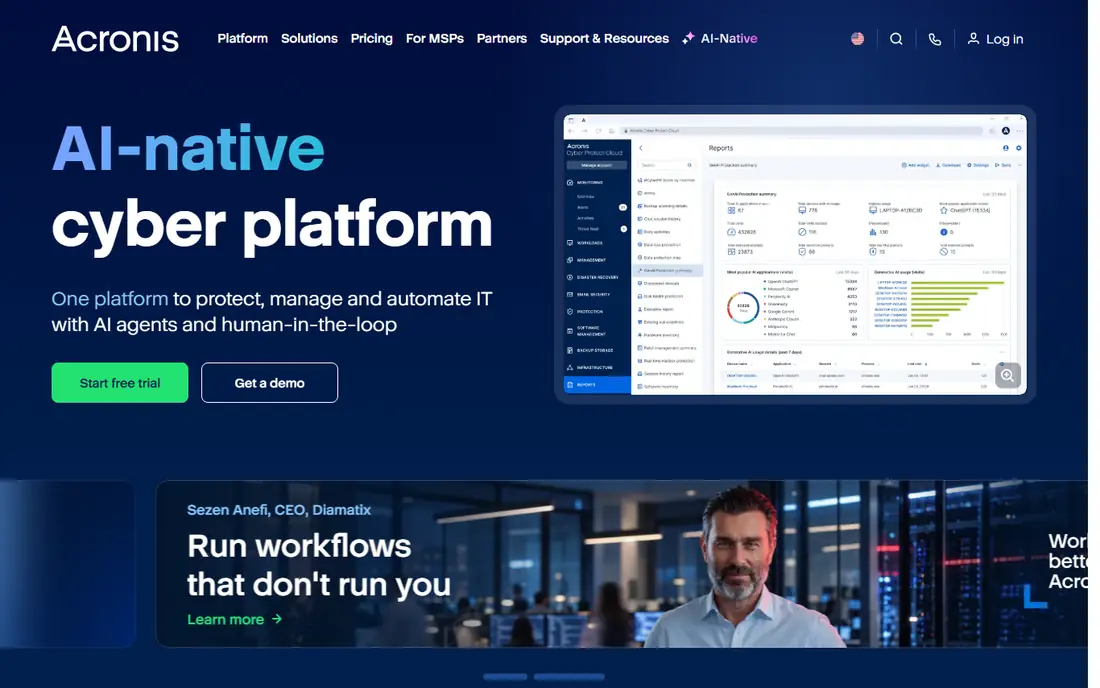
Acronis is the most complete package on this list, and that is both its strength and its weakness. It clones disks, images whole systems, backs up to local drives and Acronis cloud storage, and adds anti-ransomware protection on top. If you want one product that covers every way a drive can fail, this is the most thorough answer we found.
The catch is that you are buying a backup platform, not a simple cloner. The yearly subscription never stops, and for a one-time SSD upgrade it is more than you need. Buy it when you want set-and-forget protection for a household or small business, with cloning as one feature among many.
- Cloning, imaging and cloud backup in one package
- Anti-ransomware protection
- Polished interface with scheduling
- Subscription pricing adds up over time
- More than a pure cloning tool needs
- Product naming has changed often
Macrium Reflect has been the technician's choice for years, and the reason is simple: its clones and images work when it matters. Rapid delta cloning speeds up SSD migrations, scheduled images run quietly in the background, and the rescue media builder produces boot media you can rely on in an emergency.
The trade-offs are clear. Reflect runs on Windows only, and the free edition is gone, so this is now a paid product with a trial. If you image Windows machines regularly and want the tool professionals reach for first, the license is worth it. Occasional users may prefer a free option instead.
- Fast, dependable imaging trusted by technicians
- Strong rescue media builder
- Rapid delta cloning for SSD upgrades
- Windows only
- The former free edition was discontinued
- Paid license required after the trial
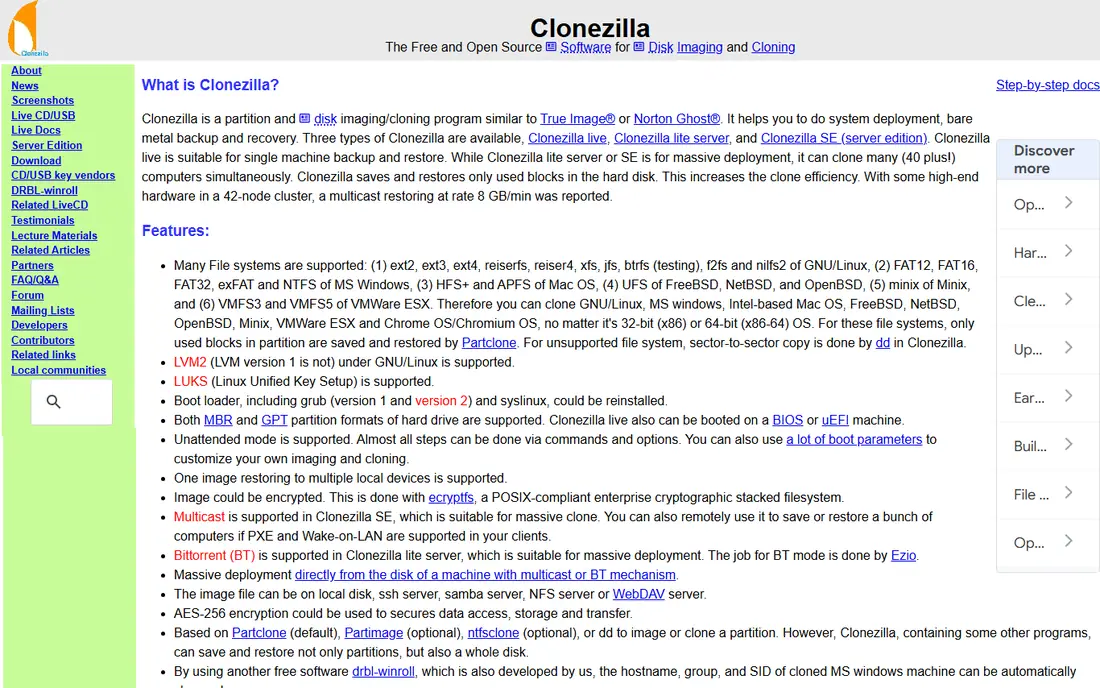
Clonezilla is the free standard for raw disk cloning, and it has earned that place over many years. Boot it from a USB drive and it images or clones entire disks and partitions with industrial reliability. The server edition can send one image to dozens of PCs at once, which is why IT departments keep it in the toolkit.
It is not friendly. The text menus assume you know what a partition is, and there is no scheduling or incremental backup to fall back on. For one-off clones and migrations, though, it is free, fast and proven, and it costs nothing to keep on a USB stick for emergencies.
- Completely free and open source
- Clones disks and partitions fast
- Server edition can deploy images to many machines
- Text-based interface intimidates beginners
- No scheduling or incremental backup
- You must know your partitions
Rescuezilla is the answer for people who like the idea of Clonezilla but not its text menus. It wraps similar cloning power in a graphical interface that boots from a USB drive, so you can clone or restore a whole disk without learning command-line steps. It is free and open source, which makes it an easy recommendation for home users.
The limits show up when you want more than cloning. There is no polished scheduling system or business management console, and support comes from the community rather than a vendor help desk. For a personal SSD upgrade or a rescue job, that trade is easy to accept.
- Graphical interface over Clonezilla-style power
- Free and open source
- Boots from USB for full-disk work
- Fewer backup and scheduling features than paid tools
- Less suited to large managed deployments
- Documentation is community driven
AOMEI Backupper is the free Windows option we would hand to a first-time cloner. The free Standard edition covers disk cloning, system backup and file backup behind a clear interface, and the steps for an SSD migration are easy to follow. It removes the main reason people put off replacing an aging drive.
The paid Professional edition, listed at $39.95 per year, adds features such as scheduled and incremental backups and more flexible restore options. Windows-only support is the main limitation, and heavy users will eventually want the paid tier. For a single upgrade, the free edition is plenty.
- Generous free edition with cloning
- Clear interface for beginners
- Paid Pro edition adds scheduling and more
- Some advanced features sit behind the paid edition
- Windows only
- Free edition lacks some business features
EaseUS Todo Backup is built for people who want cloning explained rather than assumed. The guided workflow walks you through picking a source and a target drive, and the free edition handles basic backup and cloning for home use. It is a calm choice for a first SSD swap.
The paid Home edition, listed at $29.95 per year, adds scheduled backups and more advanced restore tools. Expect upgrade prompts in the free version, and plan your clone for a time when you can leave the machine alone. For straightforward home use, the balance of simplicity and price is hard to beat.
- Simple guided cloning workflow
- Free edition covers basic backup
- Perpetual and yearly options have been offered
- Some features require the paid Home edition
- Interface pushes upgrades
- Cloning large drives takes time on slower hardware
Carbon Copy Cloner is the Mac answer on this list, and it is the one we would pick for a Mac household. It makes bootable backups of a Mac drive, schedules regular copies, and uses snapshots so you can step back to an earlier state. The interface fits macOS conventions instead of feeling like a ported Windows tool.
The limitation is scope: it is Mac only, so mixed-platform homes need a second tool for Windows PCs. Pricing is listed on the vendor site, and a trial lets you check it against your setup before paying. If your machines are all Macs, start here and skip the rest of the list.
- Made for macOS with bootable backups
- Smart scheduling and snapshot support
- Clear interface for Mac users
- Mac only
- Paid license after the trial
- Less useful if you also manage Windows machines
Paragon Hard Disk Manager suits people who want one suite for every disk job. It clones drives, manages partitions, converts between MBR and GPT layouts, and handles backups, which makes it useful for technicians and advanced home users who tinker with drive layouts often.
That breadth is also the drawback. A buyer who only wants to move Windows to a new SSD will find simpler and cheaper paths above. Paragon earns its place for users who partition, convert and clone regularly and want those tools under one roof, with pricing listed on the vendor site.
- Cloning plus partitioning and backup in one suite
- Handles MBR and GPT conversions
- Strong tools for advanced users
- Broad feature set can feel complex
- Pricing varies by edition
- More tool than a one-time upgrader needs
How we picked these
We compared official feature pages, pricing pages, app store listings and public reviews for cloning tools that work in October 2026. We favored tools with a clear cloning workflow, a bootable result, and honest pricing, and we mixed free open-source options with paid suites so readers at different budgets have a real choice. We did not claim hands-on testing, and we left out tools that no longer work or that do not truly clone a bootable drive.
What to check before you clone
Start by confirming the target drive is at least as large as the used space on the source, not just the same nominal size. A 500 GB drive from one maker can hold slightly less than a 500 GB drive from another, and that gap can stop a clone. Check whether your machine boots with UEFI or legacy BIOS, since the clone must match that layout to boot.
Back up anything you cannot replace before you start, even though cloning is meant to preserve data. Keep the old drive untouched until you have booted from the new one and opened your main apps. If the new drive boots and your files open, you can wipe the old drive later. If it does not boot, the old drive is your way back.
Pick by operating system first
Windows users have the widest choice, from free Clonezilla and Rescuezilla to paid Macrium and Acronis. Mac users should go straight to Carbon Copy Cloner, since the Windows tools on this list will not run on macOS. Mixed households should budget for two tools rather than forcing one tool onto both platforms.
Pick by how often you will clone
A one-time SSD upgrade calls for a free tool or a trial, since a yearly subscription buys features you may never use again. Regular backups justify a paid suite with scheduling, incremental images and rescue media. Match the purchase to the habit, not to the biggest feature list.
Sources
Frequently asked questions
What is the difference between cloning and imaging a drive?
Cloning makes an exact, bootable copy on another drive, ready to swap in and start from. Imaging makes a compressed file that stores the drive contents, which you restore later when you need it. Clone when you are upgrading a drive, and image when you are building a backup you can restore after a failure.
Can I clone a larger drive to a smaller SSD?
Yes, if the used space on the source fits on the target and the tool supports shrinking partitions. Most tools on this list handle this, but check the used space first and clean up large files you do not need. If the source is nearly full, move data off it before you clone.
Will cloning copy my operating system and programs?
Yes, a full disk clone copies the operating system, installed programs, settings and files together, so the new drive should boot and behave like the old one. You may still need to reactivate some licensed software after a hardware change, depending on the vendor rules.
Do I need to keep the old drive after cloning?
Keep it until you have booted from the new drive and confirmed your files and apps work. Once you are confident, you can keep it as a spare backup or wipe it for reuse. Wiping it too early removes your fallback if the clone has a problem.
Is free cloning software safe to use?
Free tools such as Clonezilla and Rescuezilla are widely used and open source, which lets the community inspect the code. Safety still depends on care: verify the download source, back up irreplaceable files first, and double-check that you picked the right source and target drives before starting.