Best Content Creation Apps in 2026: 9 Apps Compared
By ToolNimba Editorial Team November 9, 2026 9 min read

- Top pick
 Canva
Everyday graphics, presentations, and short video
Starting priceFreeCheck out CanvaRead our review - Runner-up
 CapCut
Short-form video with captions and templates
Starting priceFreeCheck out CapCutRead our review - Also great
 Adobe Express
Template design tied to Adobe Stock and fonts
Starting priceFreeCheck out Adobe ExpressRead our review
How we researched this
We compared official pricing and feature pages, app store listings, privacy policies and public user reviews. Prices change, so check the provider's site before you pay.
Key takeaways
- Canva and Adobe Express cover most everyday design needs, while CapCut and InShot cover fast mobile video.
- Descript is the best pick for spoken-word video and podcasts, because editing follows the transcript.
- Notion and Grammarly help with planning and clean copy, but they do not replace a video or design editor.
- Pick one design app, one video app, and one planning app, then add more only when a gap blocks real work.
Quick comparison
| Name | Best for | Starting price | Free plan | |
|---|---|---|---|---|
| Canva | Everyday graphics, presentations, and short video | Free | Yes | Visit |
| CapCut | Short-form video with captions and templates | Free | Yes | Visit |
| Adobe Express | Template design tied to Adobe Stock and fonts | Free | Yes | Visit |
 Descript | Editing video and podcasts by editing text | Free | Yes | Visit |
 InShot | Fast vertical video edits on a phone | Free | Yes | Visit |
 Filmora | Desktop video with effects, titles, and audio tools | See website | Free trial | Visit |
 Notion | Planning content, scripts, and publishing calendars | Free | Yes | Visit |
 Grammarly | Clean copy for captions, scripts, and blog posts | Free | Yes | Visit |
 Later | Planning and scheduling visual social content | Free | Yes | Visit |
The best content creation apps
Content creation spans writing, design, video, and publishing, so no single app covers every job well. The apps below each cover a clear part of that workflow, from a first draft to a finished post, and most offer a free plan that is worth testing before you pay.
Canva is the default design app for many creators because it turns an idea into a finished post in minutes. Templates cover social posts, stories, presentations, thumbnails, and short video, and the editor stays simple even for a user with no design training. Pro at $18 per month, or $144 per year, adds premium assets, background removal, Magic Resize, and more storage.
For a creator who publishes daily, Canva saves the most time on repeat formats. Set up a brand kit once, reuse templates, and resize for each platform. The main limits are metered AI use and the single-person Pro license, so teams need Business at $25 per person per month.
- Huge template library
- Easy editor for non-designers
- Brand kits and scheduling on paid plans
- AI use is metered
- Pro is single-person only
- Complex design still needs a dedicated tool
CapCut is built for short-form video, and its speed shows in captions, cuts, and templates. The free editor handles most TikTok, Reels, and Shorts work, including auto-captions and background removal on many exports, while Pro at $19.99 per month, or $179.99 per year, removes Pro template watermarks and adds more tools.
Check asset licenses before publishing commercial work. CapCut grants commercial rights per asset, not per video, so one stock clip marked for non-commercial use can affect a whole video. Use your own footage and assets marked for commercial use when monetization matters.
- Fast captions and templates
- Strong mobile and desktop editors
- Free tier covers many edits
- Pro costs $19.99 per month
- Asset licenses need care for commercial use
- Support is mainly by email
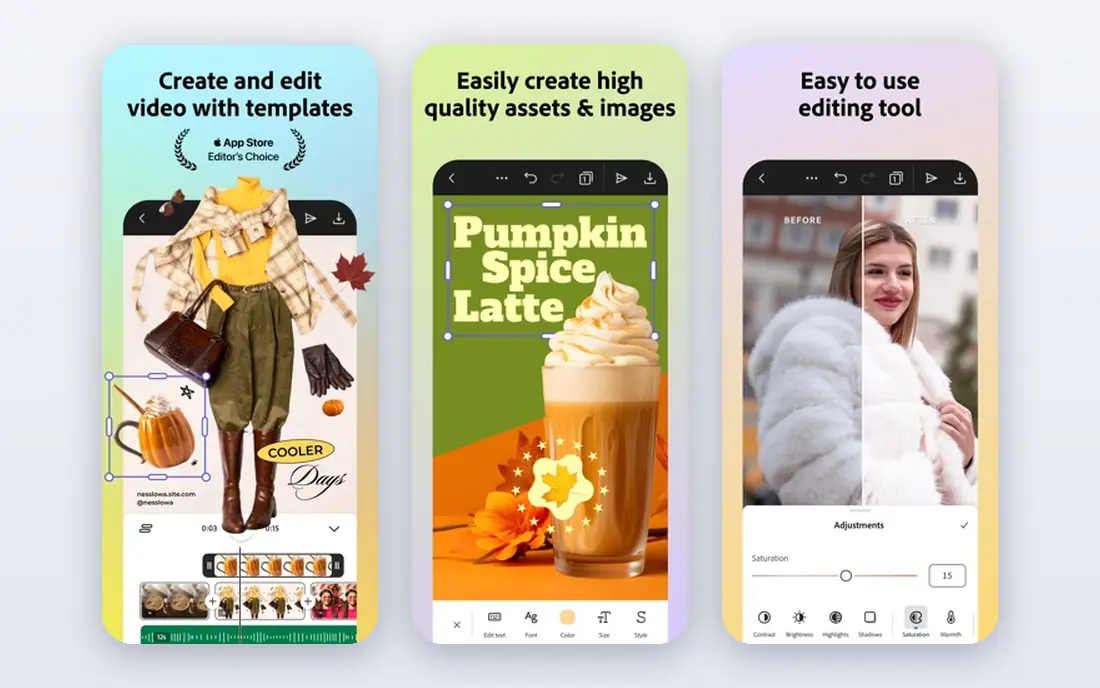
Adobe Express is the Adobe answer to fast template design, and it suits creators who already use Adobe tools or want Adobe Stock images in their posts. The free plan covers many templates and basic editing, while Premium at $9.99 per month adds premium assets, more AI features, and brand controls. It works well for social graphics, flyers, and short video clips.
Compared with Canva, Adobe Express feels more tied to the Adobe system, which is a strength if you use Photoshop or Lightroom and a limit if you want an all-in-one video editor. For everyday design, both are strong, so pick the one whose templates and stock library match your style.
- Strong templates and Adobe Stock access
- Easy brand tools
- Good for social and print basics
- Premium plan costs $9.99 per month
- Fewer video features than CapCut
- Some assets need a paid plan
Descript changes how spoken-word editing works. You edit the transcript, and the video or audio follows, so cutting a rambling answer is as simple as deleting a sentence. It also removes filler words, adds captions, and handles multi-track podcast editing in one workspace. That workflow suits podcasters, interviewers, educators, and talking-head creators.
Paid plans start at $16 per month on annual billing for Hobbyist and $24 per month for Creator, with media hours and AI credits metered per editor. If you mostly edit B-roll heavy or cinematic video, a timeline editor such as Filmora will fit better.
- Transcript editing saves time on spoken content
- Filler-word removal
- Good for podcasts and interviews
- Paid plans start at $16 per month on annual billing for Hobbyist
- Media hours and AI credits are metered
- Less suited to cinematic edits
InShot is a phone-first editor for creators who shoot and post from the same device. Trimming, speed changes, transitions, text, and music are all close at hand, and the layout stays clear on a small screen. Pro has been listed at $4.99 per month, $19.99 per year, or $49.99 as a one-time purchase, which makes it one of the cheapest paid video options here.
The free tier works for testing, but it adds a watermark and ads and limits export resolution. If you post daily vertical video, Pro is a low-cost upgrade that removes those blocks without moving to a desktop editor.
- Simple mobile timeline
- Quick trim, speed, and text tools
- Low cost for Pro
- Free exports carry a watermark and ads
- Free export resolution is limited
- Desktop editing is not the focus
Filmora, from Wondershare, suits creators who have outgrown phone editors and want a desktop timeline. It offers multi-track editing, effects, titles, transitions, audio tools, and AI features for captions and highlight cuts. That range helps YouTube creators, course makers, and small teams who produce longer videos each week.
Pricing varies by perpetual and subscription plans and by platform, so we list it as See website. Test the trial with a real project, especially a longer video, to check export quality and computer performance before you buy.
- Full timeline editor with effects and titles
- Good for YouTube and longer videos
- AI tools for captions and cuts
- Pricing varies by plan and platform
- Free trial exports carry a watermark
- Heavier projects need a capable computer
Notion is where content plans live before they become posts. You can build a content calendar, track ideas, store scripts, manage briefs, and link research in one workspace. The free plan covers solo creators well, while paid plans add more collaboration, version history, and admin controls for teams.
Notion does not edit video or design graphics, so pair it with Canva and CapCut rather than expecting it to do those jobs. Its value is clarity: one place for what to publish, when, and who owns each piece.
- Flexible pages, databases, and calendars
- Good for team content planning
- Free plan covers solo use well
- Not a design or video editor
- Large workspaces can feel slow
- Paid features needed for larger teams
Grammarly helps creators publish cleaner copy with less editing time. The free plan catches spelling and basic grammar issues, while Premium adds clarity, tone, and full-sentence rewrites. It works in browsers, documents, and many apps, so captions, scripts, emails, and blog drafts all benefit.
The limit is scope. Grammarly improves how writing reads, not whether claims are true or ideas are original. Use it as a final polish step after research and drafting, not as a replacement for editing judgment.
- Catches grammar, spelling, and clarity issues
- Works across browser and apps
- Tone suggestions on paid plans
- Free plan is basic
- Premium pricing varies by billing cycle
- It does not check facts or original ideas
Later suits creators whose main output is visual social content. The drag-and-drop calendar makes it easy to plan a week of posts, preview a feed, and schedule across platforms. A link-in-bio tool helps turn profile traffic into clicks, which matters for creators who sell or share links often.
Free plan limits on posts and profiles mean active creators will likely need a paid tier. Check the current price for your profile count before you commit, and compare it with Buffer if scheduling alone is your main need.
- Visual calendar for planning
- Link-in-bio tool
- Useful for Instagram, TikTok, and Pinterest planning
- Free plan has post and profile limits
- Analytics depth varies by tier
- Pricing rises with profiles
How we picked these
We compared official pricing pages, free tiers, and feature sets for apps that cover writing, design, video, and planning for creators and small teams. We favored apps that are still actively sold, offer a usable free tier or trial, and fill a distinct job rather than duplicating another pick. We did not claim hands-on testing, and we used See website where pricing varies by platform or plan.
Build a small stack, not a large one
A workable creator stack is three apps: one for planning, one for design, and one for video. Notion can hold the plan, Canva can handle graphics, and CapCut or Descript can handle video, depending on whether you make short clips or spoken-word shows. Add Grammarly for copy polish and Later for scheduling only when those jobs take real time each week.
Test with a real post before you pay
Free plans reveal more than feature lists. Make one full post, from plan to published video or graphic, in each app you are considering, and note where you hit a watermark, a limit, or a missing export option. That single test often settles a choice that hours of comparison cannot.
Keep brand and file habits simple
Reuse templates, save brand colors and fonts in one place, and name files by date and topic so old posts stay findable. Simple habits save more time than a new app, and they make it easier to hand work to a teammate or editor later.
Sources
Frequently asked questions
What is the best app for content creation?
Canva is the best general pick for design, CapCut is the best pick for short-form video, and Descript is the best pick for spoken-word video and podcasts. The best app depends on whether you mainly design, film, or write, so start with your main output type.
Which software is best for content creation for beginners?
Canva and CapCut are the easiest starting points for beginners, with templates and guided editing. Notion helps with planning, and Grammarly helps with clean copy. All four offer free plans, so a beginner can build a full workflow without paying first.
What are the best content creation tools for social media?
Canva, CapCut, InShot, and Later cover most social needs: design, short video, and scheduling. Adobe Express is a strong alternative to Canva, while Descript suits creators who repurpose podcasts and interviews into clips.
Is there a free content creation app?
Yes. Canva, CapCut, Adobe Express, Descript, InShot, Notion, Grammarly, and Later all offer free plans or trials. Free tiers often add watermarks or limits, so test your exact export needs before relying on a free plan for client work.
What is the best platform for content creation for a small team?
Canva Business and Notion paid plans suit small teams for design and planning, with shared workspaces and brand controls. Add Descript or Filmora for video, depending on content type, and keep one person in charge of final review and publishing.