Best File Sharing Apps for Laptops in 2026: 10 Apps Compared
By ToolNimba Editorial Team November 9, 2026 12 min read

- Top pick
 Google Drive
Everyday sharing and Google docs
Starting price$1.99 per monthCheck out Google DriveRead our review - Runner-up
 Dropbox
Fast sync for large creative files
Starting price$11.99 per monthCheck out DropboxRead our review - Also great
 Microsoft OneDrive
Windows and Microsoft 365 users
Starting price$1.99 per monthCheck out Microsoft OneDriveRead our review
How we researched this
We compared official pricing and feature pages, app store listings, privacy policies and public user reviews. Prices change, so check the provider's site before you pay.
Key takeaways
- Google Drive gives the most generous free storage at 15 GB shared across Google services, while Dropbox gives only 2 GB free but remains one of the smoothest sync tools for large creative files.
- If you send large files once in a while, WeTransfer and Send Anywhere are simpler than a full storage account, since you do not need to manage folders or sync.
- Sync.com, Tresorit, and pCloud are the stronger choices when privacy matters, because they put more weight on encryption and on keeping shared links under your control.
- OneDrive is the natural pick for Windows and Microsoft 365 users, and iCloud Drive makes sense only if most of your devices are Apple products.
- Check link expiry, download limits, and file size caps before you pay, since those limits matter more than headline storage for sharing work.
Quick comparison
| Name | Best for | Starting price | Free plan | |
|---|---|---|---|---|
| Google Drive | Everyday sharing and Google docs | $1.99 per month | Yes | Visit |
| Dropbox | Fast sync for large creative files | $11.99 per month | Yes | Visit |
| Microsoft OneDrive | Windows and Microsoft 365 users | $1.99 per month | Yes | Visit |
 Box | Business sharing and controls | $5 per user per month | Yes | Visit |
 pCloud | Pay once and keep storage long term | $49.99 per year | Yes | Visit |
 Sync.com | Private client sharing | See website | Yes | Visit |
 MEGA | Large free encrypted storage | See website | Yes | Visit |
 WeTransfer | Simple large file sends | $8 per month | Yes | Visit |
 Send Anywhere | Quick device to device sends | See website | Yes | Visit |
 Tresorit | High privacy business sharing | See website | No | Visit |
The best file sharing apps for laptops
A laptop is where sharing gets real: you move folders between work and home, send large video or design files to clients, and keep documents in sync across machines. The apps below all run on Windows or macOS, and most also offer web and mobile access.
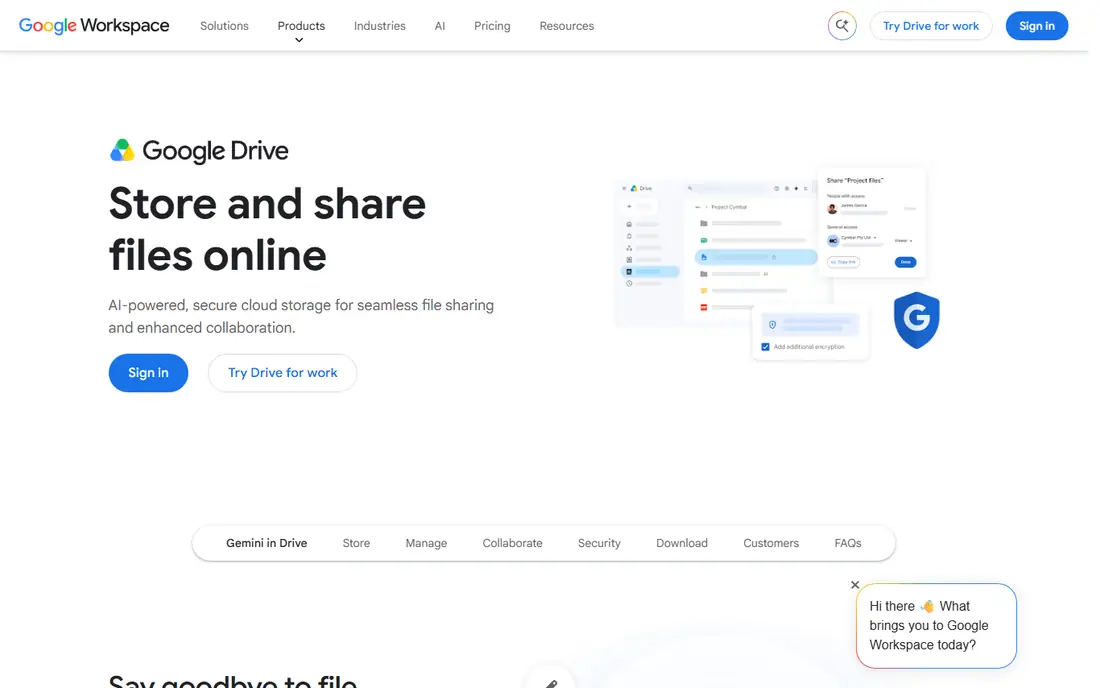
Google Drive is our pick for most laptop users, because it covers storage, sharing, and document editing in one place. You can share a file or a folder by link, set viewer or editor access, and work on Docs, Sheets, and Slides with other people in the same file. The 15 GB free tier is more generous than most rivals, which makes it a practical starting point.
The catch is that the 15 GB is shared with Gmail and Google Photos, so it can fill up faster than it first appears. Drive also encrypts files in transit and at rest, but it does not offer end to end encryption for ordinary files, so it is not the best choice for highly sensitive material. For everyday work, school files, and team documents, it remains hard to beat for value and ease.
- 15 GB free across Google services
- Strong document collaboration
- Easy link sharing
- Free storage fills fast when Gmail and Photos share it
- No end to end encryption by default
Dropbox is the tool many creative teams still reach for when files are large and deadlines are tight. Its sync is fast because it updates only the changed parts of a file, and it handles large video, photo, and design folders with less fuss than many general storage services. Shared folders, file requests, and link controls make client handoffs straightforward.
The free plan is the weak point, at only 2 GB, and it limits how many devices you can link on the free tier. Paid plans start at $11.99 per month for 2 TB when billed monthly, which is more than some rivals charge for similar storage. If you share large files every day, the speed and reliability may justify the price. If you mostly share documents, a cheaper option may serve you just as well.
- Reliable block level sync
- Strong previews
- Simple sharing controls
- Only 2 GB free
- Paid plans cost more than some rivals for the same storage
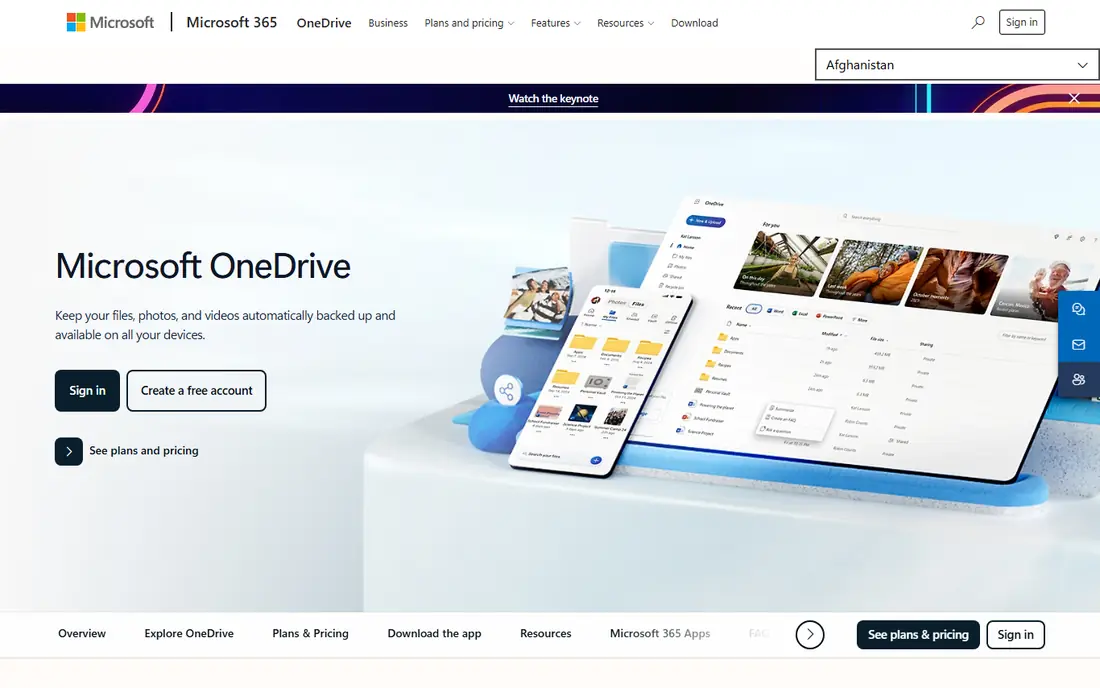
OneDrive is built into Windows, which makes it feel like part of the laptop rather than an extra app. Files sync to File Explorer, Office documents open and save directly, and the Personal Vault adds an extra authentication step for sensitive files. For people who already pay for Microsoft 365, the included 1 TB of storage makes OneDrive very good value.
Outside Microsoft's world, OneDrive is less compelling. The free tier is only 5 GB, and its collaboration tools are strongest when everyone else uses Office too. Mac users can still use it, but they may prefer Drive or Dropbox for a more neutral setup. For Windows-first households and offices, though, OneDrive is the path of least resistance.
- Deep Windows and Office integration
- Personal Vault for sensitive files
- Good value with Microsoft 365
- Only 5 GB free
- Less appealing outside the Microsoft ecosystem
Box is aimed at businesses that need to control who sees what, for how long, and under what rules. Admins can set permissions, track activity, and connect Box to a wide range of workplace apps, which makes it a solid choice for teams handling contracts, client files, and regulated documents. The free personal tier offers 10 GB, which is more generous than Dropbox or OneDrive.
For a single laptop user, Box can feel more formal than needed. Its best controls sit in business plans, and the interface leans toward work rather than casual photo or video sharing. If you share files for a small business, a law office, or a team with compliance needs, that formality is a strength. If you just need to send a folder to a friend, a simpler tool will be faster.
- Strong admin and permission controls
- Wide app integrations
- 10 GB free tier
- Business focus can feel heavy for personal use
- Some features need higher tiers
pCloud stands out because you can pay once for lifetime storage instead of renting it every month. Annual plans start at $49.99 per year for 500 GB, and lifetime plans are also listed on its pricing page, which appeals to people who dislike subscriptions. It offers up to 10 GB free, media playback, and apps for Windows, macOS, and mobile.
The main compromise is encryption. pCloud encrypts files in transit and at rest, but client-side encryption for a private folder is a paid extra, unlike services that encrypt everything end to end by default. It also lacks a built-in document editor, so you will still need another app for collaborative writing. For long-term personal storage and sharing, the lifetime option is a real advantage.
- Lifetime purchase option
- Up to 10 GB free
- Built in media playback
- Encryption is a paid add-on
- No built in document editor like Google
Sync.com is built around privacy. Files are encrypted end to end, so only you and the people you share with can read them, and shared links can be password protected with expiry dates. That makes it a strong choice for accountants, designers, and consultants who send client files from a laptop and need to show that access is controlled.
The trade-off is breadth. Sync.com has fewer integrations than Drive or Dropbox, and its interface is more focused on storage and sharing than on document editing or team chat. Pricing is listed on its site and varies by plan, so check the current rate before you commit. If privacy is your top concern, that narrower focus is a fair exchange.
- End to end encryption by default
- Password protected links
- Generous file history
- Fewer third party integrations
- Pricing varies by plan and region
MEGA offers one of the largest free tiers in this list, at 20 GB, and it encrypts files end to end by default. That combination makes it attractive for students and freelancers who need room without paying right away. Desktop apps sync folders on Windows and macOS, and shared links can be protected with keys and passwords.
MEGA's download transfer allowance is the catch to check. Even paid plans have transfer limits that reset over time, which can slow down heavy sharing. Pricing for paid plans is also shown in euros in some regions, so the dollar cost depends on your location. For moderate sharing and backup, MEGA is generous. For constant large downloads, test the transfer limit first.
- 20 GB free
- End to end encryption
- Apps for desktop and mobile
- Download transfer limits apply
- Paid pricing is shown in euros for some plans
WeTransfer is the simplest tool here, and that is the point. You upload files, send a link or an email, and the recipient downloads them. You do not need to set up folders, sync a whole drive, or teach a client a new app. Paid plans raise the limits and let you control link expiry, with Starter listed at $8 per month.
The free plan is limited to a set number of transfers and total size in a rolling 30-day window, and links expire after up to three days. That makes WeTransfer a poor choice for permanent storage, but an excellent one for sending a finished video, a photo set, or a design package once. If you send files daily, a storage service will be cheaper in practice.
- No account needed for basic sends
- Simple link or email delivery
- Good for one-off files
- Free sends are capped by transfers and total size
- Links expire after a few days
Send Anywhere is made for moving a file from one device to another without a long setup. You get a short key code or a link, enter it on the receiving laptop or phone, and the file transfers directly. It works across Windows, macOS, Android, and iOS, which helps when you are moving files between a laptop and a phone.
It is not a replacement for cloud storage. Files are sent, not stored long term in a synced folder, and frequent or very large sends may push you toward a paid plan, with pricing shown on its site. For the common job of getting a file off one laptop and onto another quickly, Send Anywhere is one of the fastest options in this list.
- Simple key code sharing
- Works across devices
- No full account setup for basic sends
- Not a full storage service
- Larger or frequent sends may need a paid plan
Tresorit is the most privacy-focused business option here. It uses zero knowledge encryption, meaning even Tresorit cannot read your files, and it offers detailed controls over who can view, edit, or download shared content. That makes it a good fit for legal, health, and finance teams that share sensitive files from laptops and need a clear security story.
There is no free plan, and pricing is quoted on its site, which puts it above general storage for personal use. Its app ecosystem is also smaller than Drive or Dropbox, so you may still use other tools for editing and chat. If your sharing involves sensitive client data, Tresorit's privacy model may justify the cost. For casual sharing, it is more than most people need.
- Zero knowledge encryption
- Granular access controls
- Strong compliance focus
- No free plan
- Higher cost than general storage
- Smaller app ecosystem
How we picked these
We compared official pricing pages, free tiers, and feature pages for storage and transfer services that offer desktop apps for Windows or macOS. We favored services that are still available, that support link sharing or direct transfer, and that cover different needs: everyday documents, large creative files, and private client work. We did not claim hands-on speed testing, and we used vendor pricing where we could verify it, writing See website where pricing varies by region or plan.
What to check before you share from a laptop
Start with the job, not the storage size. If you collaborate on documents, choose a service with good editing and commenting. If you send finished files, a transfer tool may be simpler and cheaper than a full drive. Check three limits before you pay: the maximum file size, the link expiry, and any download or transfer allowance.
Also think about who receives your files. A client who uses Google will have the easiest time with Drive, while a Windows office will be smoother on OneDrive. For sensitive files, use password protected links, set an expiry date, and remove the link once the recipient has downloaded the file. Finally, keep a local copy of anything important. Cloud sharing is convenient, but a laptop backup protects you if an account, a link, or a service changes.
Sources
Frequently asked questions
What is the best free file sharing app for a laptop?
Google Drive is the best free starting point for most people, with 15 GB shared across Google services and easy link sharing. MEGA gives 20 GB free with encryption, while WeTransfer is better for one-off large sends without an account.
How do I share large files from a laptop without email limits?
Use a transfer service such as WeTransfer or Send Anywhere for one-off sends, or a cloud drive such as Dropbox or Drive for files you share often. Email attachments are usually capped at around 25 MB, while these services handle files in gigabytes, subject to plan limits.
Is it safe to share files by link?
Link sharing is safe when you use it with care. Set links to view only when editing is not needed, add a password where the service offers one, set an expiry date, and turn the link off after download. For sensitive files, prefer a service with end to end encryption, such as Sync.com or Tresorit.
Do I need to install an app to share files from a laptop?
No. Most services in this list work in a browser, and transfer tools such as WeTransfer work without an account for basic sends. A desktop app helps when you sync folders often, since it keeps files updated in the background without manual uploads.
Which app is best for sharing files with clients?
Dropbox and Drive are the easiest for most clients, since recipients usually already have an account or can open a link without one. For private client work, Sync.com adds encryption and link controls, while Box adds admin controls for teams that need to track access.