Best Screen Record App in 2026: 9 Apps Compared
By ToolNimba Editorial Team November 9, 2026 8 min read

- Top pick
 OBS Studio
Free professional capture
Starting priceFreeCheck out OBS StudioRead our review - Runner-up
 Camtasia
Polished tutorials with editing
Starting price$179.88 per yearCheck out CamtasiaRead our review - Also great
 Loom
Fast record-and-share by link
Starting price$18 per user per monthCheck out LoomRead our review
How we researched this
We compared official pricing and feature pages, app store listings, privacy policies and public user reviews. Prices change, so check the provider's site before you pay.
Key takeaways
- OBS Studio is the best free screen recorder, with no watermark, no time limit, and professional multi-track capture.
- Camtasia is the best recorder-plus-editor for polished tutorials, starting at $179.88 per year.
- Loom is the fastest way to record and share a quick explanation by link, with a useful free tier.
- ScreenFlow is the best Mac-only option, with a strong editor for $199 one-time.
- ScreenPal is the best budget all-rounder, starting around $3 per month with apps for nearly every device.
Quick comparison
| Name | Best for | Starting price | Free plan | |
|---|---|---|---|---|
| OBS Studio | Free professional capture | Free | Yes | Visit |
| Camtasia | Polished tutorials with editing | $179.88 per year | Free trial | Visit |
| Loom | Fast record-and-share by link | $18 per user per month | Yes | Visit |
 ScreenFlow | Mac lessons with real editing | $199 one-time | Free trial | Visit |
 ScreenPal | Budget all-rounder | $3 per month | Yes | Visit |
 ShareX | Windows power users | Free | Yes | Visit |
 Snagit | Short clips and documentation | $39 per year | Free trial | Visit |
 Screencastify | Browser and Chromebook recording | $7 per user per month | Yes | Visit |
 Bandicam | High-performance game capture | $33.26 per year | Free trial | Visit |
The best screen record app
Screen recording covers several jobs: quick explanations for coworkers, polished tutorials, game capture, and support clips. The apps below range from completely free to professional editors, so the right pick depends on whether you need editing, sharing speed, or just a clean capture.
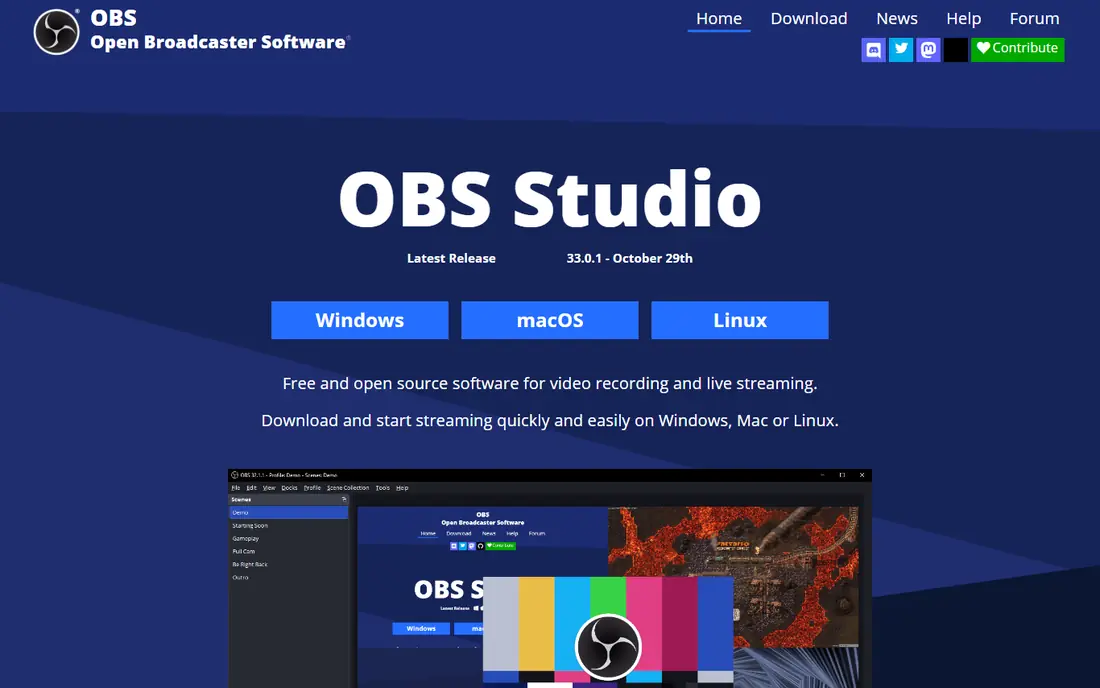
OBS Studio is the best free screen recorder and the default recommendation for creators who want control. It handles long recordings, multi-source layouts, separate mic and system audio tracks, and high resolutions without charging anything or adding a watermark. Streamers and university departments use it daily.
The price is paid in time. Setup takes patience, the interface is functional rather than friendly, and there is no editor, so you will export to another app for cuts. If you already edit elsewhere or want the best free capture available, OBS is our top pick.
- Completely free with no watermark
- No time limit
- Multi-source scenes and separate audio tracks
- No built-in editor
- Setup takes patience
- Interface is functional rather than friendly
Camtasia is the strongest pick when you need to record and edit in one place. It captures screen, webcam, and system audio on separate tracks, then gives you a timeline for trims, callouts, zooms, and captions, so a tutorial goes from recording to finished video without switching apps. Essentials starts at $179.88 per year, with a trial that exports with a watermark.
It needs reasonable hardware, with 8GB of RAM at minimum, and the subscription model replaced perpetual licenses for new versions. For training and onboarding teams that publish weekly, the bundled editing earns its price. Occasional recorders should pair OBS with a free editor instead.
- Recorder plus full editing timeline in one app
- Cursor effects, callouts, and zooms
- Templates and captions
- Subscription only since 2025
- Needs decent hardware
- Overkill for occasional clips
Loom wins on speed. Record your screen and webcam, and the video is ready to share by link almost immediately, with trimming and light cleanup built in. That record-and-share loop makes it ideal for async explanations, feedback, and support answers where a meeting would waste everyone's time.
Deep editing belongs elsewhere, and paid plans start at $18 per user per month billed annually. The free tier covers casual use well. For teams replacing meetings with short videos, Loom is the fastest tool on this list.
- Record and share by link in seconds
- Trim and light cleanup built in
- AI summaries on paid plans
- Paid plans start at $18 per user per month billed annually
- Cloud-first workflow
- Limited deep editing
ScreenFlow sits between a recorder and a proper video editor for Mac users. It captures screen, webcam, iOS devices, and multiple audio sources, then offers a layered timeline with transitions and motion graphics. Long lectures record smoothly thanks to hardware acceleration on Apple silicon. Pricing is $199 one-time, with a trial available.
It is Mac only, full stop, and the upfront price is higher than a month of a subscription tool. For Mac-based creators who edit their own lessons, ScreenFlow is the best value over time.
- Strong layered editor
- Smooth long recordings on Apple silicon
- One-time purchase
- Mac only
- No subscription option confusion aside, price is upfront
- Smaller template library
ScreenPal, formerly Screencast-O-Matic, is the budget all-rounder. It runs on nearly every device, including Chromebooks, and covers recording plus a moderate editor, hosting, and sharing. Paid plans start around $3 per month, which undercuts almost everything else here.
The free tier has limits, and the editor will not match Camtasia or ScreenFlow for complex projects. For schools, small teams, and anyone who needs a capable recorder on many devices for very little money, ScreenPal is hard to beat.
- Very low starting price
- Apps for Windows, Mac, Chromebook, iOS, and Android
- Decent editor
- Free tier has limits
- Editor is moderate, not pro-level
- Cloud features need paid plans
ShareX is the Windows power user's capture utility. It records video and screenshots, with an enormous range of automated workflows: capture, annotate, upload, and copy a link in one keystroke. It is free, open source, and watermark-free.
The interface is utility-first, which can overwhelm beginners, and there is no video editor. For Windows users who capture constantly and want total control over what happens after capture, ShareX is the best free utility available.
- Completely free with no watermark
- Huge workflow and upload options
- Screenshots plus video
- Windows only
- Utility-first interface
- No built-in video editor
Snagit, also from TechSmith, pairs screenshot capture with short video recording and strong annotation tools. Support teams and technical writers use it to document steps quickly: capture, annotate with arrows and callouts, and share. Pricing starts at $39 per year, with a trial available.
It is not a course editor, and long tutorials belong in Camtasia. For short how-to clips and documentation, Snagit is the fastest path from screen to explained image or video.
- Best screenshot plus short video combo
- Annotation tools
- Great for support docs
- Not a full tutorial editor
- $39 per year for a focused tool
- Video length suits clips, not courses
Screencastify is the browser-based pick, built for Chromebooks and classrooms. It records from Chrome with webcam and narration, shares easily, and keeps the workflow simple enough for students and teachers. A free tier covers basic use, with paid plans from $7 per user per month billed annually.
Browser capture has limits compared with desktop tools, and editing stays basic. For schools and teams standardized on Chromebooks, Screencastify is the most practical recorder available.
- Runs in the browser, ideal for Chromebooks
- Classroom-friendly
- Simple sharing
- Browser limits on advanced capture
- Paid plans from $7 per user per month billed annually
- Editing is basic
Bandicam is built for high-performance capture of games and applications, with low system impact so recording does not slow down what you are playing. It handles long sessions well and produces clean, high-frame-rate footage. Pricing starts around $33.26 per year, with a trial that caps recordings at five minutes.
It is Windows-focused and the interface shows its age. For gamers and app demo creators who need smooth, high-frame-rate capture, Bandicam is a proven, affordable choice.
- High-performance capture for games and apps
- Low system impact
- Long recording support
- Windows-focused
- Trial caps recordings at 5 minutes
- Interface is dated
How we picked these
We compared official pricing pages and independent 2026 comparisons of screen recorders, favoring tools with current availability in October 2026, a real free tier or trial, and a clear job: free capture, tutorial editing, quick sharing, or game recording. We mixed desktop, browser, and mobile-friendly tools. Prices change often, so confirm on each vendor page before you pay. We did not test every recorder hands-on; our comparison rests on published features, pricing, and public reviews.
Choosing by your recording job
Match the tool to the job. Quick explanations for coworkers belong to Loom, polished courses belong to Camtasia or ScreenFlow, free professional capture belongs to OBS, and game footage belongs to Bandicam. Schools and Chromebook users should start with Screencastify or ScreenPal, while Windows power users get the most from ShareX.
Check three limits before paying: recording length caps on free and trial tiers, watermark rules, and export resolution. A cheap plan that watermarks exports or caps recordings at five minutes is not a bargain if you publish regularly.
Sources
- https://swarmify.com/blog/screen-recorder-app-the-best-options-at-your-disposal/
- https://rankite.com/blog/best-screen-recording-software-for-tutorials
- https://obsproject.com
- https://www.techsmith.com
- https://www.loom.com
- https://www.telestream.net
- https://screenpal.com
- https://getsharex.com
- https://www.screencastify.com
- https://www.bandicam.com
Frequently asked questions
What is the best free screen recorder?
OBS Studio is the best free screen recorder, with no watermark, no time limit, and professional multi-track capture. ShareX is the best free utility for Windows power users. Both are free and open source, though neither includes a built-in video editor.
Can I record my screen without installing software?
Yes. Screencastify runs in the browser and works well on Chromebooks, and Loom offers browser recording too. Built-in OS tools on Windows, Mac, and ChromeOS also capture without installs. Browser tools suit quick clips, while desktop tools handle longer and more demanding recordings better.
What is the best screen recorder for tutorials?
Camtasia is the best recorder-plus-editor for tutorials, with a full timeline, callouts, and captions in one app. ScreenFlow is the best Mac alternative with a one-time price. If you already own an editor, OBS Studio plus that editor gives similar results for free.
Does screen recording software add a watermark?
Free tiers and trials often do. OBS Studio and ShareX never add watermarks, since they are free and open source. Camtasia's trial exports carry a watermark, and Bandicam's trial caps recordings at five minutes. Paid plans remove these limits.
How much does screen recording software cost?
Entry prices here run from free to $199 one-time for ScreenFlow, with subscriptions from $3 per month for ScreenPal to $179.88 per year for Camtasia. Loom starts at $18 per user per month billed annually. Free tools cover many needs, so pay only when you need editing, sharing, or watermark-free exports.