Best Free Caption Apps for YouTube Videos in 2026: 9 Apps Compared
By ToolNimba Editorial Team November 8, 2026 10 min read

- Top pick
 CapCut
Free auto captions in a full editor
Starting price$19.99 per monthCheck out CapCutRead our review - Runner-up
 Kapwing
Browser captions and team editing
Starting price$16 per monthCheck out KapwingRead our review - Also great
 VEED
Browser subtitles and translation
Starting price$12 per monthCheck out VEEDRead our review
How we researched this
We compared official pricing and feature pages, app store listings, privacy policies and public user reviews. Prices change, so check the provider's site before you pay.
Key takeaways
- CapCut and Clipchamp offer the most usable free auto captions, while most other tools limit free exports with watermarks, minutes, or video length.
- For YouTube, a subtitle file such as SRT or VTT matters as much as burned-in captions, since YouTube can use the file for search, translation, and viewer captions.
- VEED and Kapwing are the strongest browser options for longer YouTube videos, because they combine caption editing with subtitle file export and translation.
- Submagic and Captions are built for short, animated captions, which suit Shorts and clips more than a full-length YouTube tutorial.
- Always proofread auto captions before publishing, since names, technical terms, and accented speech are where automatic tools make the most errors.
Quick comparison
| Name | Best for | Starting price | Free plan | |
|---|---|---|---|---|
| CapCut | Free auto captions in a full editor | $19.99 per month | Yes | Visit |
| Kapwing | Browser captions and team editing | $16 per month | Yes | Visit |
| VEED | Browser subtitles and translation | $12 per month | Yes | Visit |
 Descript | Editing video through the transcript | $24 per month | Yes | Visit |
 Submagic | Animated short-form captions | $19 per month | Free trial | Visit |
 Captions | Phone-first animated captions | $9.99 per month | Free trial | Visit |
 Clipchamp | Free captions on Windows and web | Free | Yes | Visit |
 Zubtitle | Simple captioned social clips | $19 per month | Yes | Visit |
 Subly | Multilingual subtitle files | See website | Yes | Visit |
The best free caption apps for YouTube videos
YouTube viewers watch with sound off more often than creators expect, and captions also help viewers who are deaf or hard of hearing, viewers in noisy rooms, and viewers who speak another language. The tools below generate captions automatically, let you edit the text, and in most cases export a subtitle file you can upload to YouTube.
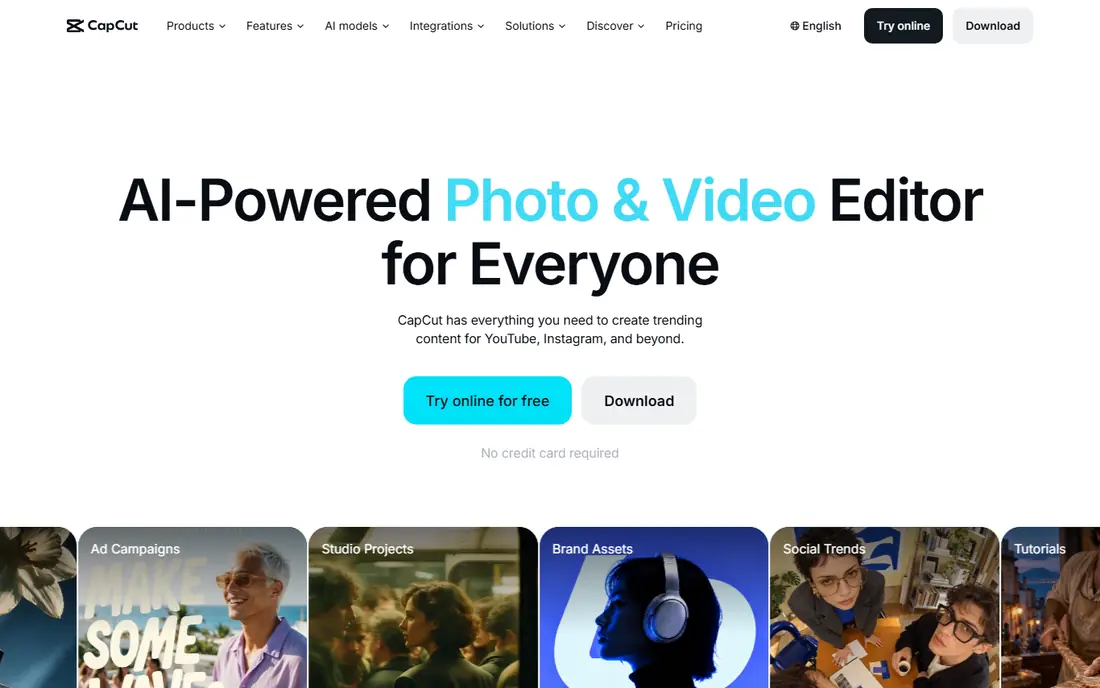
CapCut is our pick for most YouTube creators who want free captions without a steep learning curve. Auto captions are included in the free tier, and you can edit the font, size, color, and animation before exporting. It also works as a full editor, so you can trim, add music, and prepare a video for YouTube in the same app.
The catch is that the free plan is not unlimited in every respect, and the Pro price of $19.99 per month can vary by region and platform. Some caption styles and effects sit behind Pro, so check the exact plan in your app store before you rely on a specific look. For everyday YouTube videos, though, the free auto captions alone make CapCut hard to beat.
- Usable free auto captions
- Large text and effect library
- Mobile and desktop apps
- Paid plan price varies by region
- Some advanced caption styles need Pro
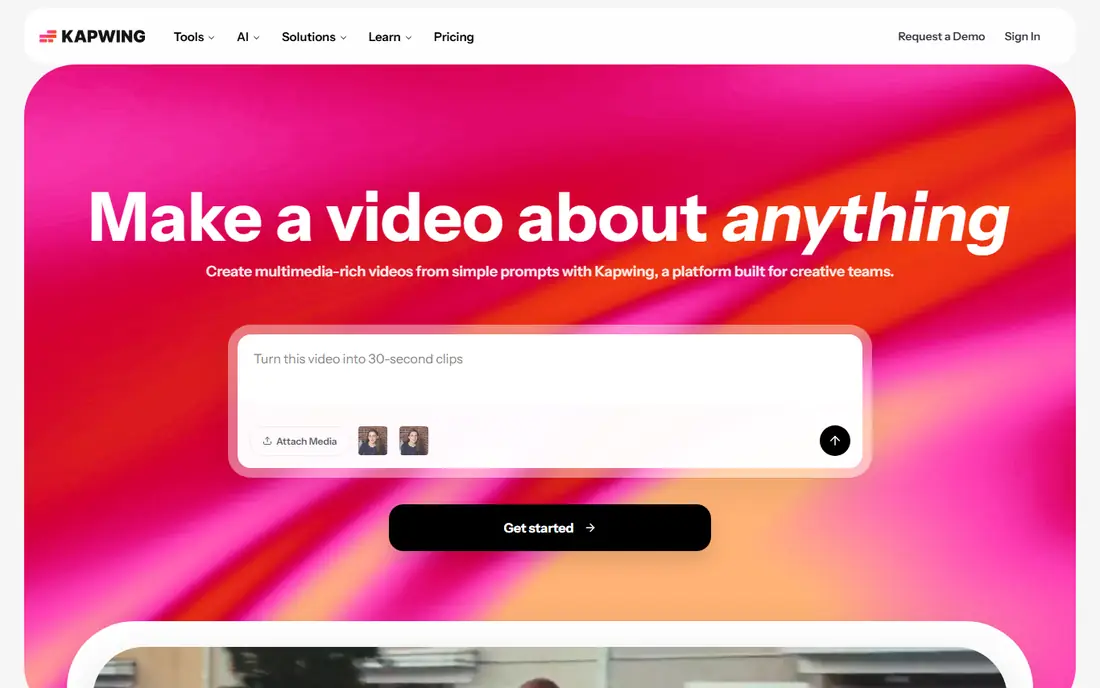
Kapwing runs in a browser, which makes it a good choice for creators who switch between laptops or work with a team. You upload a video, generate subtitles, edit the text in a side panel, and export burned-in captions or a subtitle file. Translation into many languages is a useful extra for YouTube channels with an international audience.
The free plan is limited. Free exports carry a watermark, video quality is capped, and subtitle minutes are limited, with Pro listed at $16 per member per month when billed annually. If you caption one video a week, the free tier may be enough to test the workflow. If you publish daily, plan on paying for watermark-free exports and more minutes.
- Browser based with no install
- Subtitle translation
- Collaborative editing
- Free exports carry a watermark
- Free subtitle minutes are limited
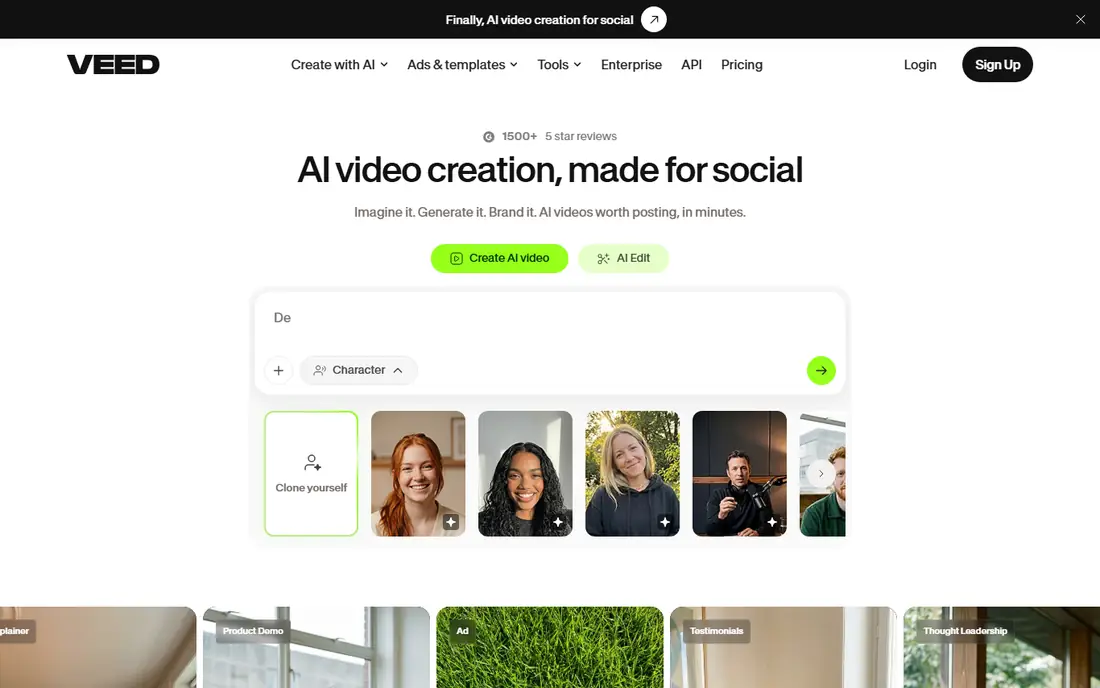
VEED is a strong browser option for YouTube creators who want clean subtitle files as well as styled captions. Auto subtitles cover many languages, and you can export SRT, VTT, or TXT files for upload to YouTube, or burn captions into the video for Shorts and social clips. The editor also handles trimming, resizing, and basic cleanup in the same project.
Free exports carry a watermark, and some subtitle downloads and longer video features need a paid plan, with Lite listed at $12 per month when billed annually. That makes VEED best as a paid tool for regular publishers, with the free tier serving as a trial. For channels that publish in more than one language, the translation and file export options justify a closer look.
- Subtitles in many languages
- SRT, VTT, and TXT export
- Full browser editor
- Free exports carry a watermark
- Longer videos and subtitle downloads need a paid plan
Descript takes a different approach: it transcribes your video, and you edit the video by editing the words. Delete a sentence in the transcript, and the matching video is removed. That makes fixing caption errors feel natural, since you correct the text and the timing follows. Captions can be styled and exported for YouTube, and the transcript itself is useful for descriptions and blog posts.
The free plan gives you a useful taste, but exports are capped at lower resolution and some features need a paid plan, with Hobbyist listed at $24 per month. Descript is also more than a caption tool, so it takes longer to learn than CapCut or Clipchamp. If you edit talking-head YouTube videos often, the transcript workflow can save real time once you learn it.
- Edit video by editing text
- Strong transcript accuracy for clear speech
- Caption styling built in
- Free exports are limited to lower resolution
- Learning curve for new users
Submagic is built for the animated, word-by-word caption style that performs well on Shorts, Reels, and TikTok. You upload a clip, choose a style, and get bold, highlighted captions that move with the speech. It supports many languages, and the styling options are more polished than most general editors offer for short clips.
Submagic is less suited to a full-length YouTube tutorial. There is no permanent free plan, only a trial, and Starter at $19 per month caps video length per file, with longer videos needing higher tiers. Use Submagic for clips and Shorts that promote a longer YouTube video, and use a subtitle-file tool for the full video itself.
- Animated word by word captions
- Many languages
- Fast styling for Shorts
- No permanent free plan
- Video length caps on lower tiers
Captions, formerly known as Captions AI, is a phone-first app for creators who film, caption, and post from one device. It offers many animated templates on paid plans, and it is well suited to talking-head videos where the caption style is part of the look. The workflow is quick: record or import, generate captions, pick a style, and export.
The free plan is narrow, with only one caption template, and the fuller template library sits on paid plans, with Pro listed at $9.99 per month in some listings and a higher Max plan for the full set. For YouTube Shorts made on a phone, Captions is a strong pick. For long YouTube videos edited on a laptop, a browser tool will be more practical.
- Many caption templates on paid plans
- Fast phone workflow
- Good for talking-head clips
- Free plan offers only one template
- Some features need the higher Max plan
Clipchamp is the quiet value pick in this list. Auto captions are free for all users, and you can download an SRT file for YouTube, which is exactly what many creators need. It runs in a browser and is built into Windows, so there is no extra install for many laptop users, and the editor covers trimming, titles, and basic effects.
Clipchamp is less flashy than Submagic or Captions. It supports one spoken language per video, and its caption styles are more plain than animated short-form templates. If your goal is clear, accurate captions for a standard YouTube video, that plain approach is a strength. If you want bold animated captions for Shorts, pair Clipchamp with a short-form tool.
- Auto captions free for all users
- SRT download
- Works in browser and on Windows
- One spoken language per video
- Fewer animated styles than short-form apps
Zubtitle does one job well: it adds captions, a headline, and a progress bar to a social clip, then resizes it for different formats. That focus makes it easy to learn, and it suits creators who already edit in another app and just need captioned clips for promotion. The free tier lets you try the workflow, with paid plans starting at $19 per month.
Zubtitle is not a full editor, so you will still need another tool for trimming, music, and longer YouTube edits. Its free tier is also limited, which means regular publishers will need to pay. If you want a simple, no-fuss caption step for clips, Zubtitle is worth trying. If you want an all-in-one editor, start with CapCut or Clipchamp instead.
- Simple focused workflow
- Headlines and progress bars
- Resizing for social formats
- Limited free tier
- Not a full video editor
Subly is a good pick when your main need is a subtitle file in more than one language. One upload can produce subtitles in many languages, which helps a YouTube channel reach viewers who do not speak the original language. The workflow is simple: upload, generate, edit, and download the file for YouTube.
Subly is not a full video editor, and it does not try to be one. You will still edit the video itself elsewhere, and paid pricing is shown on its site and can vary. For creators who already have an editor and just need accurate, multilingual subtitles, Subly fills that gap cleanly without adding a heavy new tool to learn.
- Subtitles in many languages
- Simple subtitle file workflow
- Free tier to try
- Not a full video editor
- Paid pricing varies
How we picked these
We compared official pricing pages, free tiers, and feature pages for caption tools that generate captions automatically and export either burned-in captions or a subtitle file. We favored tools that are still available, that support YouTube uploads, and that cover different creator needs: free everyday captions, browser editing, phone-first Shorts, and multilingual subtitles. We did not claim hands-on accuracy testing, and we wrote See website where pricing varies by region or plan.
How to get captions right on YouTube
Start by choosing the right output. For a standard YouTube video, upload an SRT or VTT file so viewers can turn captions on or off, and YouTube can use the text for search and translation. For Shorts and social clips, burn captions into the video, since many viewers watch without sound and without tapping for captions.
Next, proofread the auto captions, especially names, brand terms, and numbers. Automatic tools handle clear, slow speech well, but they struggle with overlapping voices, heavy accents, and technical words. Finally, keep captions readable: use a clear font, a contrasting background or outline, and no more than two lines at a time. A caption that is hard to read helps no one, however accurate the words are.
Sources
Frequently asked questions
What is the best completely free caption app for YouTube?
Clipchamp and CapCut are the strongest free options, since both offer usable auto captions without paying. Clipchamp is best for a clean SRT file for YouTube, while CapCut is best if you also want styling and a full editor in the same app.
Can I upload captions to YouTube as a file?
Yes. YouTube accepts subtitle files such as SRT and VTT, which you can upload in YouTube Studio for a specific video and language. This lets viewers turn captions on or off, and it keeps the captions separate from the video itself, which is better for translation and search.
Do auto captions work well enough to publish without editing?
Auto captions are a strong starting point, but they still need a quick proofread. Names, technical terms, and fast or overlapping speech are common error points. A short review pass, especially at the start and end of a video, catches most mistakes before viewers see them.
What is the difference between burned-in captions and YouTube subtitles?
Burned-in captions are part of the video image and cannot be turned off, which suits Shorts and social clips watched without sound. YouTube subtitles from an SRT or VTT file can be turned on or off by the viewer, translated, and searched, which suits longer videos.
Are free caption apps safe for my videos?
Reputable tools in this list process video on their servers or in your browser, and they publish privacy policies that describe retention. For sensitive or unpublished material, check the retention policy, delete source files after export, and prefer a desktop tool or a paid plan with clearer data controls when the content is confidential.