Best Free Disk Cloning Software in 2026: 9 Tools Compared
By ToolNimba Editorial Team November 10, 2026 9 min read

- Top pick
 Clonezilla
Expert free cloning
Starting priceFreeCheck out ClonezillaRead our review - Runner-up
 Rescuezilla
Graphical free cloning
Starting priceFreeCheck out RescuezillaRead our review - Also great
 AOMEI Backupper
Free Windows cloning
Starting priceFreeCheck out AOMEI BackupperRead our review
How we researched this
We compared official pricing and feature pages, app store listings, privacy policies and public user reviews. Prices change, so check the provider's site before you pay.
Key takeaways
- Clonezilla is the most capable free cloner, while Rescuezilla adds a friendly graphical interface on top of similar power.
- For a simple Windows SSD upgrade, AOMEI Backupper, EaseUS Todo Backup and Hasleo cover the job without payment.
- Samsung Data Migration is free but only works when the target drive is a Samsung SSD.
- Always test that the cloned drive boots before you wipe or reuse the old drive.
Quick comparison
| Name | Best for | Starting price | Free plan | |
|---|---|---|---|---|
| Clonezilla | Expert free cloning | Free | Yes | Visit |
| Rescuezilla | Graphical free cloning | Free | Yes | Visit |
| AOMEI Backupper | Free Windows cloning | Free | Yes | Visit |
 EaseUS Todo Backup | Friendly Windows backup and cloning | Free | Yes | Visit |
 Hasleo Backup Suite | Free Windows-native cloning | Free | Yes | Visit |
 Samsung Data Migration | Samsung SSD upgrades | Free | Yes | Visit |
 DiskGenius | Cloning plus partition tools | Free | Yes | Visit |
 Macrium Reflect | Reliable paid cloning with trial | See website | Free trial | Visit |
 Acronis Cyber Protect Home Office | Full backup suite with cloning | See website | Free trial | Visit |
The best free disk cloning software
Disk cloning copies a whole drive, including the operating system, programs and boot data, onto another drive so the new drive can take over immediately. That makes it the right tool for an SSD upgrade or a failing drive replacement. These picks all offer a free tier or a free trial, with the genuinely free tools listed first.

Clonezilla is the standard answer for free cloning, and it has earned that place over many years. It runs from a bootable USB drive, copies only used blocks to save time, and can clone one machine or many machines over a network. It supports Windows, Linux and other file systems, which makes it a technician favorite.
The interface is text-based and asks direct questions about disks and partitions, so it suits users who are comfortable with bootable media. Beginners should read the prompts slowly and double-check which disk is the source and which is the target, because cloning overwrites the target completely.
- Completely free and open source
- Clones many machines at once
- Supports many file systems
- Text-based interface
- Cloning to a smaller drive needs care with partition sizes
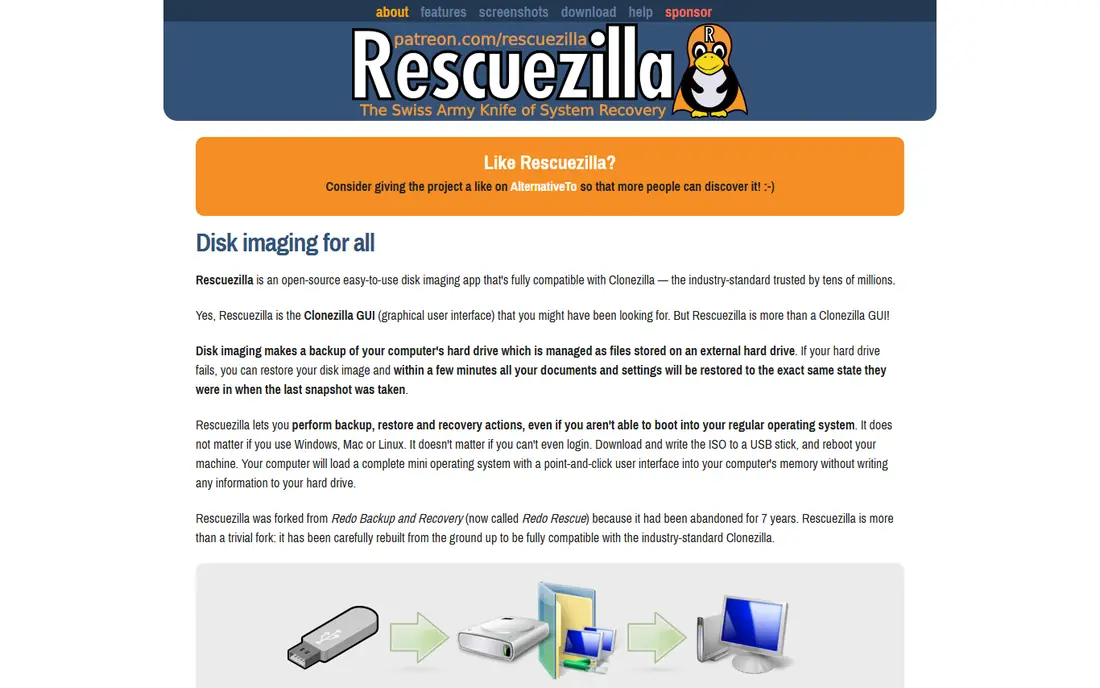
Rescuezilla gives you much of Clonezilla power with a graphical interface that feels far less intimidating. You boot from USB, pick the source and target drives with the mouse, and follow clear on-screen steps. For a home user doing a single SSD upgrade, that ease matters more than network deployment features.
Rescuezilla does not match Clonezilla on every advanced option, and it still requires creating bootable media. If you want a free tool you can use confidently on a first attempt, Rescuezilla is our pick for most people.
- Free and open source
- Point-and-click interface
- Bootable USB workflow
- Fewer advanced options than Clonezilla
- Still needs a bootable USB
AOMEI Backupper is the most practical free Windows option for many users. Its free edition handles disk clone and system clone, and it runs inside Windows rather than forcing you to boot from USB for every job. Partition resizing during cloning helps when moving to a different-sized SSD.
Paid editions add features such as universal restore and faster options, but the free edition covers a standard upgrade well. It is a good first try if you want to stay in Windows and avoid a text interface.
- Free Standard edition includes cloning
- Runs inside Windows
- System and disk clone options
- Some advanced features need the paid edition
- Backup process can feel slow on large drives
EaseUS Todo Backup pairs cloning with regular backup, which suits users who want one app for both jobs. The interface walks you through selecting a source disk, a target disk and clone options, and scheduled imaging means the same app can keep later backups current. That combination is handy after an upgrade, when a fresh backup routine matters.
The free tier does not include every advanced feature, and paid plans open the full set. For a one-time clone plus basic backups, the free edition is enough for most home users.
- Clear interface for beginners
- Backup plus cloning in one app
- Scheduled backups
- Free tier limits some features
- Cloning to smaller drives needs used space to fit
Hasleo Backup Suite is a strong free choice that often gets overlooked. It clones systems and disks from inside Windows, which removes the bootable USB step for a standard upgrade. It also handles backup and restore, so it can serve as an ongoing backup tool after the clone is done.
Hasleo lacks the large community and tutorial base of Clonezilla or AOMEI, so troubleshooting may take more searching. If you want a free Windows-native cloner without payment walls, it deserves a place on your shortlist.
- Free system and disk cloning
- Runs inside Windows
- No bootable USB needed for basic clones
- Smaller support community than bigger brands
- Interface is functional rather than polished
Samsung Data Migration exists for one job: moving your system to a new Samsung SSD. It is free, simple and tuned for Samsung drives, so an upgrade from an old hard drive to a Samsung SSD takes a few clicks. There is no need to learn partitioning or boot media.
The limit is absolute: the target must be a Samsung SSD. If you bought another brand, pick a different tool on this list instead. Samsung owners, though, should try this first because it is the least effort route.
- Free for Samsung SSD owners
- Very simple migration workflow
- Designed for Samsung drives
- Only works with Samsung target SSDs
- Windows only
DiskGenius is more than a cloner. Its free edition handles cloning alongside partition management, and it adds recovery tools that help when a drive has problems. That breadth suits users who also want to resize, format or inspect partitions without installing a second app.
The paid Pro edition adds the complete feature set, and the busy interface can overwhelm a first-time user. DiskGenius fits people who want one disk toolkit rather than a single-purpose cloner.
- Free edition clones and manages partitions
- Adds recovery tools
- Good for disk management
- Full cloning features need the paid Pro edition
- Interface packs in many options
Macrium Reflect was long the technician favorite for Windows cloning, and it remains a strong paid choice. Its imaging is reliable, rescue media is well made, and rapid delta cloning speeds up repeat jobs by copying only changed blocks. IT staff and power users still trust it for critical machines.
Note that Macrium discontinued its free edition, so it now requires payment after a trial. Include it only if you plan to clone regularly and value reliability enough to pay, or if the trial covers your one-time upgrade.
- Long reputation for reliable imaging
- Rapid delta cloning
- Strong rescue media
- No longer has a free edition
- Paid-only after the trial
Acronis Cyber Protect Home Office
Best for: Full backup suite with cloning
Acronis Cyber Protect Home Office, formerly Acronis True Image, bundles cloning with full backup, anti-malware tools and cloud backup options. It works on Windows and Mac, and it suits households that want one subscription covering backup, cloning and security. The cloning itself is straightforward and well supported.
It is overkill if you only need one free clone, and it runs on a subscription. Acronis fits users who already want a complete backup suite and will use cloning as part of that wider package.
- Cloning plus backup and security tools
- Windows and Mac support
- Cloud backup options
- Subscription pricing
- More app than a simple cloner needs
How we picked these
We compared official product pages, free tier descriptions and trial terms, plus public comparisons of cloning features and limits. We favored tools that are actively maintained in 2026, clearly state a free tier or trial, and handle boot data correctly for system drives. Paid-only tools appear only where a trial covers a one-time job or the tool is a well-known upgrade path.
What to check before you clone a drive
Confirm the target drive is large enough for the used data on the source, not just the same nominal size, especially when moving to a smaller SSD. Back up important files separately before you start, because cloning overwrites everything on the target drive. Check whether your tool needs bootable USB media or runs inside Windows, and have that media ready before you begin.
After cloning, boot from the new drive and test your main programs before wiping the old drive. Keep the old drive untouched for a few days as a fallback. If the new drive does not boot, check boot order in your system settings and confirm the clone included the system and recovery partitions.
Sources
- https://clonezilla.org
- https://rescuezilla.com
- https://www.aomeitech.com
- https://www.easeus.com
- https://www.hasleo.com
- https://www.samsung.com
- https://www.diskgenius.com
- https://www.macrium.com
- https://www.acronis.com
- https://rankite.com/blog/top-cloning-software
- https://rankite.com/blog/best-disk-clone-software
Frequently asked questions
What is the best free disk cloning software?
Clonezilla is the most capable free option, and Rescuezilla is the easiest free option for most home users. For Windows users who prefer to stay inside Windows, AOMEI Backupper and Hasleo Backup Suite are strong free choices.
Is cloning the same as backing up?
No. Cloning creates an immediate, bootable copy on another drive, usually for a hardware upgrade. Imaging creates a compressed backup file you store and restore later, and it supports scheduled and incremental backups. Many tools do both.
Can I clone to a smaller SSD?
Usually yes, as long as the used space on the source fits on the target and the tool can resize partitions. Clonezilla needs the destination partition to be equal to or larger than the source partition in some modes, so check its documentation for your setup.
Do I need to pay for Macrium Reflect?
Yes, after the trial. Macrium discontinued its free edition, so Reflect is now paid-only. Free alternatives on this list include Clonezilla, Rescuezilla, AOMEI Backupper and Hasleo Backup Suite.
What is the best cloning software for Mac?
Mac users have fewer free options on this list, since most picks are Windows or bootable tools. Clonezilla and Rescuezilla can handle Mac disks in some setups, while Acronis supports Mac directly. Check file system and chip compatibility before choosing.
Will cloning copy my operating system and programs?
Yes, a full disk clone copies the operating system, programs, settings and files, so the new drive should boot and work like the old one. Always test booting from the new drive before removing the old one.