Best Free Tool to Enlarge Photos in 2026: 9 Apps Compared
By ToolNimba Editorial Team November 10, 2026 11 min read

- Top pick
 Upscayl
Unlimited local enlarging
Starting priceFreeCheck out UpscaylRead our review - Runner-up
 Upscale.media
Quick browser enlarging
Starting priceFreeCheck out Upscale.mediaRead our review - Also great
 Bigjpg
Anime and illustrations
Starting priceFreeCheck out BigjpgRead our review
How we researched this
We compared official pricing and feature pages, app store listings, privacy policies and public user reviews. Prices change, so check the provider's site before you pay.
Key takeaways
- Upscayl is the best free tool to enlarge photos for most people, because it runs locally, has no watermark, and handles batches.
- Browser tools suit one or two images, but they usually cap file size, monthly images, or output resolution on free plans.
- Anime and line art need a model trained for that style, while old photos benefit more from face and detail restoration.
- Always inspect the result at full size, since an upscale can sharpen edges while inventing texture that was not in the original.
Quick comparison
| Name | Best for | Starting price | Free plan | |
|---|---|---|---|---|
| Upscayl | Unlimited local enlarging | Free | Yes | Visit |
| Upscale.media | Quick browser enlarging | Free | Yes | Visit |
| Bigjpg | Anime and illustrations | Free | Yes | Visit |
 Waifu2x | Lightweight anime upscaling | Free | Yes | Visit |
 Lets Enhance | E-commerce and product photos | See website | Free trial | Visit |
 Clipdrop | Upscaling plus editing | Free | Yes | Visit |
 Pixelcut | Product photos on mobile | Free | Yes | Visit |
 ImgUpscaler | Simple browser upscaling | Free | Yes | Visit |
 VanceAI | Old photo restoration | Free | Yes | Visit |
The best free tool to enlarge photos
We compared free limits, output quality claims, privacy, and ease of use, focusing on tools that give a usable enlarged file without forcing a paid plan first.

Upscayl is our pick for anyone who enlarges photos more than occasionally. It runs locally on Windows, macOS, and Linux, so your images stay on your machine, and the desktop app does not add a watermark. You can choose models for photos and digital art, process a batch of images, and scale up to 16x, which covers everything from a small web image to a print-ready file.
The main cost is time and hardware. A modern graphics card makes processing much faster, and older machines can be slow on large images. A paid cloud option exists for users who cannot run the desktop app, but the free desktop version remains the core offer. If privacy, batch work, or repeated use matters, start here and keep a browser tool as a backup.
- Free and open source
- Runs on your own computer
- Batch processing and up to 16x scaling on desktop
- Needs a desktop install and a decent graphics card for fast results
- Interface is less polished than web tools

Upscale.media is the easiest browser route when you have one photo and no time to install software. Upload an image, pick an upscale level, and download the result. The interface is plain, which is a benefit when you just want a larger file for a presentation, a listing, or a social post, without learning a full editor.
Free use has limits, and the exact allowance can change, so check the current free terms before a large job. Browser tools also upload your image to a server, so avoid sensitive documents or private photos here. For everyday enlarging, though, Upscale.media gives a fast result with little friction, and it is a good first test before you commit to a desktop tool.
- No install for basic use
- Simple upload and download flow
- Up to 8x scaling on supported plans
- Guest and free limits apply
- Large or frequent jobs may need a paid plan
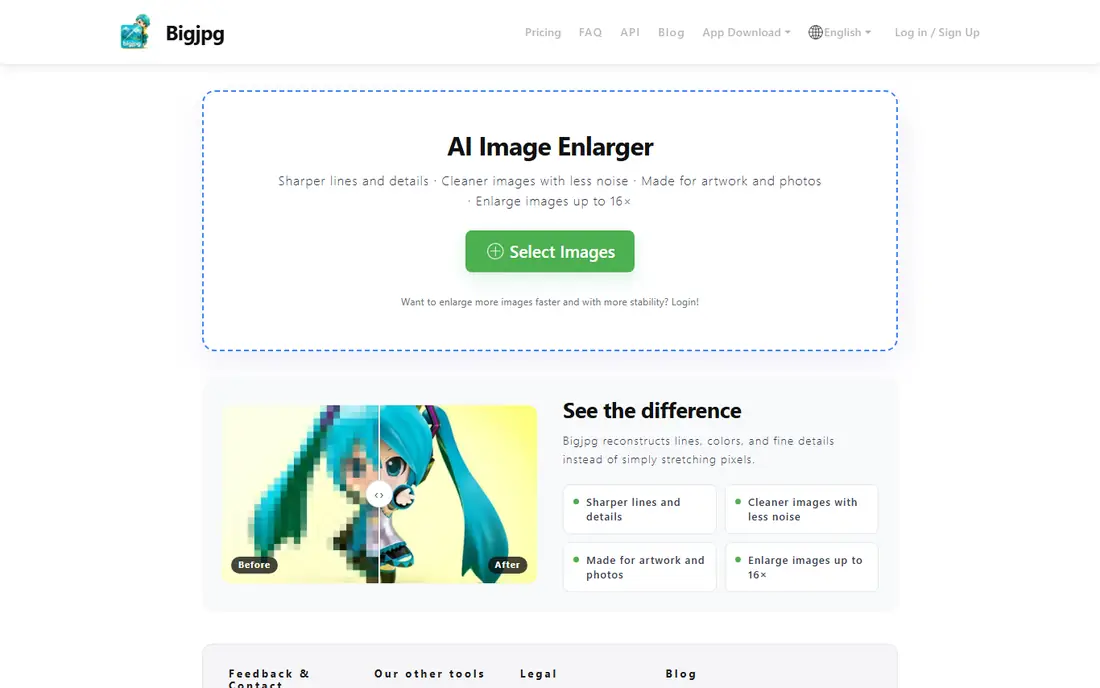
Bigjpg has long been a favorite for anime, manga-style art, and illustrations, because its models are tuned for clean lines and flat color rather than photographic texture. That focus matters. A general photo upscaler can blur or soften line art, while Bigjpg tends to keep edges crisp and readable at larger sizes.
The free plan is limited, with monthly image caps reported in recent comparisons, so it suits occasional artwork rather than bulk work. Photographs are supported, but results can look a little smooth if the source is already soft. For fan art, comics, game art, and scanned illustrations, Bigjpg remains a strong specialist choice, and it pairs well with Upscayl for photo jobs.
- Models tuned for anime and artwork
- Simple web and app options
- Preserves line edges well
- Free plan limits monthly images and file size
- Photos can look smoother than expected
Waifu2x is a classic open-source upscaler for anime and line art, and it still earns a place for its simplicity. The web version lets you upload an image, choose noise reduction and a 2x scale, and download the result without an account. It is fast, free, and honest about what it does, which makes it useful for small illustrations and icons.
The limits are clear. Two times is modest when you need a large print, and the basic interface offers little control compared with Upscayl or a paid editor. Self-hosted versions and desktop builds add options for technical users, but casual users should treat Waifu2x as a quick fix for small art. For larger anime enlargements, Bigjpg or Upscayl with an art model is usually a better next step.
- Completely free
- Very light web tool
- Good for line art and noise reduction
- Main web tool caps scale at 2x
- No batch workflow for casual users
- Interface is basic
Lets Enhance suits sellers and small businesses that enlarge product photos in batches. You can set output size, choose presets for print or web, and process multiple images with consistent settings, which matters when a store needs matching listings. The interface is built around workflow rather than one-off edits, and that saves time at volume.
Free access comes as trial credits rather than an unlimited free plan, so count your images before you start. Once credits run out, you need a paid plan, and pricing depends on the credit pack and features you choose. For a single photo, a free tool is cheaper. For a catalog refresh, Lets Enhance is worth testing with the trial credits first.
- Strong batch and workflow features
- Models for photos, products, and print
- Useful presets
- Free access is credit-based
- Ongoing use needs a paid plan
Clipdrop is useful when enlarging is only one step in a larger edit. You can upscale an image, remove a background, clean up a distraction, and prepare a product shot without switching apps. That matters for social media managers and sellers who handle many small edits in a day, since each tool switch adds export and quality loss.
The free tier is limited, and the strongest upscaling options sit behind paid access. Clipdrop also processes images online, so it is not the best choice for private photos. Use the free tier to test whether the combined workflow saves you time, and use Upscayl for large, private, or unlimited enlarging jobs.
- Upscaling sits beside cleanup, background removal, and relighting tools
- Useful all-in-one editor
- Free use is limited
- Advanced scaling may need a paid plan
Pixelcut is built for phone-first sellers and creators. You can shoot a product photo, clean the background, enlarge it, and export a listing-ready image from the same app. That mobile flow is faster than moving files to a desktop, especially for marketplaces and social shops where speed matters more than print-level detail.
Basic free access covers many everyday jobs, but advanced scaling and higher-resolution outputs need a paid plan. Results for small product images are usually clean, while very small or blurry originals still need realistic expectations. Pixelcut is best as a listing tool, not as a replacement for a desktop upscaler for large prints.
- Strong mobile apps
- Background and product tools
- Fast for listings and social posts
- Advanced scaling is paid
- Free tier limits some exports
ImgUpscaler keeps the task to its simplest form: upload, upscale, and download. There is little to learn, and that is the appeal for users who enlarge a photo once in a while for a document, a slide, or a family album. It works in a browser, so it suits shared computers and quick jobs.
The trade-off is control. You get fewer models, less batch support, and free-use limits compared with Upscayl, and very damaged photos may need a restoration-focused tool instead. Treat ImgUpscaler as a handy backup for a single image, and keep a desktop tool for larger or repeated work. Always check the downloaded file at full size before you print or publish it.
- Very simple web workflow
- No install
- Useful for quick enlargements
- Free limits apply
- Fewer models and controls than desktop tools
VanceAI suits old, scanned, and slightly damaged photos, where enlarging alone is not enough. Its enhancement tools aim to sharpen faces, reduce noise, and improve detail, which can make a faded family photo usable at a larger size. The online tool is easy to try, and a Windows version exists for users who prefer desktop work.
Free use is limited, so test with your most important photo first rather than a whole album. Restoration can also smooth skin or invent detail, so compare the result with the original and avoid over-processing. For a few treasured prints, VanceAI is a good specialist pick, while Upscayl remains better for unlimited, private enlarging.
- Dedicated photo restoration and enhancement tools
- Online and Windows options
- Useful for scanned prints
- Free access is limited
- Full-resolution and batch features need a paid plan
How we picked these
We compared official feature and pricing pages, app listings, and recent independent comparisons from October 2026, and we kept only tools with a working free tier or free trial. We favored tools that return a genuinely larger, usable file, not just a sharpened preview, and we noted where free use is capped by credits, monthly images, or resolution. We did not claim hands-on testing of every model, and we treated vendor claims about quality as claims to verify with your own test image.
How to get a better enlargement
Start with the best original you can find, since no upscaler can recover detail that was never in the file. A scan at a higher resolution, an original phone photo, or a less compressed copy will beat any model applied to a tiny, heavily compressed image. Avoid enlarging an image twice, and avoid saving the result as a low-quality JPEG, since each save can add artifacts.
Choose the right model for the image
Use a photo model for photographs, an art model for anime and illustrations, and a restoration tool for old or damaged prints. Test two tools on the same image and compare faces, text, fabric, and edges at full size, not just in a small preview. If text becomes garbled or skin looks waxy, try a lower scale or a different model rather than pushing to the maximum size.
Plan for prints and listings
For print, aim for the resolution your printer or service requests, and leave a small margin rather than scaling to the absolute maximum. For listings, match the marketplace image size and check the file on a phone, since that is how most buyers will see it. Keep the original file untouched, and save enlarged versions with clear names so you can re-export if a platform changes its size rules.
Sources
Frequently asked questions
What is the best tool to enlarge photos for free?
Upscayl is the best free tool to enlarge photos for most people, because the desktop app is free, open source, and has no watermark. Upscale.media is the best browser alternative for a quick job. The best tool to enlarge photos depends on whether you value privacy, batch work, or a no-install workflow.
Can free upscalers really improve a blurry photo?
They can sharpen edges and reduce some noise, but they cannot fully recover lost detail. A slightly soft photo often improves noticeably, while a very blurry or tiny image may look cleaner but still lack real detail. Test at full size, and be wary of results that invent texture, especially in faces and text.
Is it safe to upload personal photos to a free upscaler?
Browser tools upload your image to a server, so avoid sensitive documents, IDs, and private photos on web tools. Local tools such as Upscayl process images on your own computer, which is safer for private material. Check the privacy policy of any web tool before you upload family or client photos.
What scale should I choose for printing?
Choose the scale that reaches your target print size at a reasonable resolution, rather than the maximum scale on offer. A 2x or 4x upscale is often enough for a small to medium print from a decent original. Larger scales help for posters, but they also make flaws and invented detail more visible, so inspect the result closely.
Why do anime images need a different upscaler?
Anime and line art have sharp edges and flat color areas, which general photo models can blur or smooth too much. Tools such as Bigjpg and Waifu2x use models tuned for that style, so lines stay crisp. For mixed content, test a photo model and an art model on the same image and pick the cleaner result.
Do free upscalers add watermarks?
Some do, and some do not. Upscayl desktop, Waifu2x, and Bigjpg free downloads are generally watermark-free within their limits, while other web tools may limit resolution or image count instead. Always check the free terms and export a test image before you enlarge a full set.