Best Game Recording Software in 2026: 9 Tools Compared
By ToolNimba Editorial Team November 10, 2026 10 min read

- Top pick
 OBS Studio
Most PC gamers
Starting priceFreeCheck out OBS StudioRead our review - Runner-up
 NVIDIA App
NVIDIA GPU owners
Starting priceFreeCheck out NVIDIA AppRead our review - Also great
 Xbox Game Bar
Quick Windows clips
Starting priceFreeCheck out Xbox Game BarRead our review
How we researched this
We compared official pricing and feature pages, app store listings, privacy policies and public user reviews. Prices change, so check the provider's site before you pay.
Key takeaways
- OBS Studio is our pick for most PC gamers because it is free, works on Windows, Mac and Linux, and handles both recording and streaming.
- If you own a compatible NVIDIA graphics card, the NVIDIA app gives you instant replay with very low impact on performance.
- Xbox Game Bar is the fastest option for casual Windows clips because it is already built into Windows.
- Paid tools such as Bandicam and Action are worth a look when you want a simpler setup than OBS and do not mind paying for a license.
- Check your graphics card and your storage before you buy, since high frame rate and 4K recordings create very large files.
Quick comparison
| Name | Best for | Starting price | Free plan | |
|---|---|---|---|---|
| OBS Studio | Most PC gamers | Free | Yes | Visit |
| NVIDIA App | NVIDIA GPU owners | Free | Yes | Visit |
| Xbox Game Bar | Quick Windows clips | Free | Yes | Visit |
 Medal | Sharing clips with friends | Free | Yes | Visit |
 Bandicam | Lightweight Windows recording | See website | Free trial | Visit |
 Streamlabs Desktop | Streamers who want built-in widgets | Free | Yes | Visit |
 XSplit Broadcaster | Streamers who want a simpler setup | See website | Free trial | Visit |
 Action | Simple high quality game capture | See website | Free trial | Visit |
 Camtasia | Recording plus full video editing | See website | Free trial | Visit |
The best game recording software
Recording gameplay sounds simple until you try it on a mid-range PC, where the wrong settings can cost you frames and fill a hard drive in an evening. We compared official feature pages, pricing pages and public documentation for the tools below, and we focused on what each one actually does well, what it costs, and where it falls short.
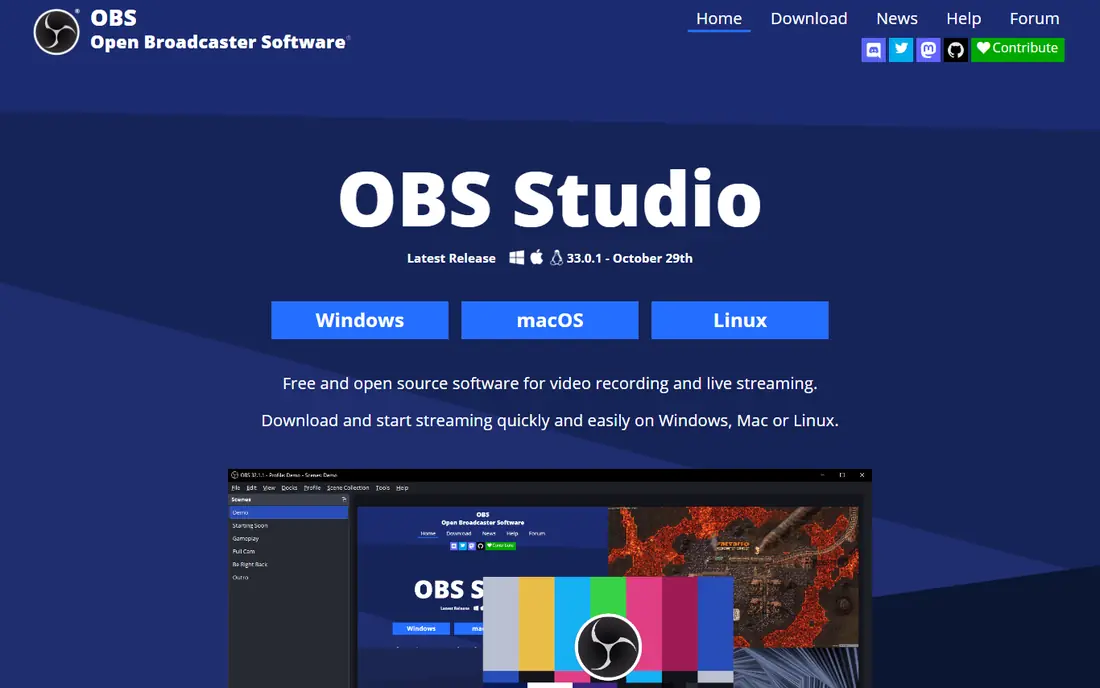
OBS Studio is the tool we would start with if you want full control and do not want to pay anything. It records in high quality, supports hardware encoding from NVIDIA, AMD and Intel graphics cards, and lets you build scenes with a game, a webcam and overlays. That flexibility is why so many streamers use it as their daily driver, and the price makes it easy to recommend.
The honest catch is the learning curve. You will need to choose an encoder, a bitrate and an output format, and the defaults are not always ideal for your machine. Spend an evening with a few short test recordings before you record a long session, and keep an eye on file sizes if you record at high bitrates.
- Free and open source
- Works on Windows, Mac and Linux
- Strong recording and streaming controls
- Setup takes more time than simpler tools
- No built-in video editor
The NVIDIA app, which includes the recording features formerly known as ShadowPlay, is the easiest way to capture clips if you already own a supported NVIDIA card. You press a hotkey and save a clip, or you leave instant replay running in the background so a great moment is never lost. Because it uses the graphics card hardware encoder, the hit to your frame rate is usually small.
It is not a full streaming studio, and it will not help you if you run an AMD or Intel card. For pure clip capture on NVIDIA hardware, though, few tools are this quick. Pair it with a proper editor if you plan to cut longer videos.
- Very low performance impact
- Instant replay saves the last minutes of play
- Simple overlay controls
- Requires a compatible NVIDIA graphics card
- Windows only
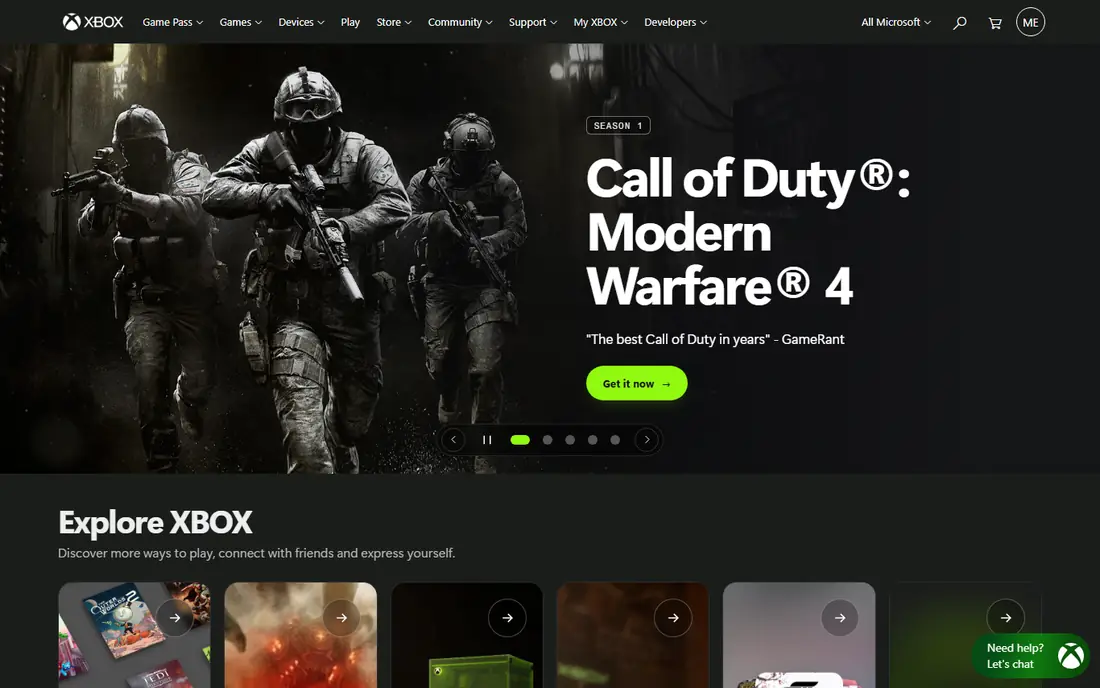
Xbox Game Bar is already on your Windows PC, which makes it the lowest friction option on this list. Press the Windows key plus G, start recording, and you have a clip to share. It also handles background recording, so you can save the last stretch of gameplay after something good happens.
Serious creators will outgrow it. You get fewer choices for encoders, bitrates and audio tracks than OBS or Bandicam offer, and it is not designed for full streaming productions. For casual clips and short highlights, it is hard to beat for convenience.
- Built into Windows
- Very fast to open
- No download needed
- Fewer recording controls than dedicated tools
- Windows only
Medal is built around one habit: clip it, then share it. It watches your session, lets you grab moments with a hotkey, and gives you a link you can send to friends or post online. That social loop is the reason many younger players pick it over a general recorder, and the free tier covers basic clipping well.
If you want long, high bitrate recordings for a polished YouTube video, Medal is not the best home for that work. Treat it as your highlight machine, and keep OBS or another recorder handy for full sessions and edited projects.
- Fast clipping and sharing
- Automatic highlight detection on supported games
- Simple library
- Paid plans needed for longer cloud storage and higher quality uploads
- Best on Windows
Bandicam has been around for years, and its reputation rests on steady performance. It can capture games at high frame rates, uses hardware encoding where available, and runs well on machines that struggle with heavier tools. It also records from capture devices, which helps console players who route a console through a PC.
The interface feels dated next to newer tools, and the free version is limited, so you should expect to pay for the full version. There is no timeline editor either, so plan to edit elsewhere. If your priority is stable capture on a modest Windows PC, Bandicam remains a sensible paid choice.
- Low system load on many PCs
- Supports high frame rate capture
- Can record from external devices
- Windows focused
- Free version adds a watermark and limits recording length
- No full editor
Streamlabs Desktop takes OBS and adds a friendlier front end, with themes, alerts, chat boxes and widgets ready to drop into a stream. New streamers often find that shortcut valuable, since it cuts out the plugin hunting that plain OBS requires. The base app is free, and the core recording and streaming features work without paying.
The trade-off is that some of the nicest themes and apps sit behind the paid Ultra plan, and the app can use more system resources than a lean OBS setup. If you like the built-in extras and you stream regularly, that may be worth it. If you only record clips, plain OBS is lighter.
- Built on OBS with themes and widgets included
- Helpful for new streamers
- Good alert and chat tools
- Paid Ultra plan needed for many premium themes and apps
- Can feel heavier than plain OBS
XSplit Broadcaster aims at the middle ground between Game Bar simplicity and OBS depth. Scenes, sources and streaming settings are laid out in a way that new streamers usually grasp quickly, and it connects to the major streaming platforms without much fuss. It has been a streaming staple for a long time, and that maturity shows in its stability.
The free tier is limited, so most serious users will need a paid plan to remove restrictions and record at full quality. Windows-only support is another limit for Mac users. If you stream on Windows and want a guided setup, XSplit is worth a trial.
- Clean interface
- Straightforward scene building
- Good streaming platform support
- Paid plans needed for full quality and features
- Windows only
Action, from Mirillis, keeps the focus narrow: record your game well, with a webcam overlay and live streaming if you want it. The interface is cleaner than OBS, and many users find they can get a good recording on the first try rather than the fifth. It also includes a benchmark mode, which is a nice extra for players who like to watch their frame rates.
You will not find the plugin library or cross-platform reach of OBS here, and editing is basic. For a player who wants a paid, no-fuss recorder for Windows and does not plan to build a complex streaming production, Action fits well.
- Easy to use
- Smooth HD recording
- Live streaming built in
- Windows focused
- Smaller community than OBS
- Limited editing tools
Camtasia is a different kind of pick. It records your screen and game, then gives you a proper timeline editor with annotations, transitions and effects, all in the same app. That makes it a strong choice for tutorial makers and guide creators who want to record gameplay, add callouts and export a finished video without switching tools.
It costs more than the game-only tools here, and it is not a streaming tool, so live streamers should look elsewhere. Performance on older machines can also be a concern with larger projects. If your end product is an edited guide rather than a raw clip, Camtasia can save you a separate editor purchase.
- Recorder and editor in one package
- Good for tutorials and guides
- Annotations and effects included
- Pricier than game-only recorders
- Heavier on modest PCs
- Not built for live streaming
How we picked these
We compared official feature pages, pricing pages and app store listings for recorders that are still available and maintained, and we favored tools with hardware encoding, clear pricing and a track record with gamers. We left out recorders that are no longer updated or that only capture a desktop at low frame rates, since those frustrate players quickly. Prices change, so check the vendor page before you buy, and run a short test recording on your own machine before a long session.
What to check before you pick a recorder
Start with your graphics card. NVIDIA owners get a free, low impact option in the NVIDIA app, while AMD owners can use their own software or OBS with hardware encoding. Next, decide whether you stream, record clips or edit guides, since each job points to a different tool. Streamers need scenes and alerts, clip hunters need instant replay, and guide makers need an editor.
Storage and settings matter as much as the app. Record a two minute test at your planned resolution and frame rate, then check the file size and the frame rate in game. If frames drop, lower the bitrate or switch to a hardware encoder before you blame the recorder. Keep your recordings on a drive with plenty of free space, and use a separate audio track for your microphone when the tool supports it, since that makes editing far easier later.
Sources
- https://obsproject.com
- https://www.nvidia.com
- https://www.xbox.com
- https://medal.tv
- https://www.bandicam.com
- https://streamlabs.com
- https://www.xsplit.com
- https://mirillis.com
- https://www.techsmith.com
- https://www.screensnap.pro/blog/bandicam-review-alternatives
- https://buildlist.io/reviews/best-simple-software-to-record-game
Frequently asked questions
What is the best recording software for gaming on PC?
For most players, OBS Studio is the best starting point because it is free, works across platforms and handles recording and streaming. NVIDIA owners who only want clips may prefer the NVIDIA app, and casual Windows players may be happy with Xbox Game Bar alone.
What is the best software to record gameplay without losing frames?
Use a hardware encoder if your graphics card supports one, and keep your recording resolution at or below your gameplay resolution. OBS Studio, the NVIDIA app and Bandicam all support hardware encoding, which usually costs far fewer frames than software encoding.
Is there a best app to record gameplay on PC for free?
Yes. OBS Studio is free and fully featured, Xbox Game Bar is free on Windows, and the NVIDIA app is free for supported NVIDIA cards. Medal also offers a free tier for clipping and sharing, though paid plans add storage and quality options.
What is the best game capture software for streaming?
Streamlabs Desktop and XSplit Broadcaster are good choices for streamers who want themes, alerts and widgets without building everything from scratch. OBS Studio remains the most flexible free option, and it is the base that Streamlabs Desktop builds on.
Does recording software work for console gameplay on a PC?
Yes, if you use a capture card or capture device and a recorder that accepts external input, such as OBS Studio or Bandicam. You connect the console to the capture device, add it as a source, and record on the PC as usual.