Best Hardware Monitoring Software in 2026: 9 Tools Compared
By ToolNimba Editorial Team November 11, 2026 11 min read

- Top pick
 HWiNFO
Deep sensor detail
Starting priceFreeCheck out HWiNFORead our review - Runner-up
 HWMonitor
Simple temperature checks
Starting priceFreeCheck out HWMonitorRead our review - Also great
 Open Hardware Monitor
Open source monitoring
Starting priceFreeCheck out Open Hardware MonitorRead our review
How we researched this
We compared official pricing and feature pages, app store listings, privacy policies and public user reviews. Prices change, so check the provider's site before you pay.
Key takeaways
- HWiNFO is our pick for most people because it covers the widest range of sensors for free on personal machines.
- Gamers who want an on-screen overlay during play should start with MSI Afterburner, which pairs monitoring with graphics card controls.
- AIDA64 is the paid option worth considering when you also need benchmarks, stress tests, and a detailed system report.
- Lightweight tools like Core Temp and HWMonitor suit older PCs or anyone who only wants temperature readings at a glance.
Quick comparison
| Name | Best for | Starting price | Free plan | |
|---|---|---|---|---|
| HWiNFO | Deep sensor detail | Free | Yes | Visit |
| HWMonitor | Simple temperature checks | Free | Yes | Visit |
| Open Hardware Monitor | Open source monitoring | Free | Yes | Visit |
 Core Temp | CPU temperature only | Free | Yes | Visit |
 MSI Afterburner | Gaming overlays and GPU control | Free | Yes | Visit |
 NZXT CAM | Clean dashboards and fan control | Free | Yes | Visit |
 AIDA64 | Diagnostics and benchmarking | See website | Free trial | Visit |
 Speccy | Quick system snapshots | Free | Yes | Visit |
 GPU-Z | Graphics card details | Free | Yes | Visit |
The best hardware monitoring software
Good monitoring software tells you what your PC is doing before a problem turns into a shutdown or a throttled game. We compared official feature pages, pricing pages, and app listings to find tools that are still maintained and genuinely useful in 2026.
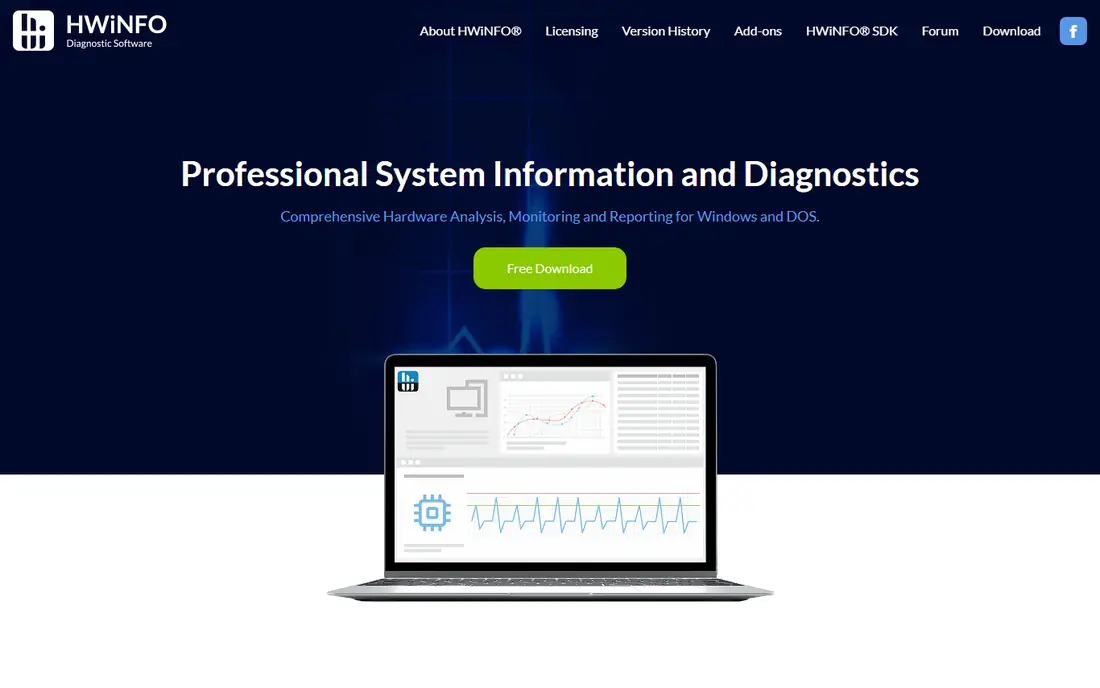
HWiNFO is the tool we reach for first when something looks wrong with a PC. It reports temperatures, voltages, fan speeds, clock speeds, and power draw across the CPU, GPU, motherboard, drives, and memory, often in more detail than simpler tools show. That depth matters when you are chasing a random crash, because a single hot sensor or a drooping voltage rail can explain a fault that a basic temperature reading would miss.
The trade-off is density. The sensor window lists a lot of rows, and new users may not know which ones matter. Start with CPU package temperature, GPU temperature, and fan speeds, then expand from there. Logging is a quiet strength here: you can record a session, play a game or run a heavy task, and look back at the peaks afterward instead of staring at numbers in real time. For personal, non-commercial use the main build is free, which makes it hard to beat on value.
- Very wide sensor coverage
- Logging and custom alerts
- Portable version available
- Interface can overwhelm beginners
- Commercial use needs a paid Pro license
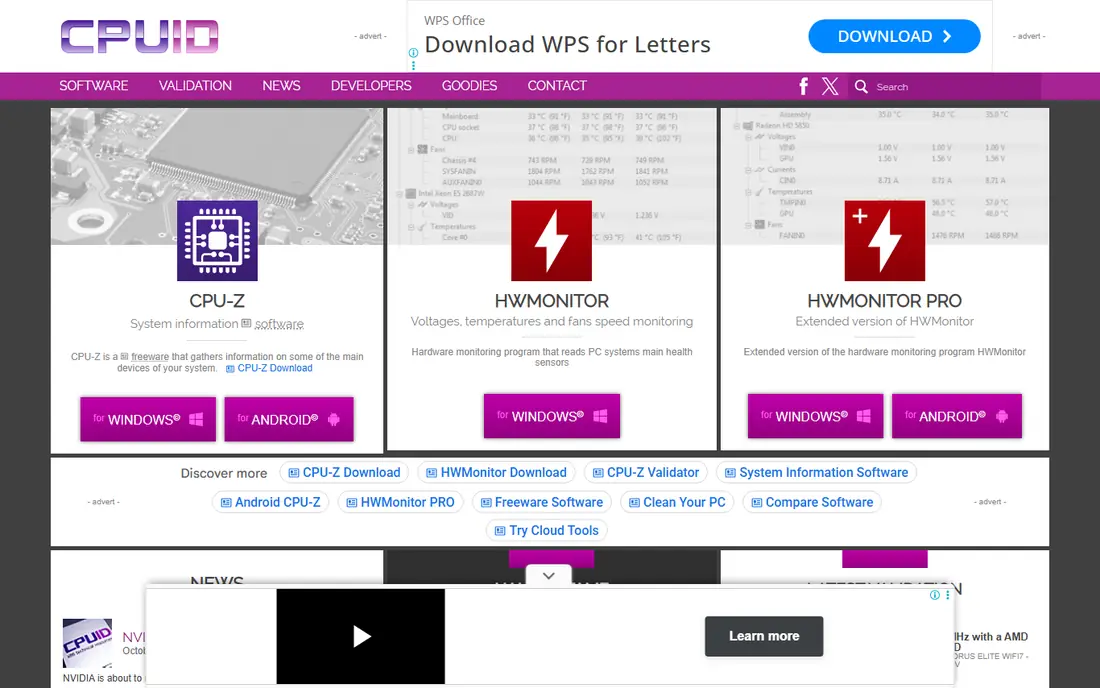
HWMonitor comes from CPUID, the same maker as CPU-Z, and it keeps the same plain approach. Open it and you get a tidy tree of temperatures, voltages, and fan speeds with current, minimum, and maximum values. There is little to learn and little to configure, which is exactly what many people want when they just need to answer one question: is my PC running hot.
Its limits show up once you want more. You cannot reshape the display much, and there is no gaming overlay, so it works best as a second window on a spare monitor or a quick check between tasks. For a first monitoring tool, though, that restraint is a feature. It installs fast, uses few resources, and gives honest numbers without a wall of settings.
- Very easy to read
- Light on system resources
- Covers CPU, GPU, and drives
- Fewer customization options
- No built-in overlay for gaming

Open Hardware Monitor has been around for years, and its appeal has stayed the same: it is free, open source, and does the core job without fuss. It watches CPU and GPU temperatures, fan speeds, voltages, and clock speeds, and it can show selected readings as gadgets or in the system tray. If you like software you can inspect and run without an account, this is the natural pick.
The catch is pace. Development moves slower than on HWiNFO or NZXT CAM, so very new hardware may not report every sensor right away. On older or well-established machines that matters little, and the tool still covers the readings most people check. Try it first on a spare PC or an older build, and move to HWiNFO if a sensor you need is missing.
- Free and open source
- Shows temperatures, fans, and clock speeds
- Can display readings in the taskbar
- Updates are less frequent than commercial rivals
- Sensor support varies by hardware
Core Temp does one job and does it well: it watches your processor. Each core gets its own temperature reading, plus load and clock speed, and the program can live in the system tray showing the hottest core at a glance. On a small laptop or an older desktop, that tiny footprint is a real advantage over heavier suites.
It is not a full system monitor, and it does not pretend to be. If you also need GPU temperatures or fan control, pair it with GPU-Z or MSI Afterburner. Watch the installer carefully, as it has historically offered optional bundled software, and decline anything you do not want. Used on its own terms, Core Temp is the simplest way to keep an eye on the part of the PC most likely to overheat.
- Extremely light
- Per-core temperature readings
- Sits quietly in the system tray
- CPU only, so GPU and drive temps need another tool
- Installer may offer bundled extras to decline
MSI Afterburner is famous for overclocking, but many people use it only for monitoring, and that is a sensible choice. Its on-screen display shows GPU temperature, usage, clock speed, and frame rate while you play, so you can spot thermal throttling without leaving the game. It works with graphics cards from other makers too, not just MSI cards, which is why it appears on so many gaming PCs.
The controls deserve respect. Fan curves are safe enough and genuinely useful for a loud or hot card, but raising clock speeds and voltages can cause crashes or, in extreme cases, hardware stress. Our advice is to use Afterburner for monitoring first, adjust the fan curve second, and treat overclocking as an optional extra after reading a guide for your exact card. Used that way, it is the best free gaming monitor we found.
- In-game overlay with temps and frame rates
- Fan curves and overclocking controls
- Works with most graphics cards
- Settings can confuse beginners
- Overclocking carries risk if pushed too far
NZXT CAM is the prettiest tool on this list, and that is not a small thing when you check temperatures every day. The dashboard groups CPU and GPU load, temperatures, fan speeds, and network use into clear panels, and the in-game overlay keeps the same clean look. If you own NZXT cooling or lighting hardware, CAM also controls fans and lighting from the same window.
The downside is that some features ask you to sign in, and the deepest hardware controls are aimed at NZXT products. On a PC built from mixed brands, CAM still monitors well, but you may end up using your motherboard software for fan control anyway. Pick CAM if you value a calm, readable display and you already use, or plan to use, NZXT parts.
- Polished, easy-to-read dashboard
- Fan and lighting controls for NZXT gear
- Overlay option for games
- Best with NZXT hardware
- Account sign-in required for some features
AIDA64 is the professional end of this list. Beyond temperatures and voltages, it builds a full report of your hardware and software, runs benchmarks to compare parts, and stress-tests the CPU, memory, and GPU to check stability. Repair shops and reviewers use it because one program can answer both "how hot is it" and "is this system stable under load."
That power costs money, and casual users may not need it. A free trial lets you test it before buying, and the Extreme edition is the home version to look at first. If your need is a quick temperature check, HWMonitor or Core Temp will do. If you build, repair, or review PCs, AIDA64 earns its price by replacing several separate tools.
- Benchmarks and stress tests included
- Very detailed hardware and software reports
- Sensor panel options
- Paid, unlike most rivals here
- Full feature set can feel heavy for casual checks
Speccy, from the makers of CCleaner, answers a different question from the rest of this list: what is inside this PC, and how hot is it right now. The summary page lists the CPU, RAM, motherboard, graphics, storage, and optical drives with key specs and current temperatures. That makes it ideal when you are helping someone remotely or listing a PC for sale and need a quick, readable snapshot.
Live monitoring is basic compared with HWiNFO, and there is no gaming overlay to speak of. Think of Speccy as a snapshot tool first and a temperature checker second. It is free, quick to run, and easy for non-technical users to understand, which is why it still earns a place here despite its narrower focus.
- Clear summary of every major part
- Easy to share when asking for help
- Light and fast
- Temperature detail is basic
- Not built for live gaming overlays
GPU-Z is the graphics card equivalent of CPU-Z: a small, free utility that tells you nearly everything about your GPU. The main tab lists the chip, memory type and size, bus interface, and driver version, while the sensors tab tracks temperature, clock speeds, fan speed, and power draw in real time. It also includes a render test that can push the card to full load for a quick check.
Its scope is narrow by design, so pair it with Core Temp or HWMonitor for a full picture. For anyone troubleshooting a graphics card, checking a second-hand purchase, or confirming that a new card is what the box claimed, GPU-Z is the fastest way to get a straight answer. It costs nothing and takes seconds to run.
- Deep graphics card specs
- Live sensor tab for temps and clocks
- Tiny download
- Graphics cards only
- No CPU or system-wide monitoring
How we picked these
We compared official feature pages, pricing pages, and app listings for tools that monitor PC hardware, and we kept only tools that are available and maintained for Windows PCs in 2026. We favored tools with clear, current pricing, a real free option where one is claimed, and sensor coverage that matches the job, from a single CPU temperature to a full system report. We left out network-only monitors and server tools, since this list is for people checking their own PC.
What to check before you pick
Start with the question you need answered. If a game stutters or a PC shuts down, you need live temperatures and clock speeds, which points to HWiNFO or MSI Afterburner. If you only want to know whether a laptop runs hot, Core Temp or HWMonitor is enough, and adding a heavier suite will not help.
Match the tool to the hardware
Check that your CPU and GPU generations are supported, especially with open source tools that update slowly. A tool that cannot see a sensor cannot warn you about it, so run your pick for a day and confirm the key readings appear before you rely on it.
Use logs and alerts, not just live numbers
A single temperature reading tells you little. Use logging or minimum and maximum values to see peaks during games or heavy work, and set an alert if your tool supports one. That habit catches slow problems, like a clogged fan or drying thermal paste, before they cause damage.
Keep overclocking separate from monitoring
Monitoring is safe and reversible. Changing clock speeds and voltages is not, so learn your baseline temperatures first, change one setting at a time, and stop if crashes appear. Most readers will never need to overclock, and a good fan curve often fixes a hot PC on its own.
Sources
Frequently asked questions
What is the best hardware monitoring software for most PC users?
HWiNFO is our pick for most people because it is free for personal use and covers more sensors than simpler tools. If its interface feels like too much, HWMonitor gives you the key temperatures with far less clutter.
What is the best CPU monitoring software for temperature only?
Core Temp is the simplest choice for CPU temperature, with per-core readings in a tiny system tray app. Pair it with GPU-Z if you also want graphics card temperatures, since Core Temp does not cover the GPU.
What is the best PC temp monitoring software for gaming?
MSI Afterburner is the best gaming pick because its overlay shows GPU temperature, usage, and frame rate while you play. HWiNFO is a strong second choice if you want deeper sensor detail alongside the game.
Is HWMonitor free?
Yes, HWMonitor is free to download and use for basic monitoring from CPUID. A paid Pro version exists for extra features, but the free version covers the temperature, voltage, and fan readings most people need.
Do I need paid monitoring software?
Most people do not. Free tools cover temperatures, fans, and clock speeds well. Paid software like AIDA64 makes sense when you also need benchmarks, stress tests, and detailed reports, such as for repair work or hardware reviews.