Best Linux Apps in 2026: 9 Apps Compared
By ToolNimba Editorial Team November 9, 2026 9 min read

- Top pick
 LibreOffice
Office documents and spreadsheets
Starting priceFreeCheck out LibreOfficeRead our review - Runner-up
 Firefox
Private web browsing
Starting priceFreeCheck out FirefoxRead our review - Also great
 VLC
Playing almost any media file
Starting priceFreeCheck out VLCRead our review
How we researched this
We compared official pricing and feature pages, app store listings, privacy policies and public user reviews. Prices change, so check the provider's site before you pay.
Key takeaways
- LibreOffice, Firefox, Thunderbird, and VLC cover the core desktop needs for most users, and all are free and open source.
- GIMP and Kdenlive cover image and video editing, while Joplin covers notes, though each has a learning curve.
- Visual Studio Code is the best coding editor for most users, with extensions, Git, and terminal support in one app.
- Set up a backup before a major update: a snapshot or external copy saves hours if an upgrade goes wrong.
Quick comparison
| Name | Best for | Starting price | Free plan | |
|---|---|---|---|---|
| LibreOffice | Office documents and spreadsheets | Free | Yes | Visit |
| Firefox | Private web browsing | Free | Yes | Visit |
| VLC | Playing almost any media file | Free | Yes | Visit |
 GIMP | Image editing and graphics | Free | Yes | Visit |
 Thunderbird | Desktop email and calendar | Free | Yes | Visit |
 Visual Studio Code | Coding and development | Free | Yes | Visit |
 Joplin | Markdown notes | Free | Yes | Visit |
 Kdenlive | Video editing | Free | Yes | Visit |
 KeePassXC | Local password management | Free | Yes | Visit |
The best Linux apps
We compared official project pages and distro guides for desktop apps that are widely used on Linux in October 2026. The list covers office work, browsing, email, notes, media, coding, and system safety, so a new Linux user can set up a complete desktop without paying for software.
For households that want one subscription to cover the main devices, this is a sensible starting point. LibreOffice is the standard free office suite for Linux, with Writer, Calc, Impress, and Draw for everyday work.
It opens and saves Word, Excel, and PowerPoint files, and it runs on all major Linux desktops without a subscription. For school, home, and small business documents, it covers the tools most users need. Complex Office formatting, macros, and fonts can shift when files move between suites, so check shared documents before sending them. For most work, that trade-off is worth the free price.
- Full office suite
- Good Microsoft file compatibility
- No subscription
- Complex formatting can shift
- Interface differs from Office

If you want strong protection without a lot of setup, this option earns a close look. Firefox is the best default browser for Linux users who care about privacy, with tracker blocking and extension support built in.
It is the default browser on Ubuntu and many other distros, and it syncs bookmarks, passwords, and tabs across devices with a Mozilla account. Developer tools and container tabs add value for advanced users. With many tabs open, memory use can rise, and a few sites are optimised for Chrome first. For everyday browsing, privacy, and extension choice, it is a strong default.
- Privacy-focused
- Extension support
- Sync across devices
- Uses more memory with many tabs
- Some sites favour Chrome
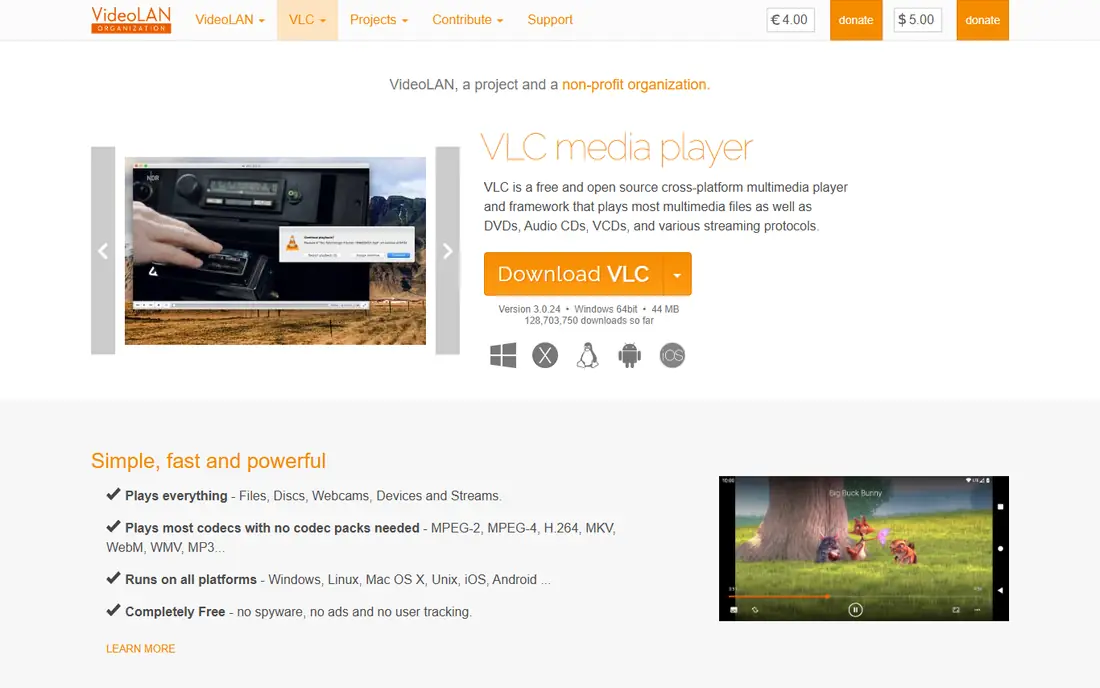
Shoppers who care most about value for a large household will find a lot to like here. VLC is the media player to install first on Linux, because it plays almost any video or audio file without extra codecs.
It handles local files, network streams, DVDs, and subtitles, with controls for subtitle timing and audio dynamics. The app is lightweight, free, and available in every major distro store. The interface is plain, and it is not a full media library manager like some music apps. For playback alone, it is the most reliable choice.
- Plays almost any format
- No codec hunting
- Subtitle controls
- Interface is plain
- Not a media library manager
This one suits people who already know what they want and do not want extra tools in the way. GIMP is the free image editor for Linux, with layers, masks, filters, and retouching tools for photos and web graphics.
It suits screenshots, social graphics, photo edits, and web assets, and plugins such as GIMP extend its filters and tools. The app is free, open source, and actively maintained. The interface takes time to learn, especially for Photoshop users, and some Photoshop features do not transfer perfectly. For most photo work, patience with the interface pays off.
- Powerful photo editing
- Plugin support
- Free Photoshop alternative
- Learning curve
- Interface differs from Photoshop
A good choice when ease of use matters more than a long list of extras. Thunderbird is the best desktop email client for Linux, with support for Gmail, Outlook, Yahoo, and other providers.
It manages multiple accounts, folders, and offline mail, with spam filtering, encryption, and calendar sync. Extensions add features for users who want more than basic mail. The interface looks traditional, and Exchange setup can vary by provider. For users who want a local, ad-free email client, it is a reliable choice.
- Multiple accounts
- Offline mail
- Calendar and contacts
- Interface is traditional
- Setup for Exchange varies
Consider this if you want a well-known name with support that is easy to reach. Visual Studio Code is the best code editor for most Linux developers, with a large extension library and built-in Git support.
It handles Python, JavaScript, web, and many other languages, with a terminal, debugger, and remote development tools in one app. Extensions add AI coding help, linters, and language support. Some users prefer VSCodium, a build without Microsoft telemetry, for privacy reasons. For simple text edits, a lighter editor such as Kate or Nano may be faster.
- Extensions for many languages
- Git and terminal built in
- Remote workflows
- Microsoft telemetry concerns
- Can feel heavy for simple edits
This pick stands out for a specific strength that the broader suites do not match as well. Joplin is a good open-source notes app for Linux, with Markdown support, notebooks, tags, and search.
You can sync notes via Nextcloud, Dropbox, or other services, and the app supports web clipping, attachments, and encryption. That control appeals to users who want notes without a subscription or vendor lock-in. The interface is plain, and cloud sync needs setup, unlike a hosted notes service. For Markdown users who value control, it is a strong free choice.
- Markdown notes
- Notebooks and tags
- Sync options
- Interface is plain
- Sync setup needed for cloud
For buyers on a tighter budget, this is worth checking before paying for a full suite. Kdenlive is the best free video editor for Linux, with multi-track timelines, effects, and transitions for YouTube and home videos.
It supports many formats, proxy editing for smoother previews, and a wide range of effects. For creators on a budget, it covers most editing needs without a subscription. Video editing has a learning curve, and 4K projects need a capable computer and storage. Start with short projects, use proxies, and learn the timeline basics first.
- Multi-track editing
- Effects and transitions
- Free and open source
- Learning curve
- Needs a capable computer for 4K
When privacy or a lighter footprint is the priority, this option deserves attention. KeePassXC is the best local password manager for Linux, with an encrypted vault stored on your own computer.
It generates strong passwords, autofills in browsers via an extension, and supports hardware keys on supported setups. Because the vault is local, there is no cloud account to breach, which suits privacy-minded users. Cloud sync is not built in, so you need to sync the vault file yourself for mobile use, via a service you trust. For desktop-first password management, that control is a strength.
- Local encrypted vault
- Browser integration
- No cloud account needed
- No built-in cloud sync
- Setup for mobile sync
How we picked these
We reviewed official project pages for Linux desktop apps that are actively maintained and available in common distro repositories or as official downloads. We focused on apps that work across Ubuntu, Fedora, and similar desktops, not on distro-specific tools.
We compared features, file compatibility, ease of use, and community support, and we noted where an app needs extra setup. We did not claim hands-on testing, and we treated all apps here as free, because they are open source or free to download.
How to set up a Linux desktop
Start with the apps you need every day, not every app on this list. Install an office suite, a browser, an email client, and a media player first, then add creative or coding tools as projects require them. Most of these apps are in your distro software store, so install from there before downloading from a website. ### File compatibility. LibreOffice opens Word, Excel, and PowerPoint files, but complex formatting can shift, so check shared documents before sending them. GIMP opens Photoshop files with limits, and VLC plays almost any media file without extra codecs. ### Learning curves. GIMP, Kdenlive, and VS Code are powerful, but they take time to learn. Start with a small project, use official docs and tutorials, and add plugins or extensions only when you need them. ### Backups and updates. Update through your distro package manager, and set up a backup or snapshot tool before a major upgrade. A simple file backup to an external drive, plus a system snapshot, covers most accidents.
Sources
Frequently asked questions
What are the best Linux apps for beginners?
LibreOffice, Firefox, Thunderbird, and VLC are the best starting apps, because they cover documents, browsing, email, and media with familiar interfaces. Joplin is a good next step for notes. These apps are free, well documented, and available in most distro software stores.
Is LibreOffice a good replacement for Microsoft Office?
Yes, for most documents, spreadsheets, and presentations, LibreOffice is a strong free replacement, with good compatibility for Word, Excel, and PowerPoint files. Complex formatting, macros, and some fonts can differ, so check shared files before sending them. For basic office work, it is more than enough.
Can I use Photoshop files on Linux?
GIMP can open many Photoshop files, but some layers, effects, and smart objects may not transfer perfectly. Krita is another option for digital painting. For simple photo editing and web graphics, GIMP is a capable free tool, though its interface differs from Photoshop.
What is the best code editor for Linux?
Visual Studio Code is the best code editor for most Linux users, with extensions, Git integration, and a built-in terminal. VSCodium is a free, open-source build without Microsoft telemetry, for users who prefer it. For terminal editing, Neovim and Nano are lighter options.
Do I need antivirus on Linux?
Linux desktops face fewer malware threats than Windows, but safe habits still matter: install only from trusted repositories, keep the system updated, and avoid running unknown scripts. A firewall and regular backups are more useful for most desktop users than a traditional antivirus suite.